
Control end-user access to agents via IdP
This guide explains how to let users from your Identity Provider (like Microsoft Entra ID or Okta) access specific agents without creating CustomGPT.ai user accounts.
Prerequisites
- The feature must be enabled on your plan. Contact sales if needed.
- SSO must already be configured. See SSO setup.
- The attribute must be set up on your IdP and will be used to map roles.
How it works
When you enable this feature:
- You share a special portal login URL with external users
- Users authenticate with your IdP (they don't need a CustomGPT account)
- Your IdP sends an attribute (like department or group name)
- CustomGPT matches that attribute to a user role you've created
- The user gets a 24-hour session to chat with agents assigned to that role
Important
- Users are not created in CustomGPT.ai. They remain anonymous and can only chat.
- This feature currently works only with Share Link deployment.
Step 1: Create a user role
Before configuring the IdP connection, create the role that will be assigned to guest users.
- Go to Teams → Roles.
- Click Create Custom Role.
- Configure the role:
- In the Agents section, select which agents this role can access.
- Click Submit.
Critical
The role name must be an exact match to the attribute value from your IdP. If your IdP sends
partner-support, your role must be named exactlypartner-support.
Step 2: Enable IdP end-user access in CustomGPT
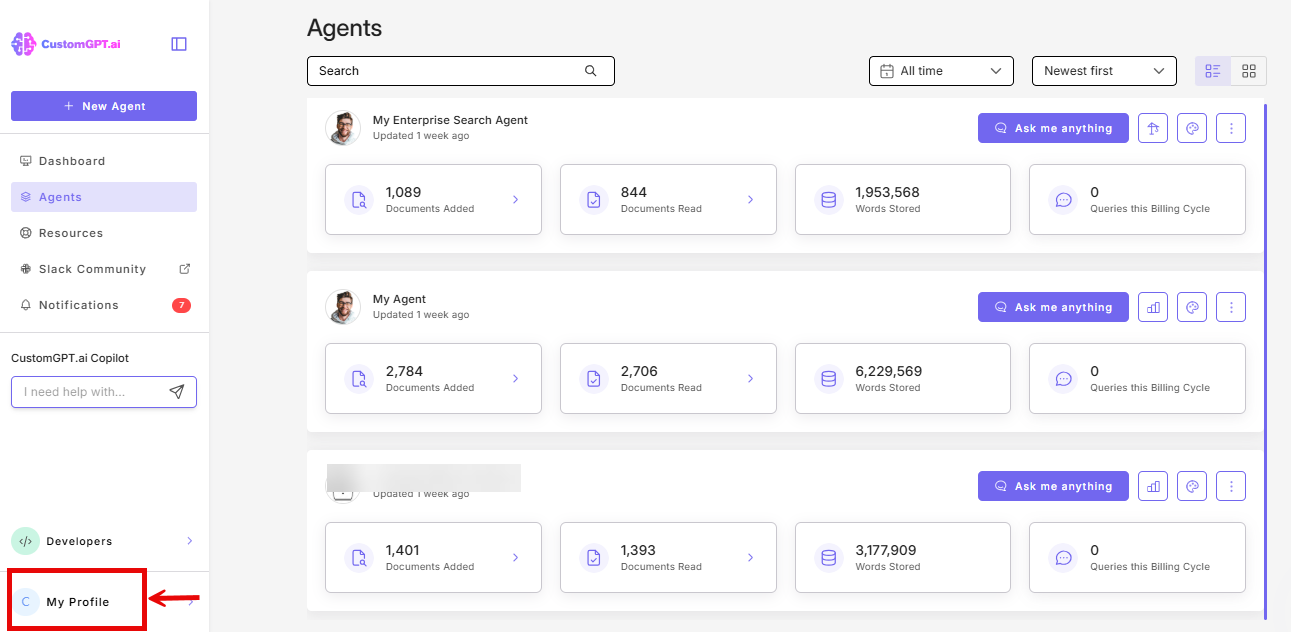
Click My profile icon in the bottom-left corner
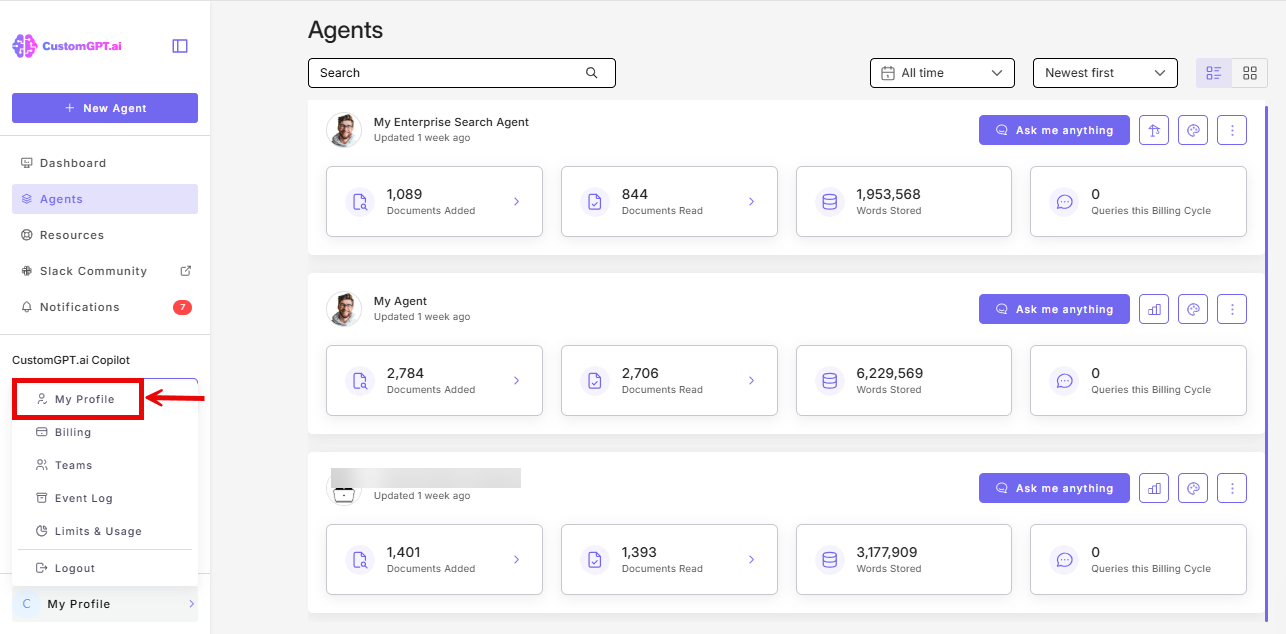
- Click My Profile from the dropdown
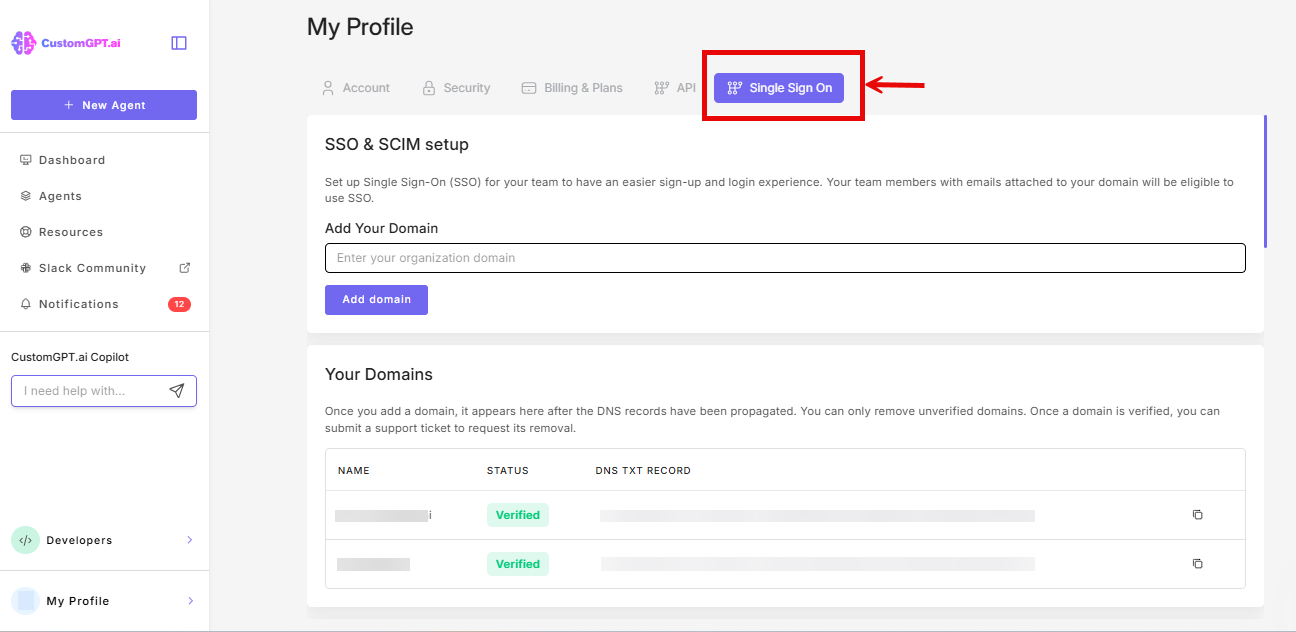
- Click the Single Sign On (SSO) tab
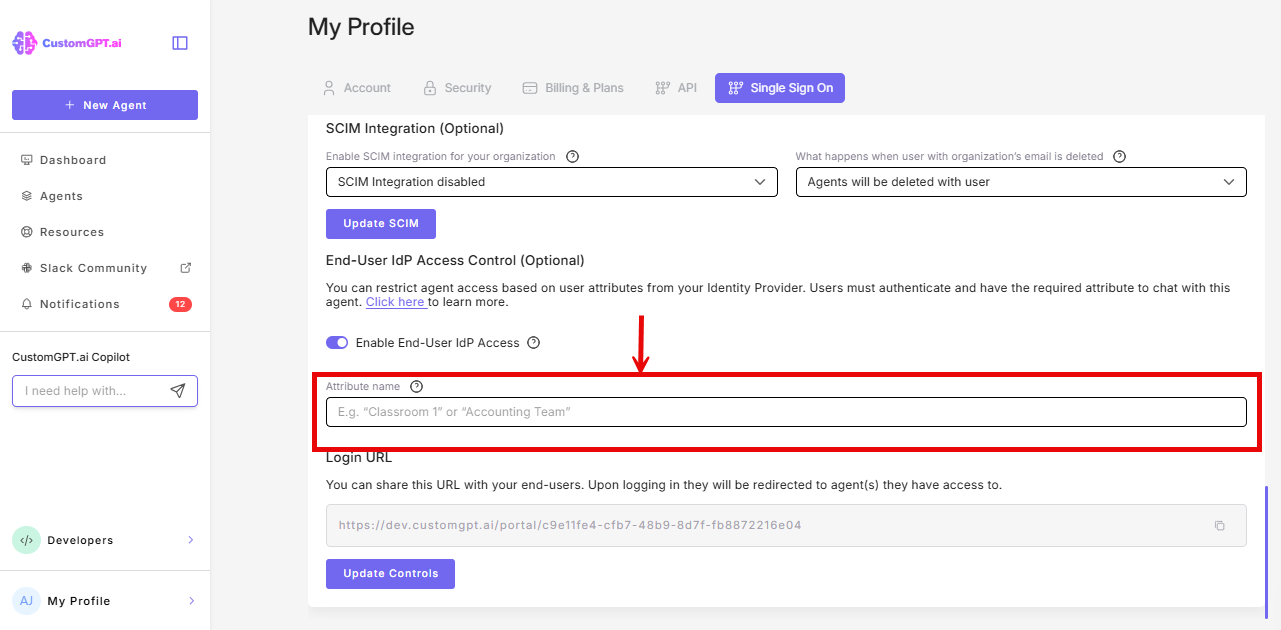
- Scroll to the IdP End-User Access Control section, and toggle On Enable End-User IdP Access
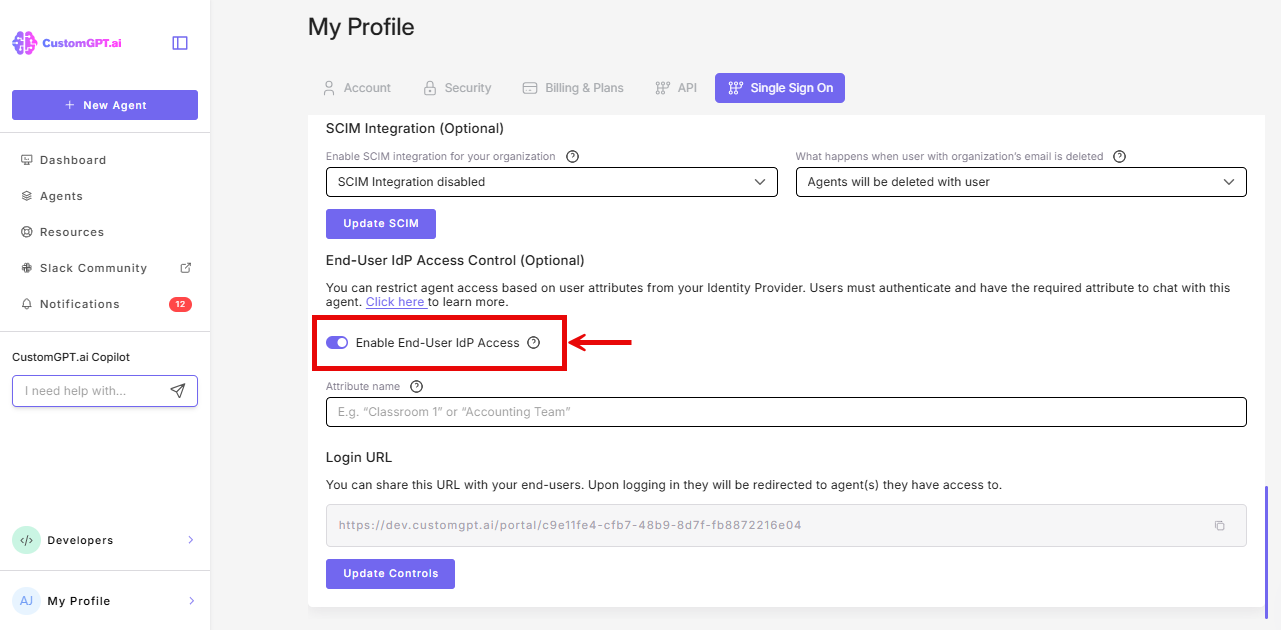
- Enter the attribute name you configured in your IdP (e.g.,
customgpt_role)
- Click Update Controls
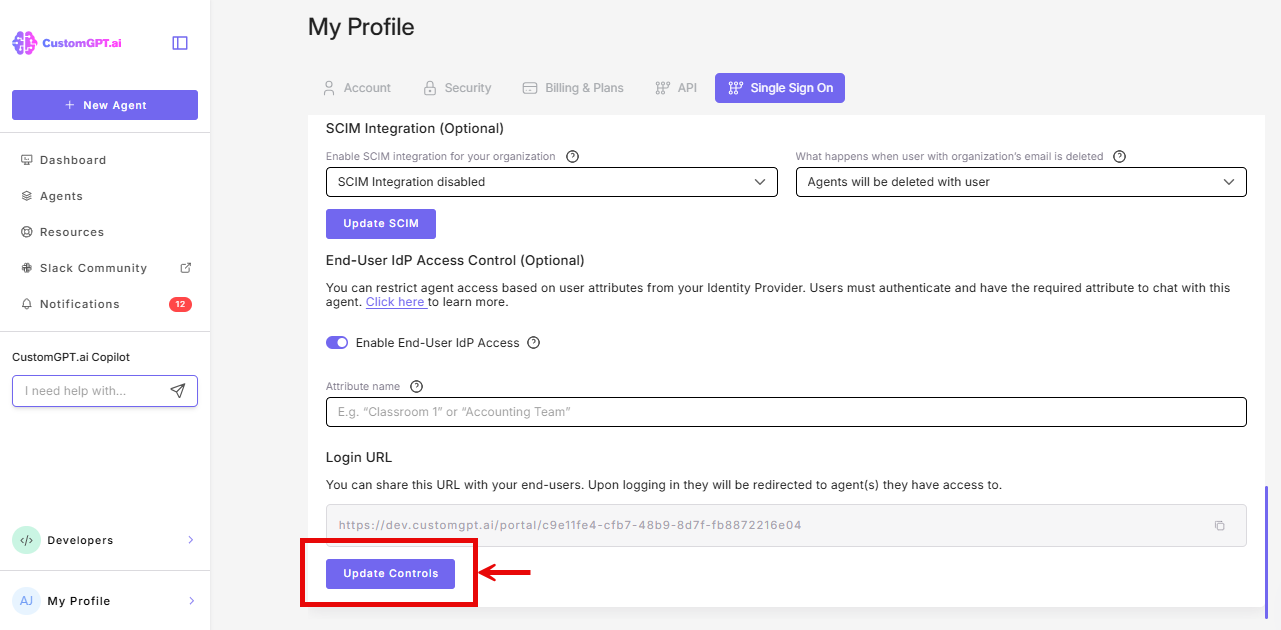
- Copy the generated Portal Login URL. This is the URL you'll share with external users.
Note
The portal URL is unique to your organization and looks like:
https://app.customgpt.ai/portal/[random-string]
Step 3: Test the configuration
- Open an incognito/private browser window.
- Go to your portal login URL.
- You're taken directly to that agent's chat.
- Log in with a test account that has the correct attribute value.
- After authentication:
- If the role has access to one agent: you're redirected directly to that agent
- If the role has access to multiple agents: you see a portal listing all accessible agents
What users experience
- Session duration: 24 hours from login
- Access: Chat only with assigned agents
- No account created: Users don't appear in your team's user list and don't need to know the agent is powered by CustomGPT.ai
- Conversations: Appear as anonymous in analytics
- No user limit: There's no limit on how many end-users can access agents this way.
If a user tries to access any other page (dashboard, settings, etc.), they're redirected back to the agent portal.
When to use this
This feature is ideal for:
- Large organizations with many end-users who need agent access
- Teams who don't want to manage users: no need to add or remove users in CustomGPT.ai
- Department-based access: create different agents for different departments and share the same portal link with everyone
- Educational institutions: professors can build agents for students and control access at the classroom or course level
- White-label deployments: end-users don't need to know the agent is powered by CustomGPT.ai
Related guides
- SSO setup
- Create custom roles
- Create agent-specific custom roles
- Chat-only role
- Deploy AI agents to your entire organization via IdP
Updated 9 days ago