
Configure how live chat agent looks
This guide helps you adjust how your live chat agent looks on your site, including its icon placement, size, and chat window layout.
What is live chat agent appearance
Live chat agent appearance controls how the chat widget is displayed to visitors. These settings define where the chat icon is placed, how large it appears, and how the chat window opens when a visitor interacts with it.
If you haven’t added the chat widget to your site yet, see Live chat: Add live chat to any website.
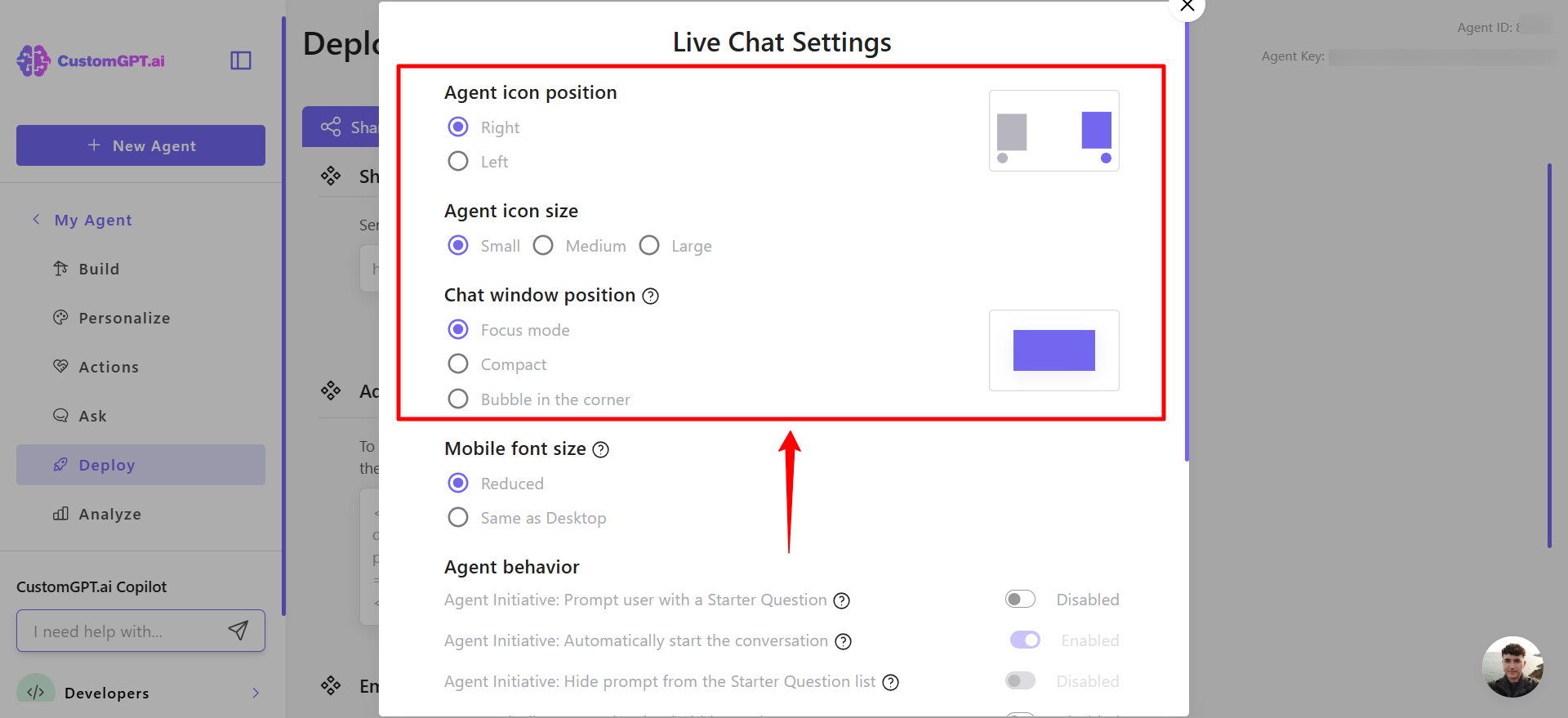
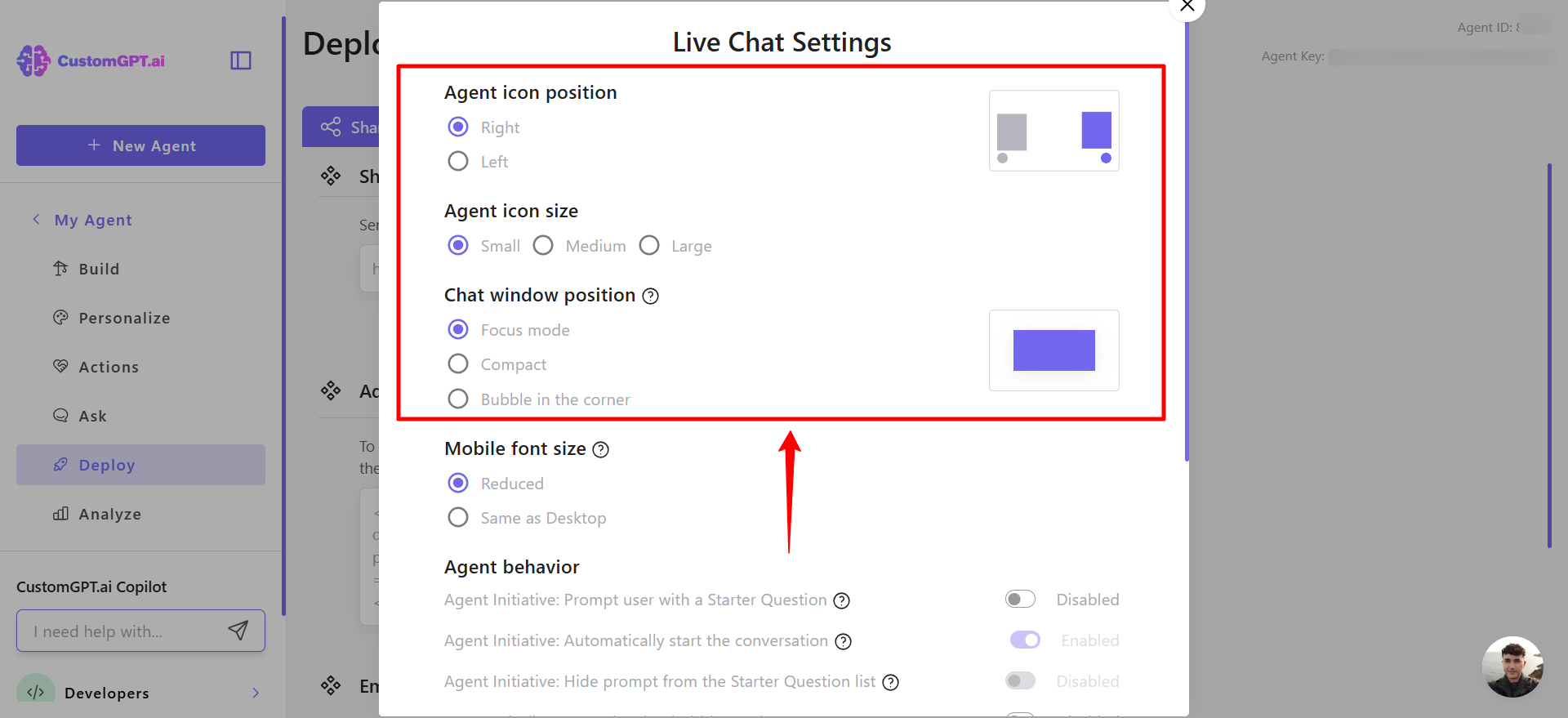
Agent icon position
This setting determines where the chat icon appears on the screen.
- Left: Places the chat icon on the lower-left side of the page. This is useful when your site’s primary actions or call-to-action buttons are on the right.
- Right: Places the chat icon on the lower-right side of the page. This is the most common placement and typically matches visitor expectations.
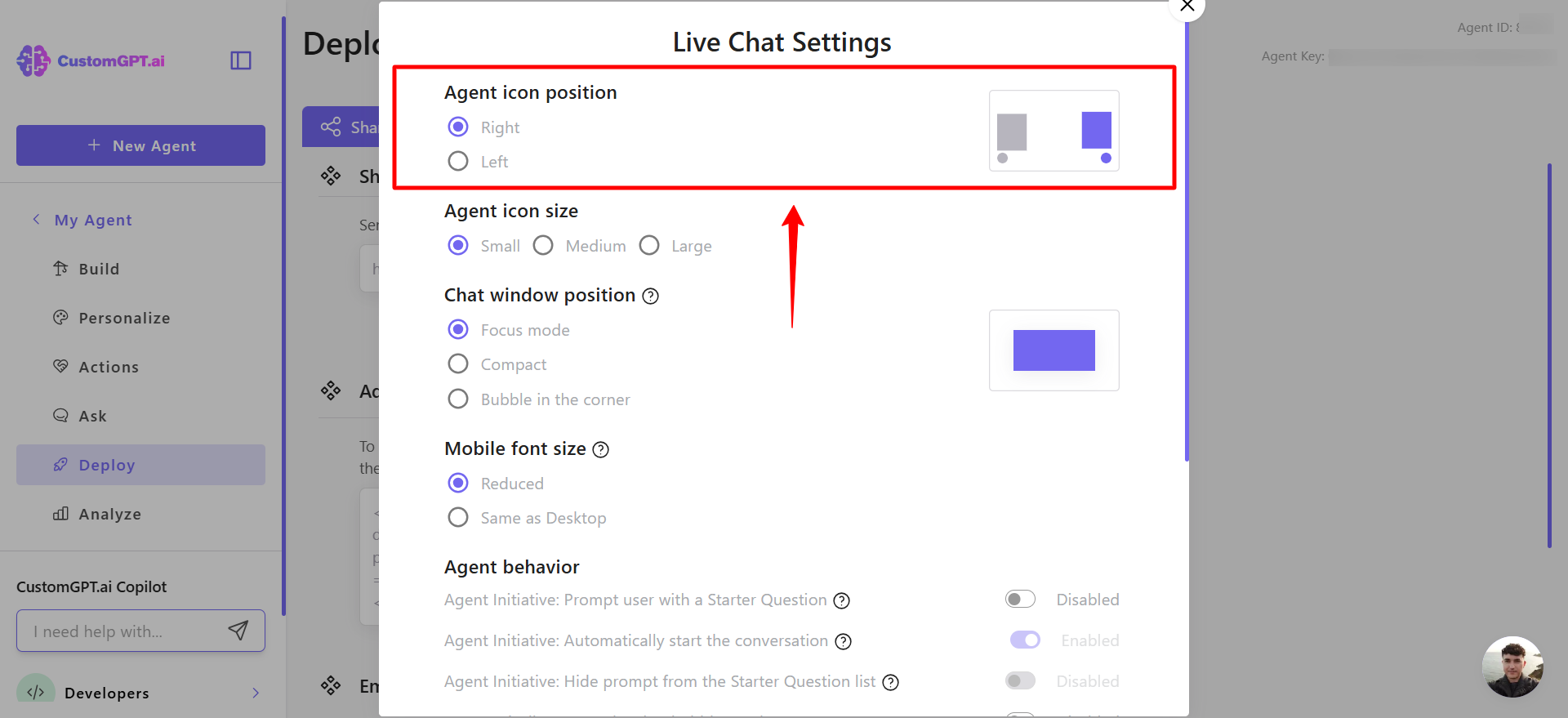
Agent icon size
This setting adjusts the size of the chat icon.
- Small: A minimal, space-saving icon that stays out of the way on content-heavy pages.
- Medium: A balanced size suitable for most websites. It remains visible without being intrusive.
- Large: A more noticeable icon that draws attention and encourages engagement.
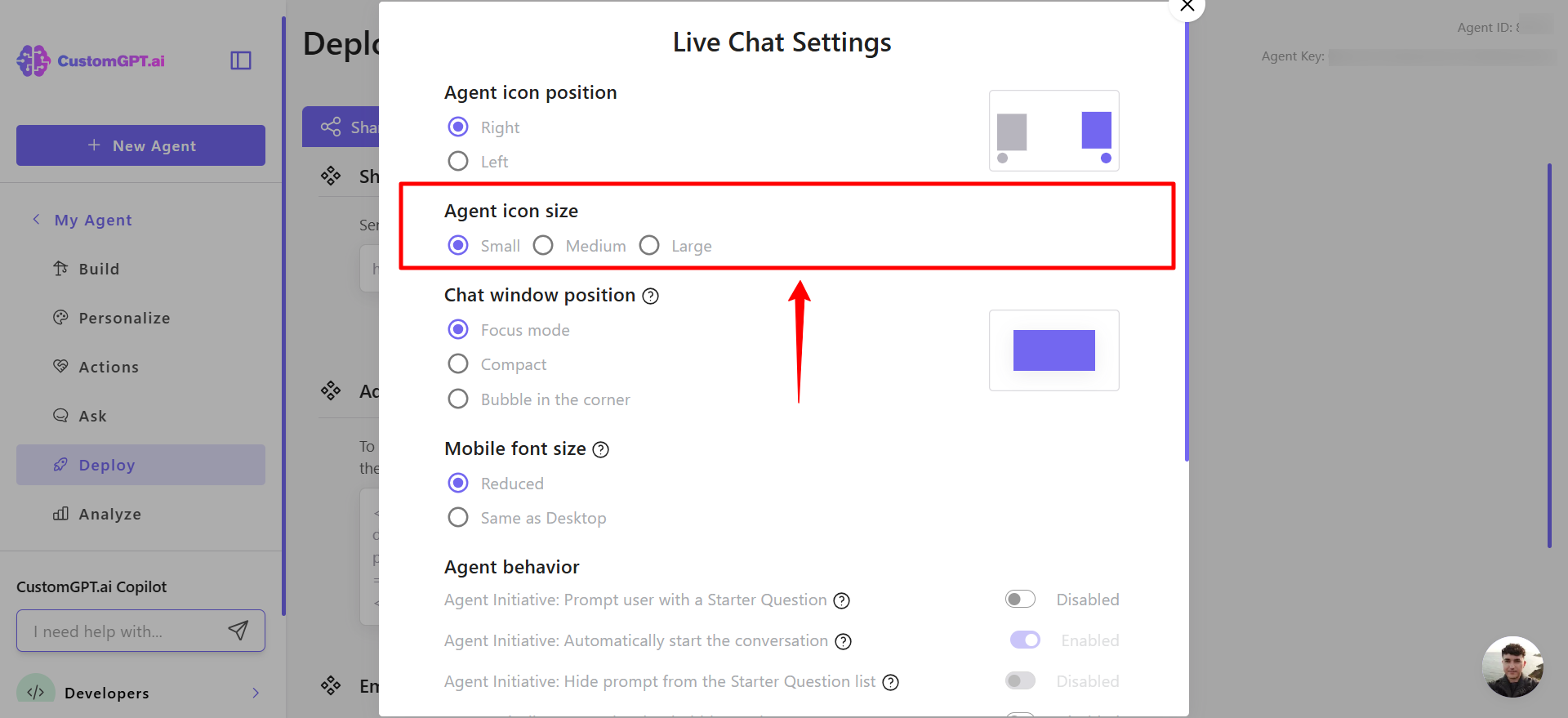
Chat window position
This setting defines how the chat window appears when a visitor opens it.
Focus mode: Displays a larger, centered chat window that creates an immersive experience. Ideal for long-form conversations.
Compact: Opens a smaller window anchored near the icon. This allows visitors to browse while chatting.
Bubble in the corner: Shows a lightweight bubble-style window in the corner of the screen. This keeps the chat subtle and unobtrusive.
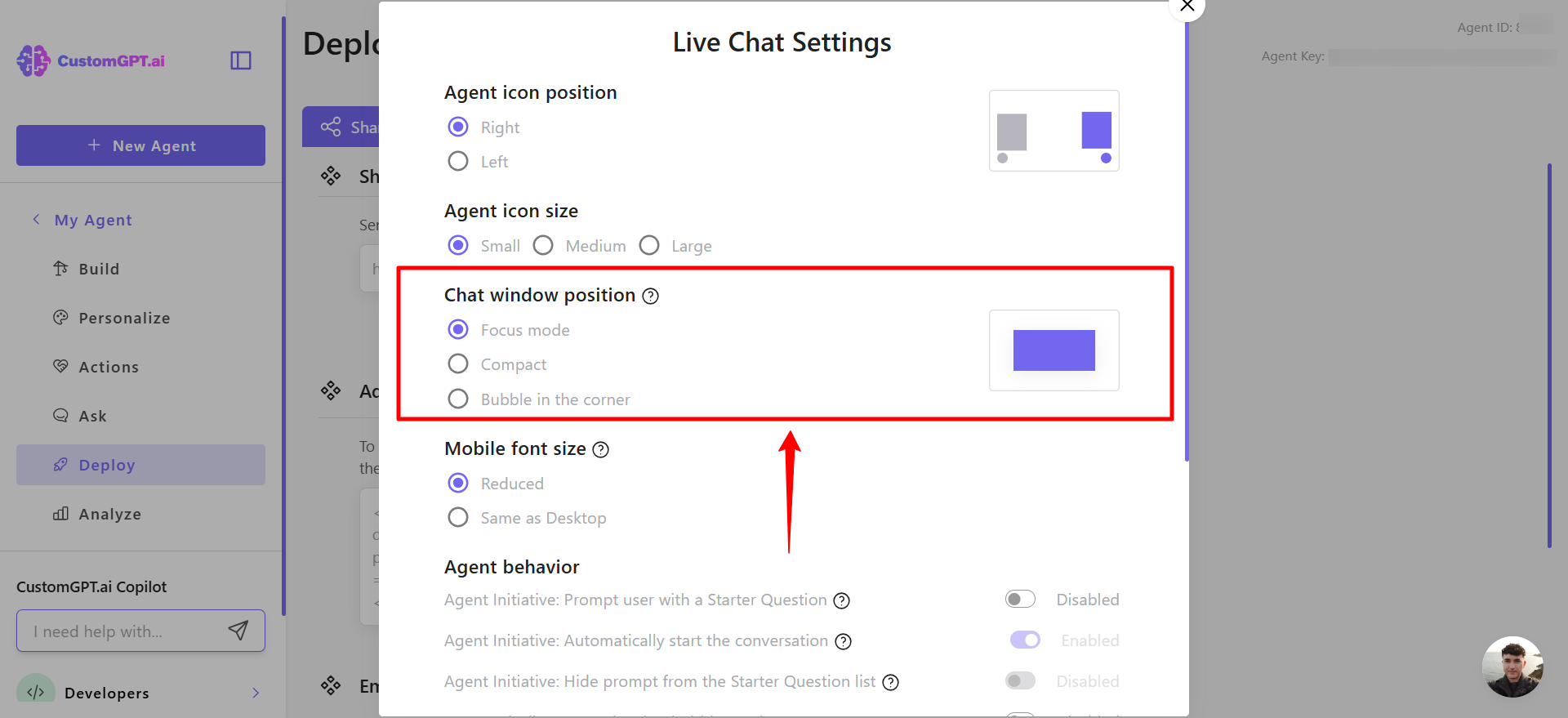
How to configure it
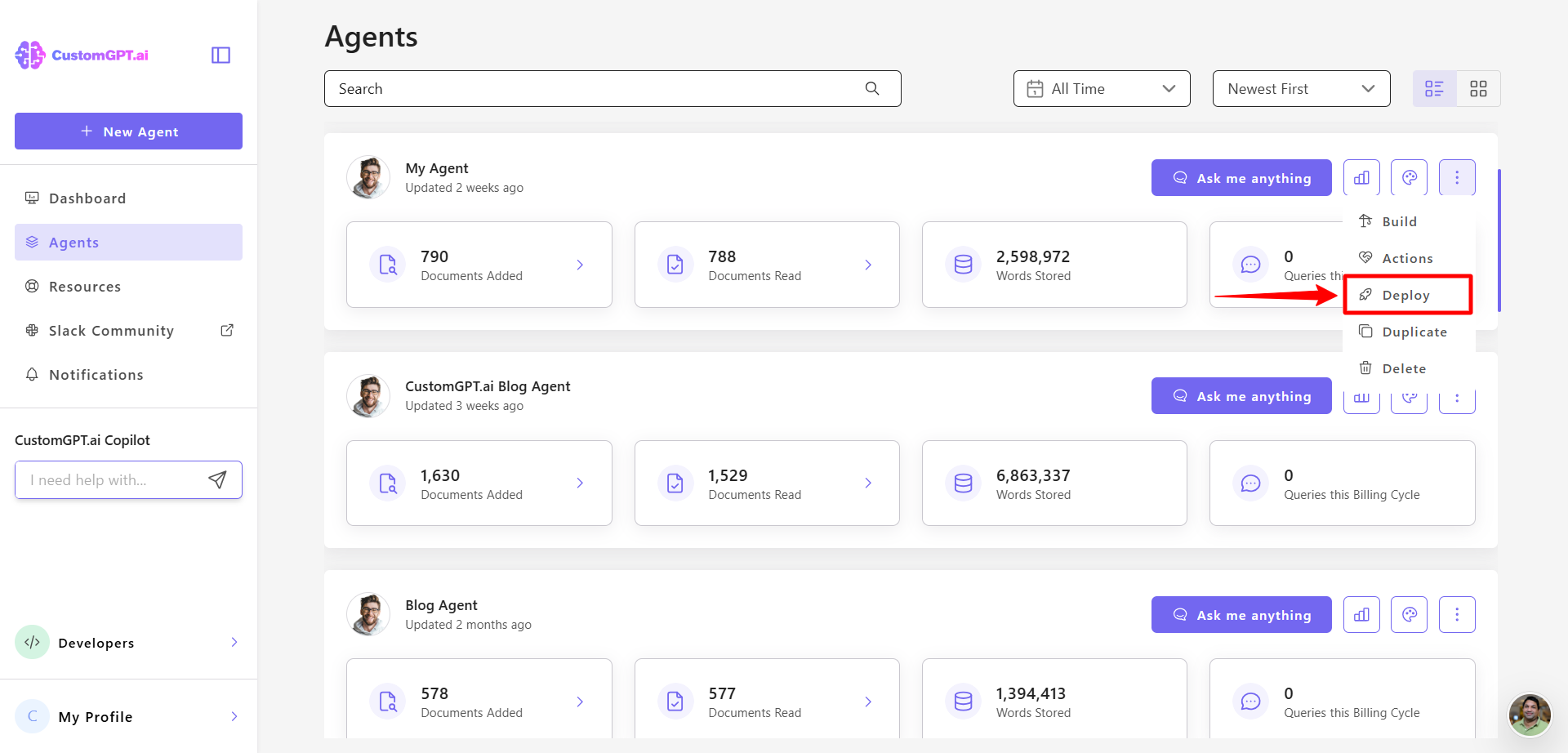
- On your CustomGPT dashboard, click the three dots menu and click Deploy.
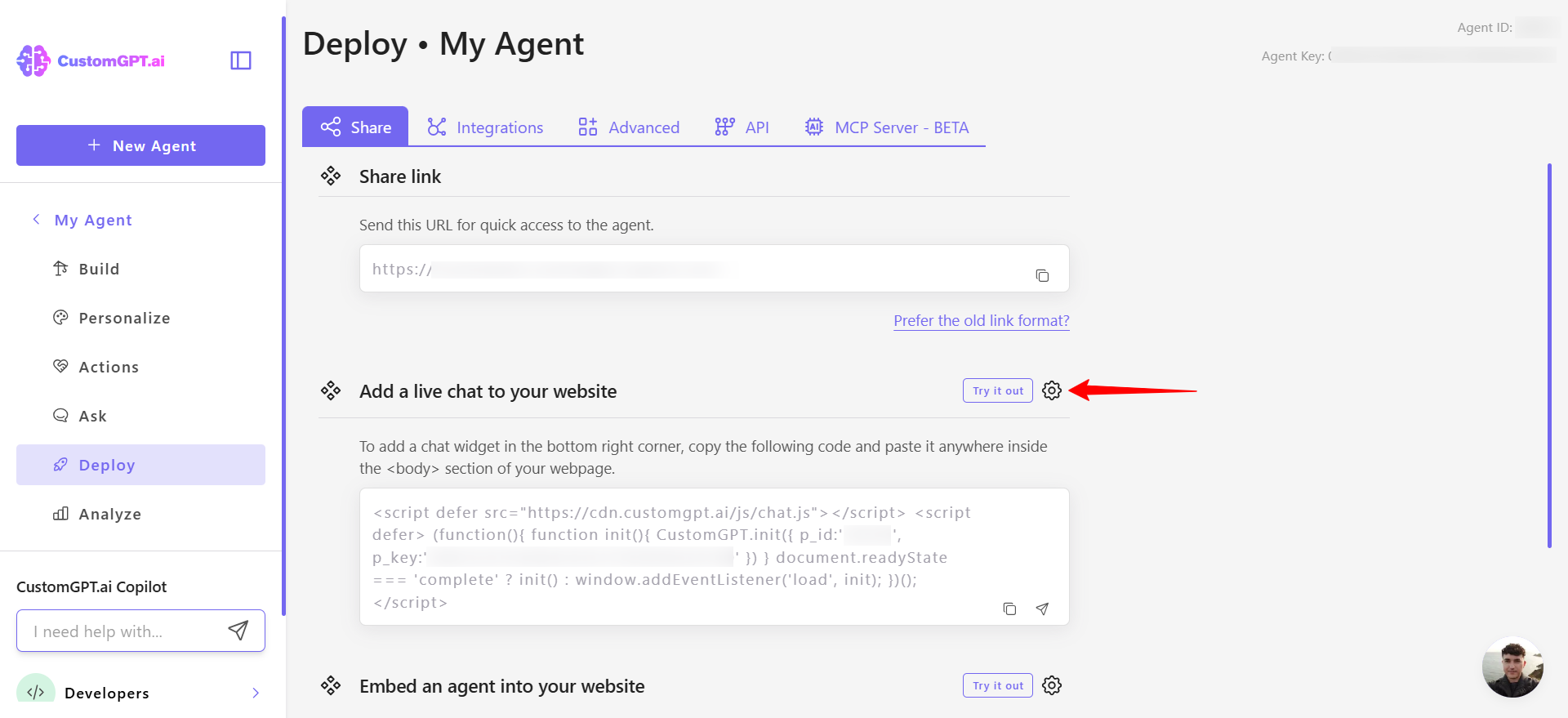
- In the Live Chat section, click the Settings icon.
- Adjust the options for icon position, icon size, and chat window layout.
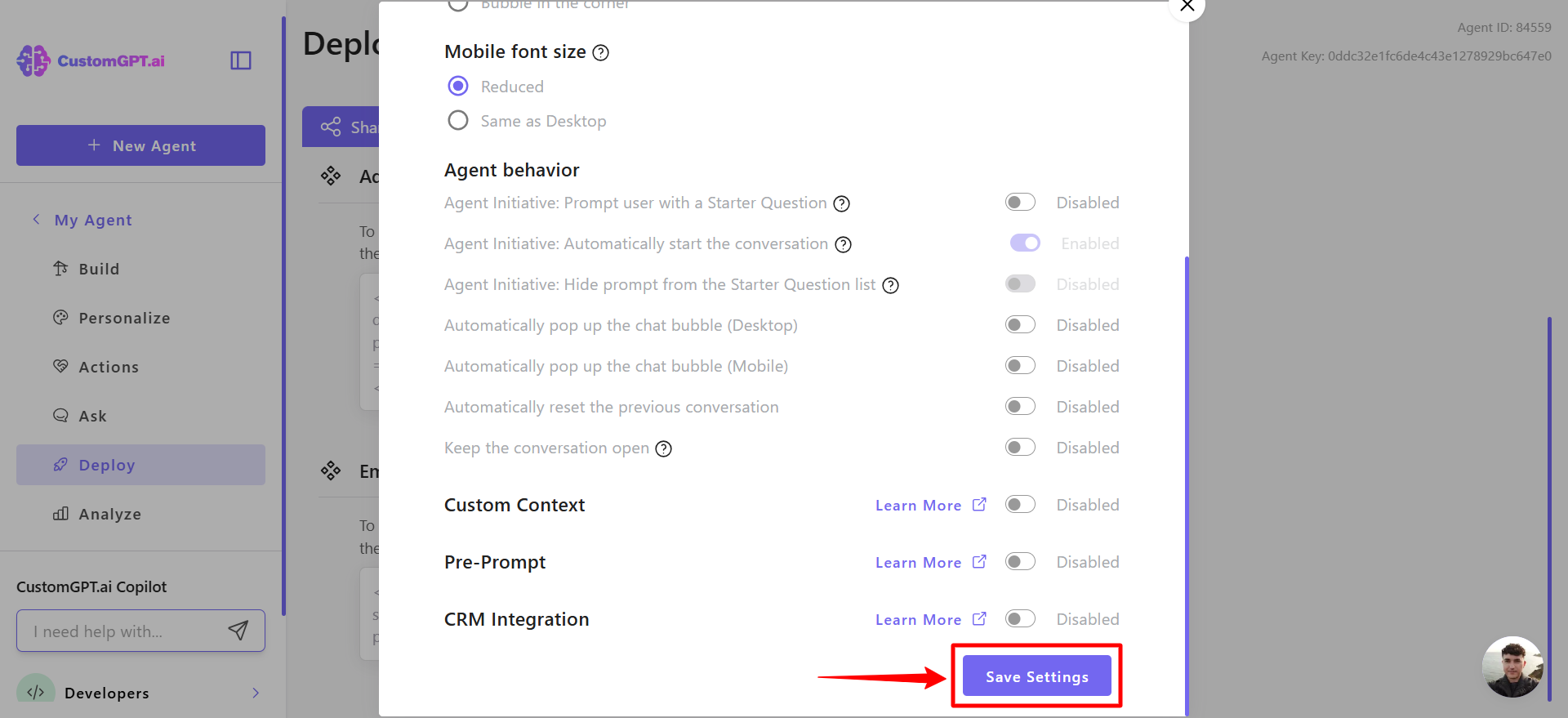
- Click Save settings to update the changes.
Updated 10 months ago