
Change agent style
This guide explains how to customize your agent's visual style by selecting corner styles (Sharp, Soft, Round) that apply across all UI elements and deployments.
Agent Style controls the corners and edges throughout your chatbot interface—from sharp angular corners to fully rounded ones.
In simple terms: Choose whether your chatbot looks crisp and professional (sharp corners) or friendly and modern (rounded corners).
This affects all elements: chat window, message bubbles, input field, buttons, and more.
Choose Your View
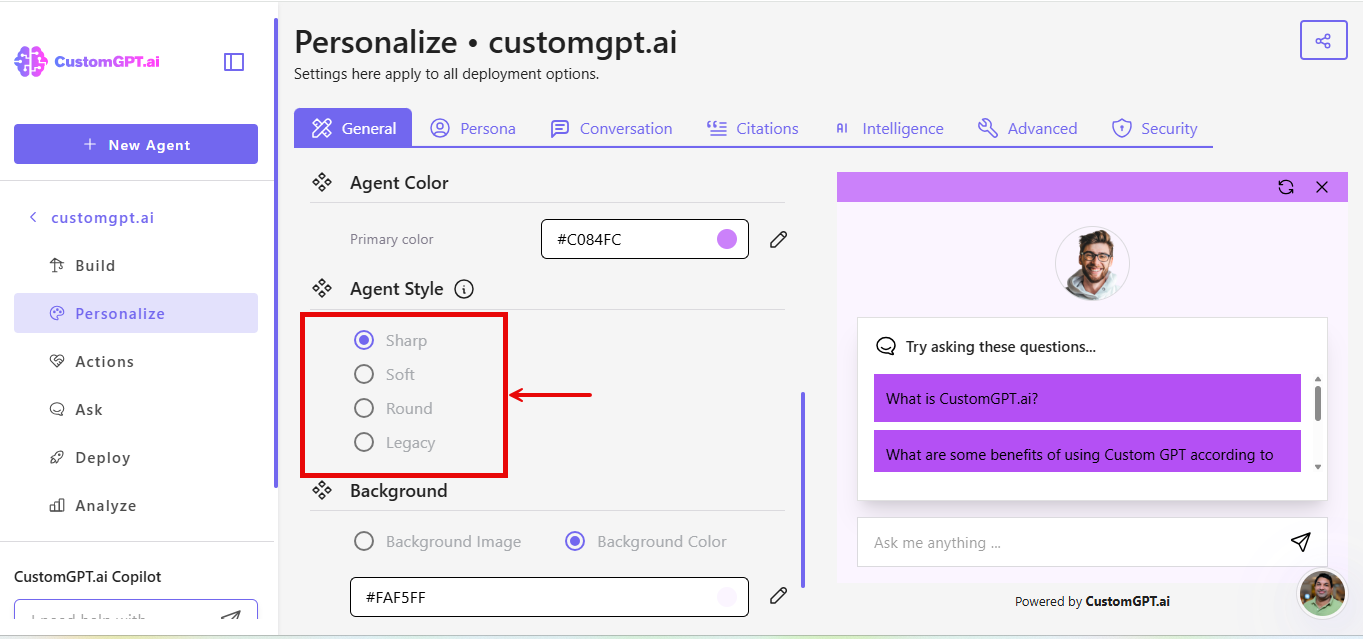
- Sharp - Angular, professional
- Soft - Balanced, modern (default for new agents)
- Round - Fully rounded, friendly
Note: Only existing agents can select the Legacy option. New agents only see Sharp, Soft, and Round.
How to Change Agent Style
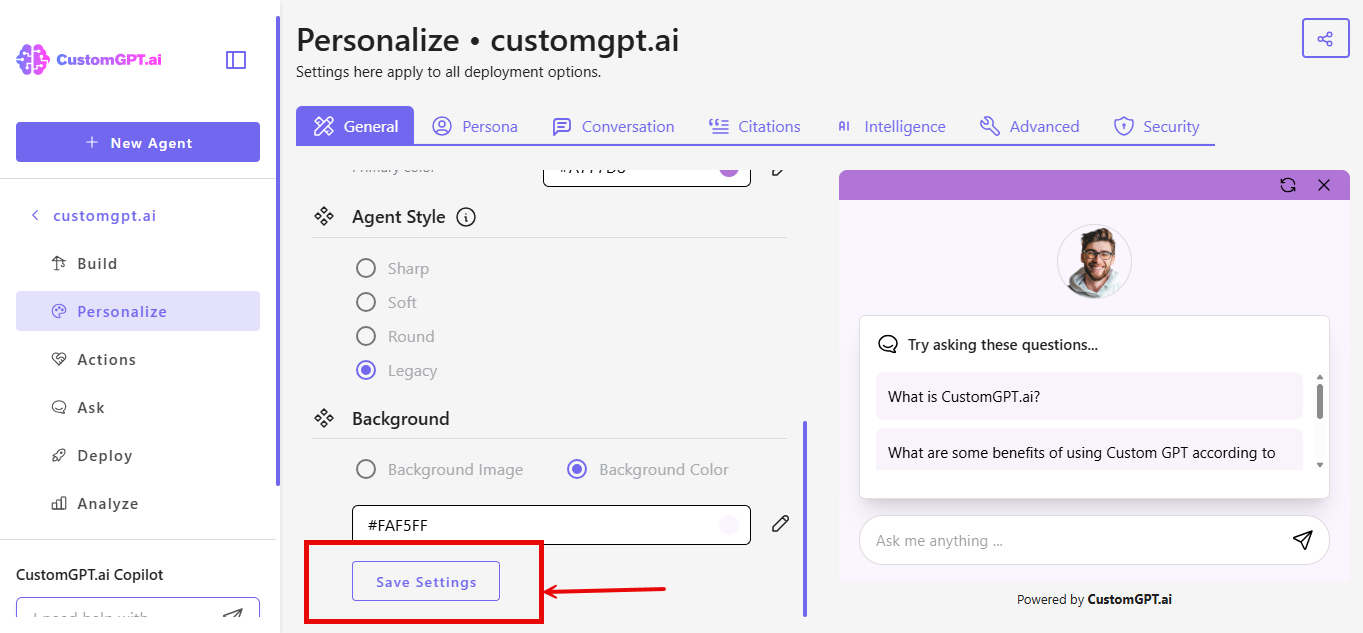
- Go to your agent and click Personalize.
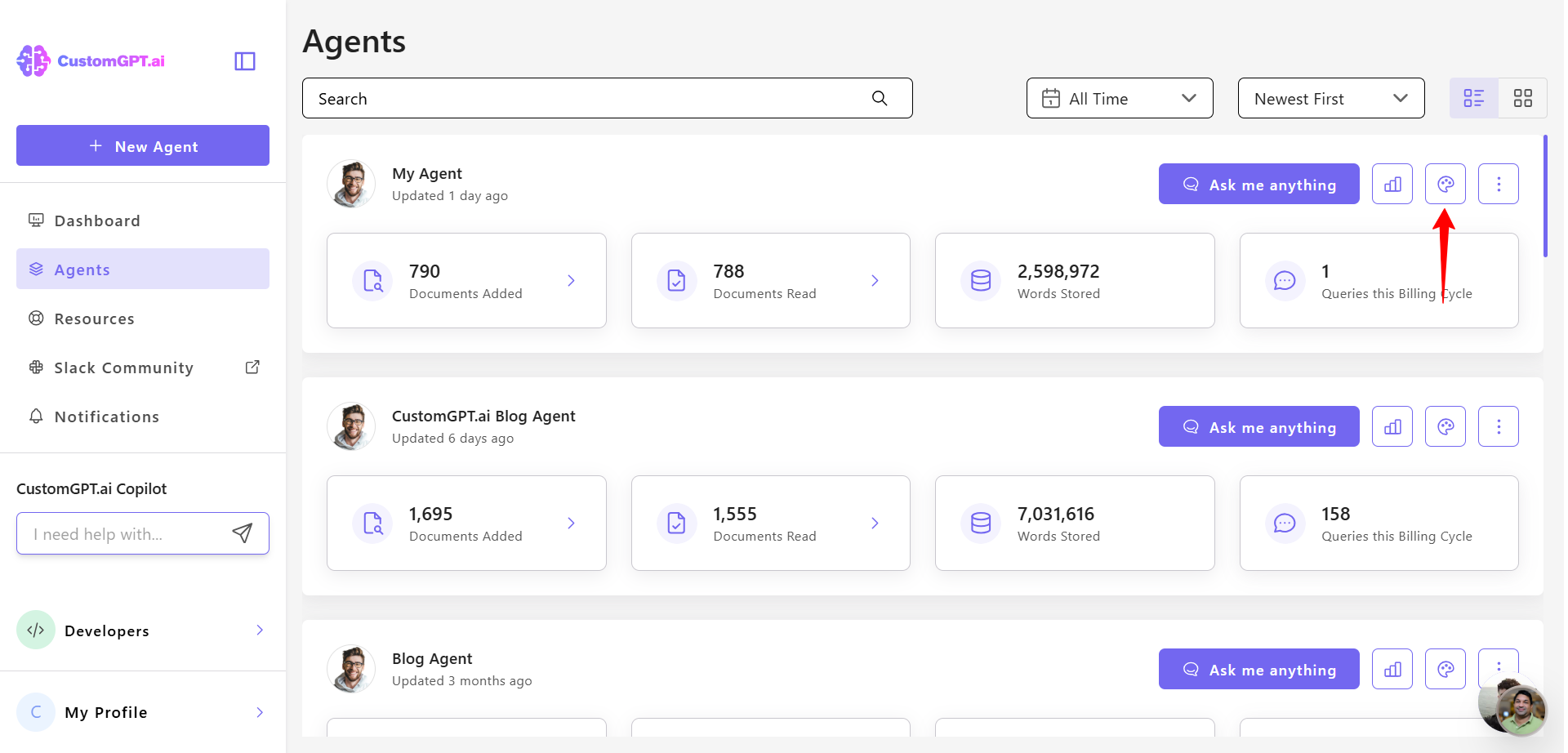
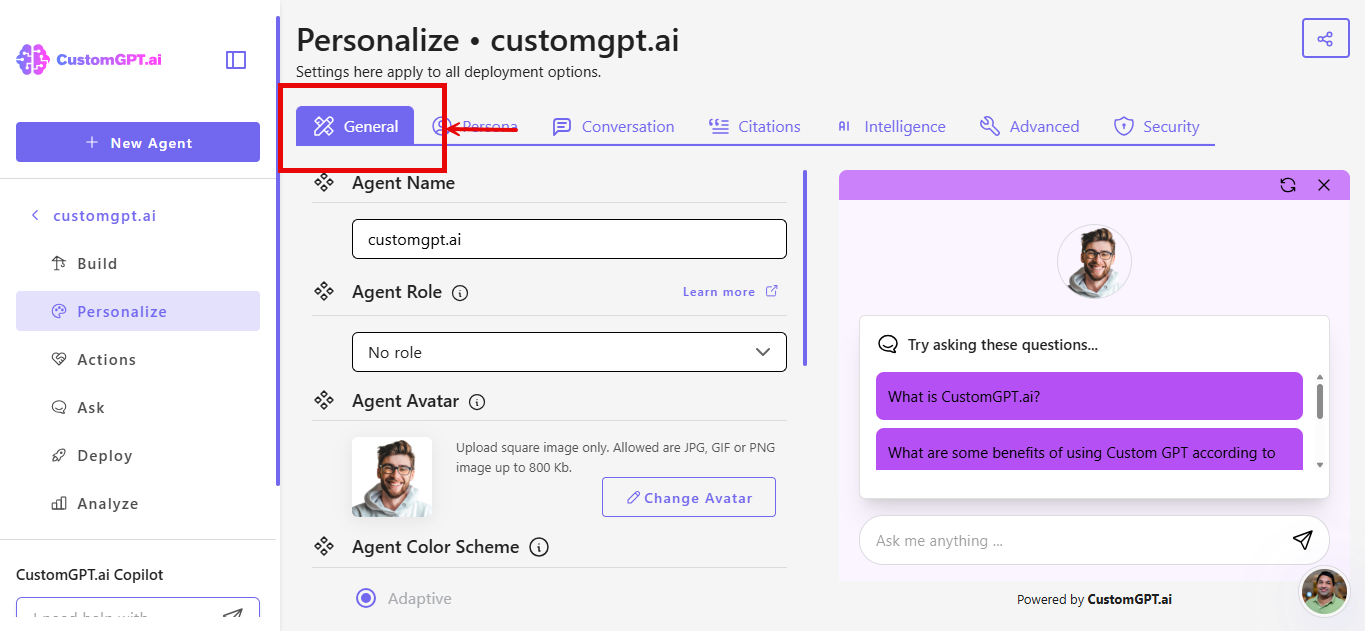
- Navigate to the General tab
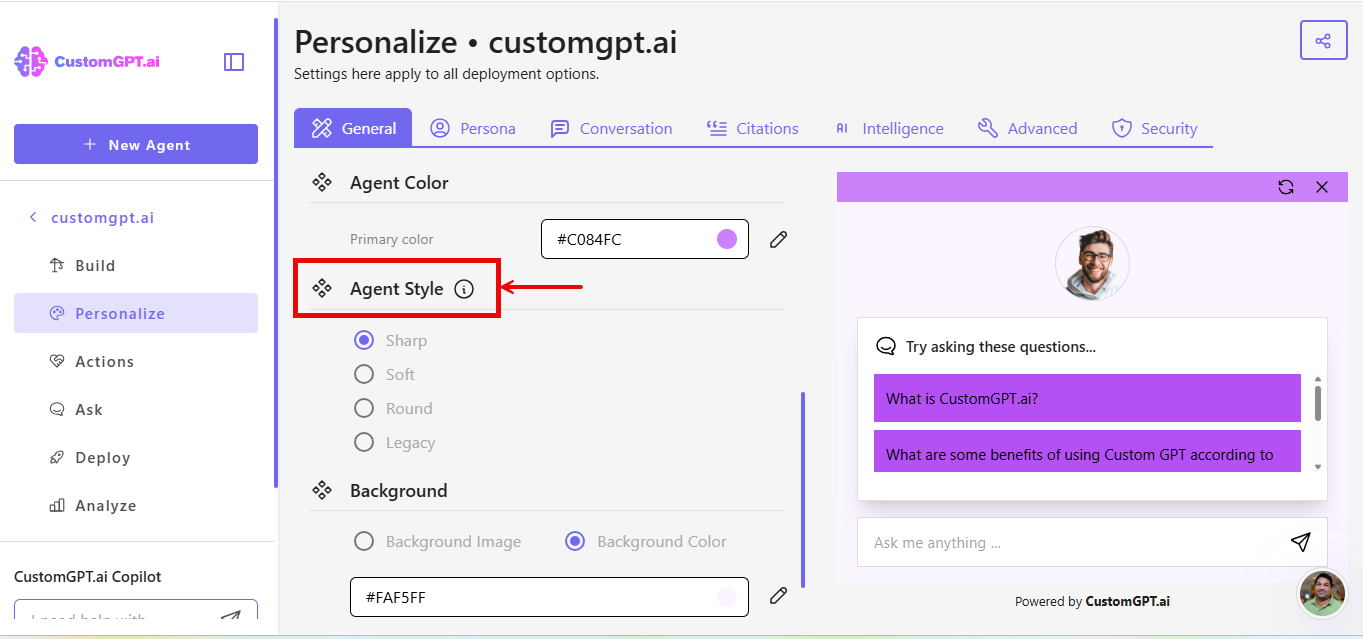
- Scroll down to the Agent Style section
- Select your preferred style from the menu
- Click Save Settings to apply the change
How it works
After saving, your chatbot's appearance updates immediately across all deployments (website embed, live chat, etc.). All corners and edges-from the chat window to buttons- will match your selected style.
Tip: Test your chatbot after saving to preview the new look. Learn more about AgentUI.
Updated 9 months ago