
Deploy using an MCP server
This step-by-step guide explains how to deploy your CustomGPT agent as an MCP (Model Context Protocol) server so it can connect with other AI systems, including Claude, ChatGPT, and any MCP-compatible client. This deployment method allows external AI models to access your agent’s knowledge base and tools through a secure, permission-controlled interface.
How MCP deployment works
When you enable the MCP deployment option, CustomGPT generates an MCP server that exposes your agent’s tools and capabilities. External AI models can connect to this server and perform actions based on the permissions you allow.
This setup enables advanced scenarios such as:
- Using another AI to query your agent’s knowledge base.
- Allowing an external agent to manage your documents or settings.
- Giving third-party systems controlled access to your analytics or internal data.
Query your agent’s knowledge base from other AI systems
The primary benefit of MCP deployment is that another AI can retrieve information directly from your CustomGPT agent.
With the Send a message permission enabled, an external AI can:
- Send a message to your agent through the MCP server.
- Receive responses powered by your agent’s knowledge base.
- Access accurate, up-to-date information without exposing your full CustomGPT account.
This makes MCP an easy way to integrate CustomGPT intelligence into other AI workflows without duplicating your documents, sources, or personalization.
Use additional capabilities through permissions
External AI systems can perform additional operations depending on the permissions you enable. You can combine any permissions to match your requirements, like fetching previous conversations, accessing analytics or even managing agent's settings. For a detailed breakdown of all available permissions, see MCP server permissions.
How to deploy agent using MCP server
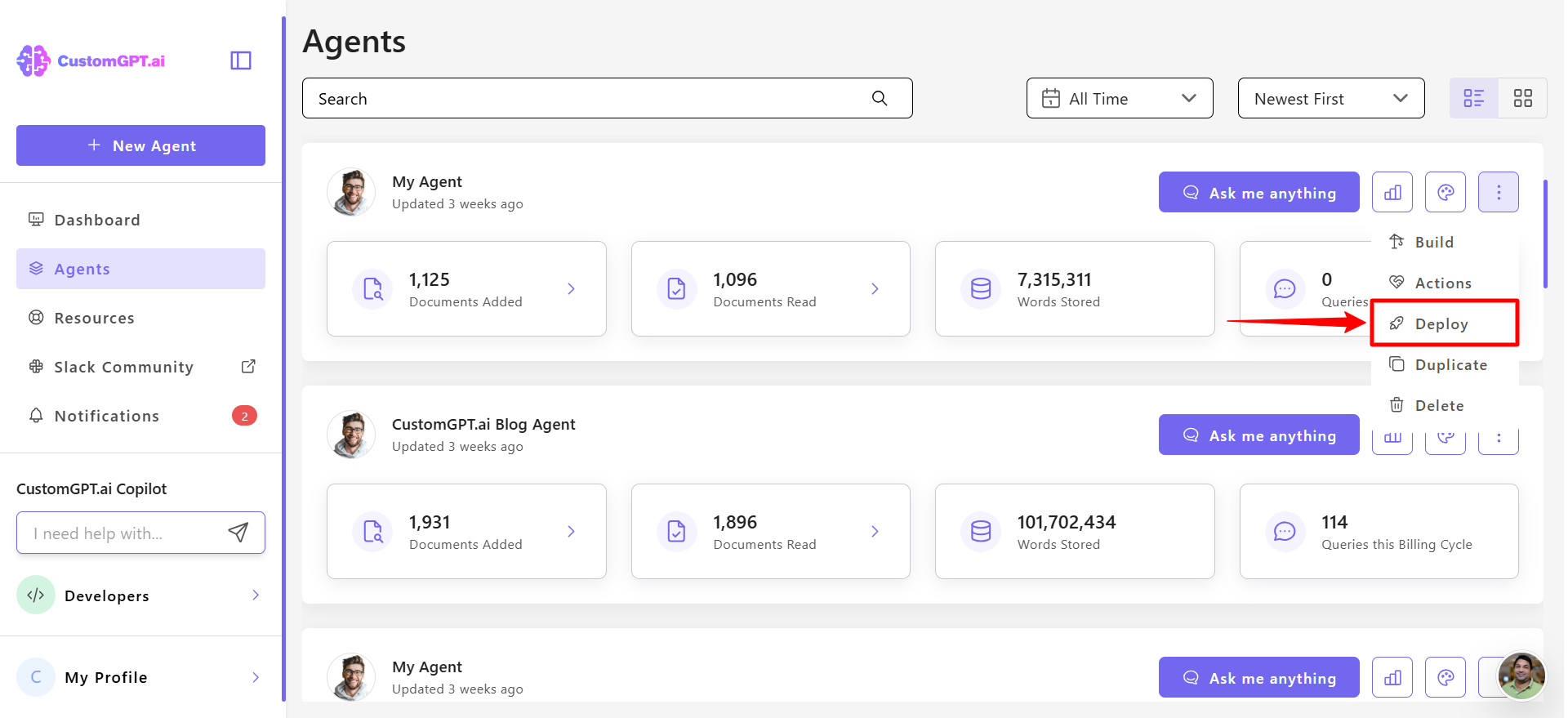
- Open your CustomGPT project and click the three-dot menu in the top-right corner and select Deploy from the menu.
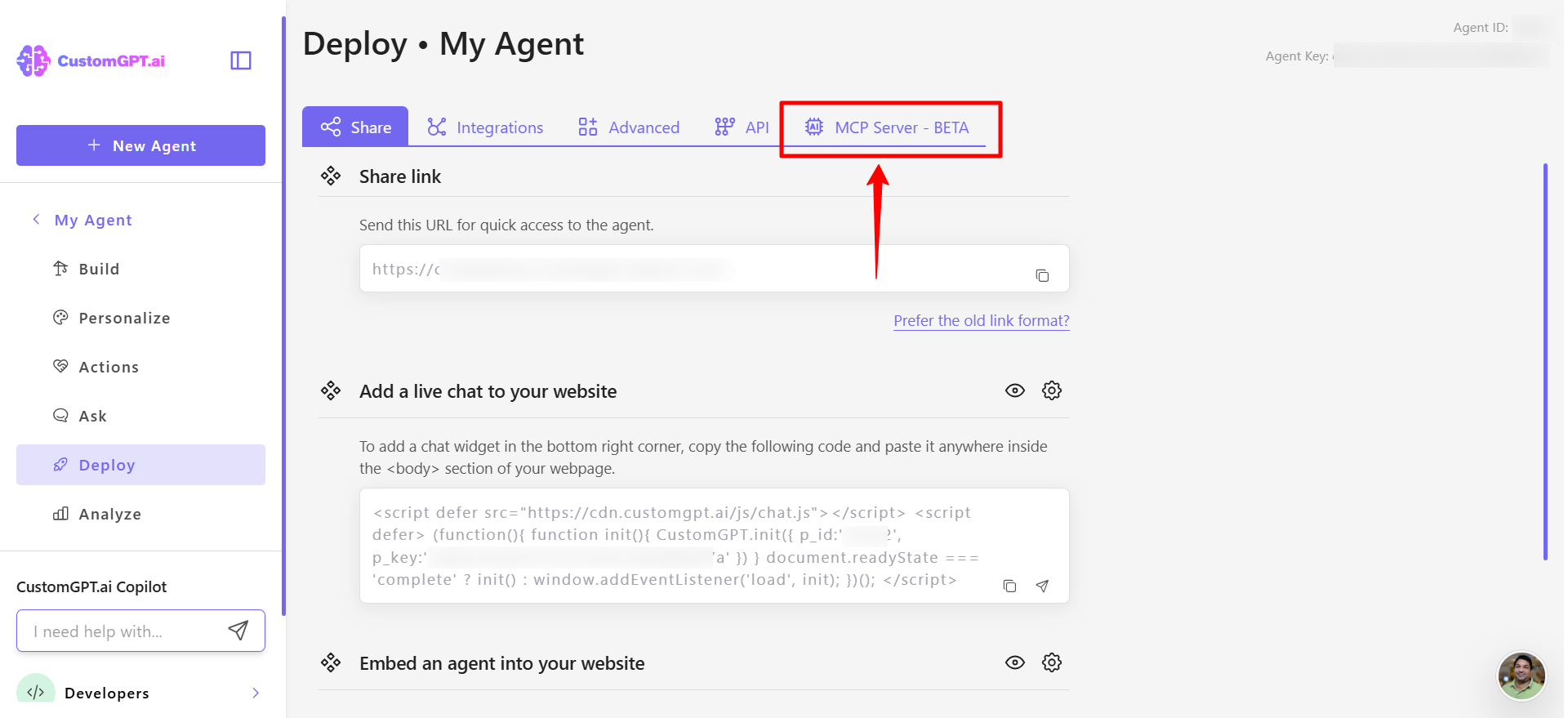
- Open the MCP Server tab.
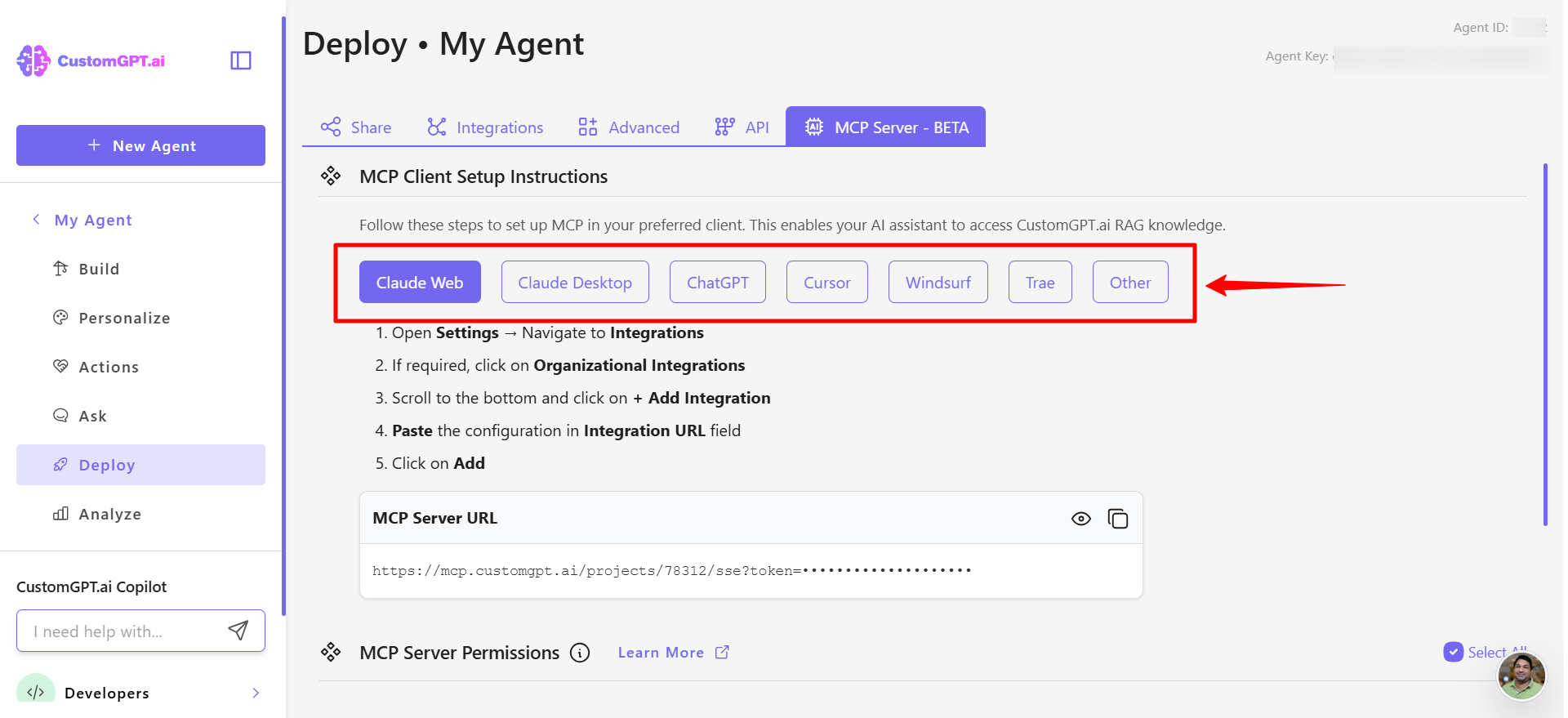
- Choose MCP server as your deployment type..
- Review the list of permissions and enable or disable the permissions you want external AI systems to use. Only Send a message permision is selected by default.
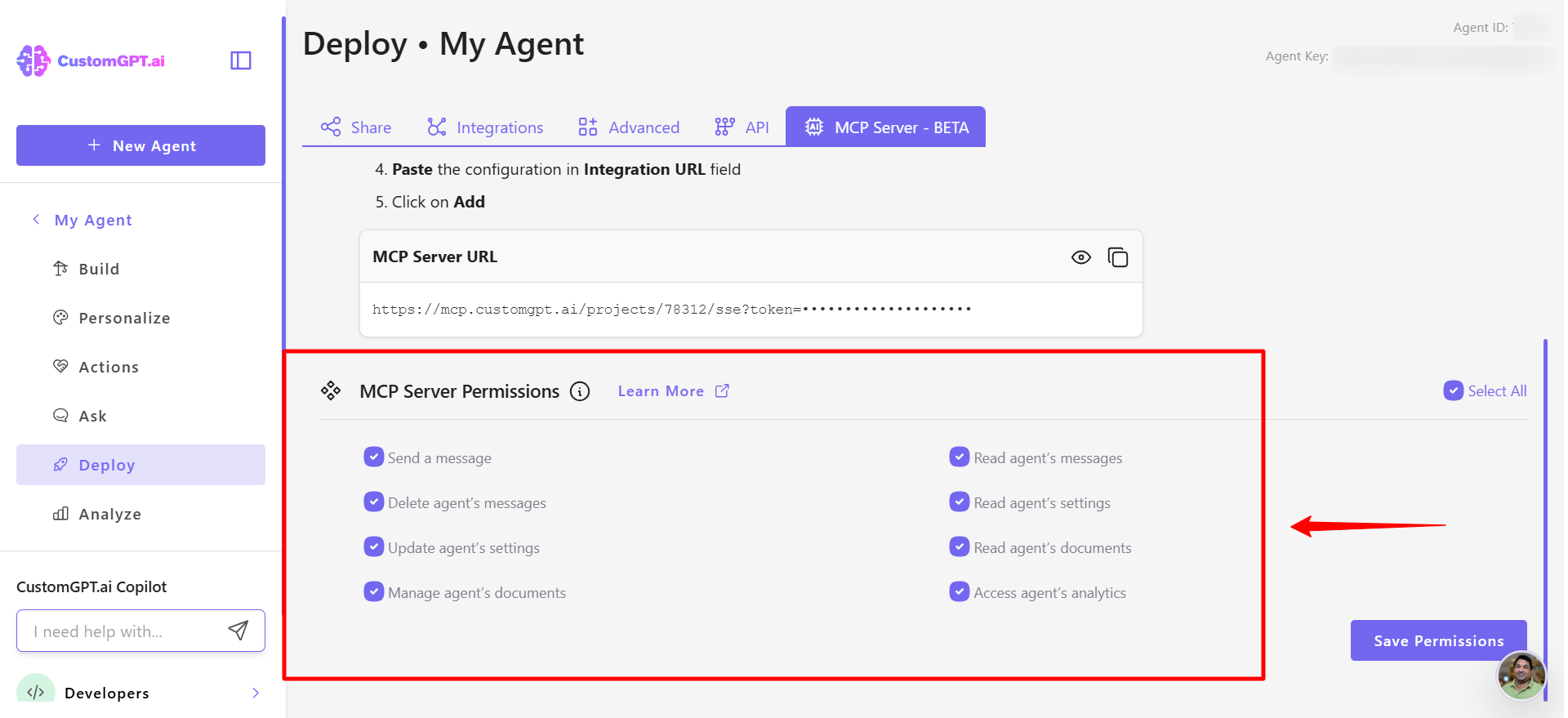
- Click Save permissions to apply your permissions and complete the setup.
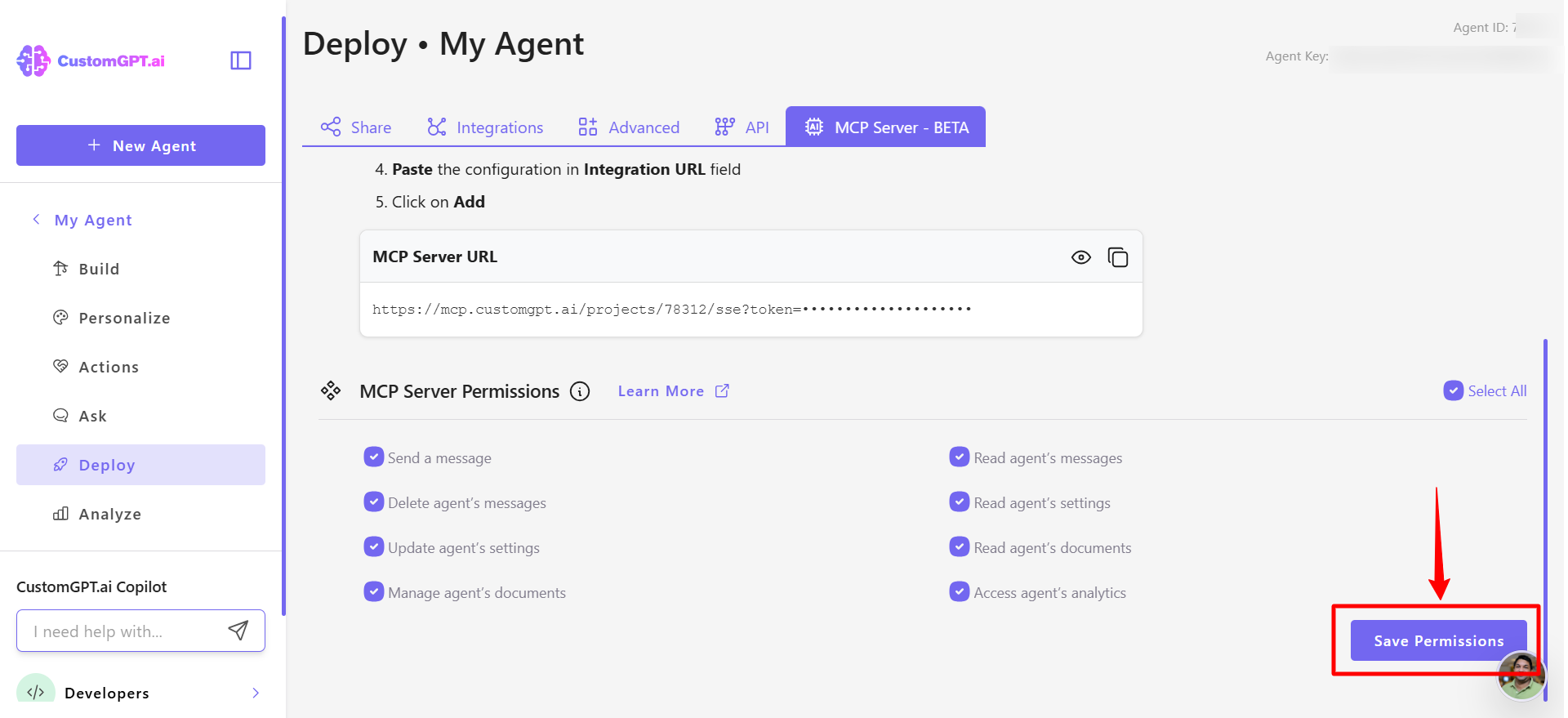
Note: MCP Server is available in both SSE and HTTP modes.
Tips for secure and effective MCP deployment
- Start with Send a message only, then enable more permissions as your workflow evolves.
- Grant only the permissions required by your integration or external AI client.
- Avoid enabling document or settings management unless it is explicitly needed.
- Enable analytics permissions only when external systems require usage reporting.
Related guides:
Updated 10 months ago