
Customize PDF behavior with instant viewer
This guide explains how to adjust how PDFs are displayed to users when your agent references them in a response.
What is the Instant Viewer?
The Instant Viewer allows your agent to display PDF content directly inside the chat. When a response includes a citation from a PDF, the viewer can open automatically or remain hidden until a user interacts with it. You can also control whether users are allowed to open or download the original PDF file.
If you haven’t enabled the Instant Viewer yet, see Instant Viewer: Add instant viewer to your website.
The settings described in this article have moved. They are now in Personalize > Citations, under the PDF citations section. If you were using these settings via Instant Viewer deployment, your configuration continues to work- no migration is needed. If you are setting up PDF viewing for the first time, see 👉 [How to Configure PDF Citations].
How to change Instant viewer appearance
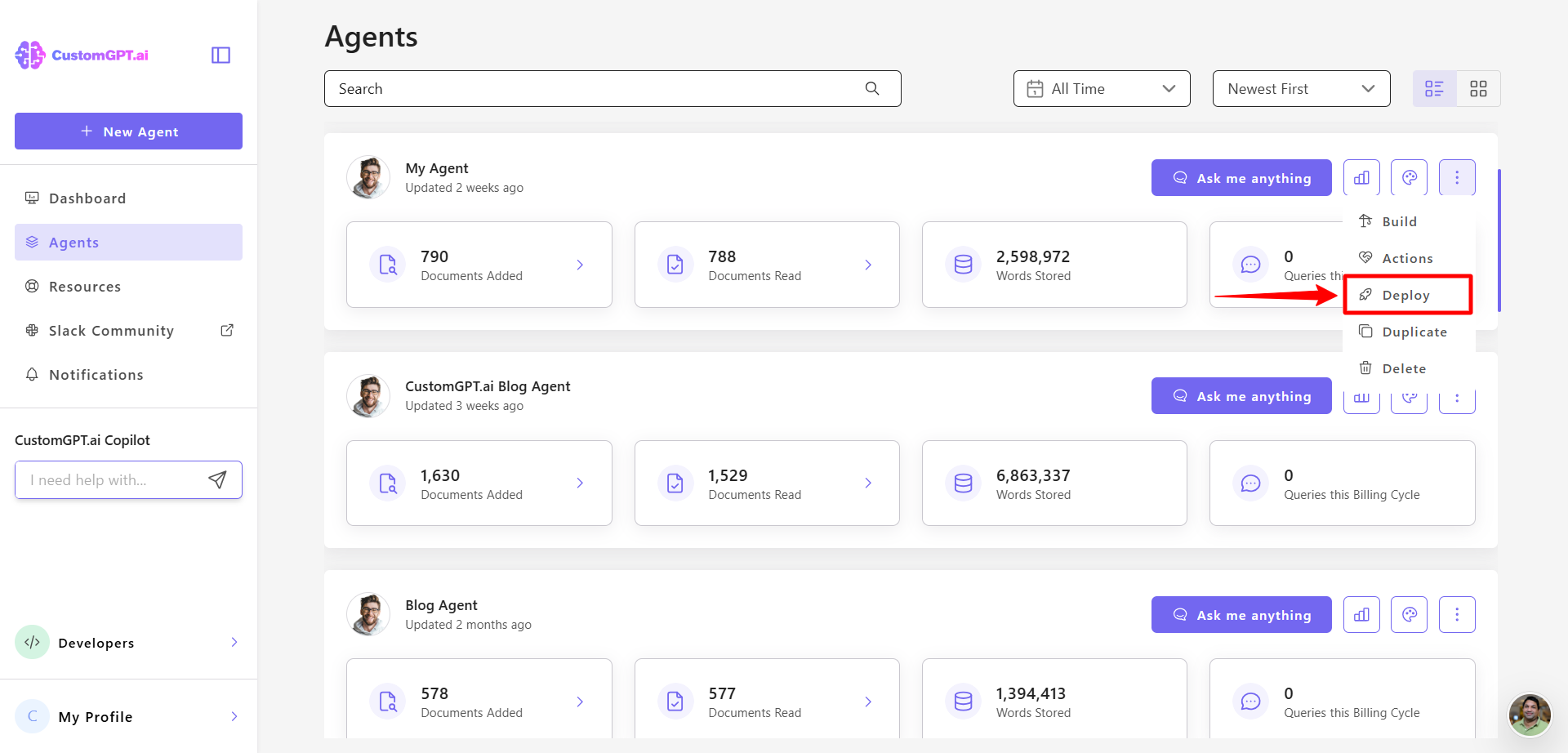
- On your CustomGPT dashboard, click the three dots menu and click Deploy.
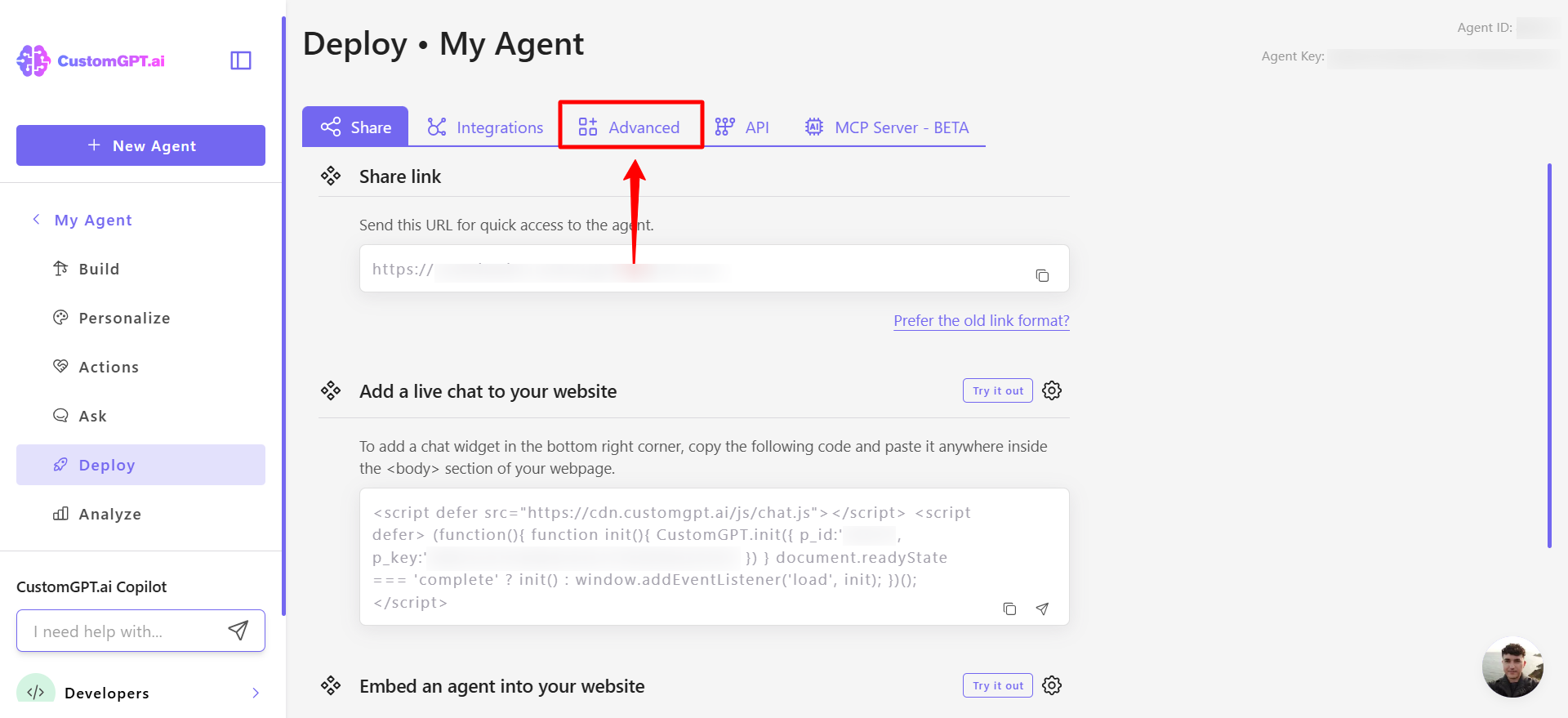
- On the deploy page, open the Advanced tab.
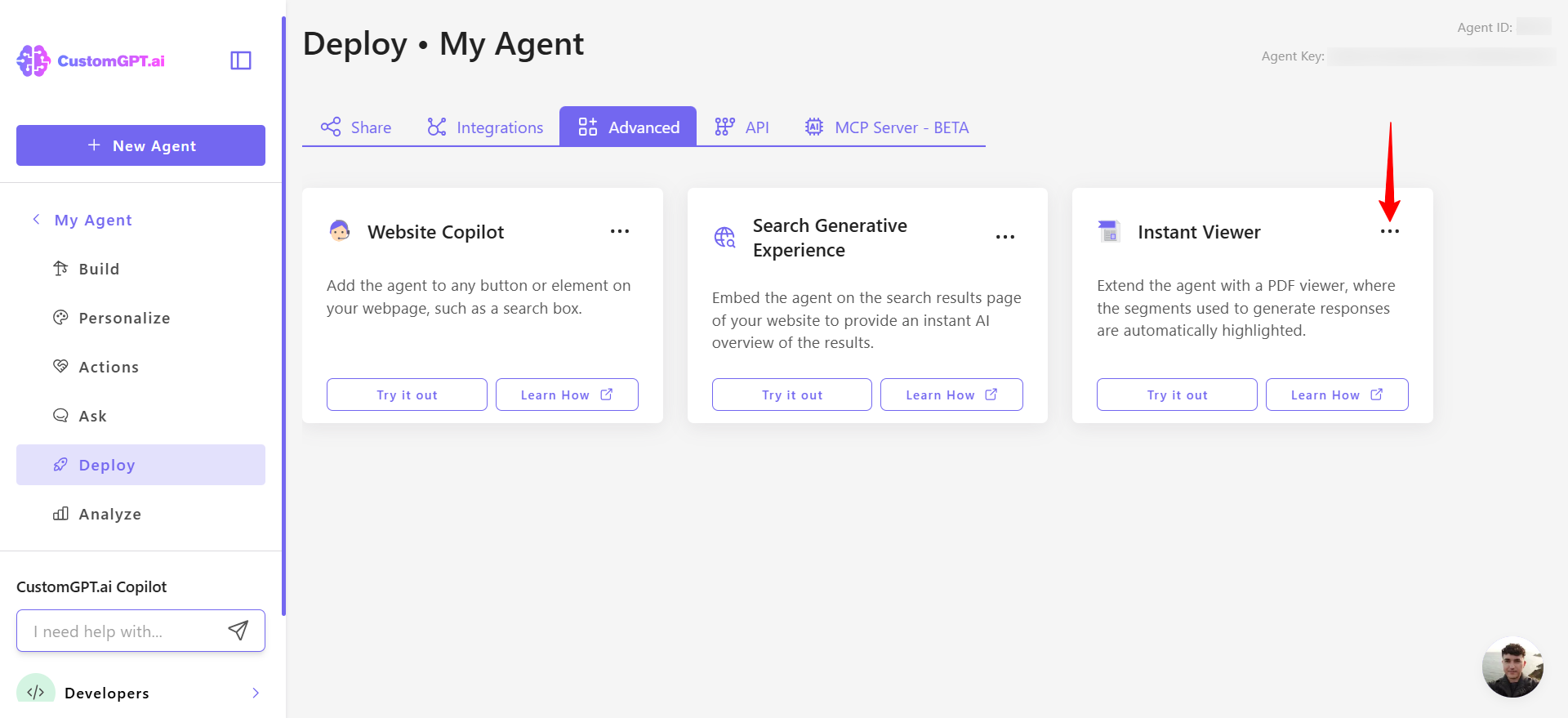
- In the Instant Viewer section, click the three dots menu.
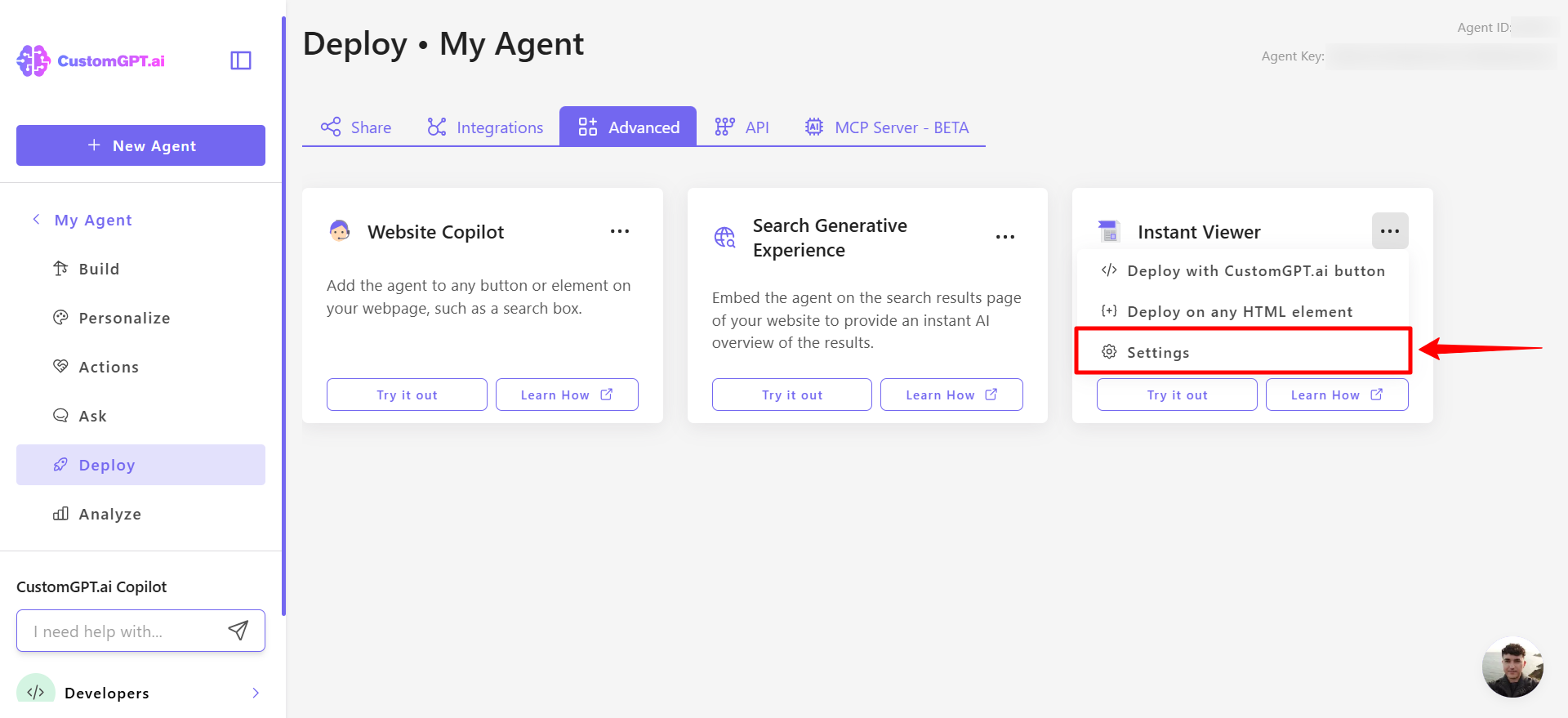
- Click Settings.
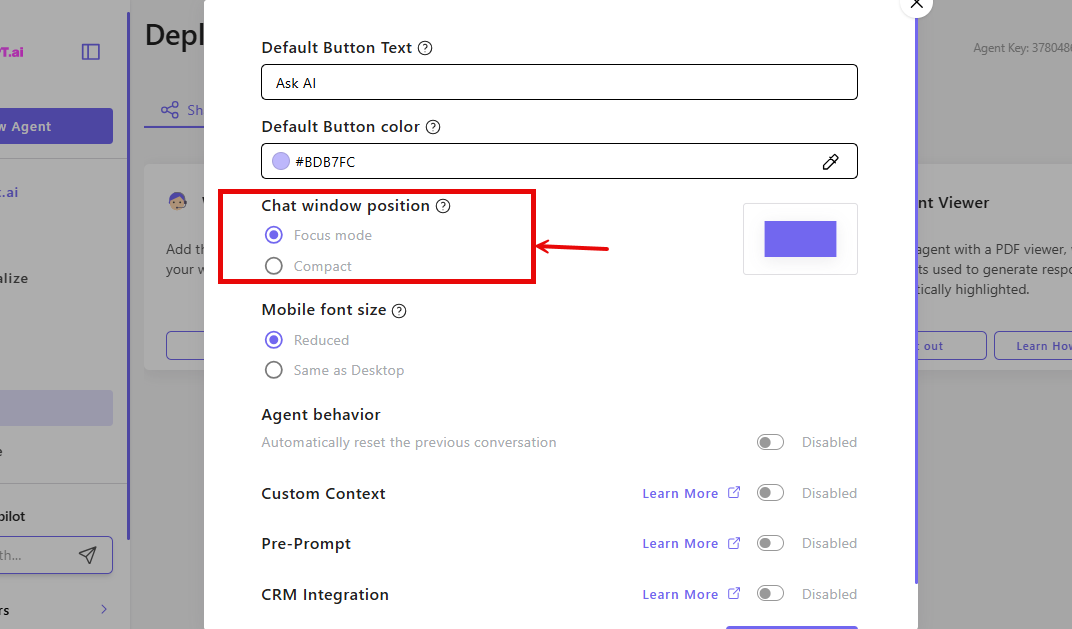
- In the Chat window position, select Focus mode or Compact based on your preference
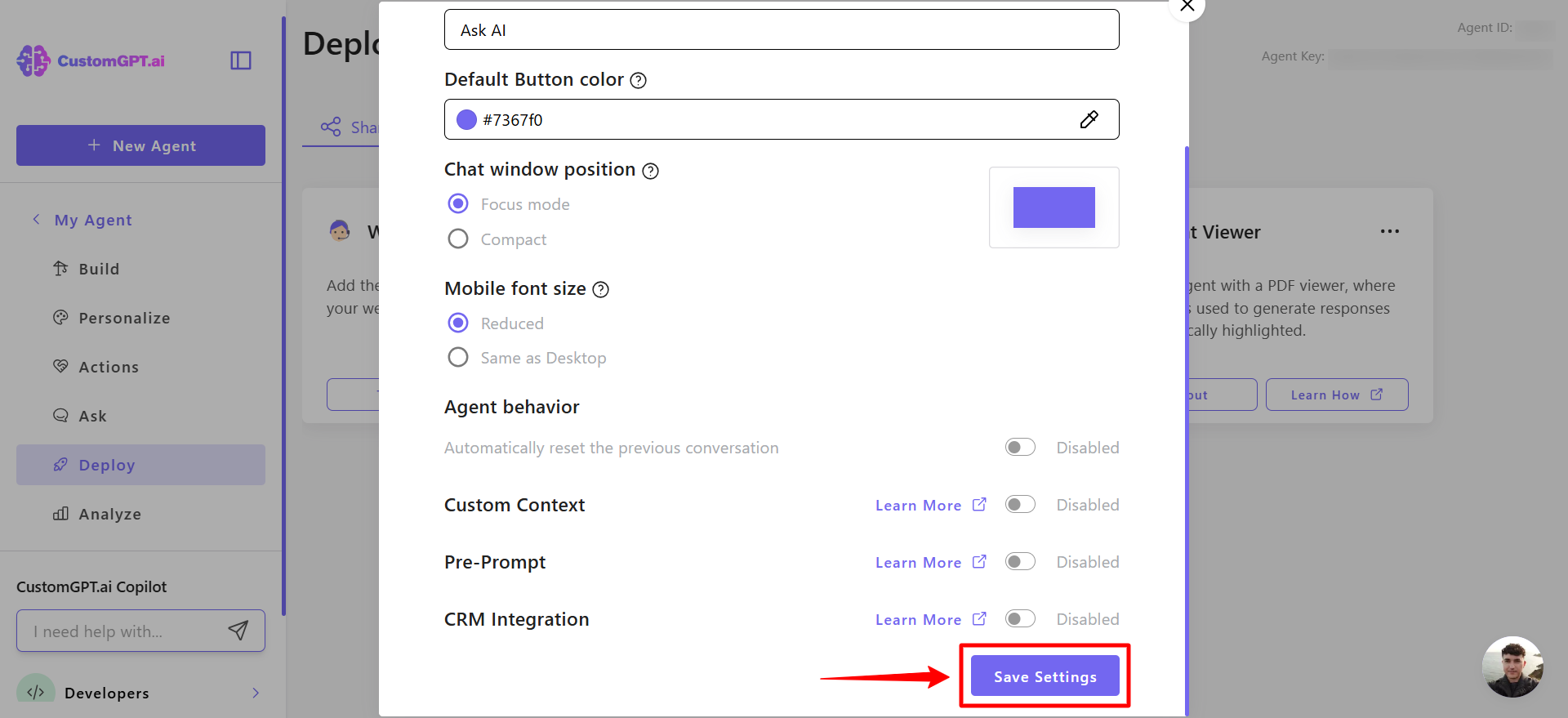
- Click Save settings to apply your changes.
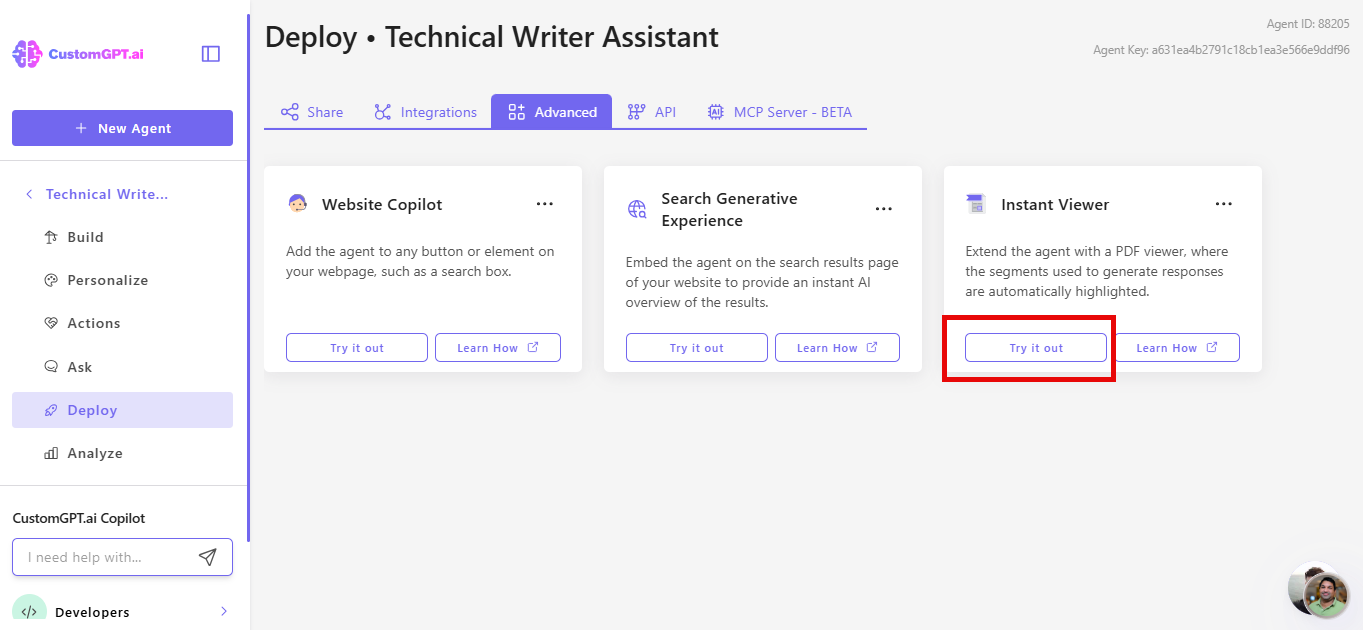
- Click Try it out! to test the PDF viewer and chat interface. If PDFs are used as sources, the viewer displays them with relevant sections highlighted.
Related articles
Updated 7 months ago