
Enable OneDrive auto-sync
This step-by-step guide explains how to enable the OneDrive Auto-Sync feature, ensuring your documents stay automatically updated and synchronized.
Note:This is our Enterprise feature. If you are interested in enabling it, please contact our sales team.
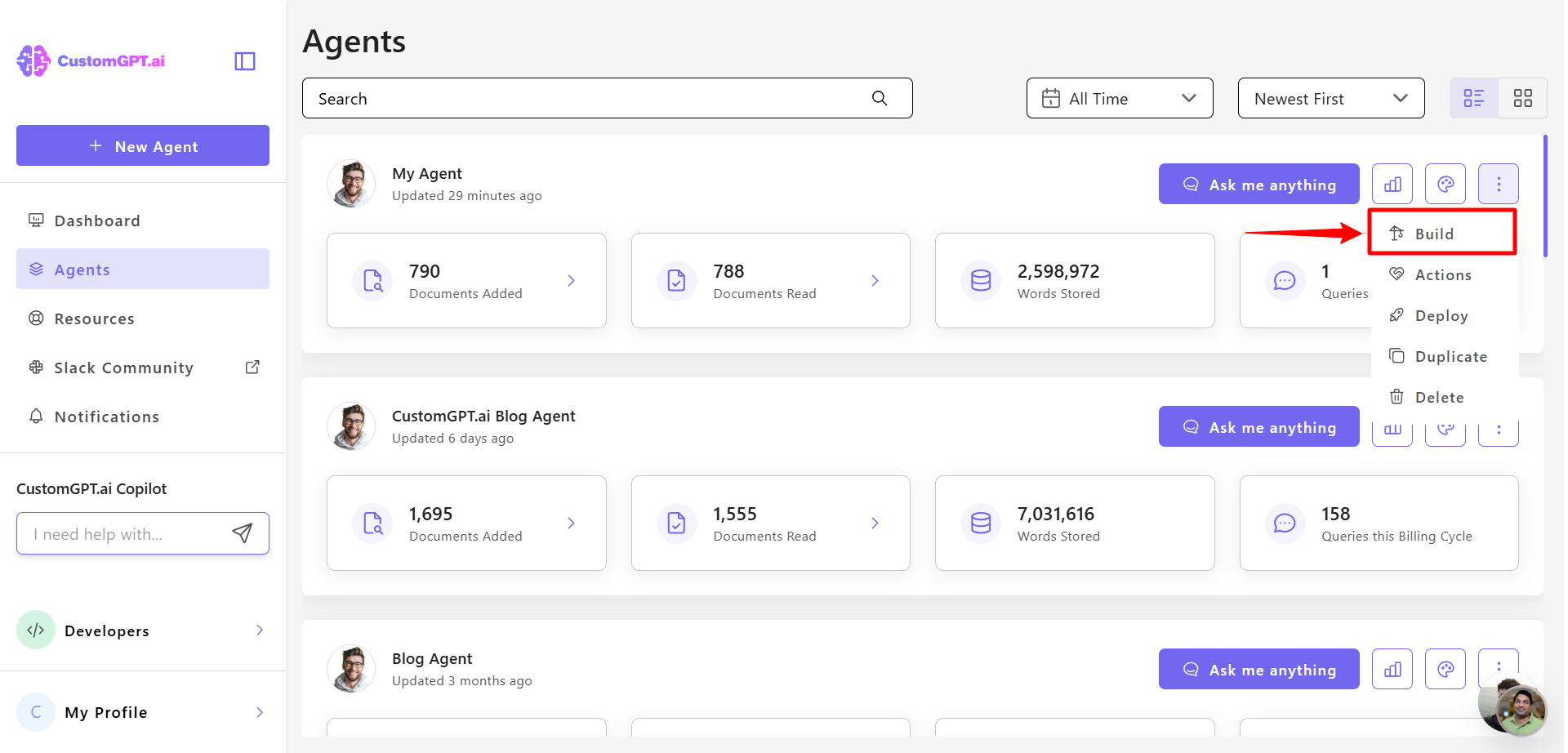
- Click the three dots next to your agent’s name, then select Build.
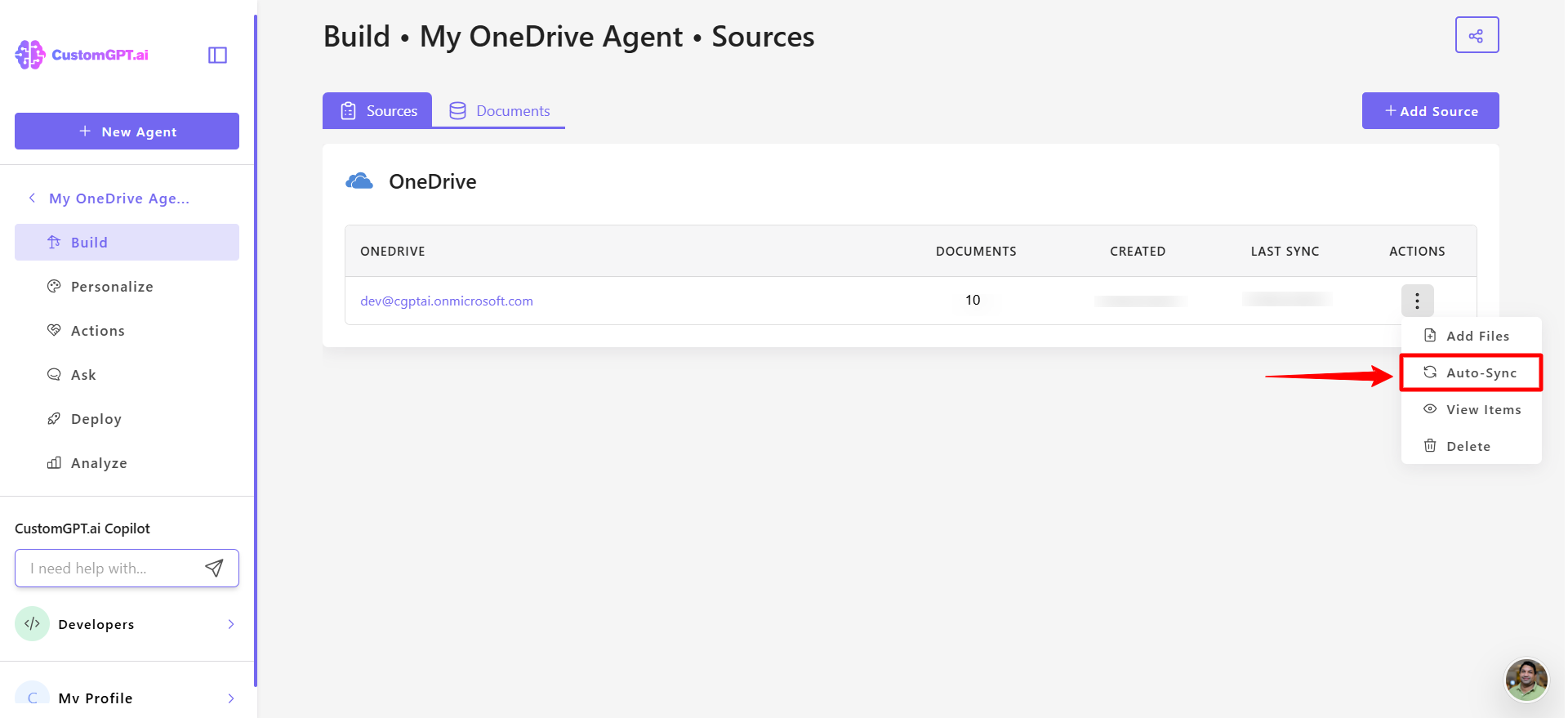
- In the OneDrive documents section, find your connected documents, click the three-dot menu next to them, and select Auto Sync.
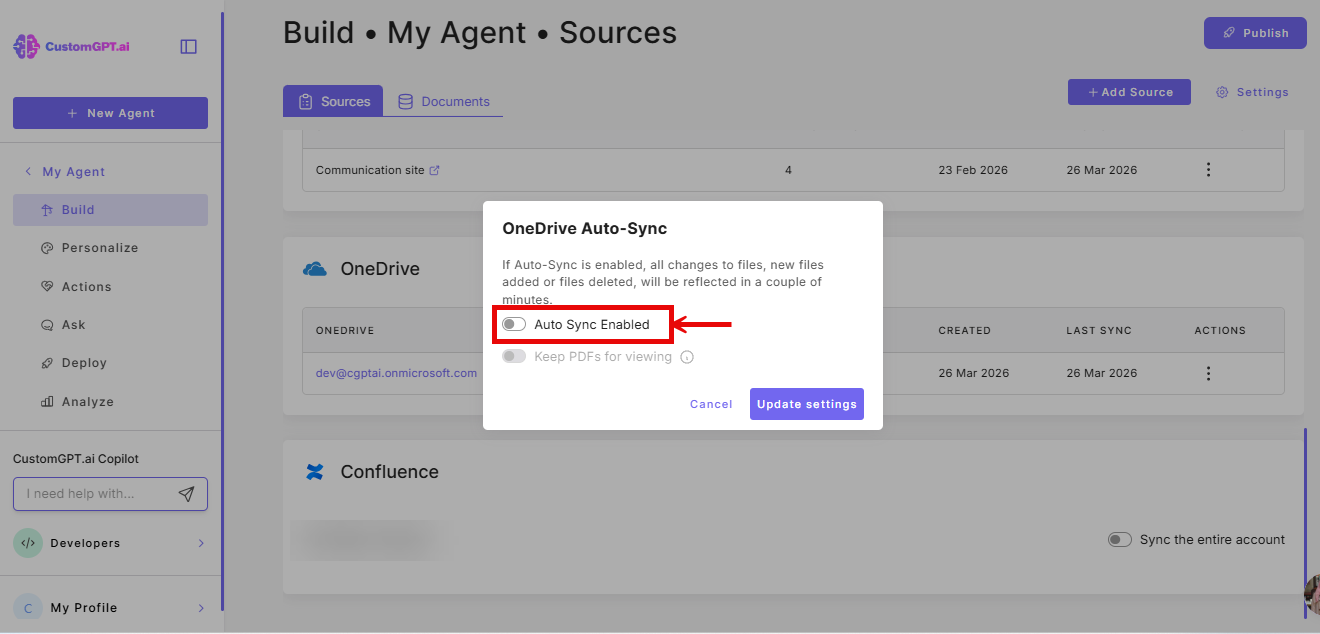
- Toggle Auto Sync Enabled to the right to activate auto-sync.
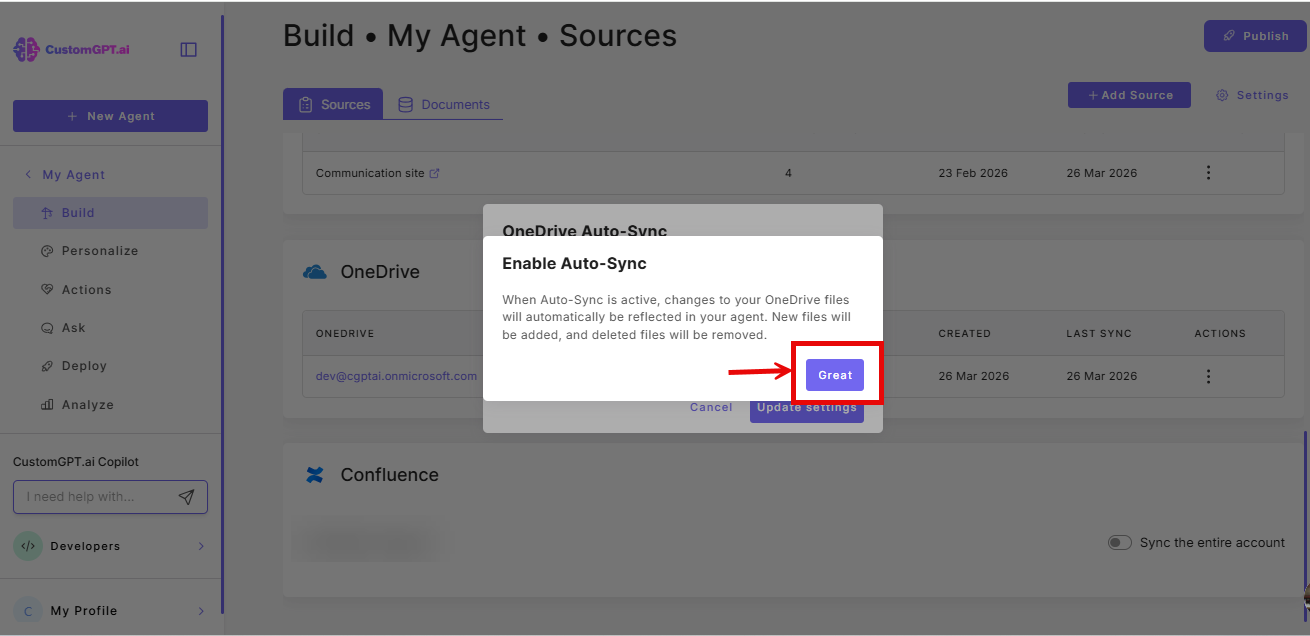
- Click Great to confirm
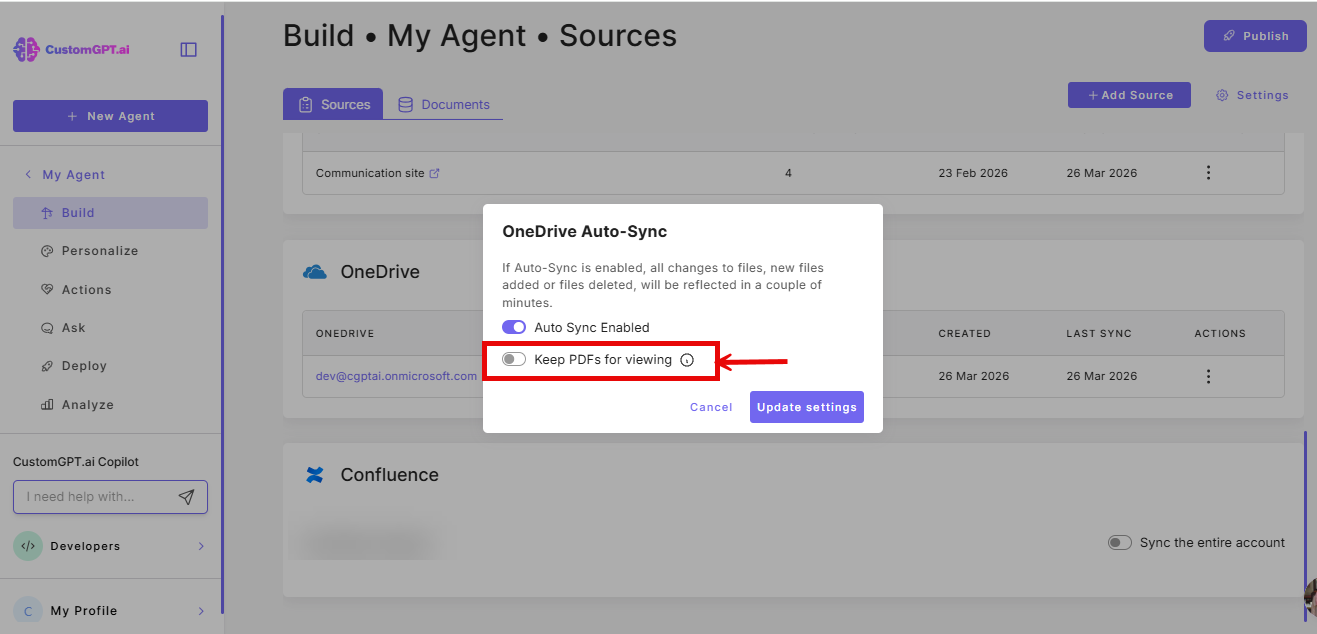
- (Optional) Toggle Keep PDFs for viewing to save a copy of each PDF added to your agent. Users can then open PDFs directly in the citation viewer or download them when cited in agent responses.
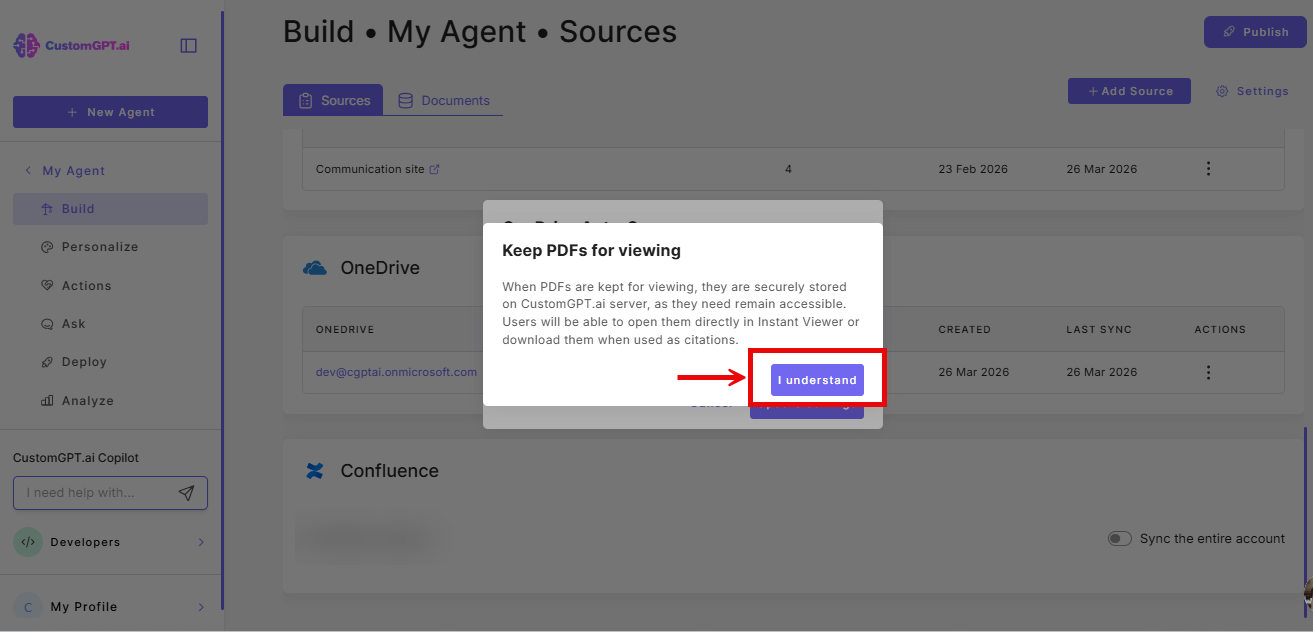
- Click I understand to confirm
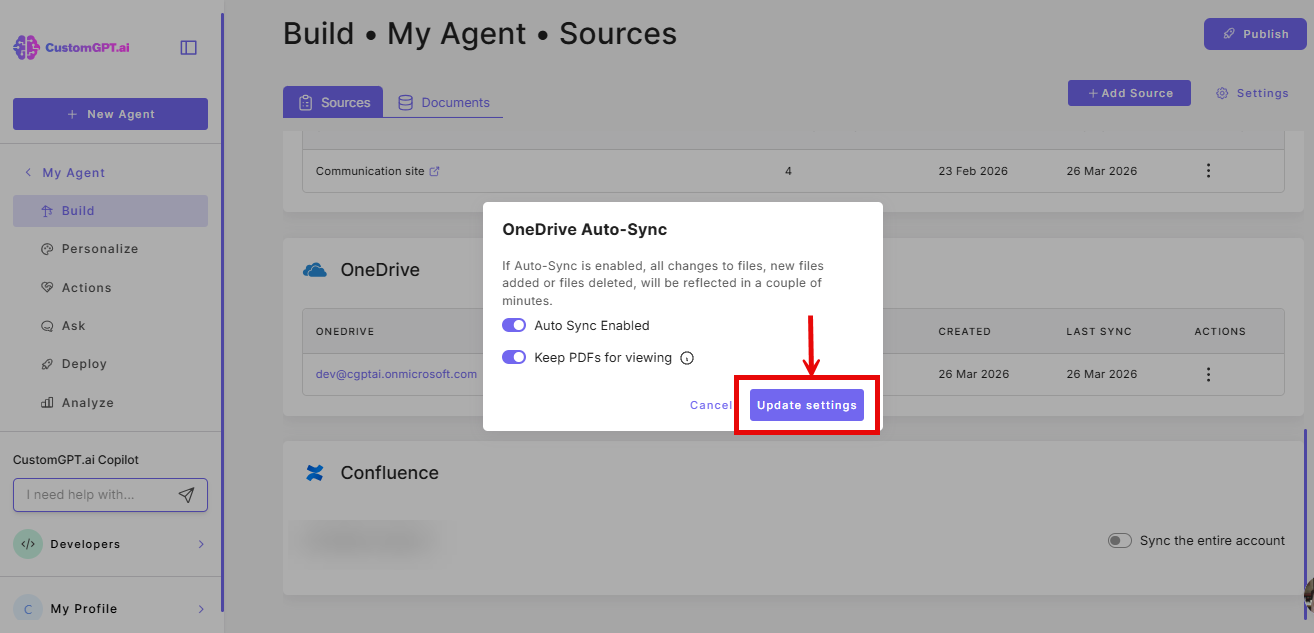
- Click Update settings. Once Auto-Sync is enabled, any changes, additions, or deletions in your OneDrive documents will sync instantly whenever a file changes.
To learn more about the Keep PDFs for viewing feature, see Save PDFs from SharePoint or OneDrive for Viewing.
Updated 7 months ago
Did this page help you?