
Customize copilot agent appearance
This guide explains how to customize your Copilot agent appearance by selecting between Compact view (space-efficient) or Focus view (expanded interface).
Copilot Agent Appearance lets you choose how your copilot interface displays to users. You can select between Compact view for space efficiency or Focus view for a larger, more immersive experience.
In simple terms: Choose whether your copilot takes up less screen space (Compact) or provides a fuller interface (Focus).
Available Options
- Compact - Space-efficient display, ideal for multitasking
- Focus - Expanded interface, ideal for detailed interactions
This is a preference setting. Both views provide the same functionality.
How to change copilot appearance
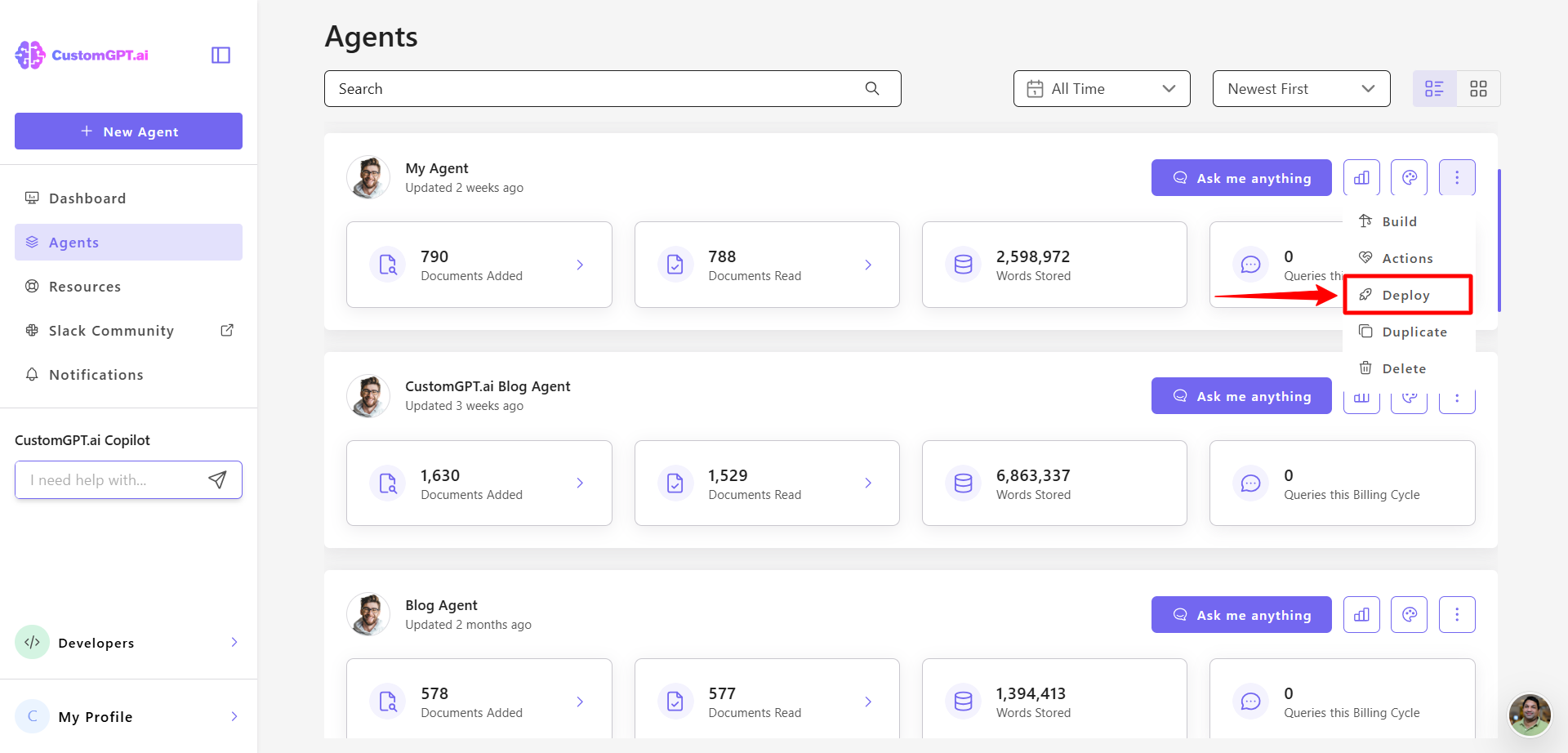
- On your CustomGPT dashboard, click the three dots menu and click Deploy.
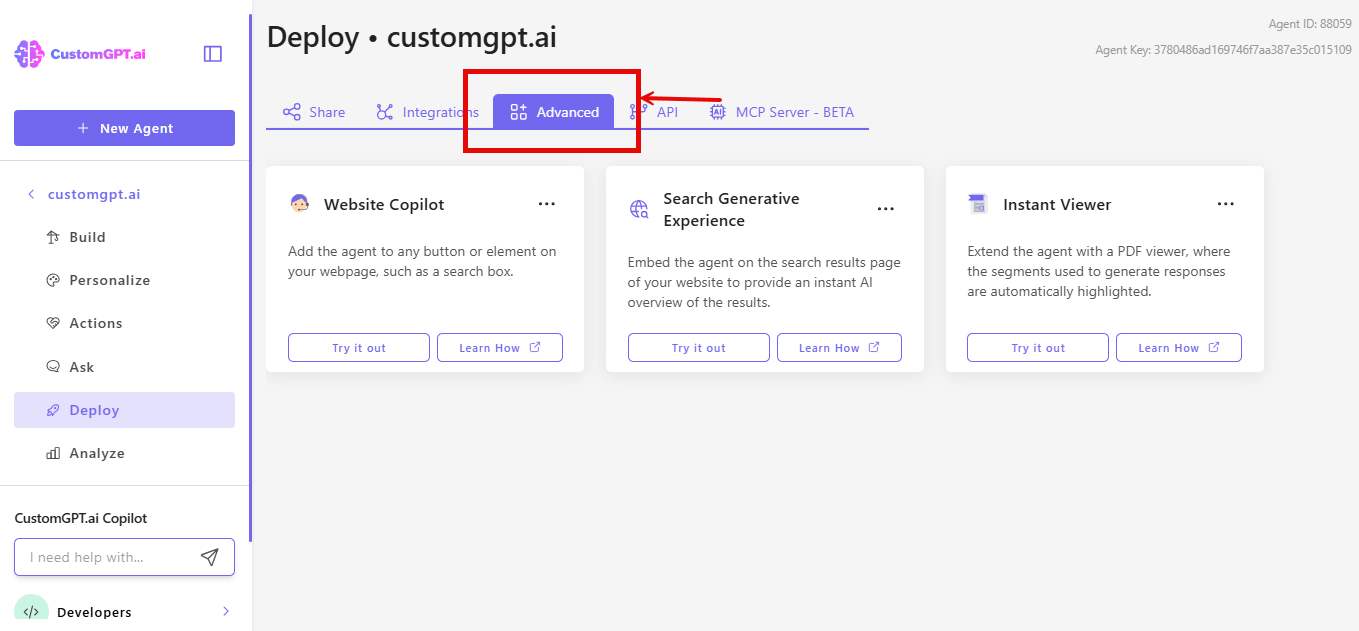
- On the Deploy screen, click on Advanced tab
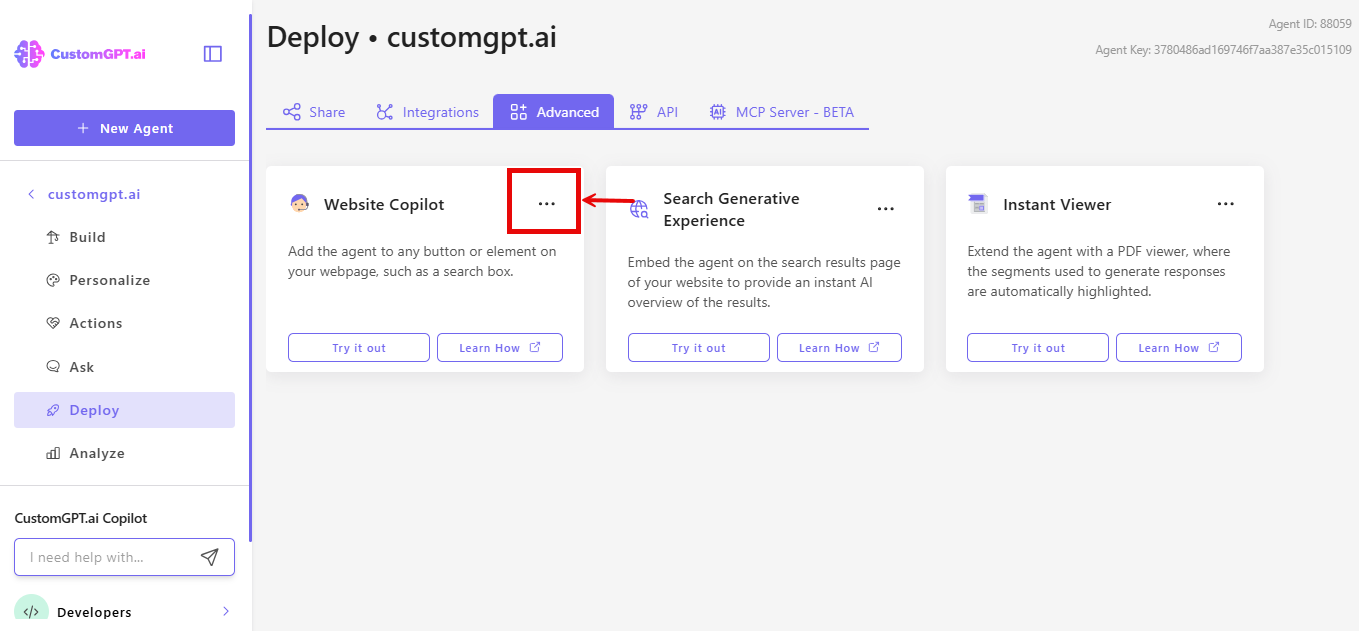
- On the Website Copilot card, click on the 3 dots
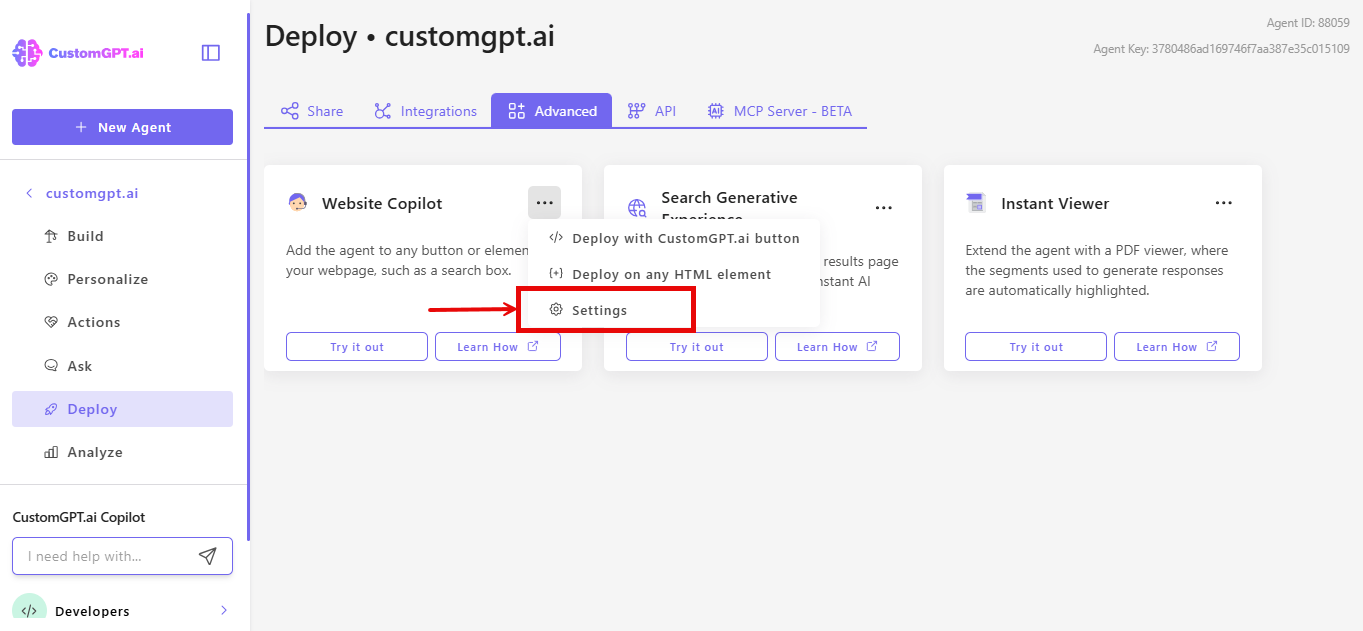
- Click on Settings in the menu
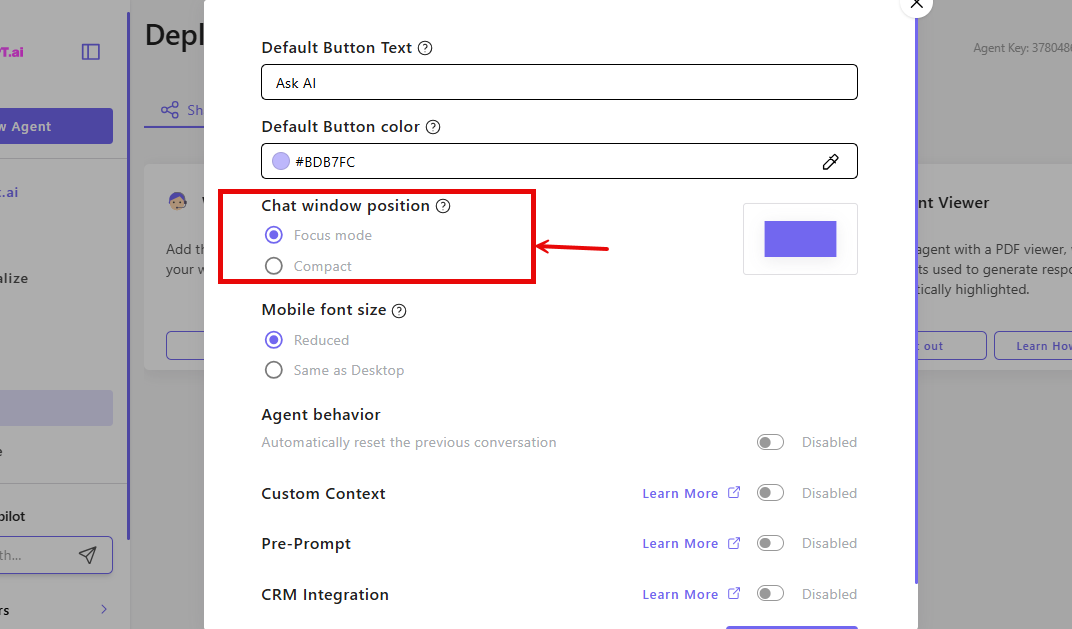
- In the Chat window position, select Focus mode or Compact based on your preference
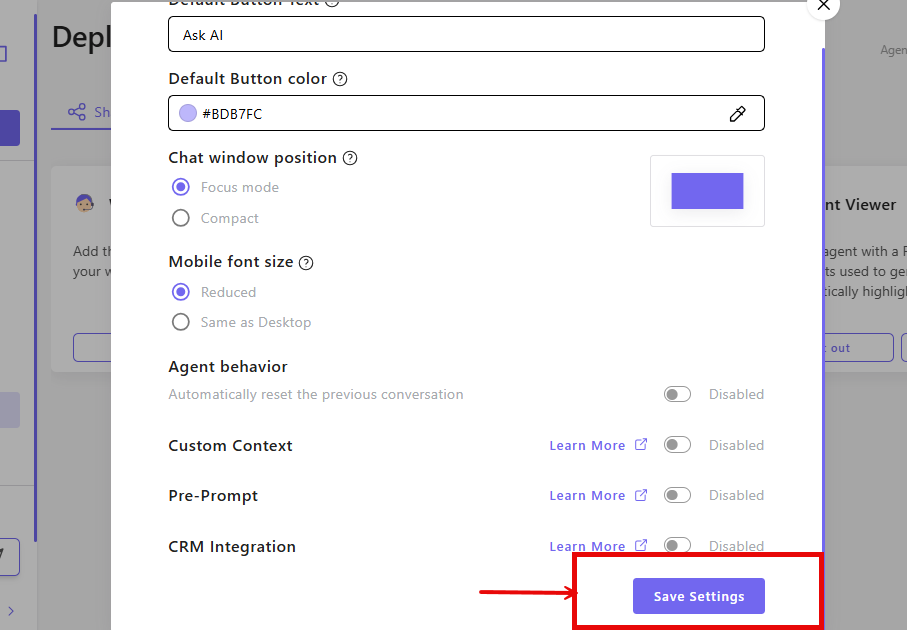
- Click on Save Settings
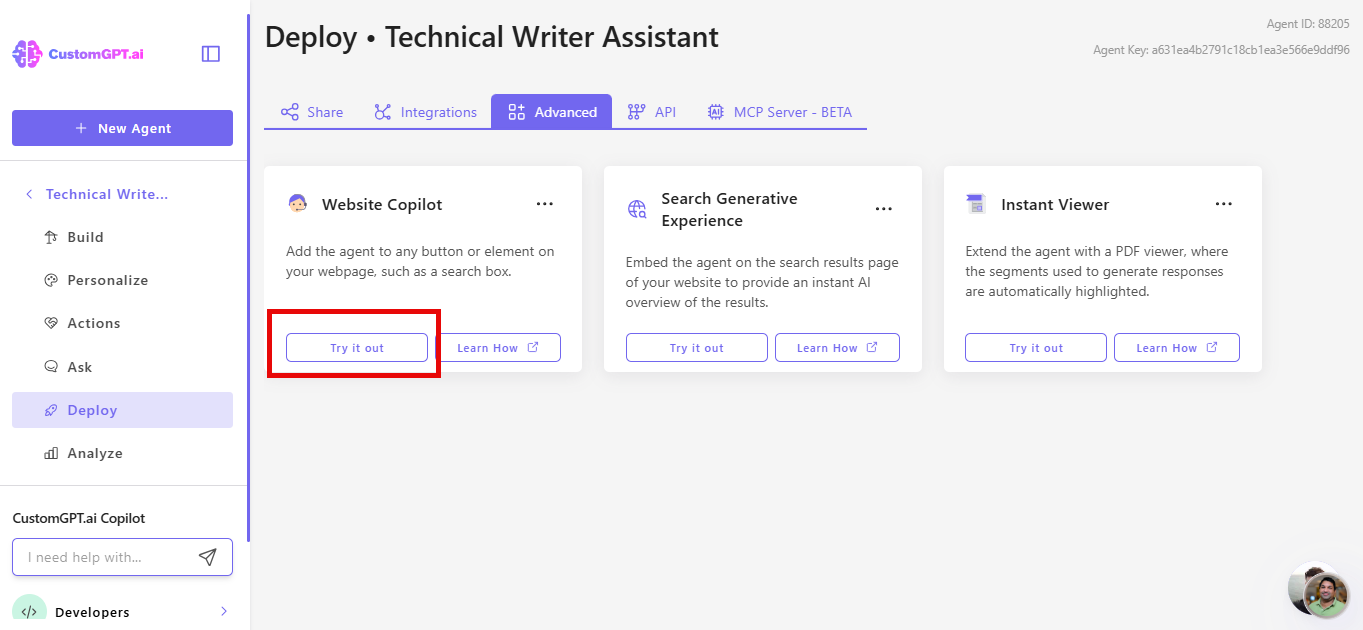
- Click Try it out! to see how users will interact with your copilot.
How It Works
After saving, your copilot will display in the selected view for all users. The interface adjusts automatically while maintaining all features and functionality.
Tip: Try both views to see which works best for your use case.
Updated 10 months ago