
Enable OpenGraph Citations
This guide explains how to enable OpenGraph Citations to display clickable image previews instead of numbered references when citing website sources.
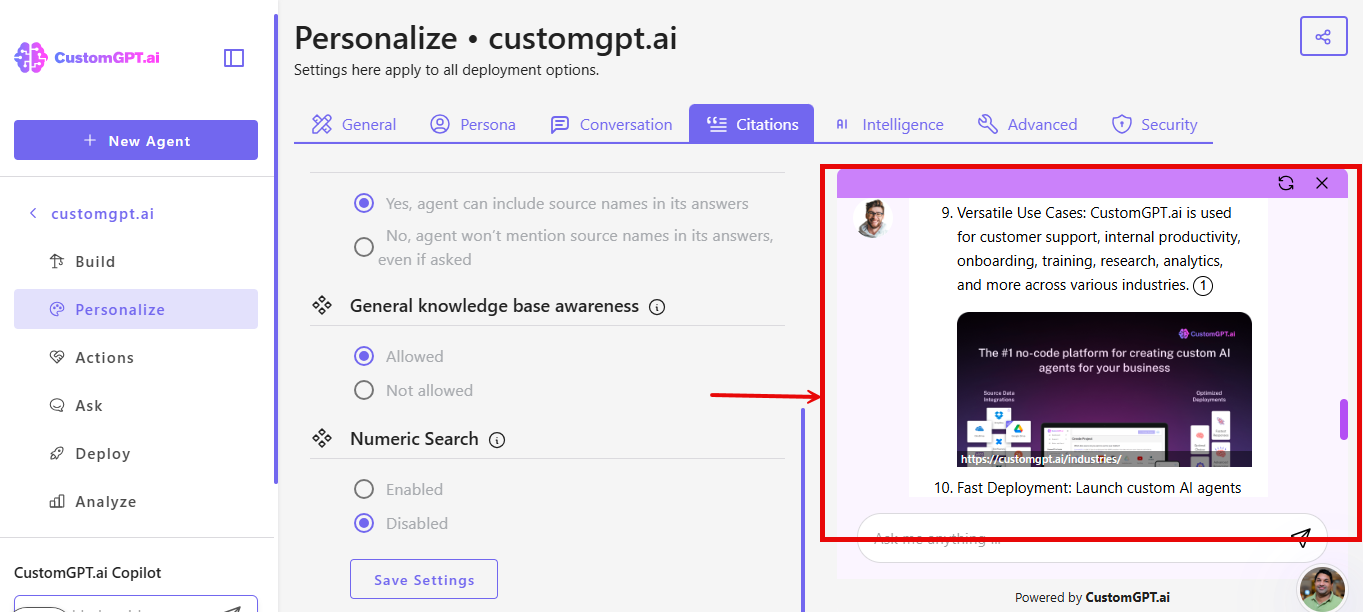
OpenGraph Citations replaces plain numbered references like ①, ②, etc with visual preview images from website sources. When your agent cites a website, users see a clickable image preview instead of just a number.
Example:
- Without OpenGraph: "Solar energy is growing ①"
- With OpenGraph: "Solar energy is growing [clickable image preview from source website]"
Each image:
- Links to the source website
- Shows the URL in an overlay at the bottom
- Appears inline with the text
Requirements:
- Numbered reference options enabled in Show Citations
- Website sources (URLs) in your knowledge base
Note: This feature is available on all plans.
How to Enable OpenGraph Citations
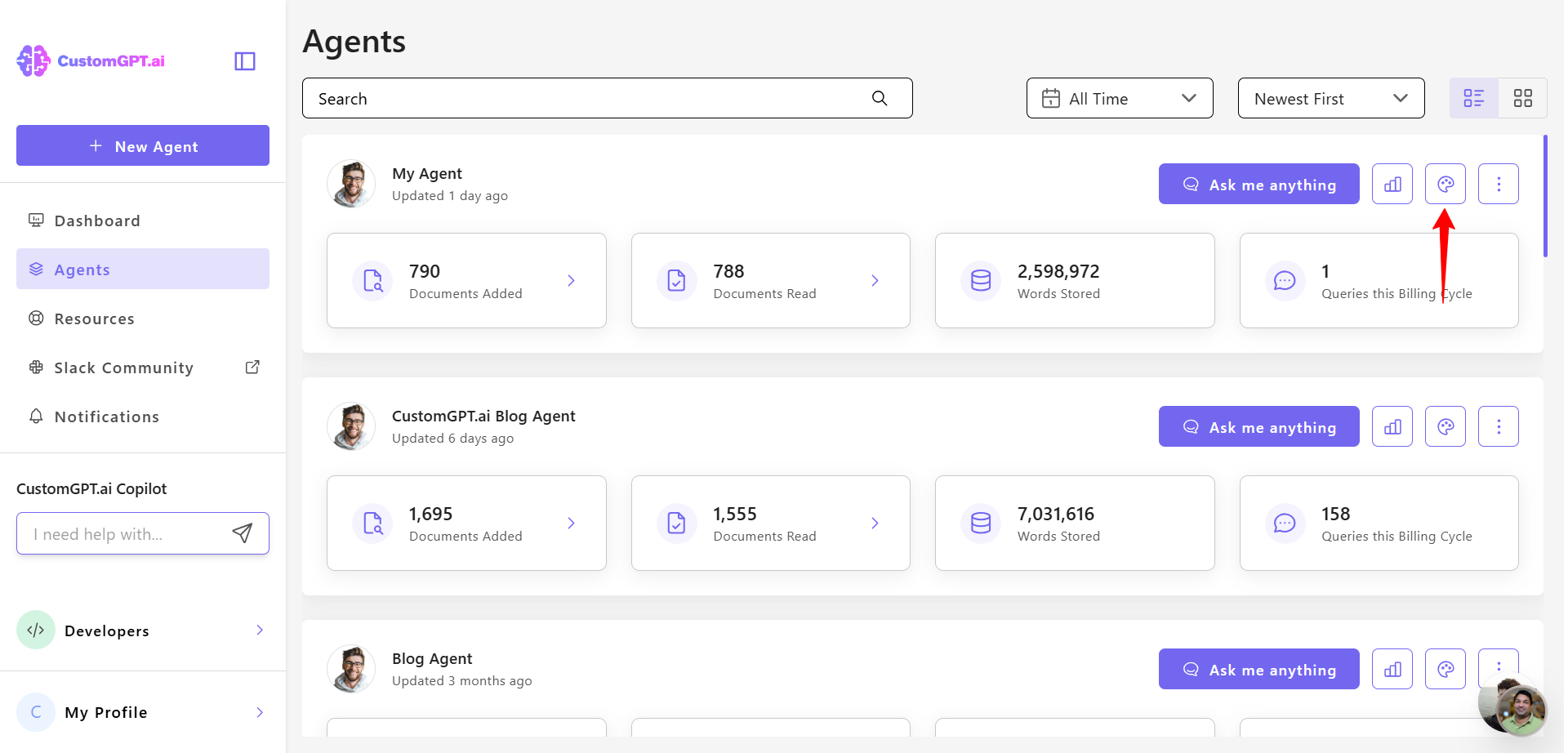
- Go to your agent and click Personalize.
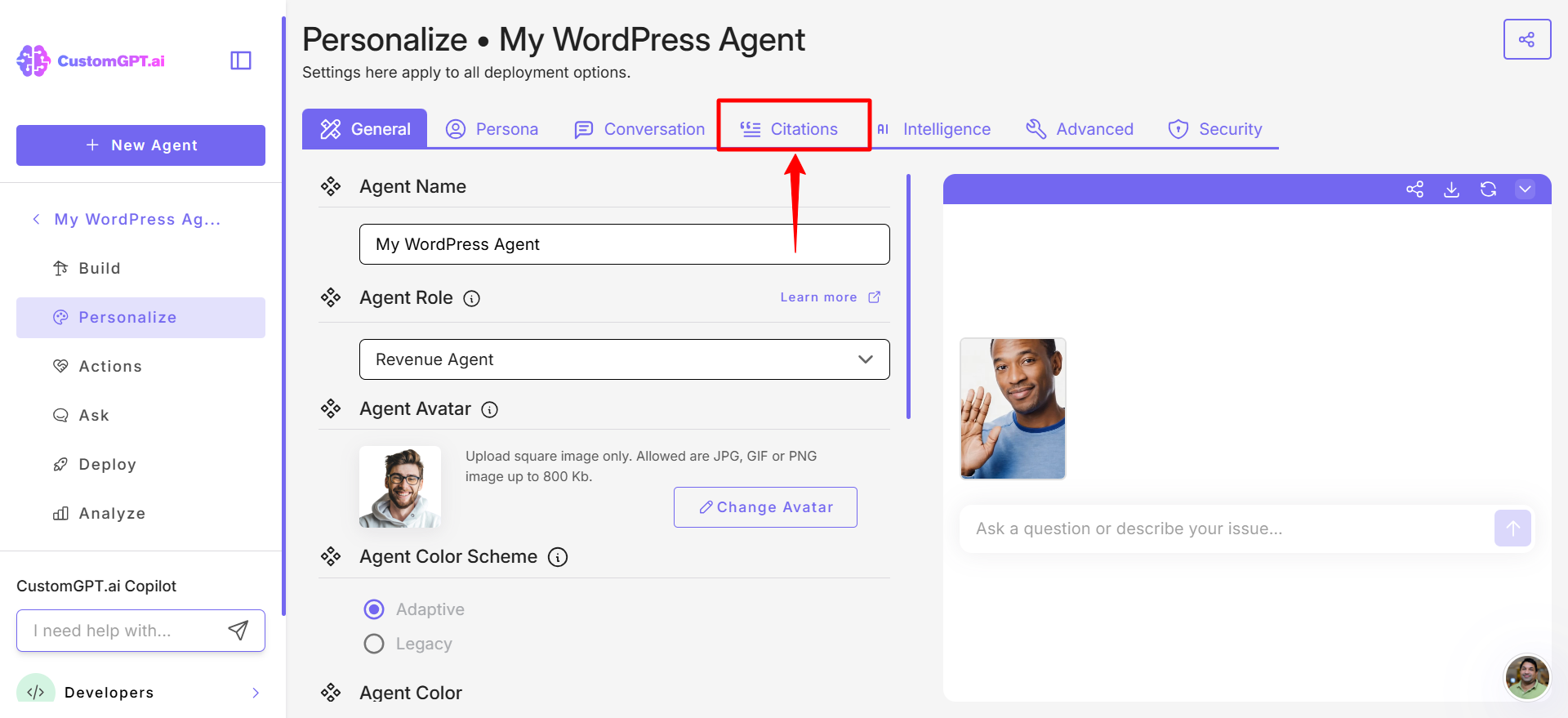
- Navigate to the Citations tab.
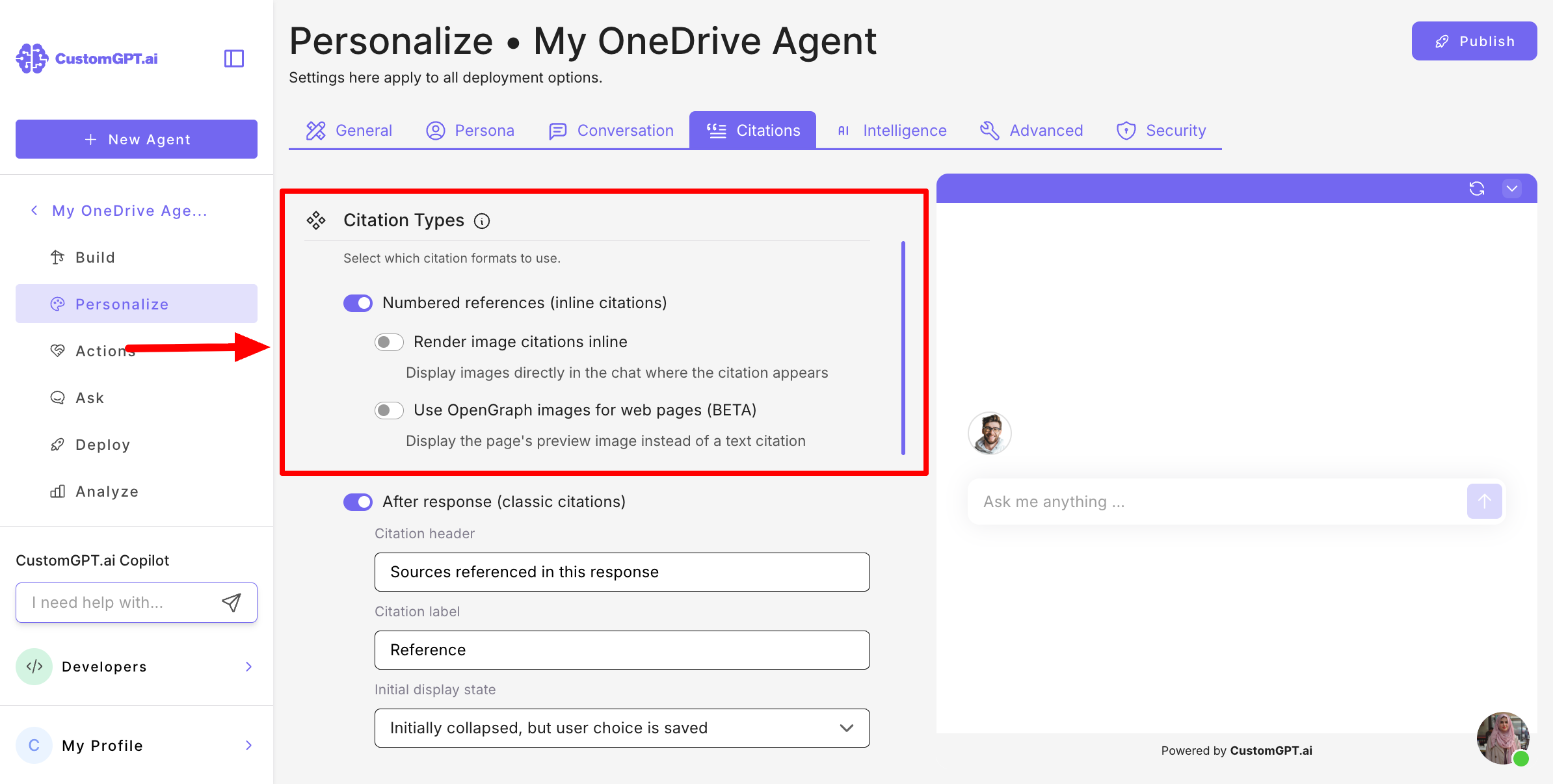
- Under Citation Types, enable Numbered references (inline citations).
- Toggle on Use OpenGraph images for web pages (BETA).
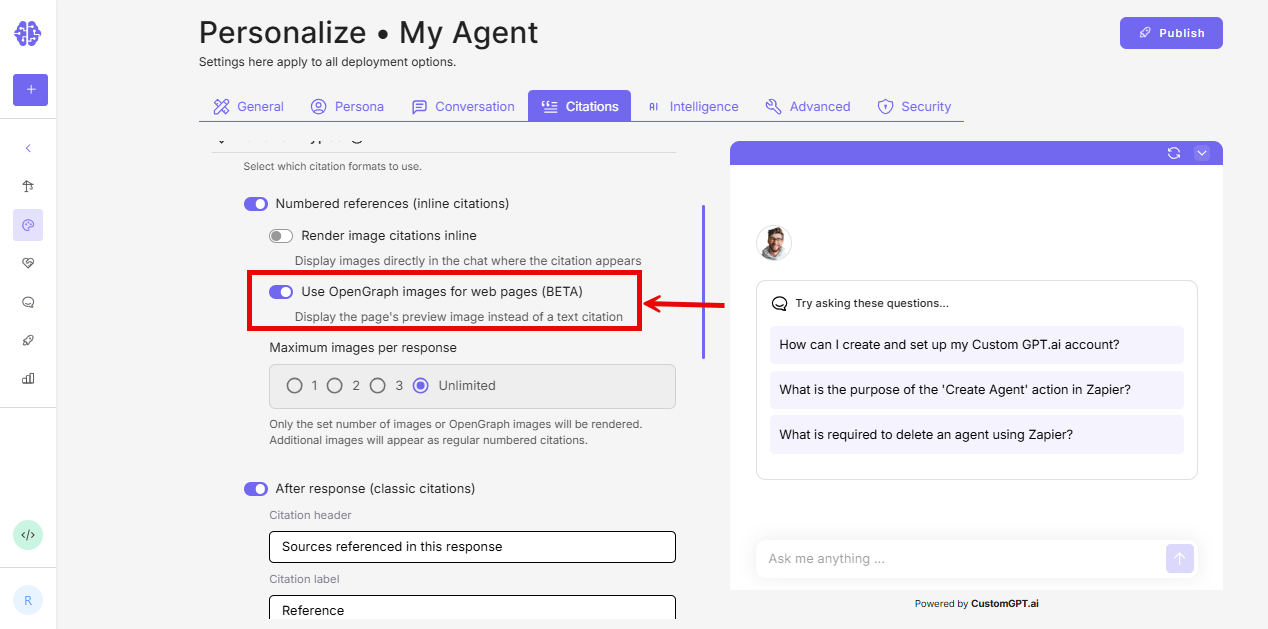
- Once the toggle is on, set Maximum images per response - choose how many image previews can appear in a single response: 1, 2, 3, or Unlimited.
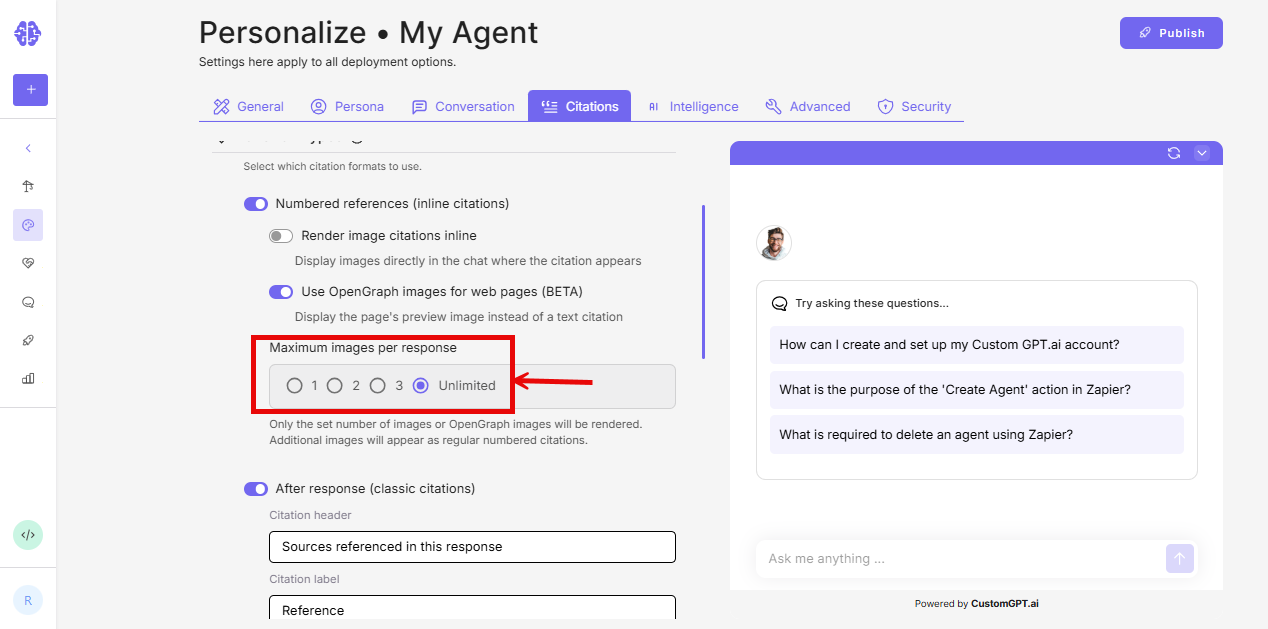
This setting controls how many image previews are rendered in a single agent response. If a response cites more sources than the selected limit, only the first images are shown as previews. The rest fall back to numbered references.
Use a lower limit if your agent is primarily used on mobile, or if responses tend to cite many sources.
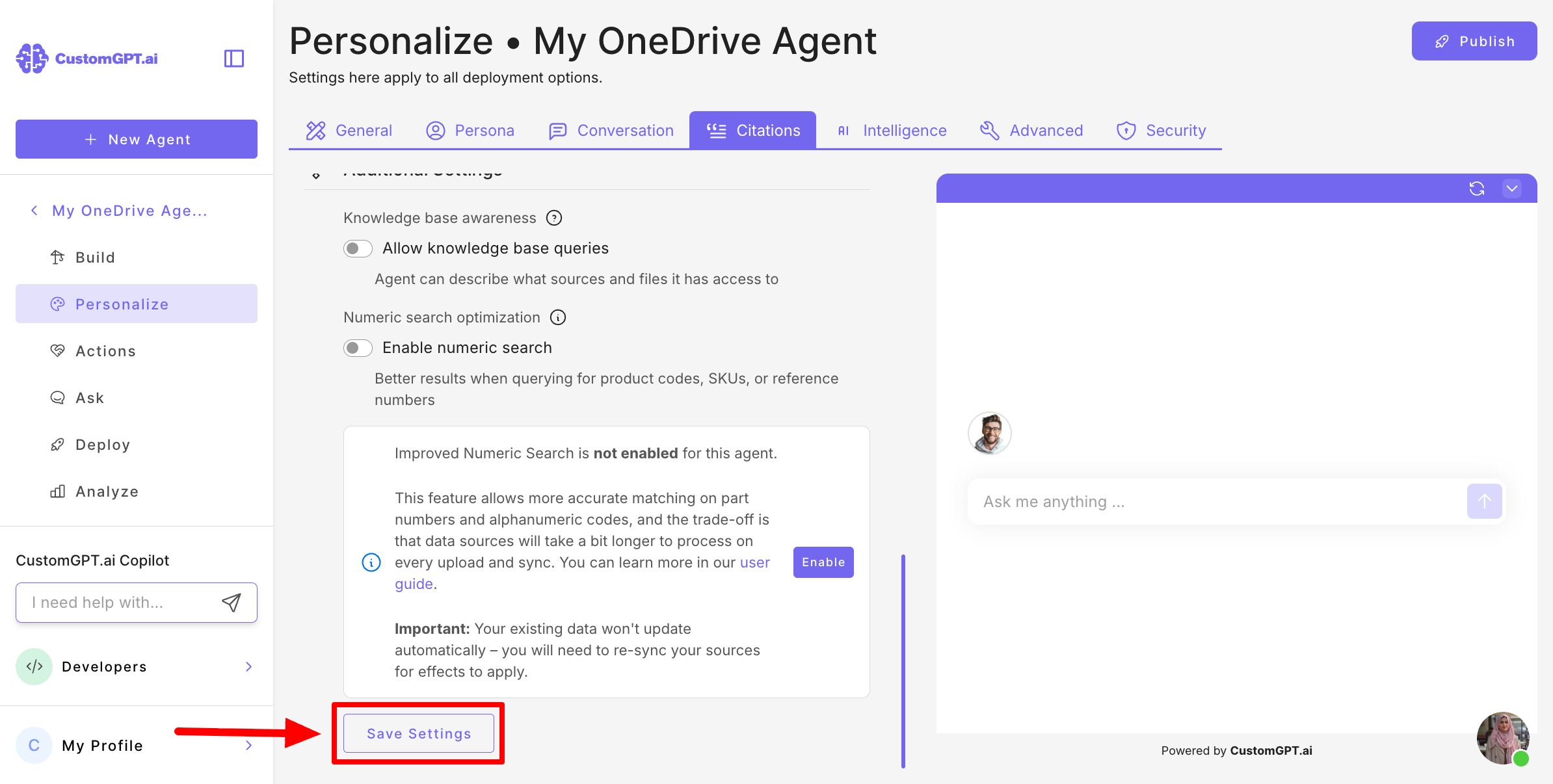
- Click Save Settings to enable the feature.
How It Works
When your agent responds:
- It cites a website from your knowledge base
- An image preview appears instead of ①
- Users click the image to visit the source
- The URL shows at the bottom of the image
If no image is available: The agent automatically shows the regular numbered citation ① instead.
Updated 6 months ago