
Add a custom MCP connector
This step-by-step guide explains how to add a new Custom connector to your AI agent. With Custom connector, your agent can go beyond answering questions and perform real-world tasks using connected MCP servers.s
What is a custom connectors?
A Custom connector connects your agent to an external system through an MCP (Model Context Protocol) server. This enables the agent to:
- Fetch live information (e.g., check order status).
- Trigger actions (e.g., create a support ticket).
- Integrate with third-party apps and workflows.
👉 Learn more about Custom connector
How to add a custom connector
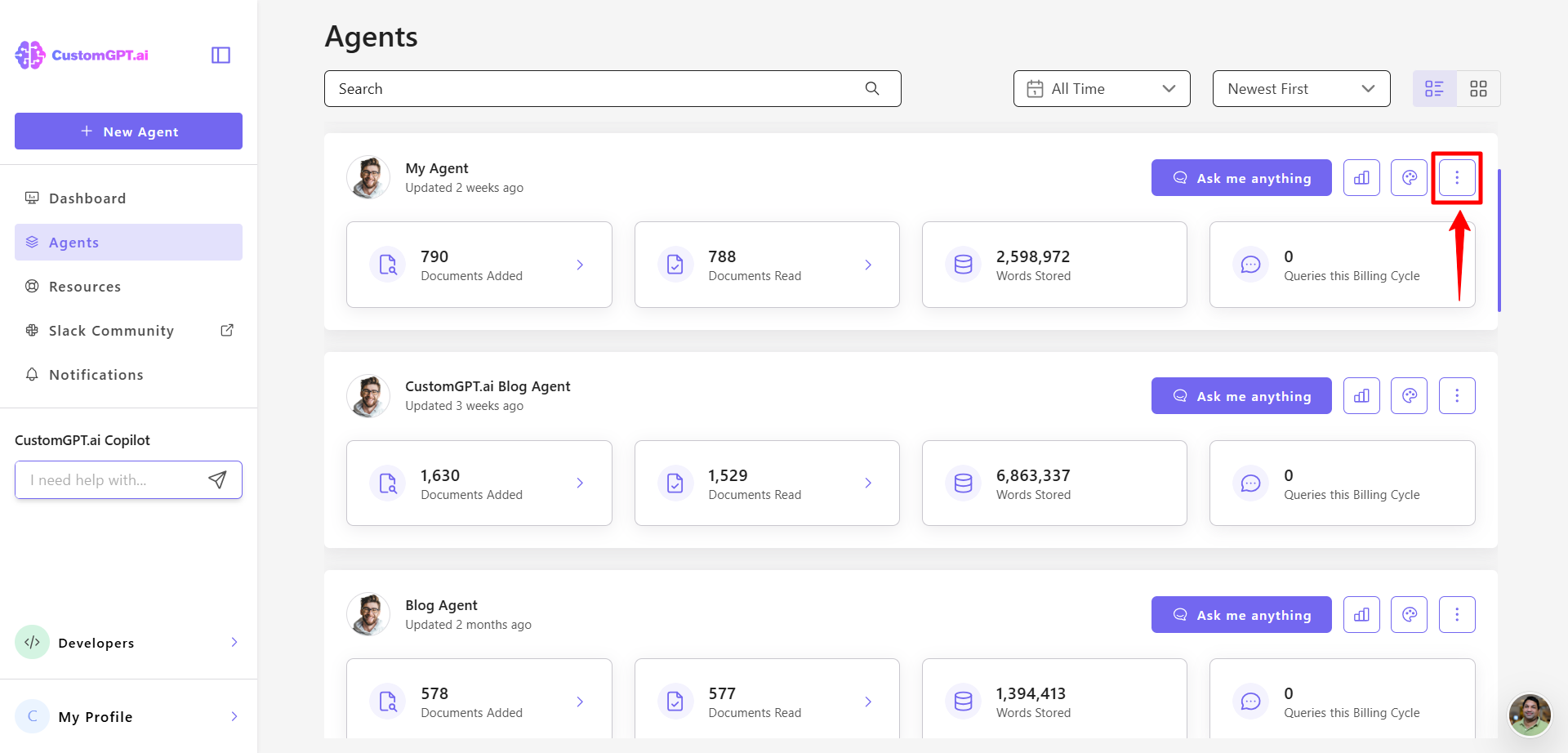
- On your CustomGPT.ai dashboard, click the three dots menu.
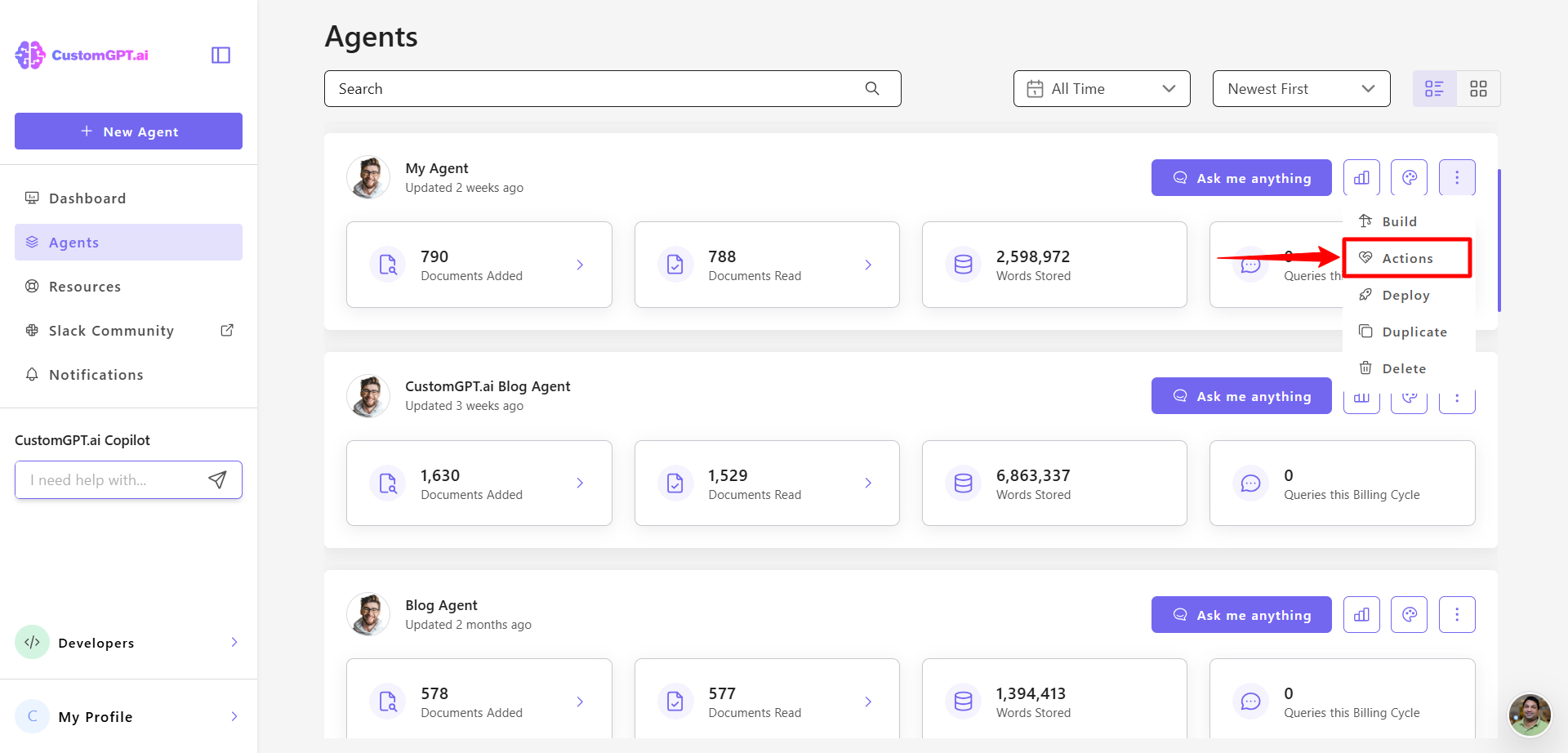
- Click Actions.
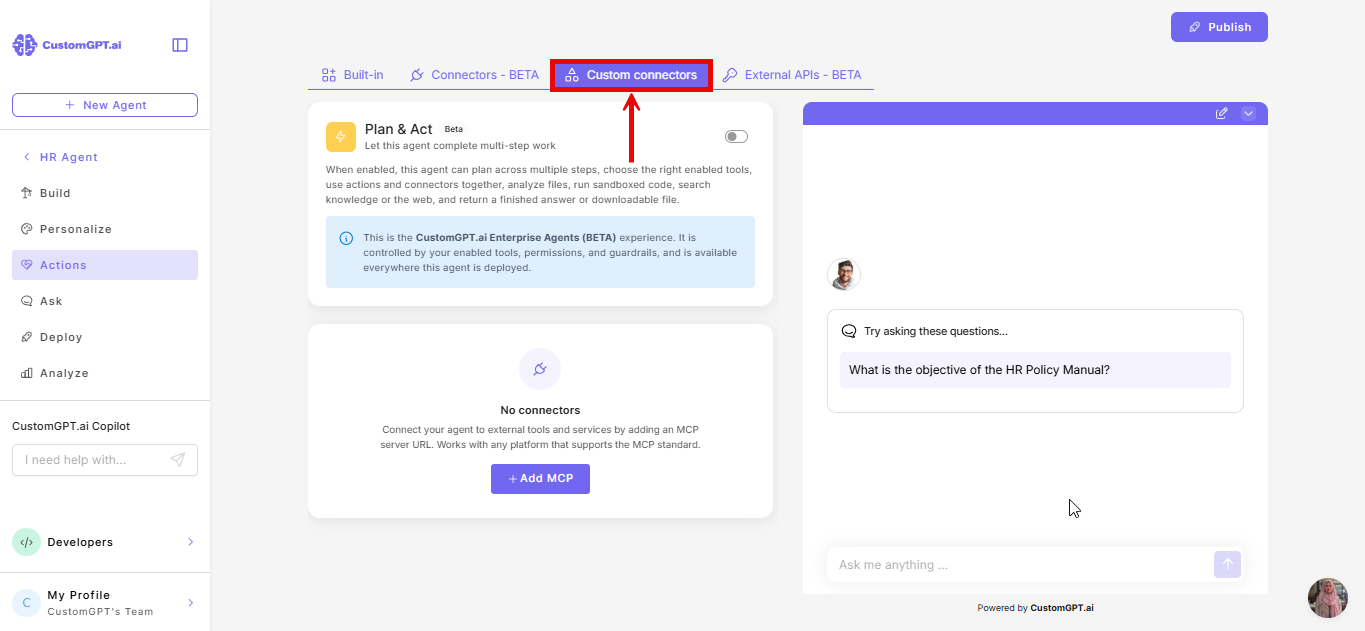
- On the Actions page, click Custom connectors tab.
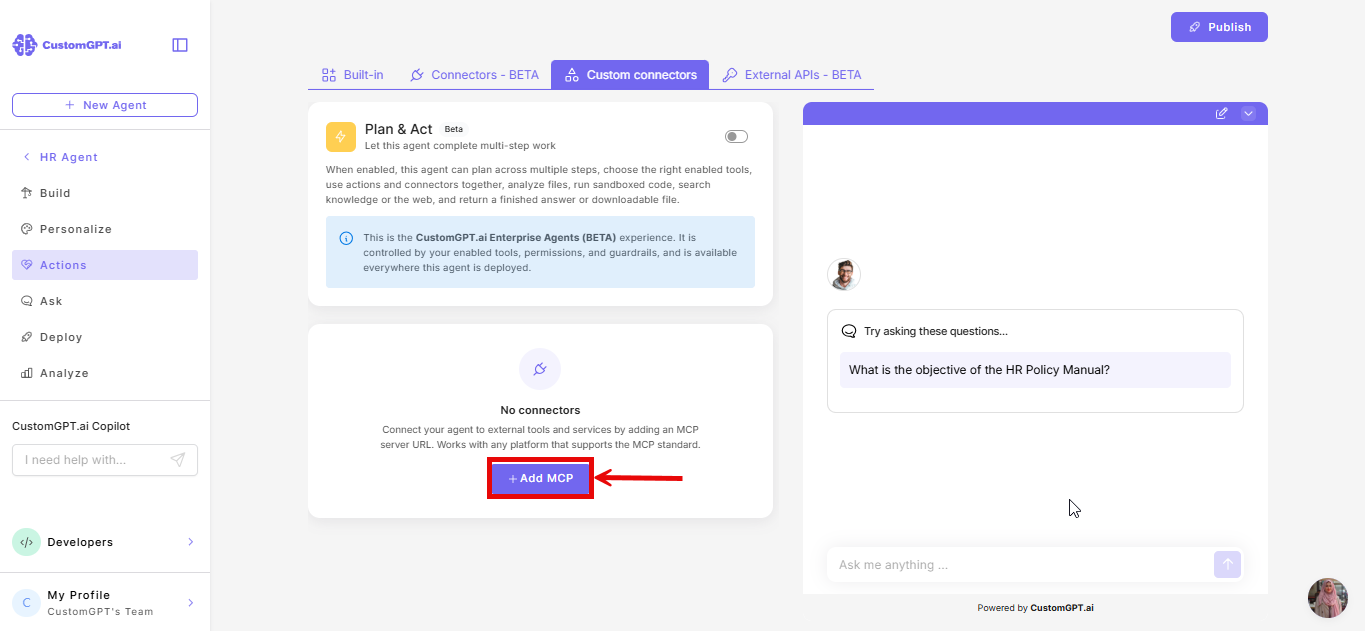
- Click Add MCP.
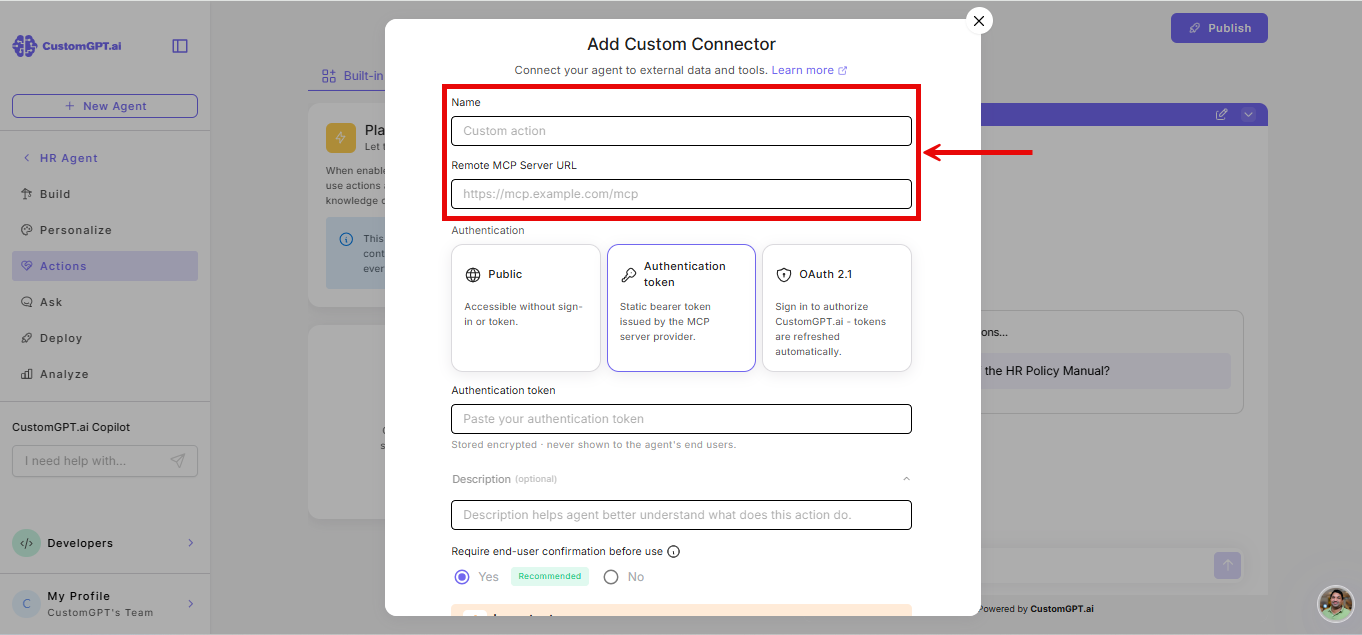
- Enter the name of custom connector and MCP server URL.
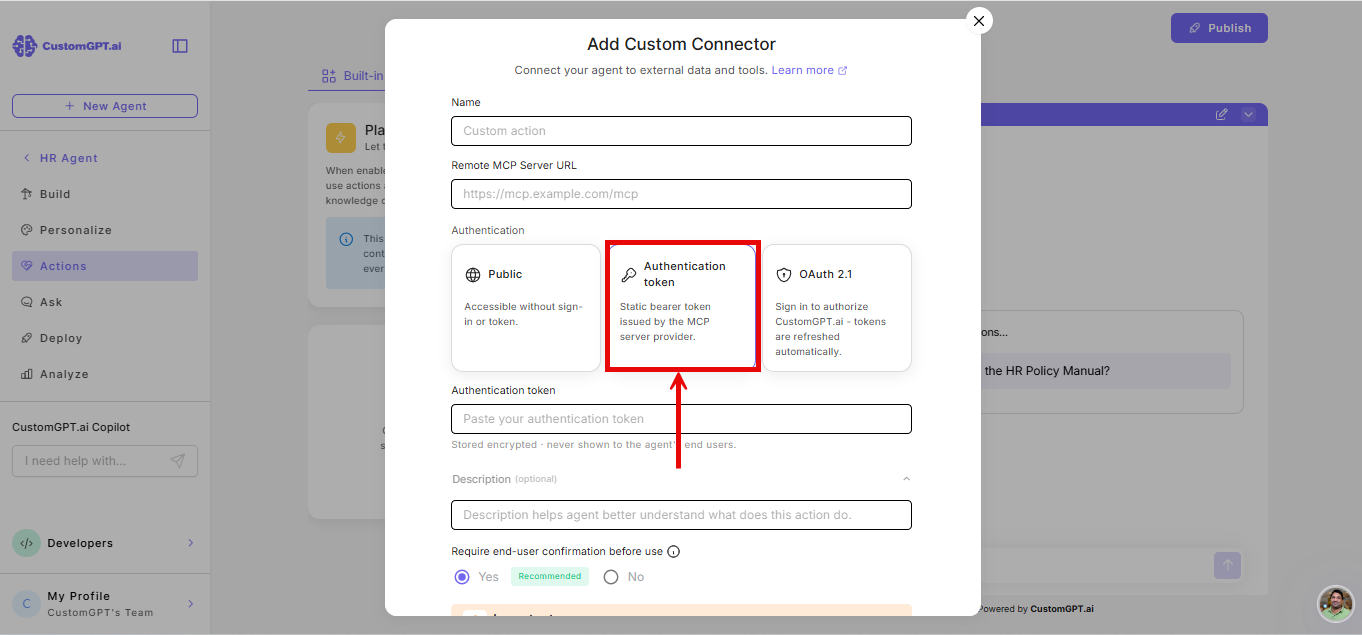
- Under Authentication, select the Authentication Token card. If the server requires OAuth 2.1 instead, see Add a Custom Connector with OAuth 2.1.
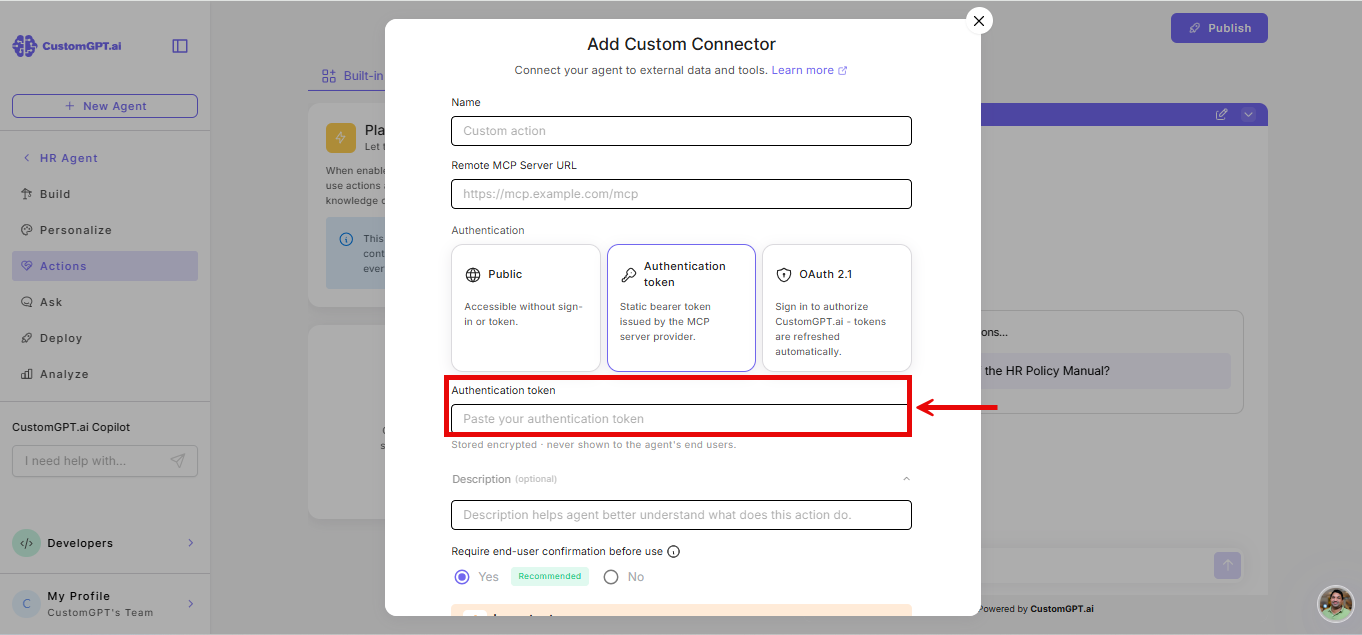
- Enter your authentication token.
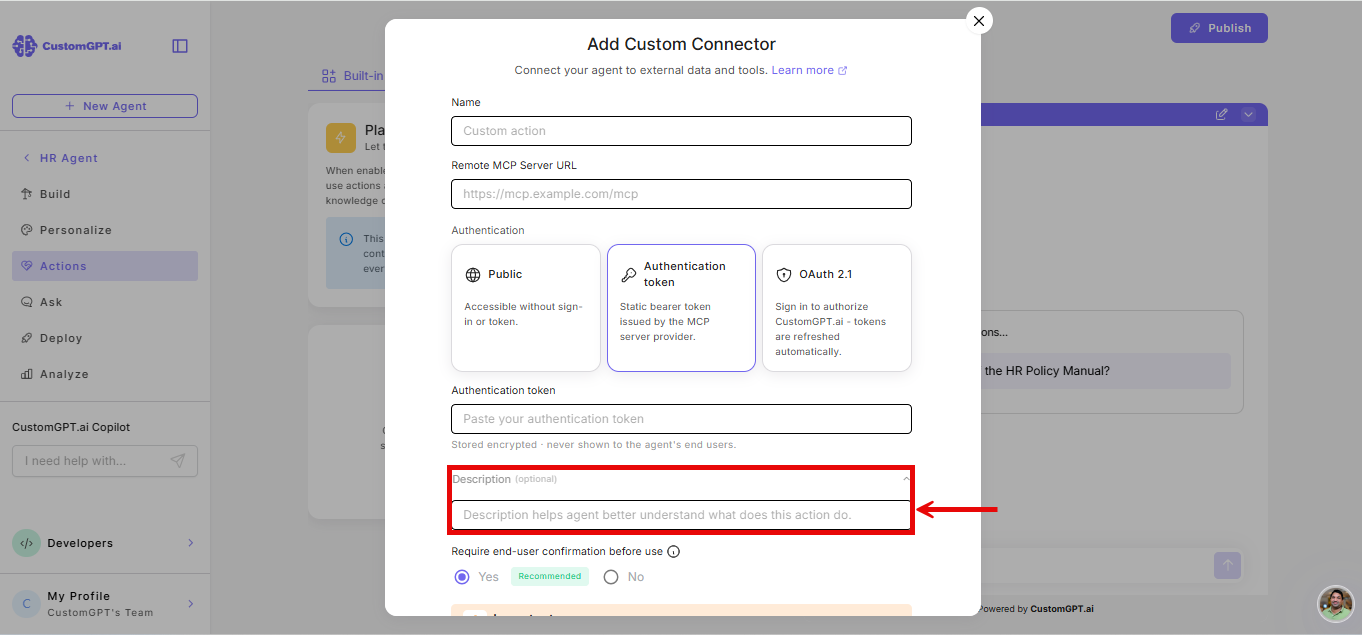
- Enter a Description for the connector.
Note:There's no limit on how many connectors you can add. See Limits and cost for how many you can enable at once.
Explore publicly available MCP servers here: Awesome Remote MCP Servers
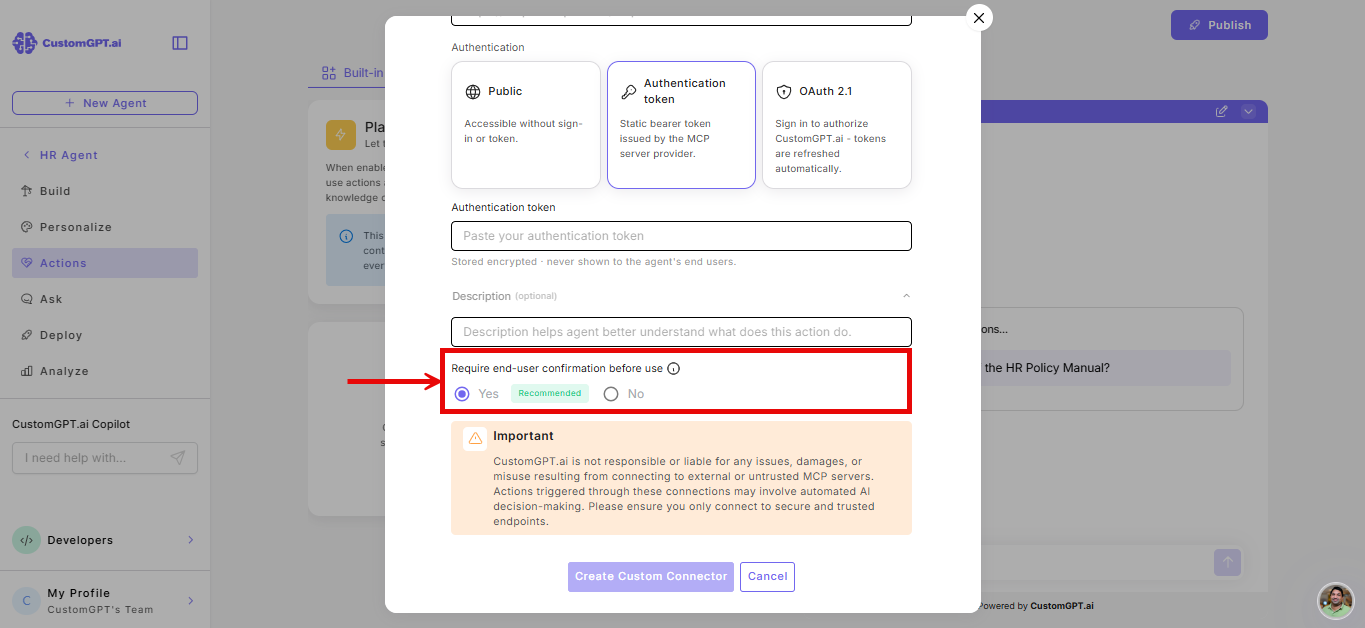
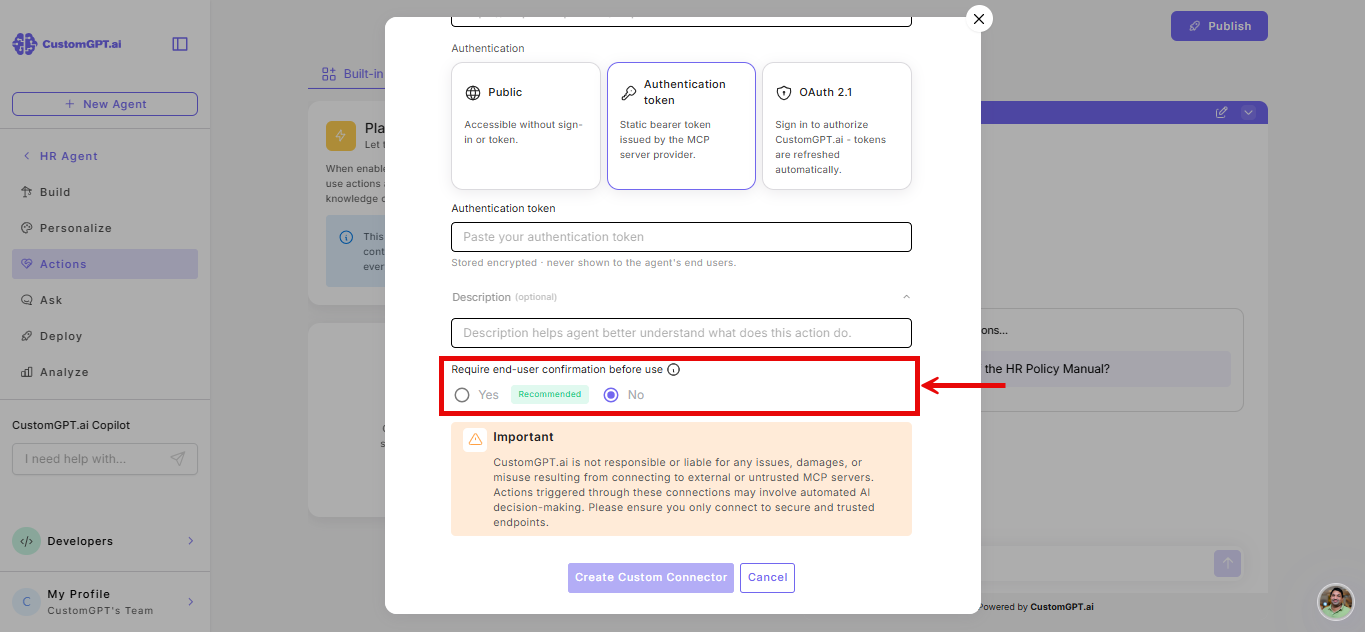
- Choose whether to Require end user confirmation before use:
- Yes: The agent will check if the action is suitable for a query and ask the user for confirmation before executing it. This happens every time and uses an additional query.
- No: The agent will execute the action automatically whenever it decides it is suitable.
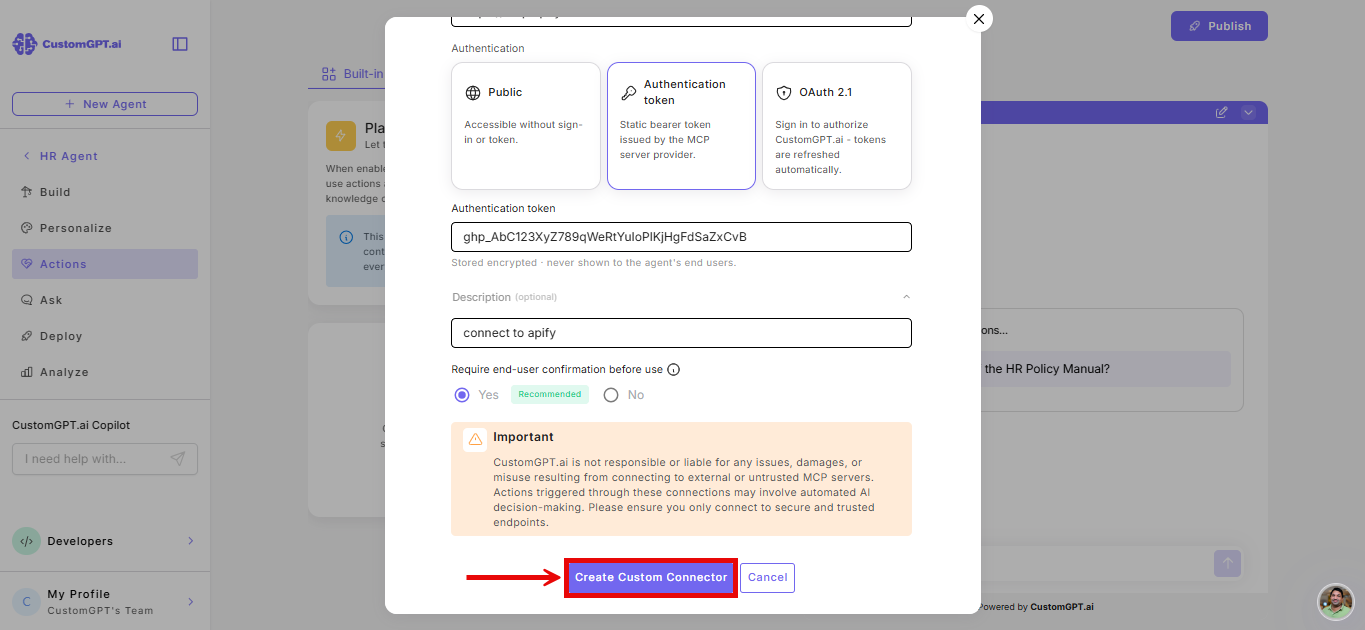
- Click Create Custom Connector to apply changes.
- Once added, your agent will automatically decide when to use the action, based on the conversation context.
Related articles
Updated 3 months ago
Did this page help you?