
Enable AI Vision for PDF Text Extraction
If your PDF contains text that cannot be selected - for example, a scanned document or an image-based PDF - the standard file upload will not extract any readable content. AI Vision reads the page as an image and extracts the text, making it searchable in your agent's knowledge base.
Before you start
- Check your available Vision Credits before uploading large PDFs. Go to your Limits & Usage page to see how many credits remain in your current billing cycle.
For existing agents
- Click the three dots next to your agent's name and select Build.
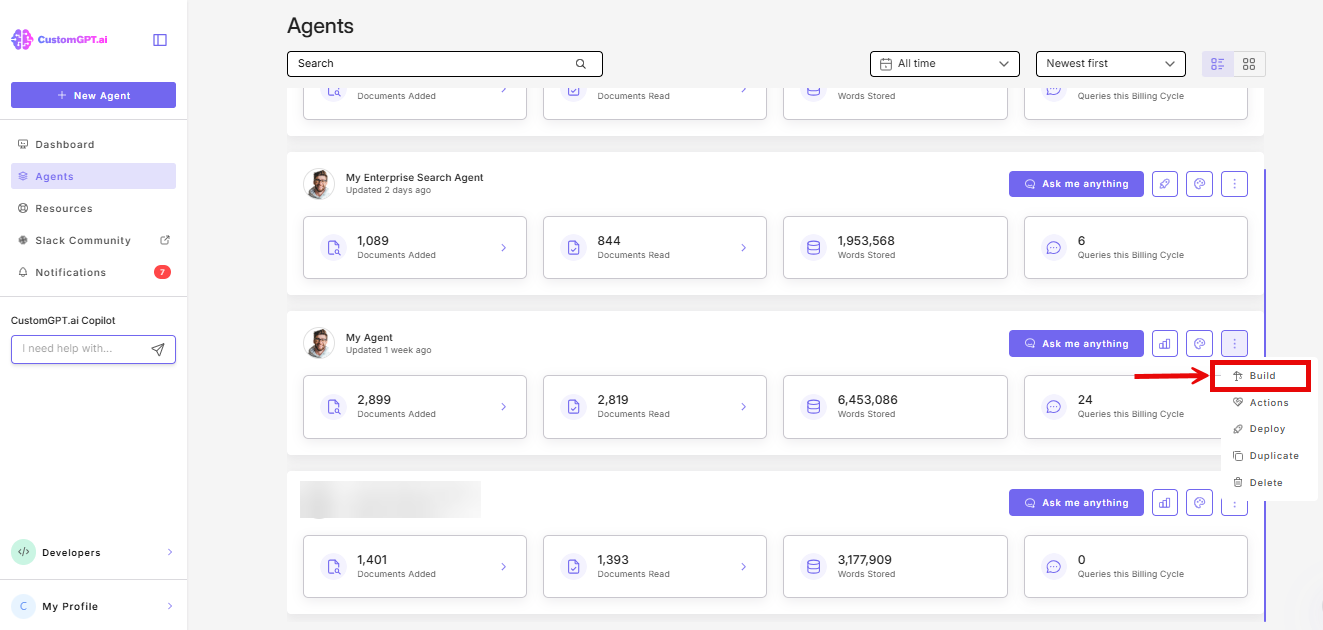
- Click Add Source.
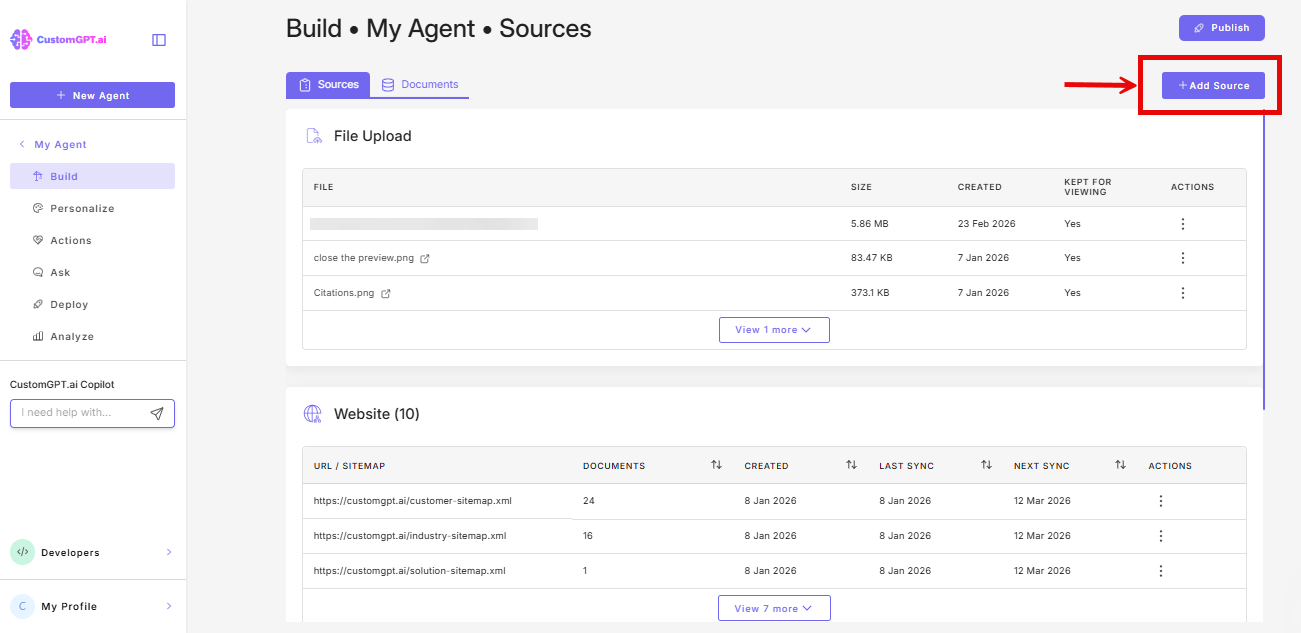
- Select File Upload.
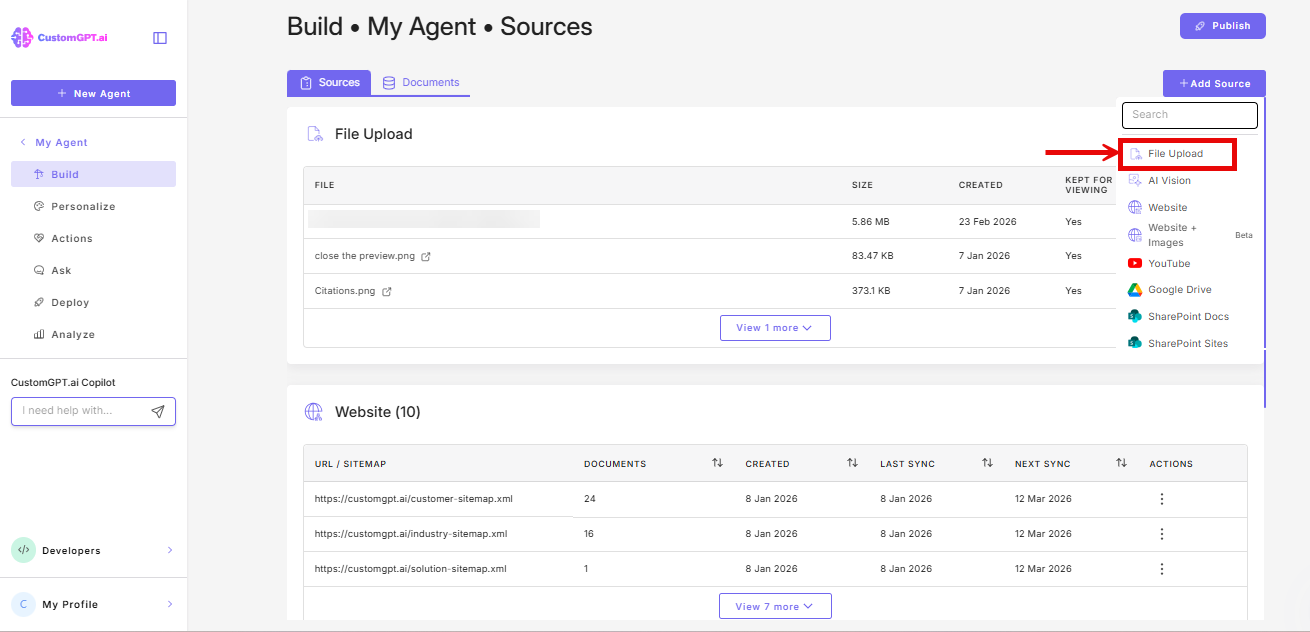
- Upload your PDF file(s) and click Advanced Options.
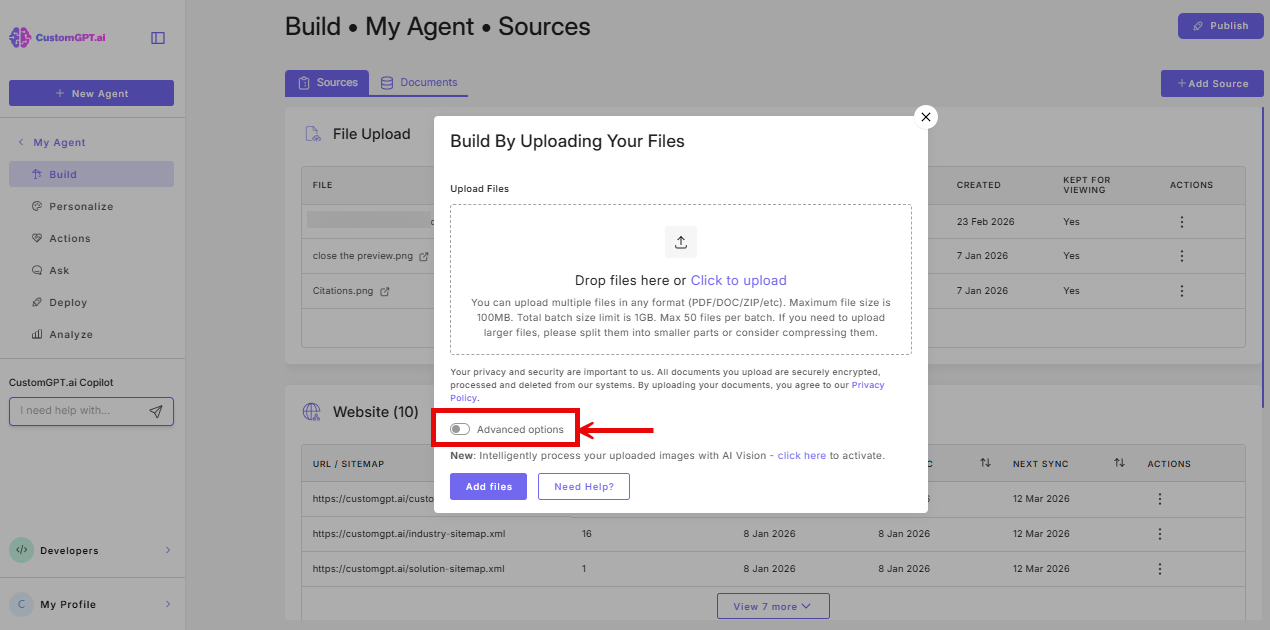
- Under Text Extraction, select AI Vision.
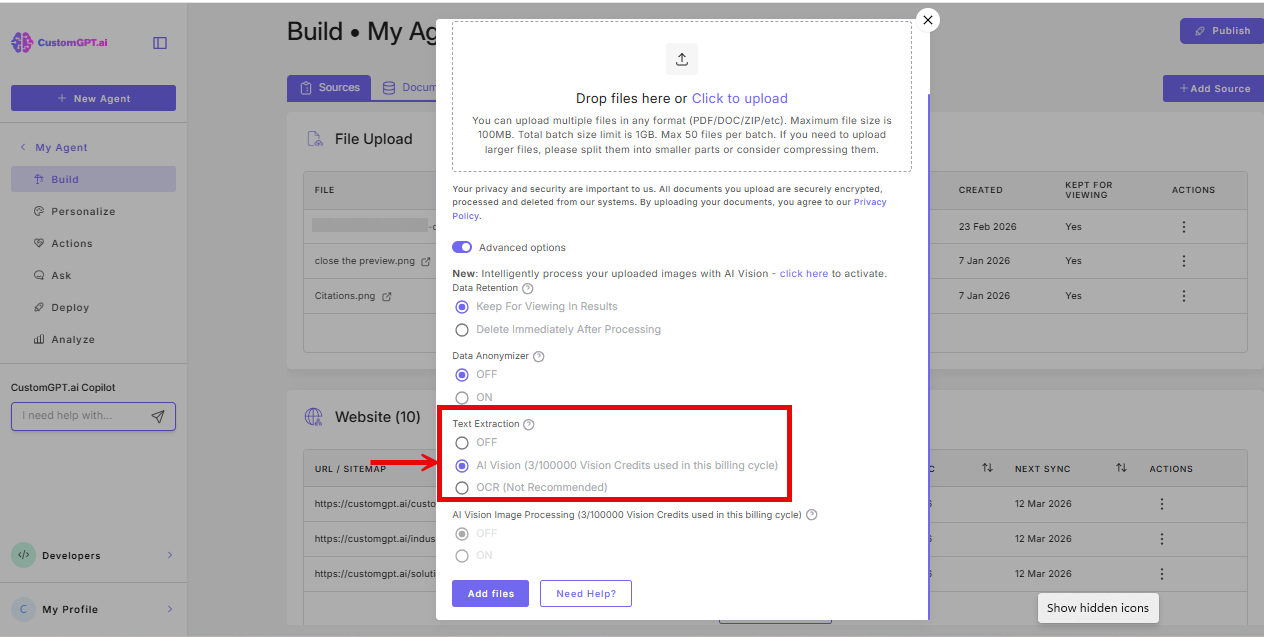
- Click Add Files.
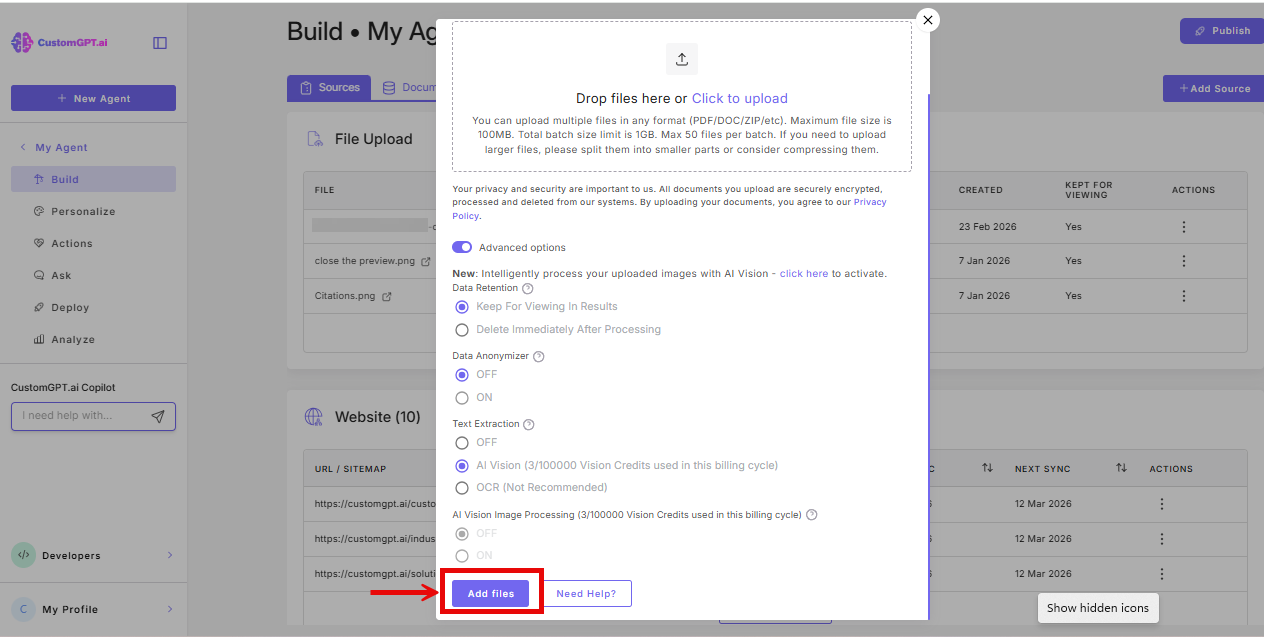
Note: If the AI Vision Image Processing toggle is on, the AI Vision option under Text Extraction will be unavailable. Turn it off first, or upload your PDFs in a separate batch.
When creating a new agent
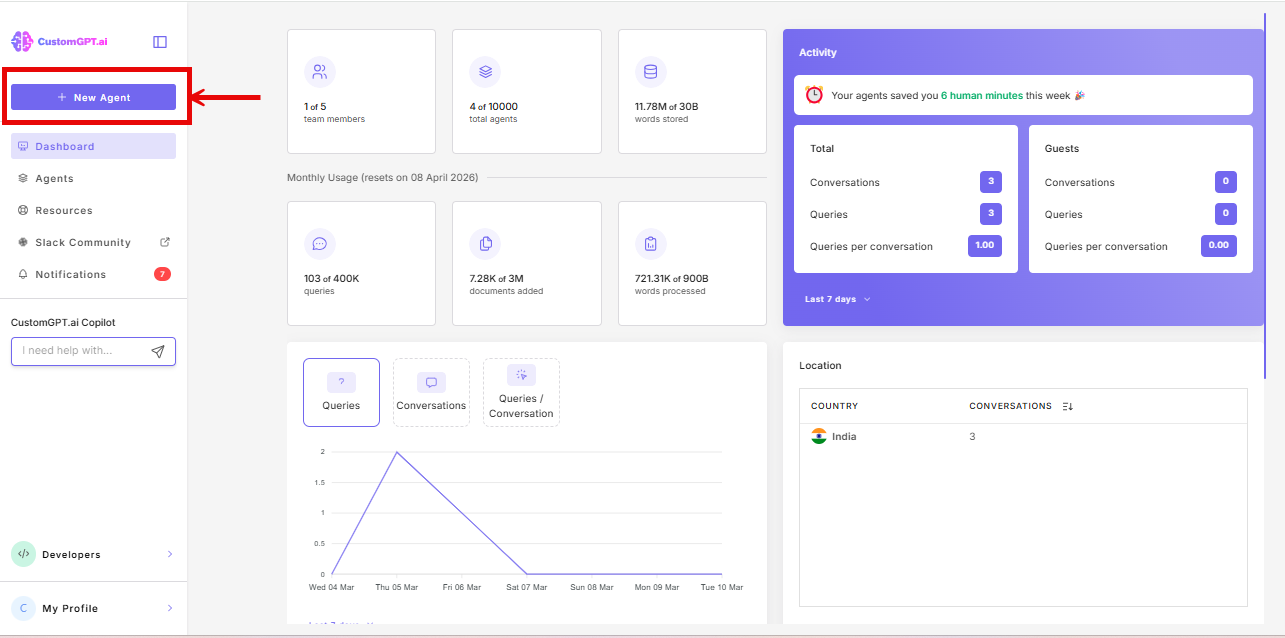
- On your dashboard, click New Agent.
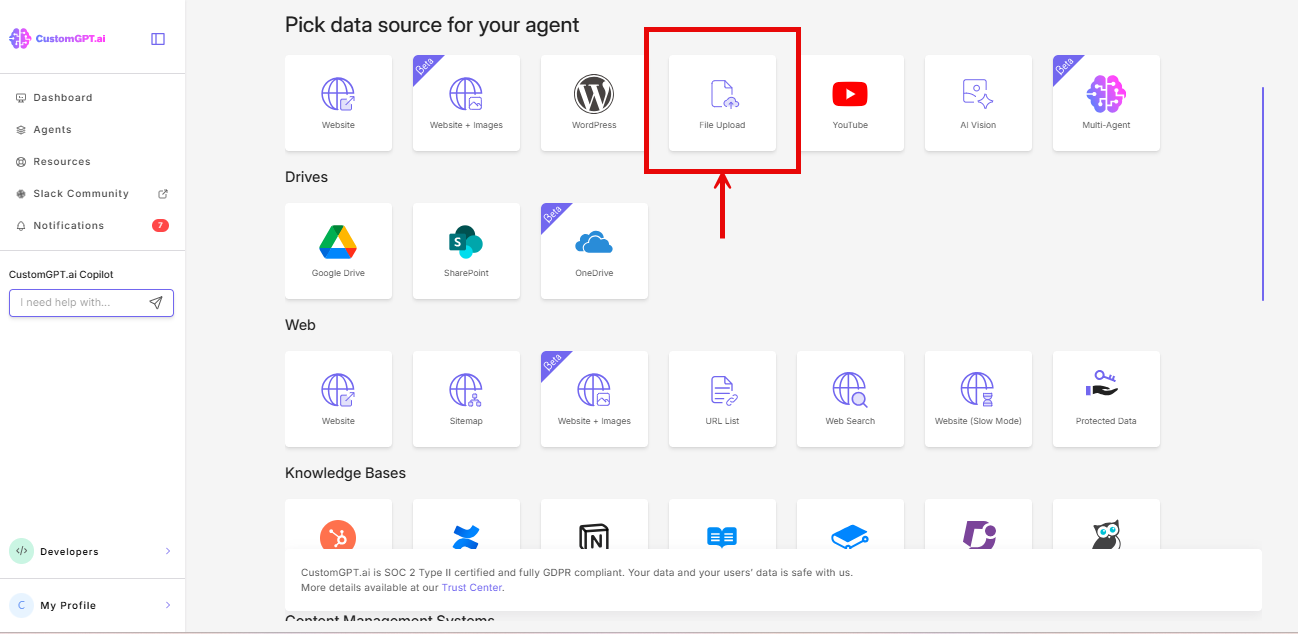
- Click File Upload.
- Upload your PDF and click Advanced Settings.
- Under Text Extraction, select AI Vision.
- Finish setting up your agent and click Create.
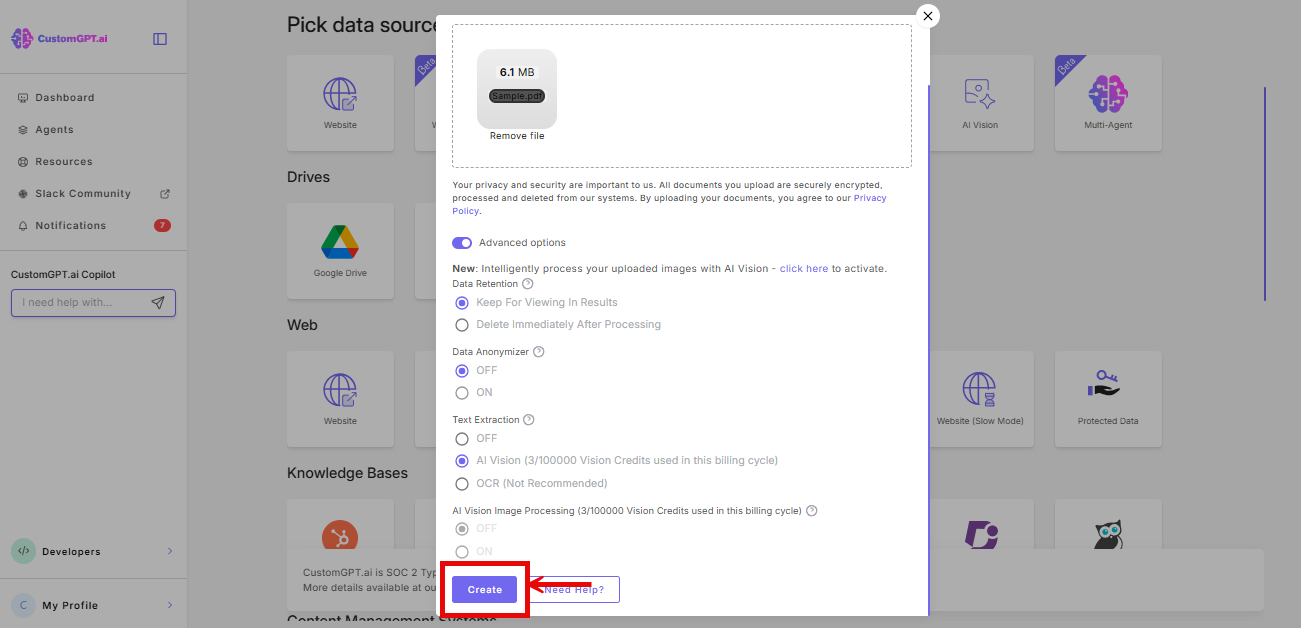
Note: If AI Vision Image Processing is on in the same setup flow, the AI Vision option under Text Extraction will be unavailable. Turn it off first, then select AI Vision under Text Extraction.
Vision Credits
Each page counts as 1 Vision Credit, regardless of content. Credits are shared across all AI Vision features on your account. To check your remaining credits, go to Limits & Usage.
Plan availability
AI Vision text extraction is available on all plans - Standard, Premium, and Enterprise.
OCR is also available under Text Extraction as a legacy option, but is flagged Not Recommended and is available on Premium plans only. AI Vision is the recommended option for all new uploads.
Related articles
Updated 7 months ago