
Enable Web Search for your agent
Web Search lets your agent search the internet when it doesn't have an answer in its knowledge base. Setup takes less than a minute.
Before you start
- You need an agent already created.
Steps
- On your CustomGPT.ai dashboard, click the three dots menu on the agent you want to update.
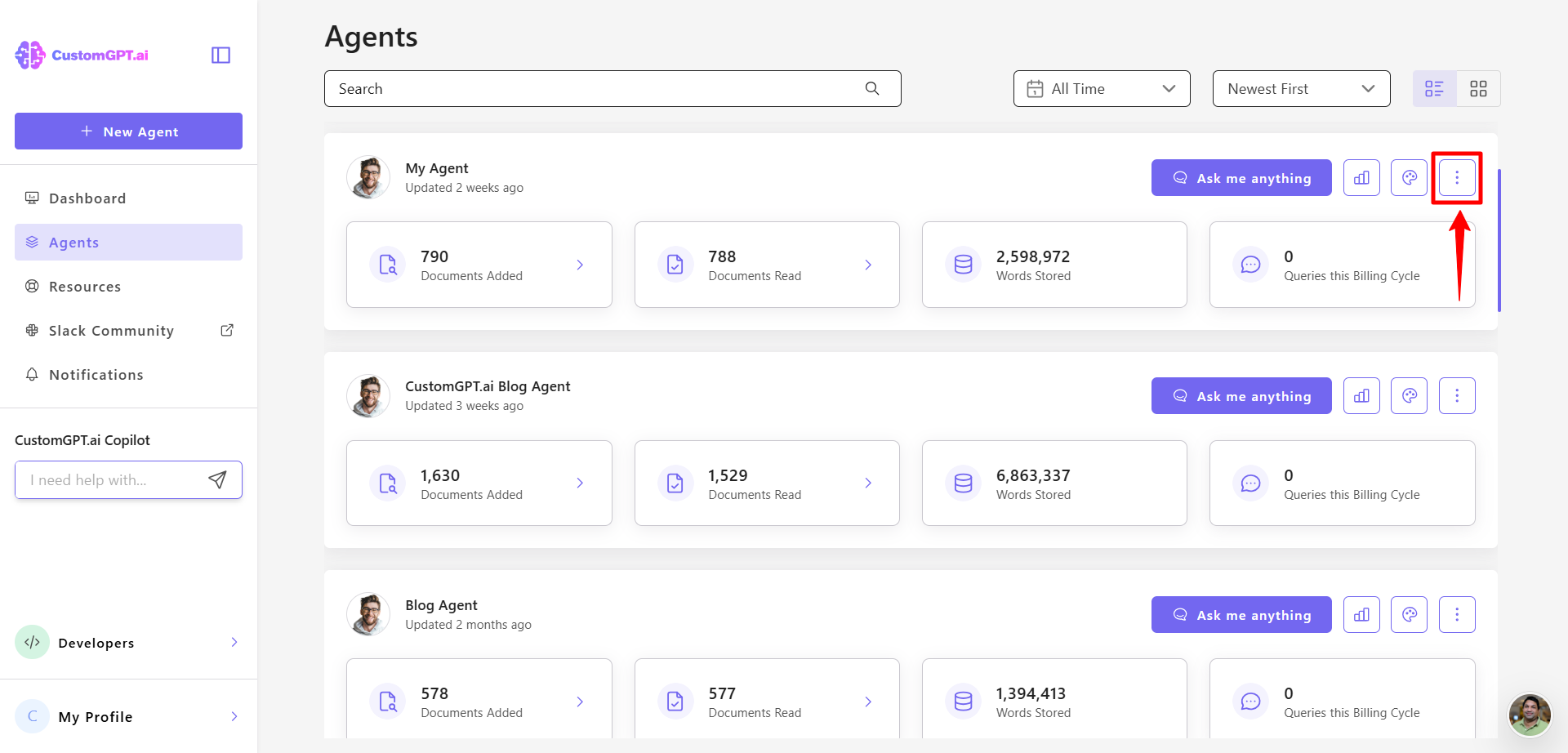
- Click Actions.
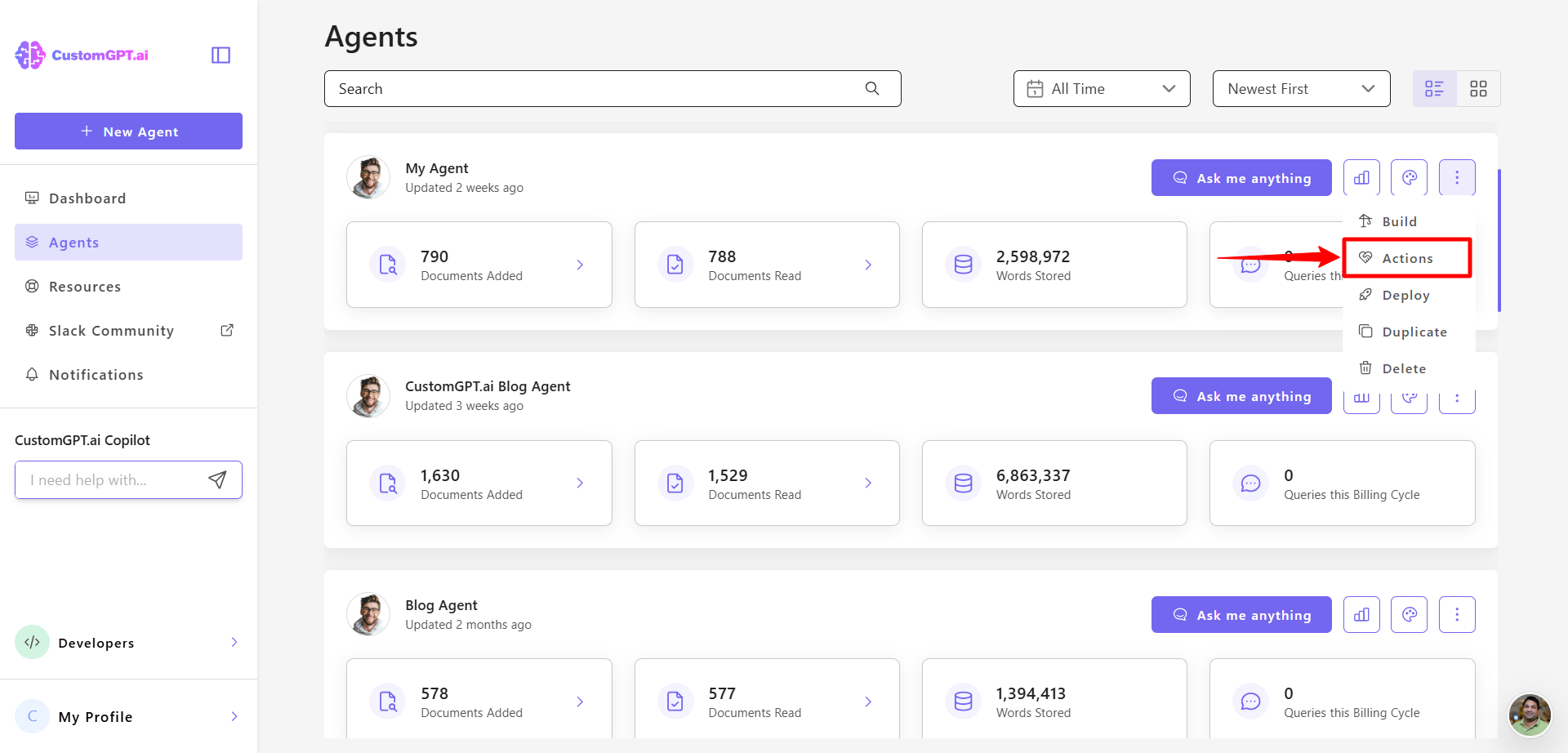
- You will see the Actions panel with all available action cards, including Web Search.
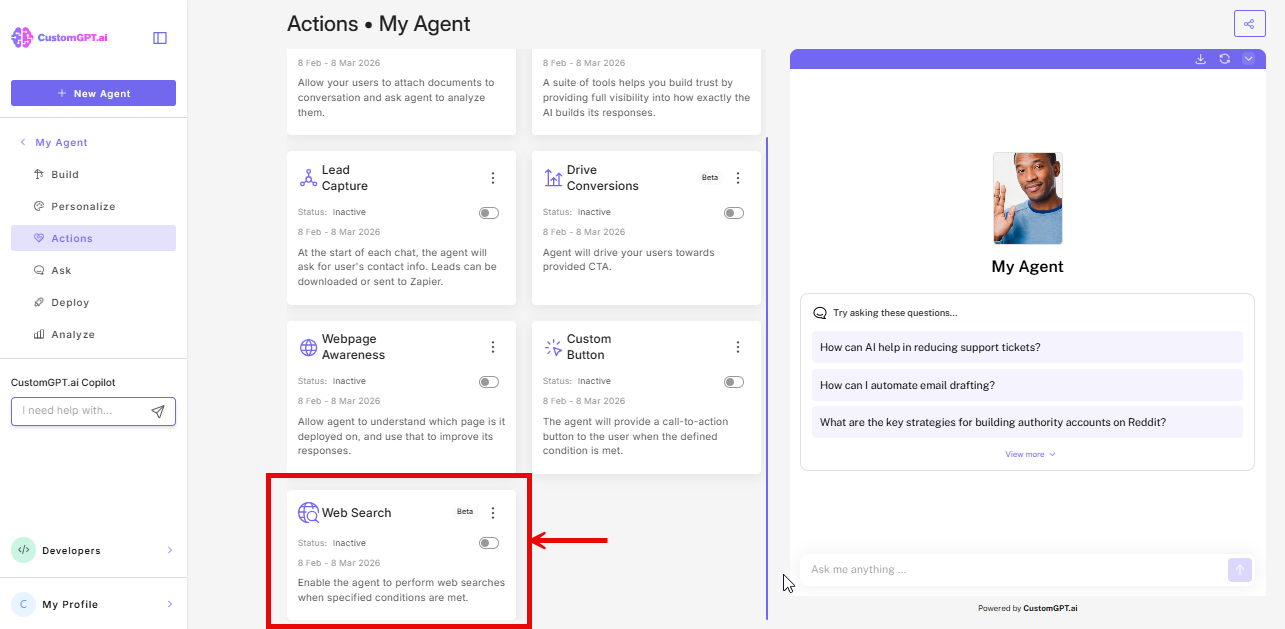
- On the Web Search card, click the toggle on the right to turn it on.
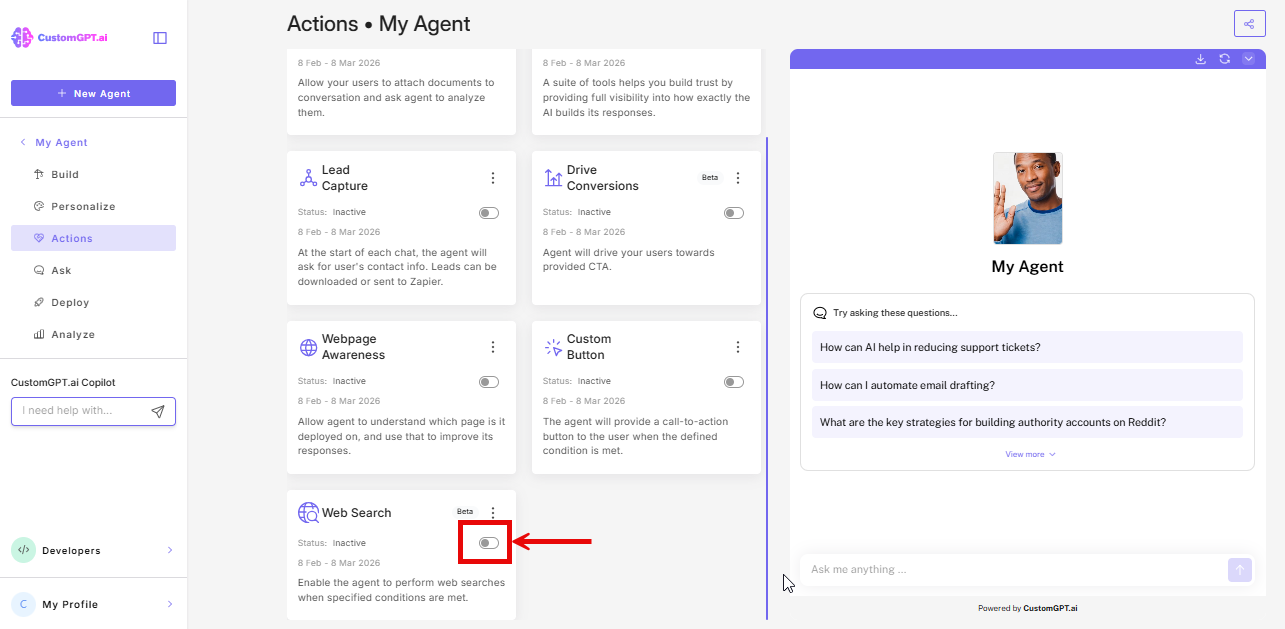
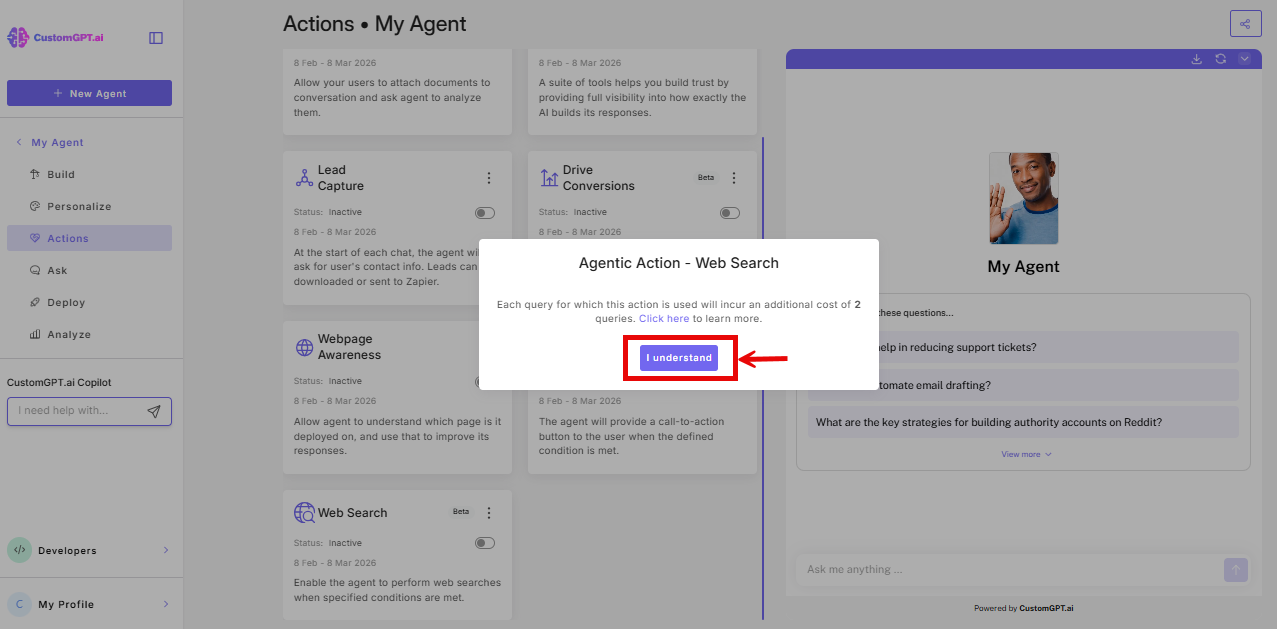
- A notice appears:_"Each query for which this action is performed will incur additional query cost based on your plan." Click I understand to continue.
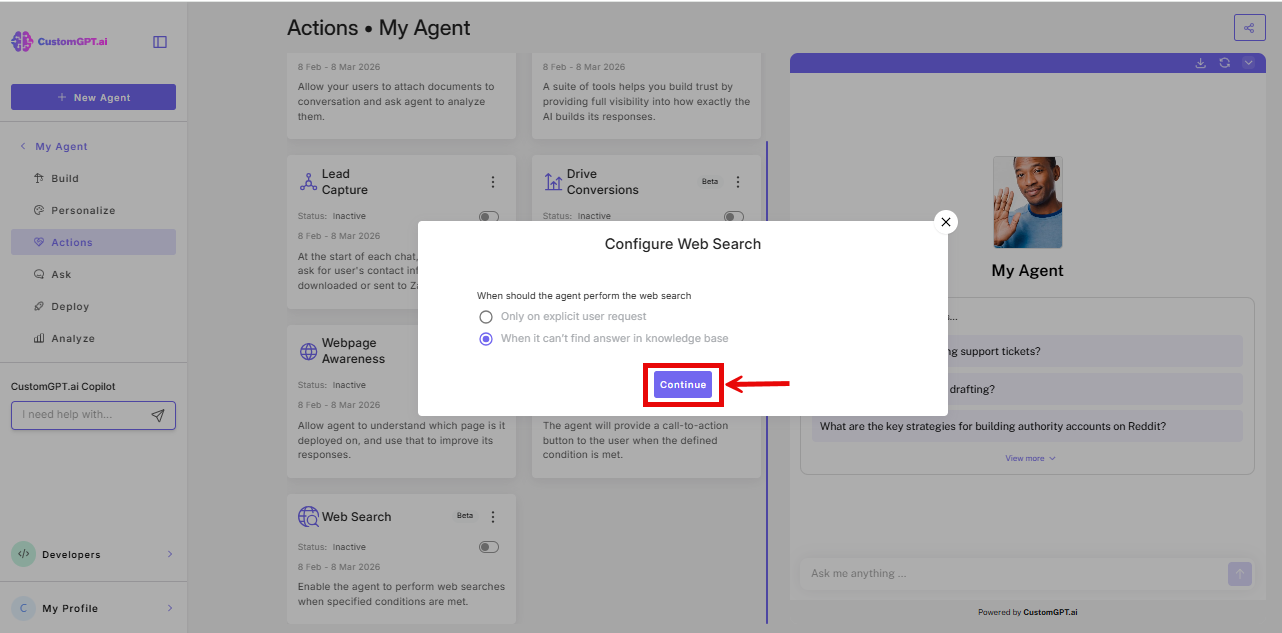
- The Configure Web Search modal opens with two options:
- Only on explicit user request
The agent searches the web only when the user asks for it directly. For example, asking the agent to look something up or find current information. The agent understands natural variations of this request. - When it can't find an answer in knowledge base
The agent searches automatically whenever it cannot find a sufficient answer in your knowledge base. No action needed from the user.
Select the option that fits how your agent is used, then click Continue.
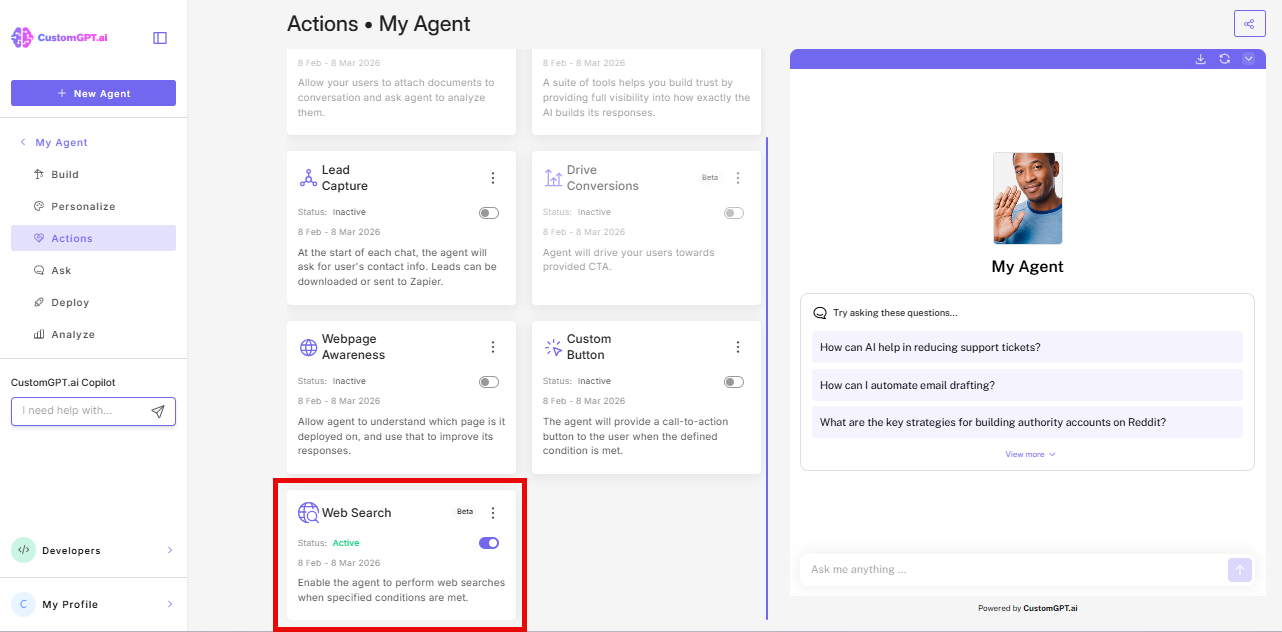
- The Web Search card on your Actions page now shows Status: Active. Your agent can now search the web. No further configuration is needed.
What your users will see
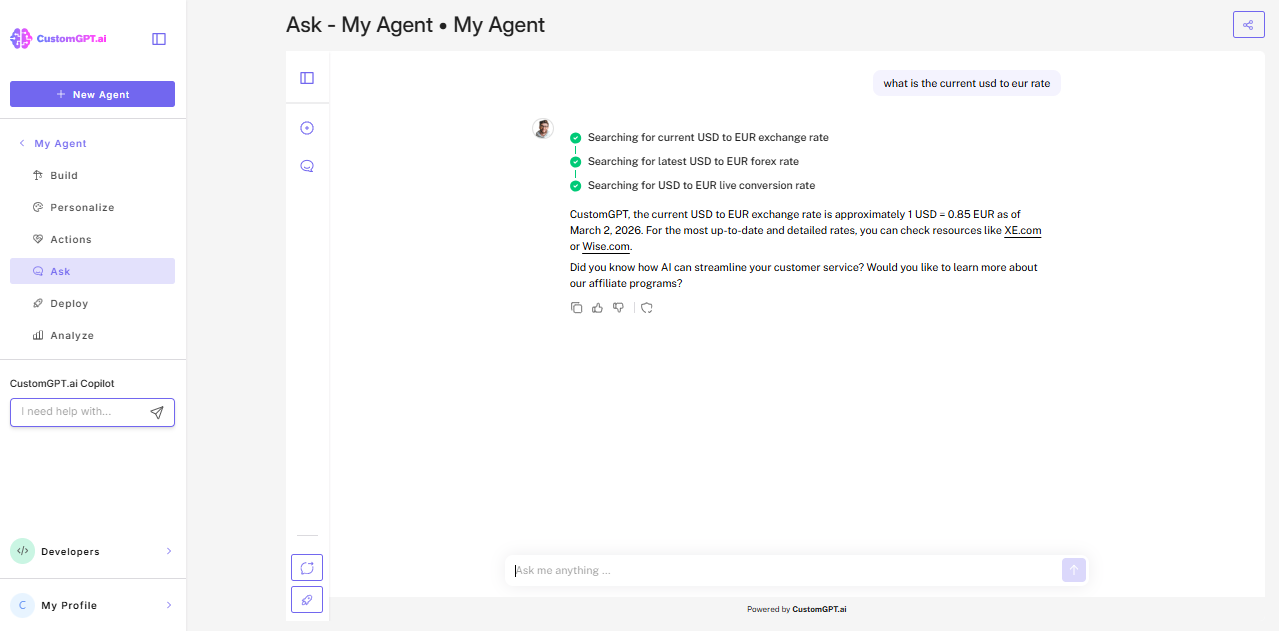
When the agent performs a web search, it shows the search queries it is running in the chat. For example, "Searching for current USD to EUR exchange rate". Results are delivered as a natural response in your agent's configured voice. Users do not see raw links or search engine output.
Related articles
Updated 7 months ago
Did this page help you?