
Enable conversation history for your deployments
When conversation history is enabled, your end users will see a history panel with their past conversations and can open and resume any of them.
Requirements
- Premium plan. If you are on a lower plan, you will see an Upgrade to Premium button when you try to enable this setting.
- This is an agent-level setting. It applies to all deployments for that agent.
Steps
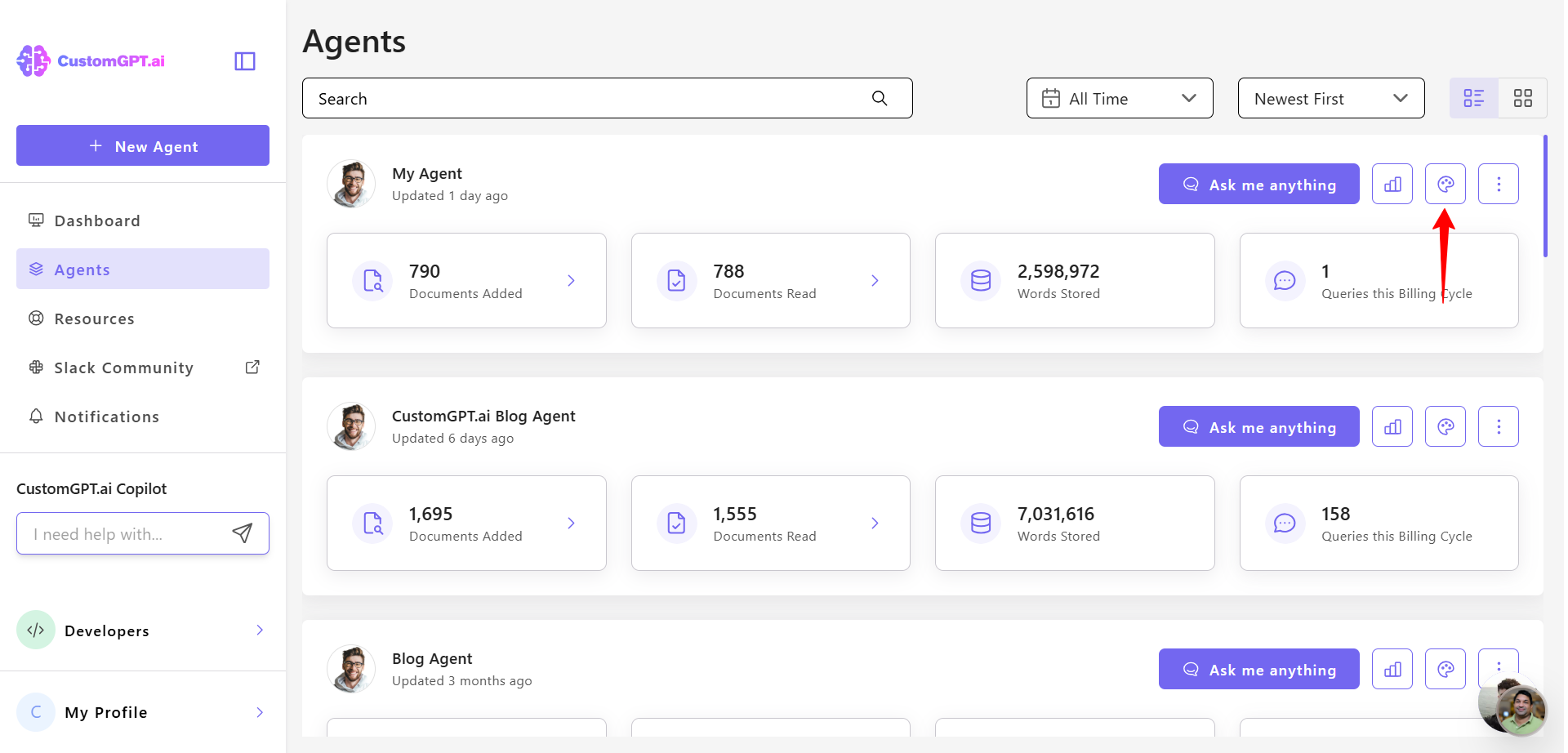
- Click the Personalize icon next to the agent you want to customize.
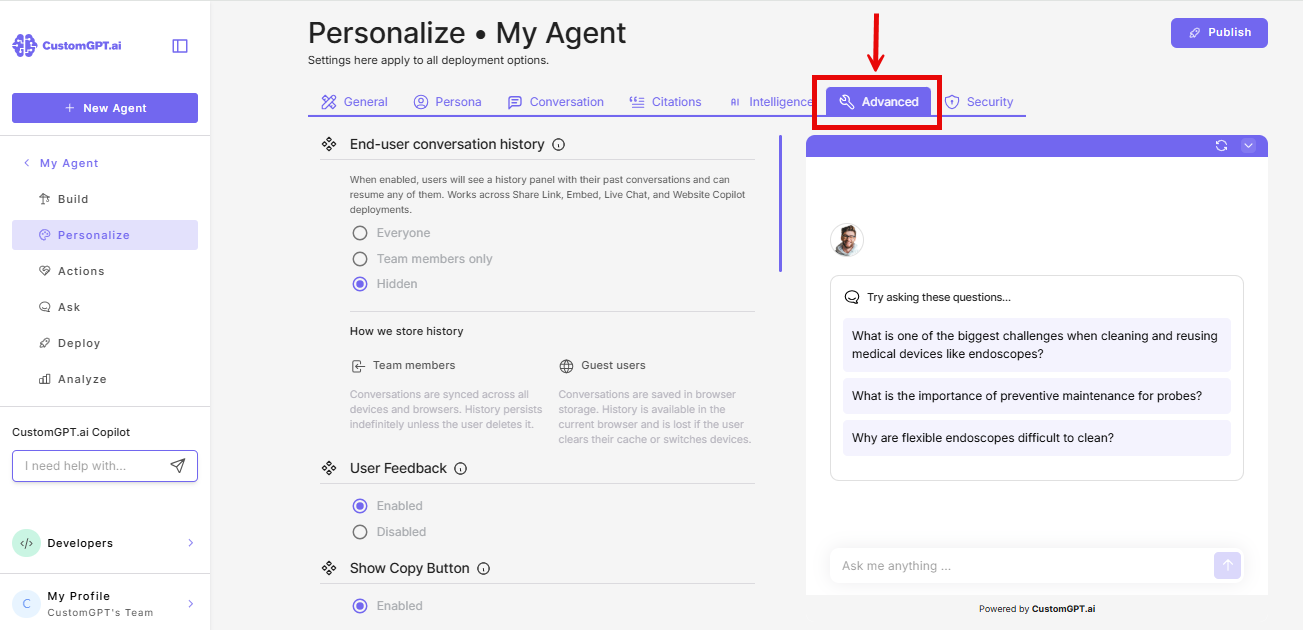
- Go to the Advanced tab.
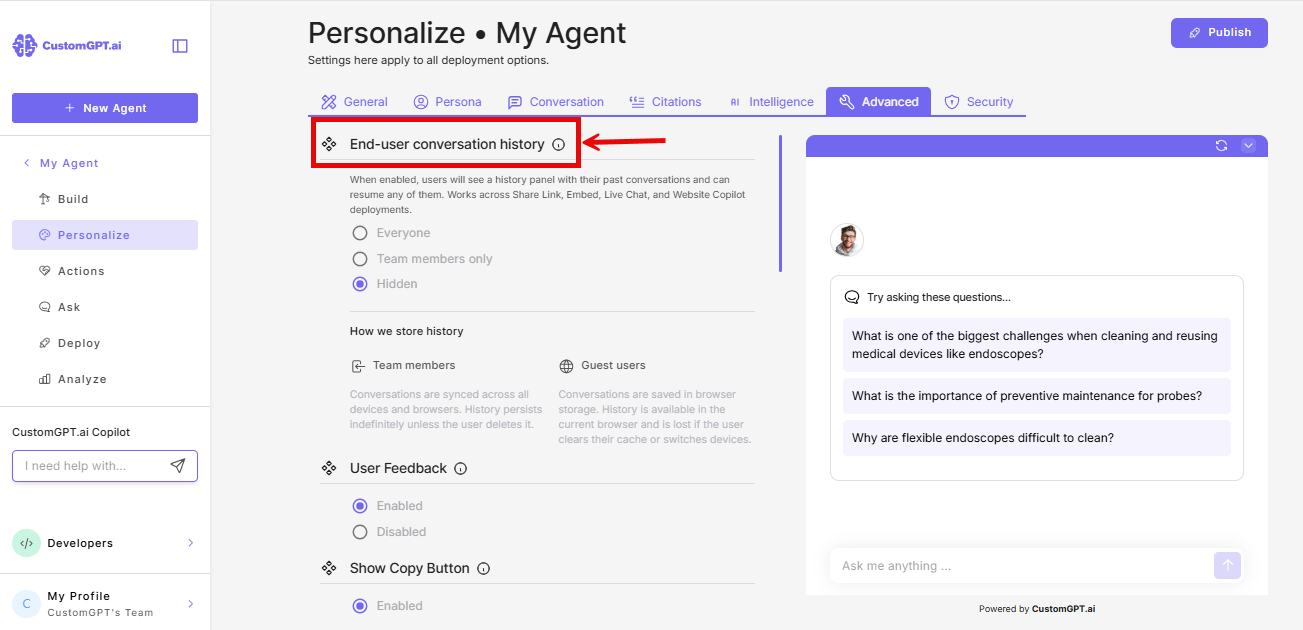
- Find End-user conversation history.
- Choose who can access their history:
- Everyone - both team members and guests can see their past conversations.
- Team members only - only logged-in users can see their history. Guests will not have access.
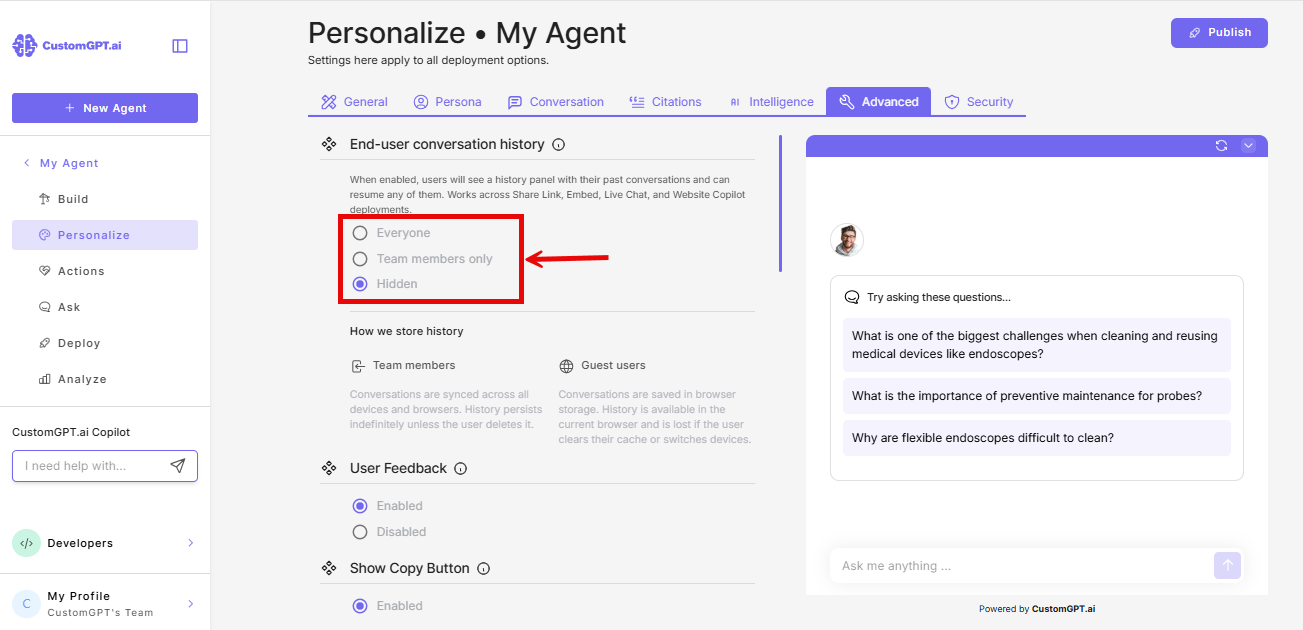
Choose Team members if your deployment is used primarily by logged-in users and you want a consistent, reliable experience. Choose Everyone if you also want guests to benefit from history within a single browser.
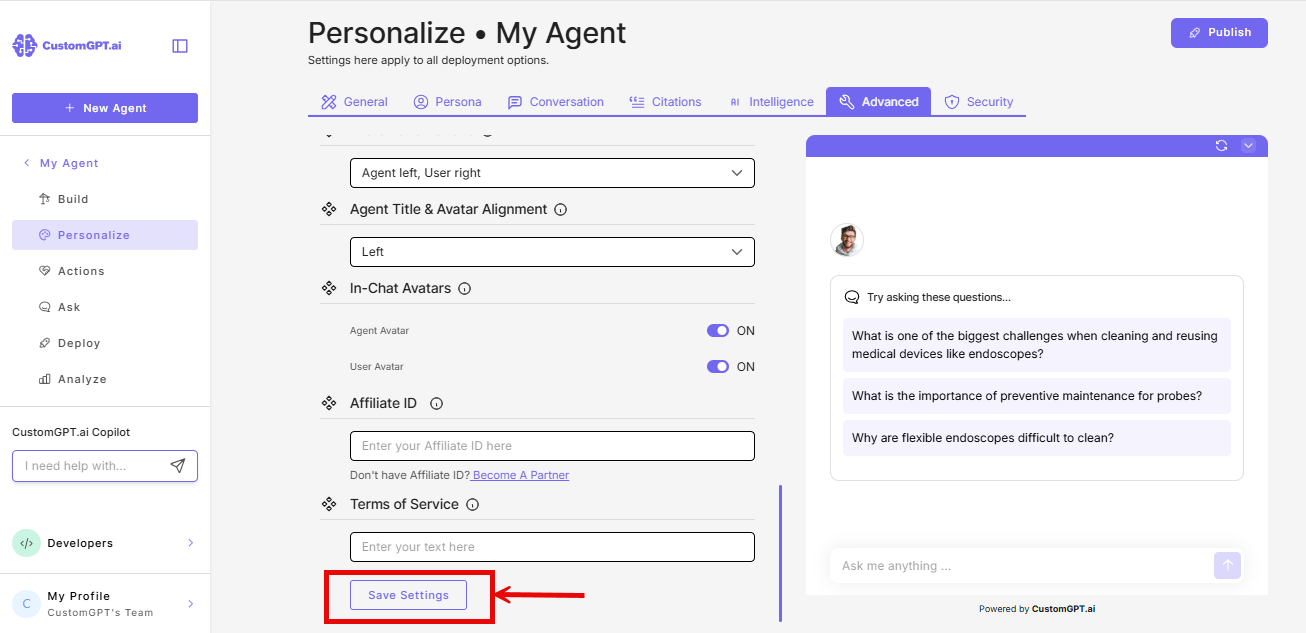
- Click Save Settings to confirm your choice.
Things to know
Team members (logged in)
History is saved to their account. It stays the same across all their devices and browsers and does not disappear unless they delete it.
Guests (not logged in)
History is saved in the browser they are using. If they switch devices or open a different browser, they start fresh. If they clear their browser data, their history is removed.
Guest history uses a rolling 7-day expiry. Each time a guest returns and chats, the 7 days resets from that visit. If they do not return within 7 days, their history expires and they are treated as a new visitor the next time they open the chat.
Login on public deployments
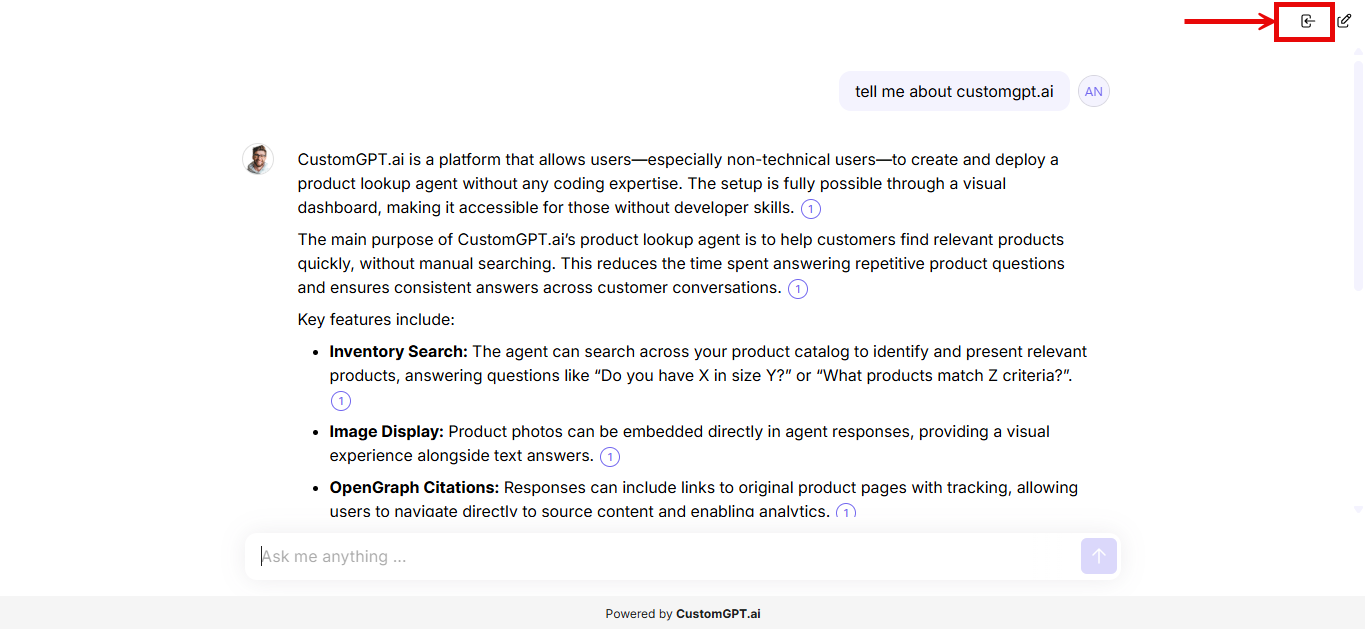
On a public agent, guests see a Log in option in the chat window (Share Link, Embed, Live Chat, and Website Copilot) whenever either of these is true:
- Conversation history is set to Everyone on this agent
- A usage limit is set for Guests on this agent - see Configure usage limits for your users
Logging in doesn't change how the agent works. It's the same account login used everywhere else, just reachable directly from a public deployment.
Related articles
Updated 2 months ago