
Enable low performance mode for website auto-sync
This guide walks you through enabling Low Performance mode for auto-sync on an existing website source.
When to use this
If pages from your website are failing to load after auto-sync runs, enabling Low Performance mode may help. This can happen when your server struggles to keep up during a sync - some pages sync successfully while others don't.
Low Performance mode can be enabled for auto-sync on any website source, regardless of how it was originally created.
Steps
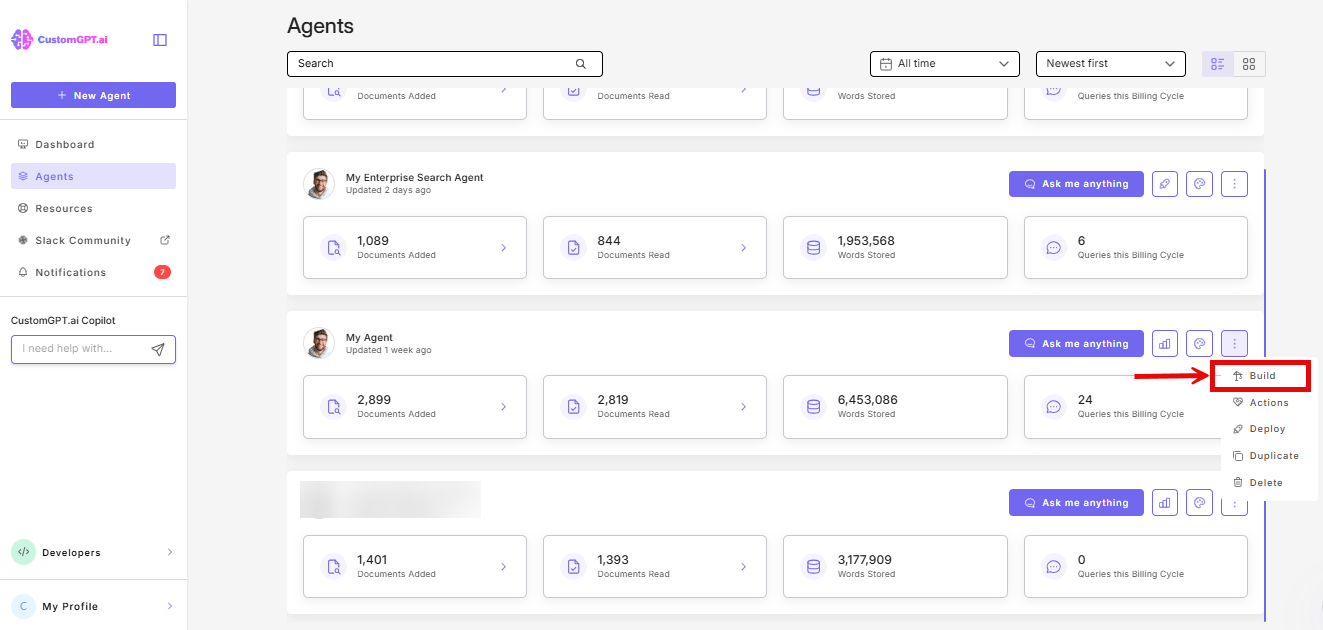
- Click the three dots beside your agent's name and select Build.
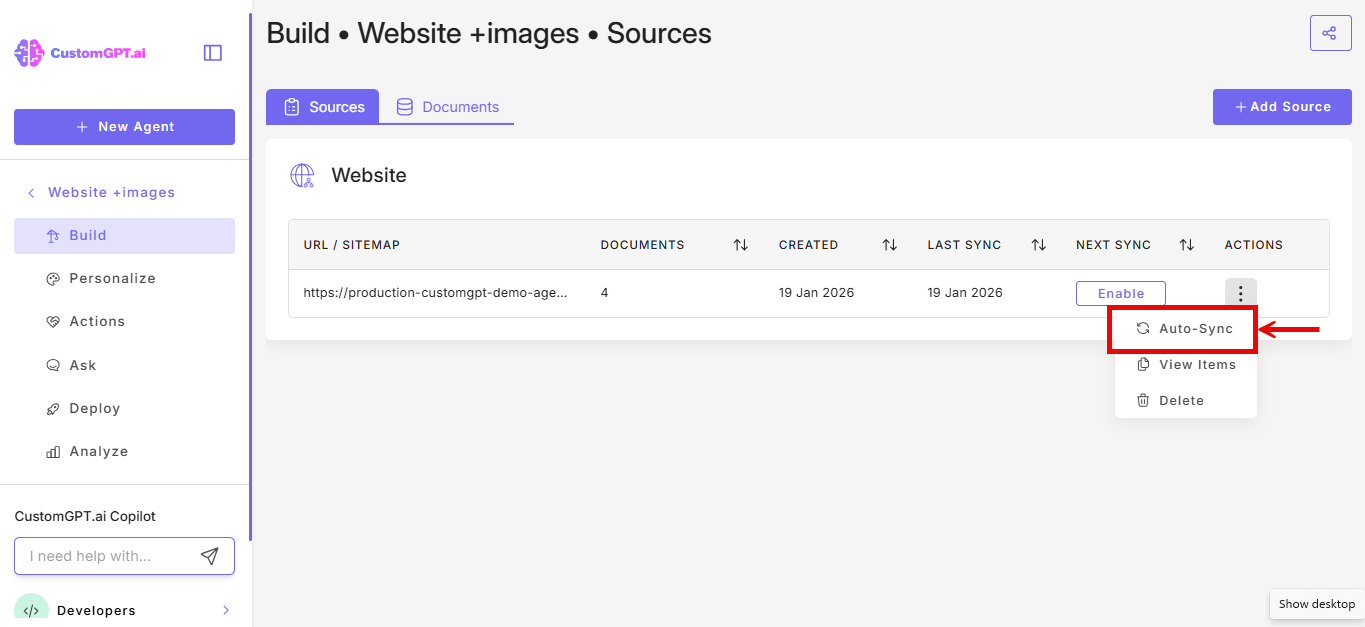
- In the Website section, find your website source, click its three-dot menu, and select Auto Sync.
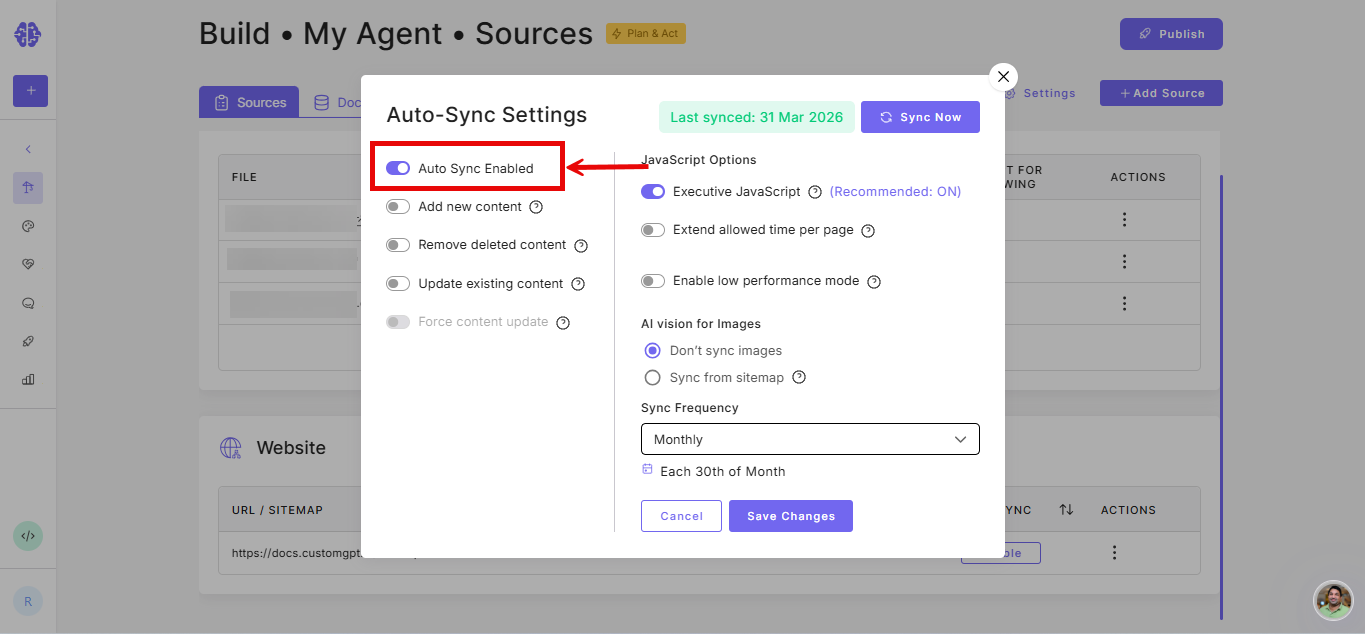
- Toggle Auto Sync Enabled on.
- Configure the remaining auto-sync settings as needed. Refer to Enable auto sync for website with images for detailed steps.
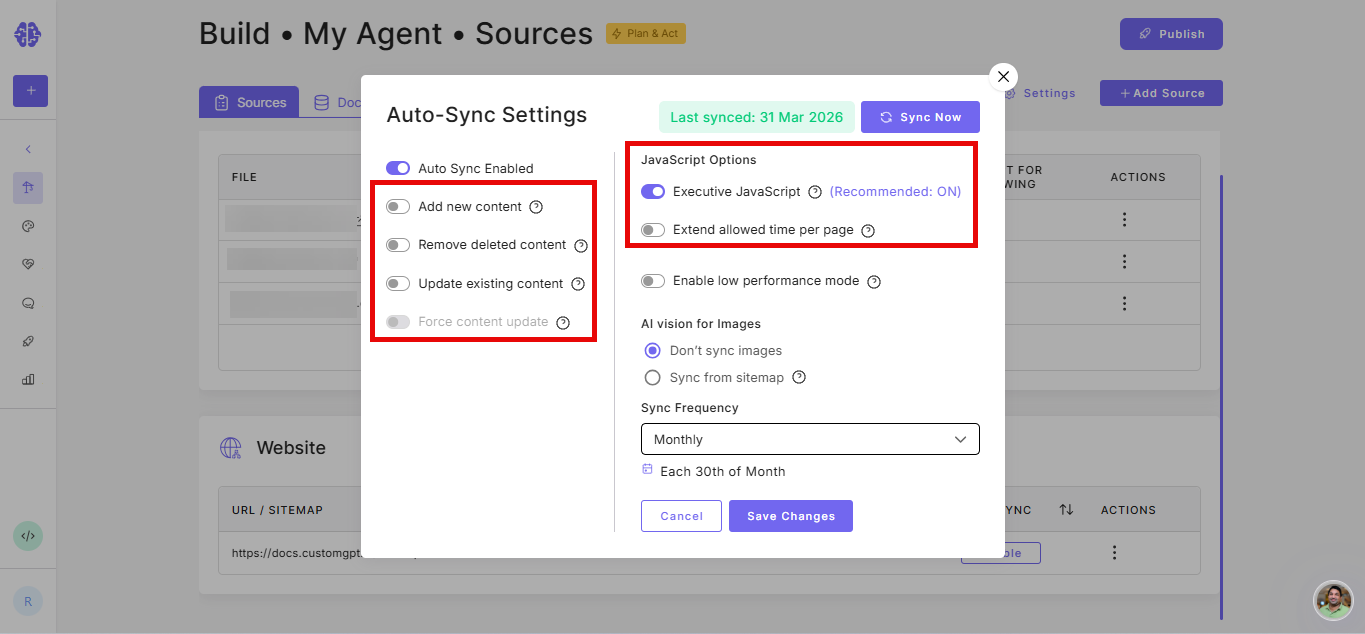
- Toggle Enable low performance mode on.
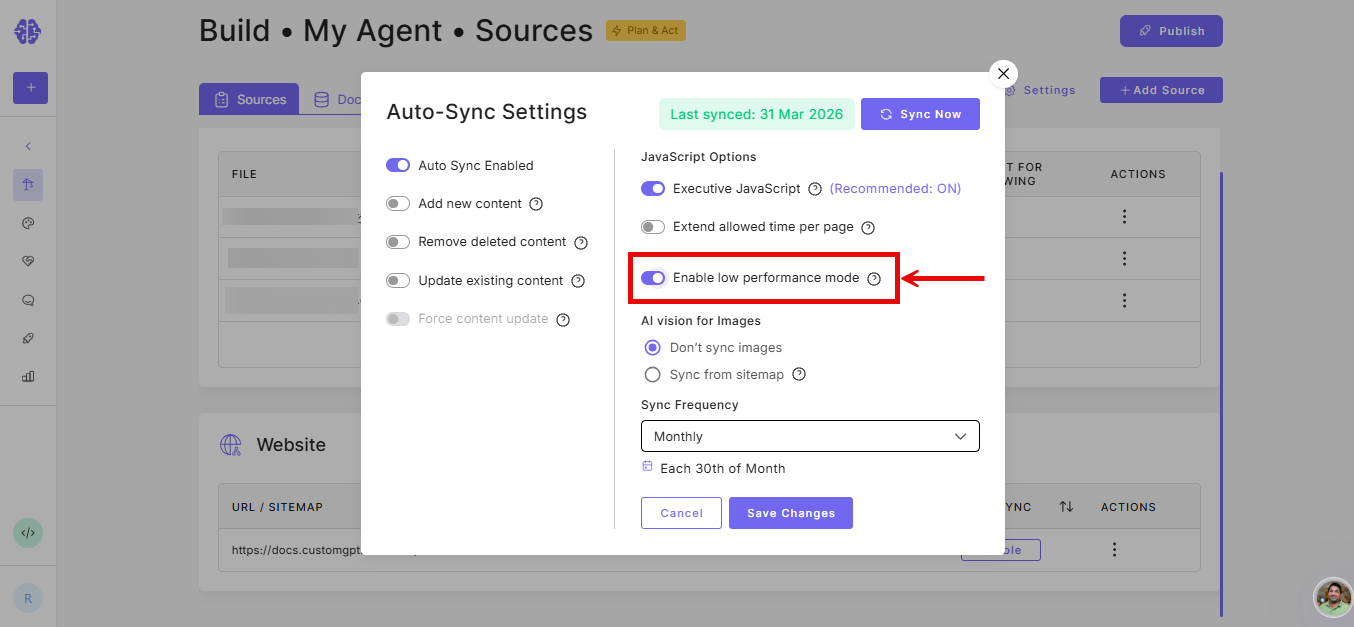
Note: Not sure which setting to use? Extend allowed time per page is for pages that are slow to load. Enable low performance mode is for servers that struggle to keep up when multiple pages are read at once.
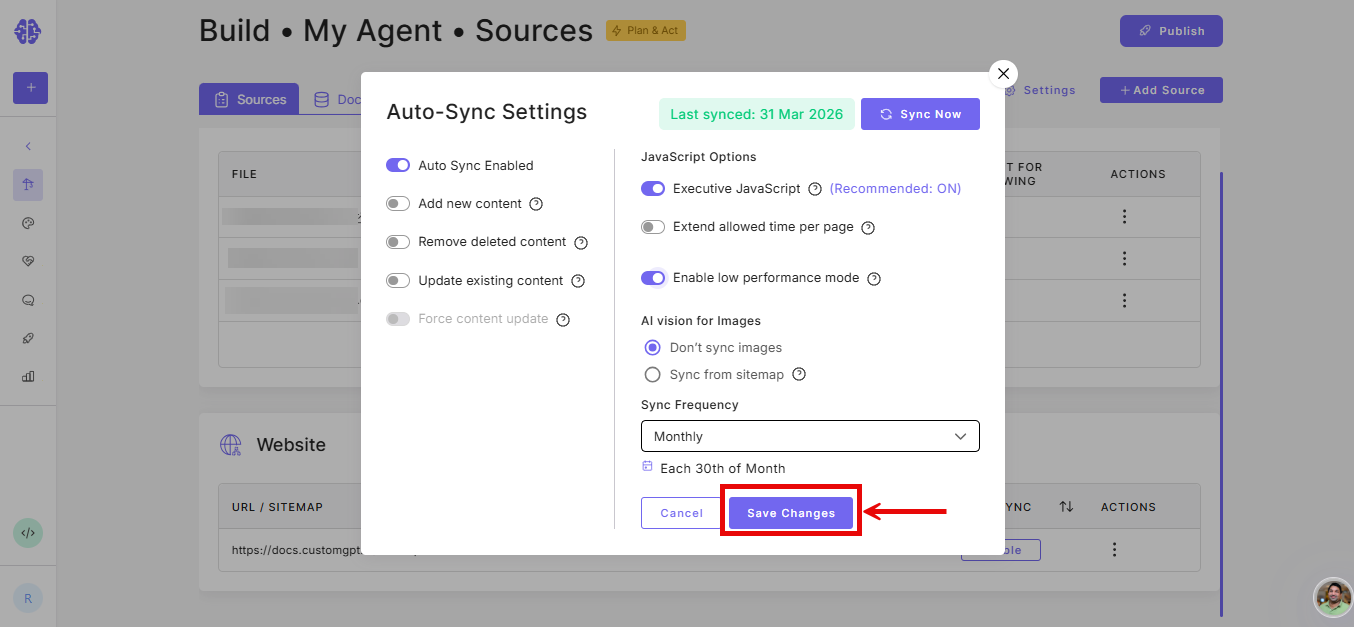
- Click Save changes.
Related articles
Updated 5 months ago
Did this page help you?