
Manage your Slack connections
This guide walks you through viewing, editing, and removing the Slack connections on your account from the Connections page.
Before you start
- You have at least one Slack connection set up. See Connect your CustomGPT.ai account to Slack.
View your connections
- Go to My Profile.
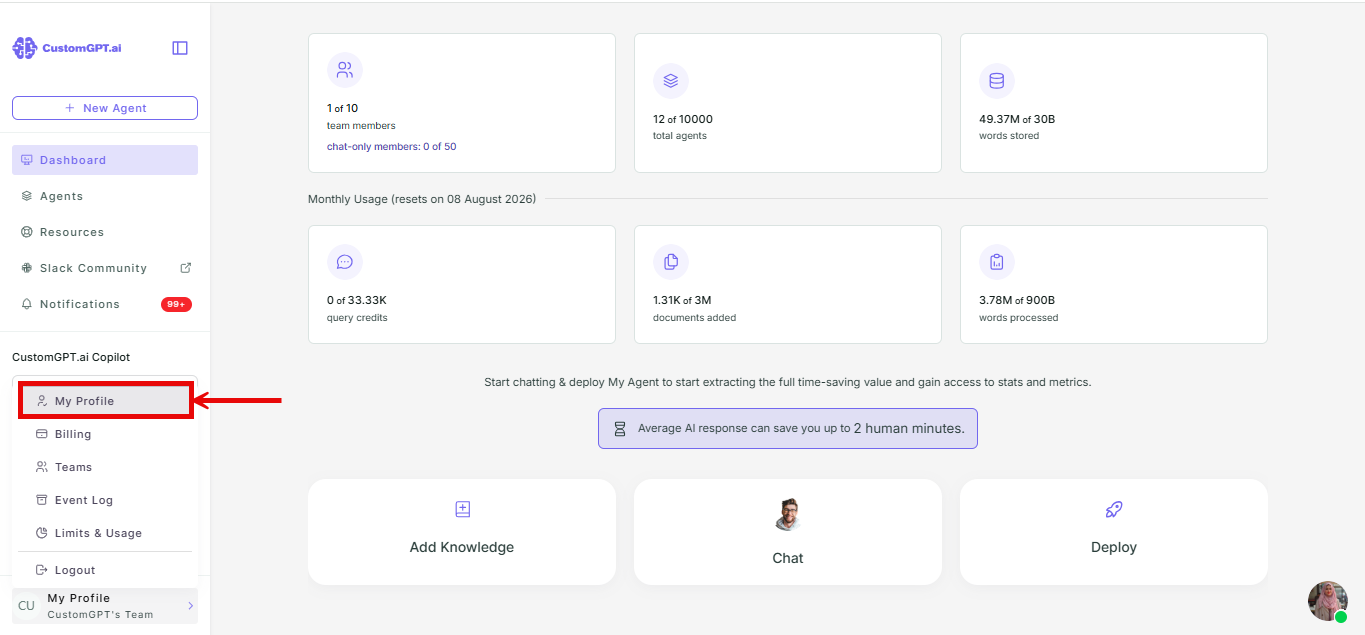
- Select the Connections tab.
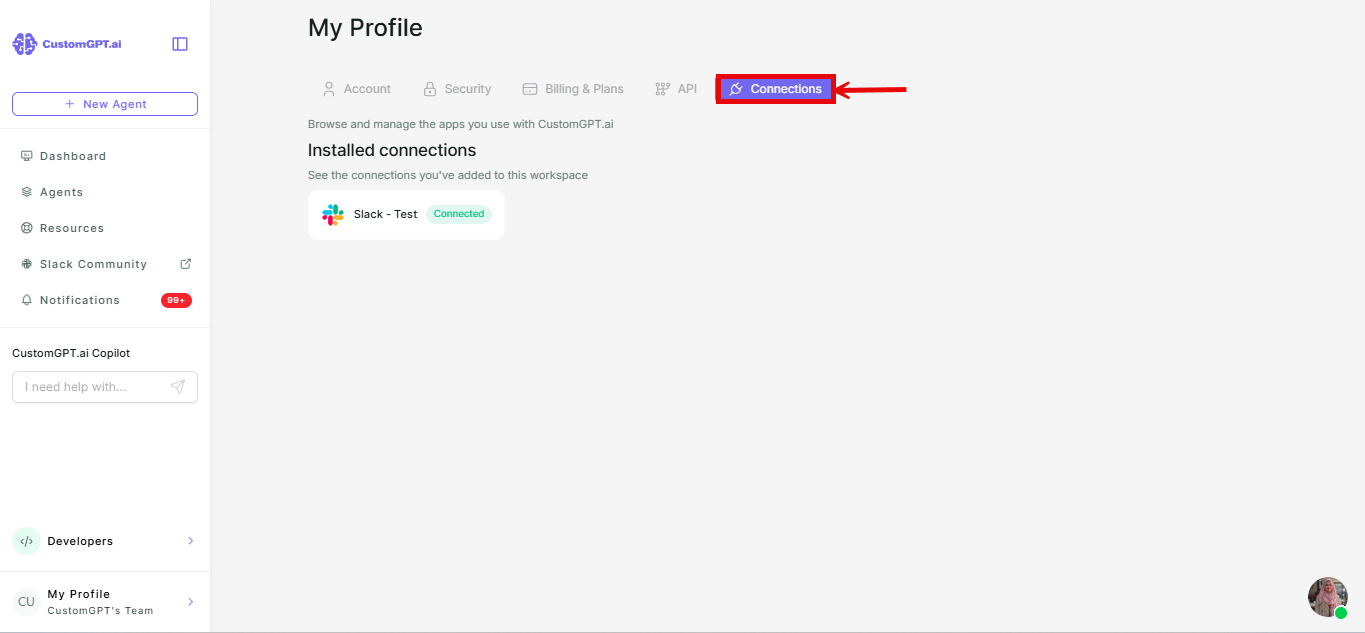
If you have no Slack connections yet, this tab shows an empty state prompting you to connect. Otherwise, each connection you've authorized has its own card.
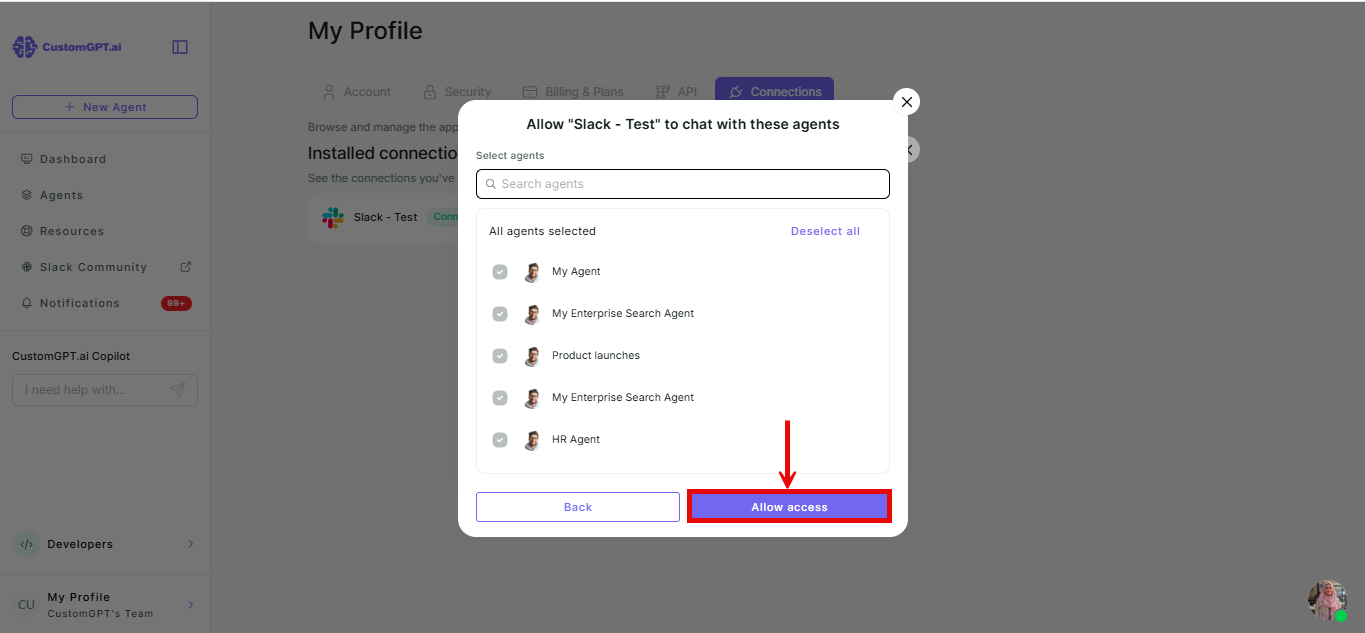
Change which agents are accessible
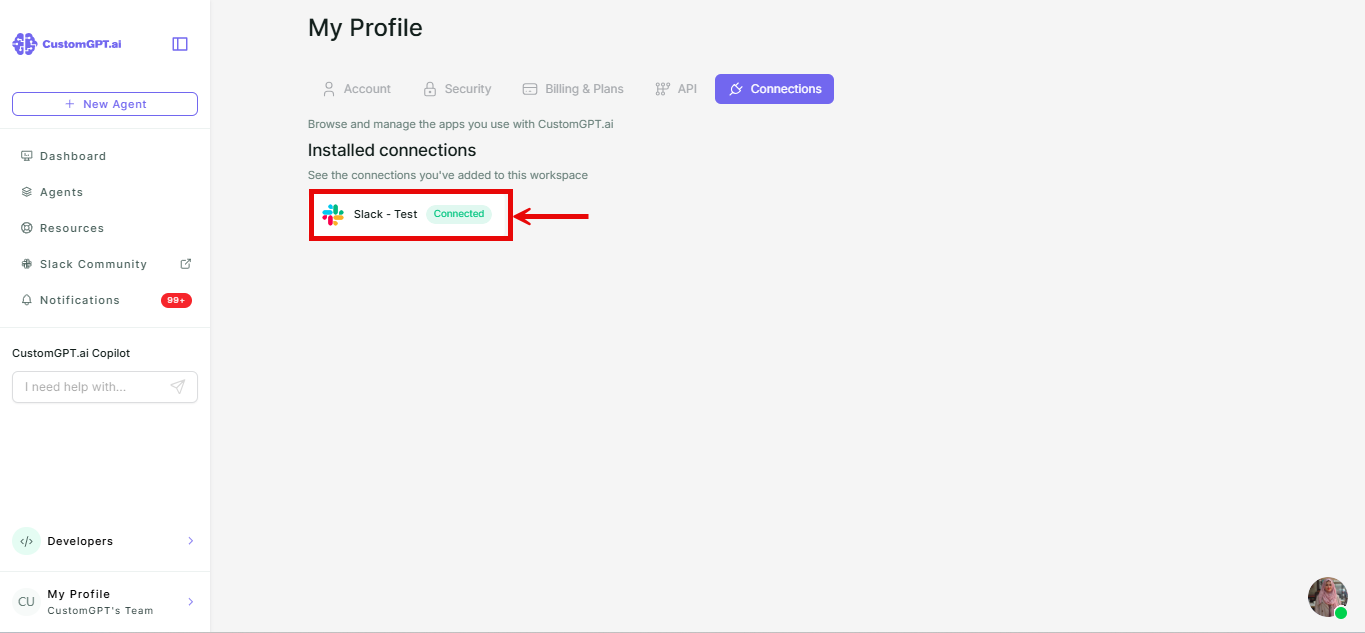
- Click the connection's card.
- In the pop-up window, click the dropdown in the Agent access section.
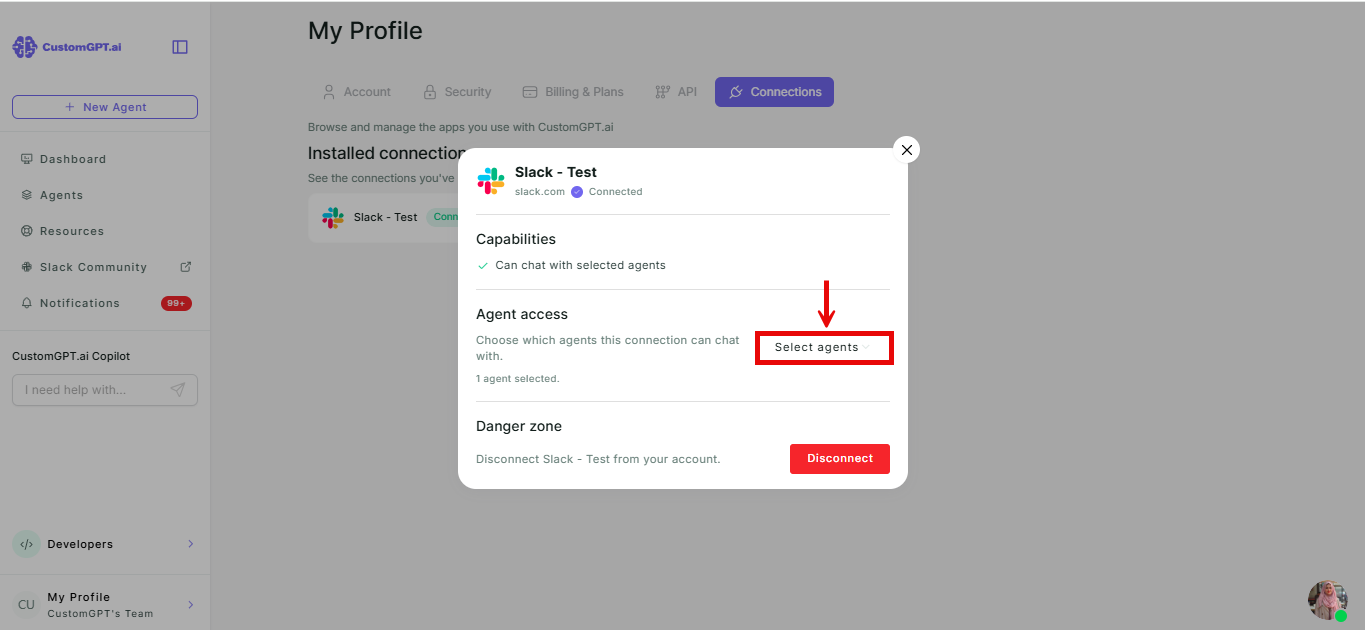
- Select which agent(s) you want to give access to, then click Allow access.
Disconnect Slack
- On the connection's card, click Disconnect.
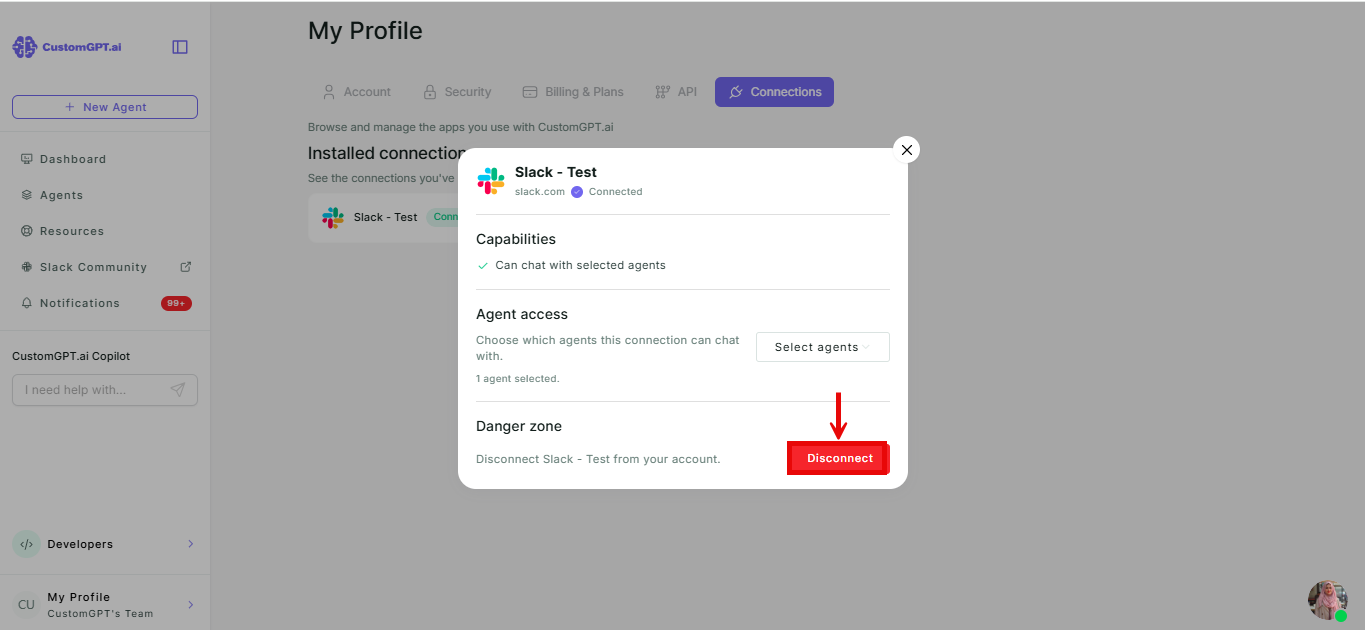
Note: This revokes the access your CustomGPT.ai account granted - it doesn't delete anything in Slack itself. If you want to reconnect later, see Connect your CustomGPT.ai account to Slack.
Related articles
- Connect your CustomGPT.ai account to Slack
- Deploy to a Slack channel
- Configure Project Access in Slack Workspace
Updated 3 months ago
Did this page help you?