
Connect a platform using connectors
This guide walks you through connecting a curated platform to your agent using connectors.
Connectors includes 33 popular platforms, each already configured for OAuth. Search for the platform you want, toggle it on, and authorize with your account - no server URLs or API tokens to enter. See Available Connectors for the full list. If your platform isn't listed, use Add a custom MCP connector instead.
Connect a platform
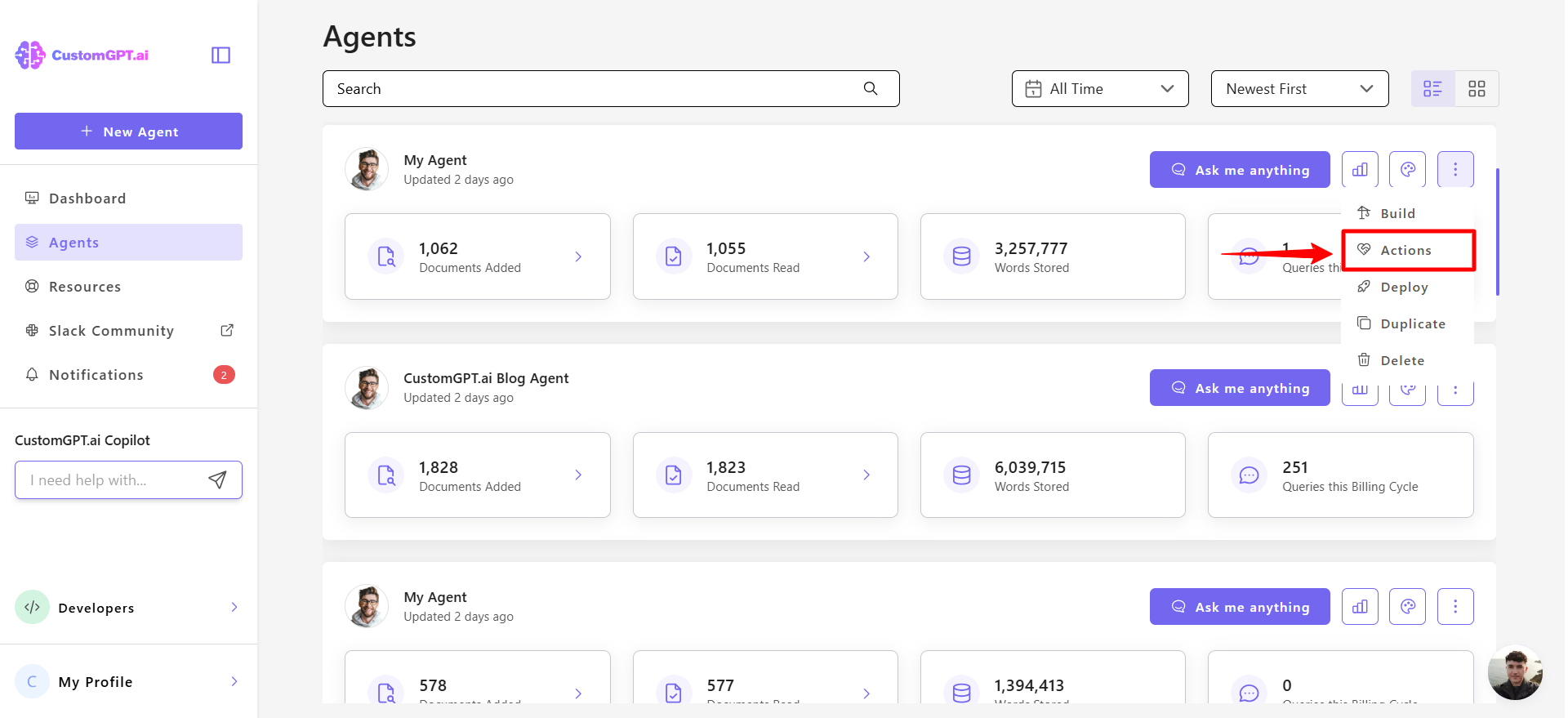
- Open your agent and click the three dots menu, then select Actions.
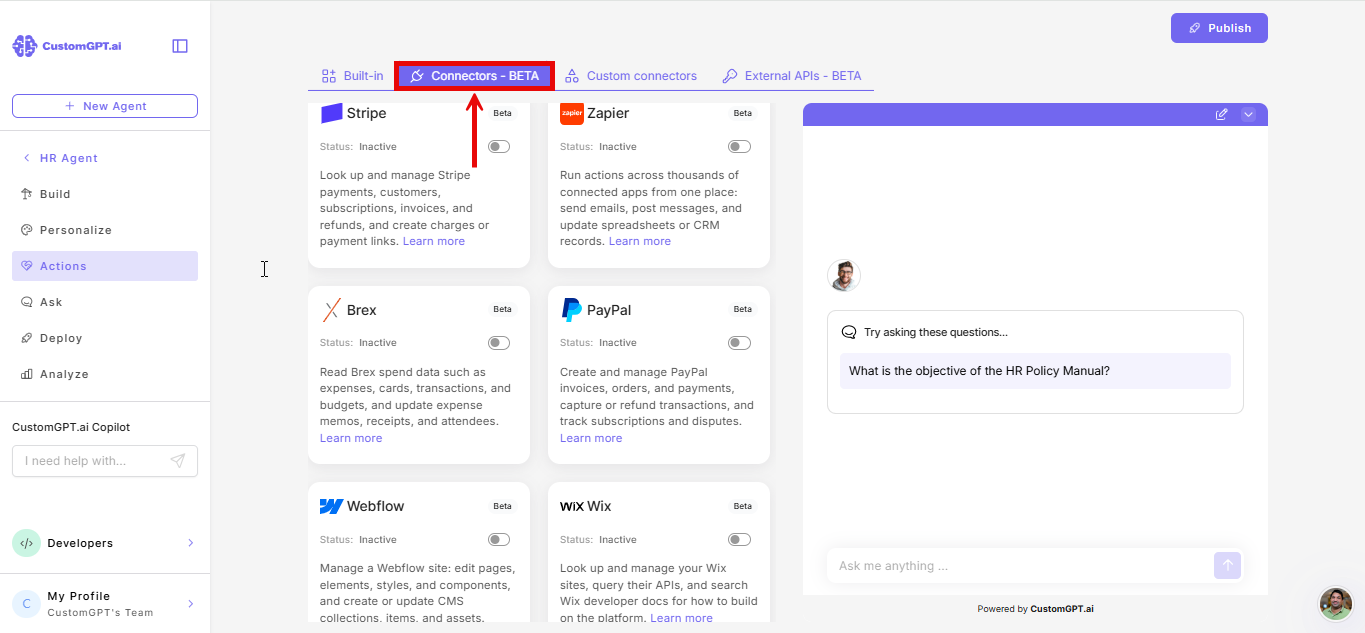
- Select the Connectors - BETA tab.
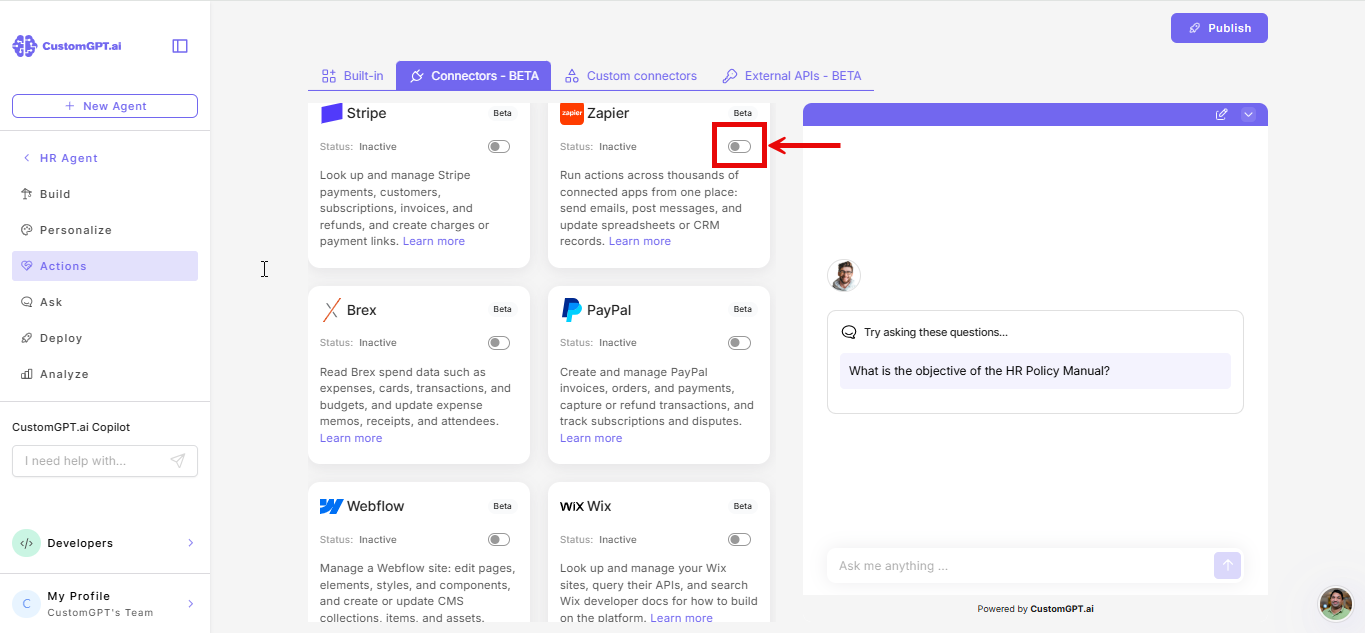
- Toggle on the card for the platform you want to connect. A window opens for that platform.
- Click Connect.
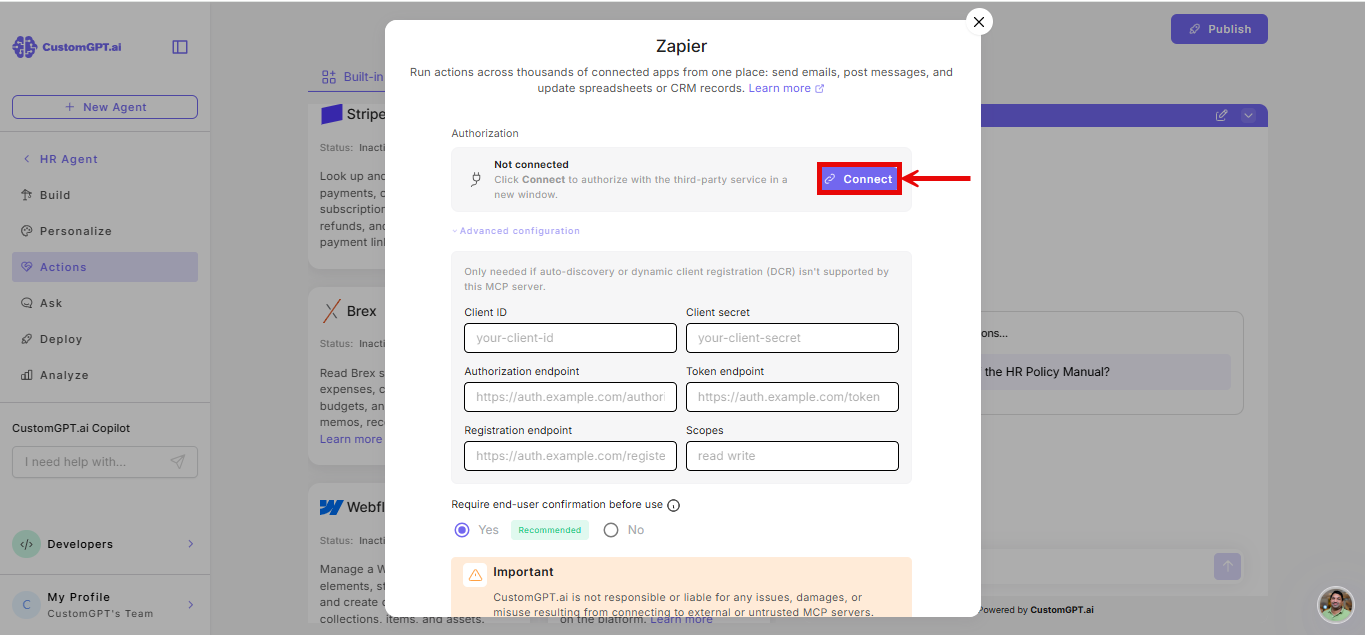
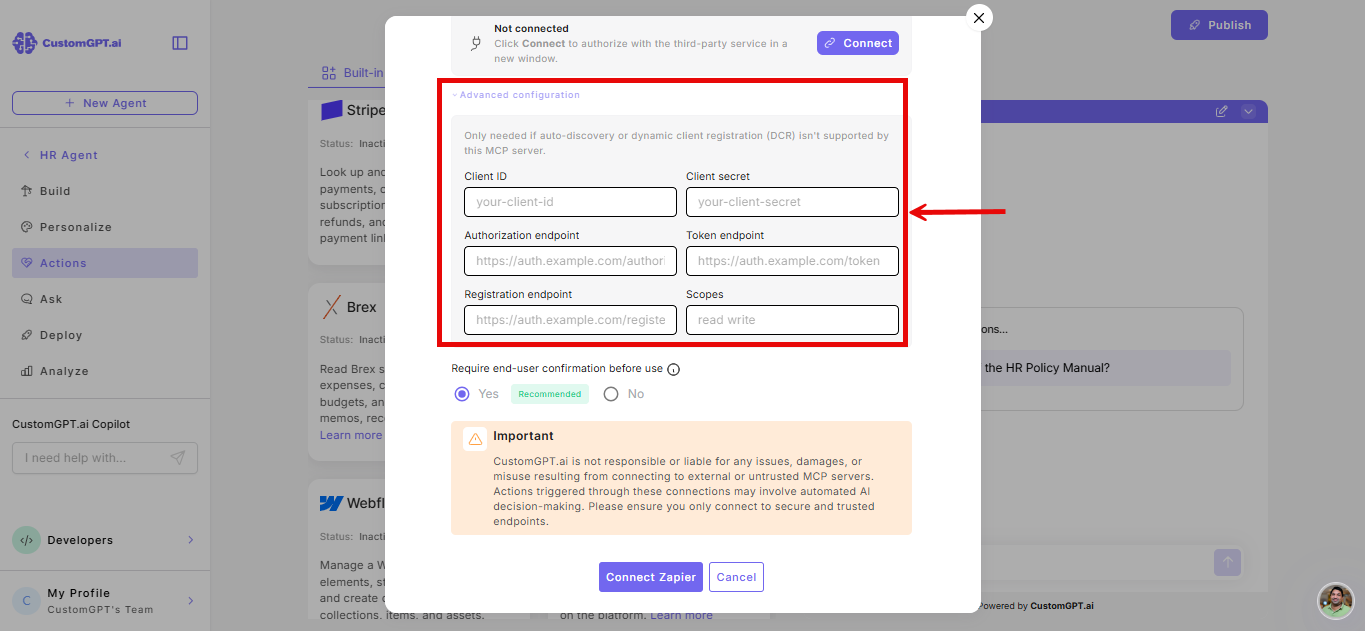
- Complete the authorization in the popup.
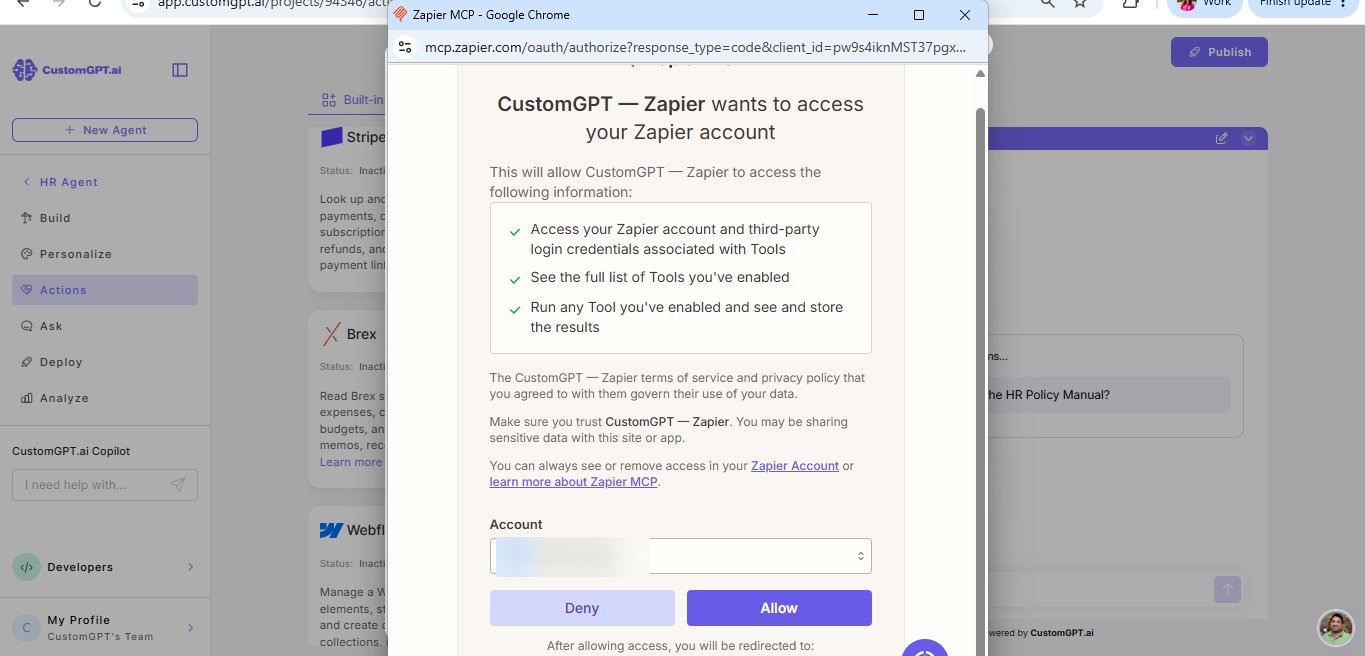
- If the platform doesn't support auto-discovery or dynamic client registration (DCR), expand Advanced configuration and enter your credentials:
-
Client ID
-
Client Secret
-
Authorization endpoint
-
Token endpoint
-
Registration endpoint
-
Scopes
Note: This is rare for platforms in the curated list, since they're all vetted for a simple OAuth support - but the option is there as a fallback.
-
-
Choose whether to Require end-user confirmation before use: Yes or No.
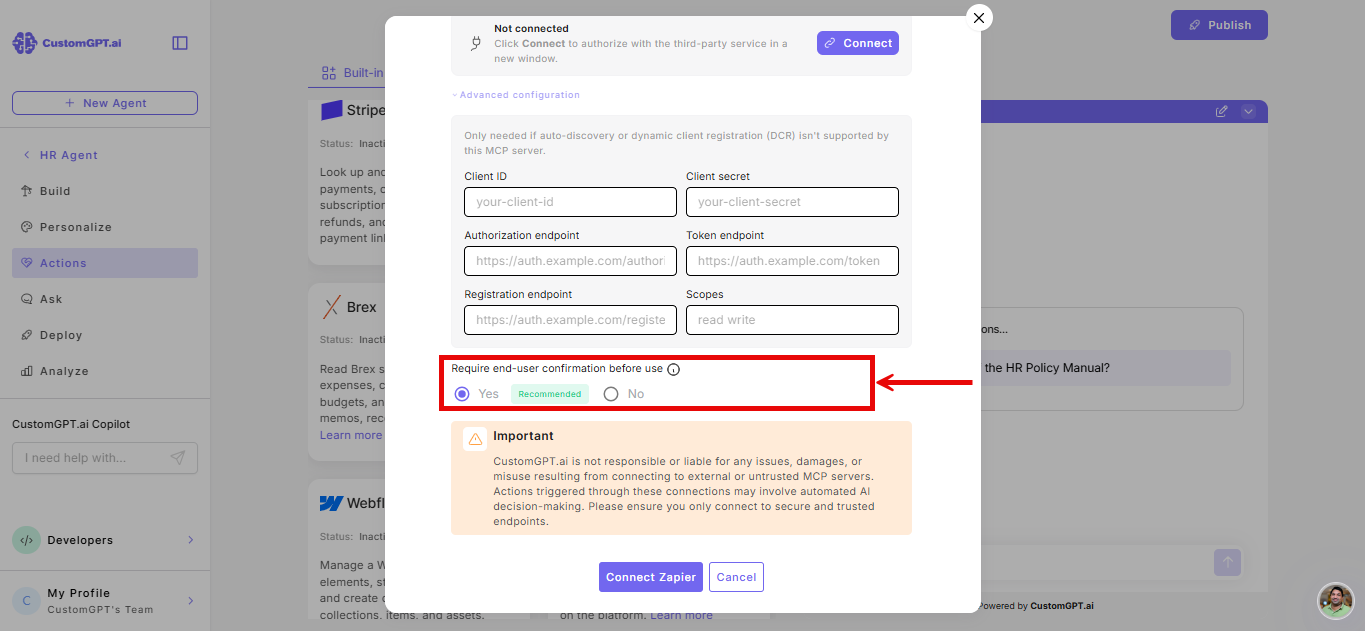
Note: Yes - the agent asks the end user to approve before executing the action. Each confirmation uses one additional query. No - the agent executes the action automatically.
-
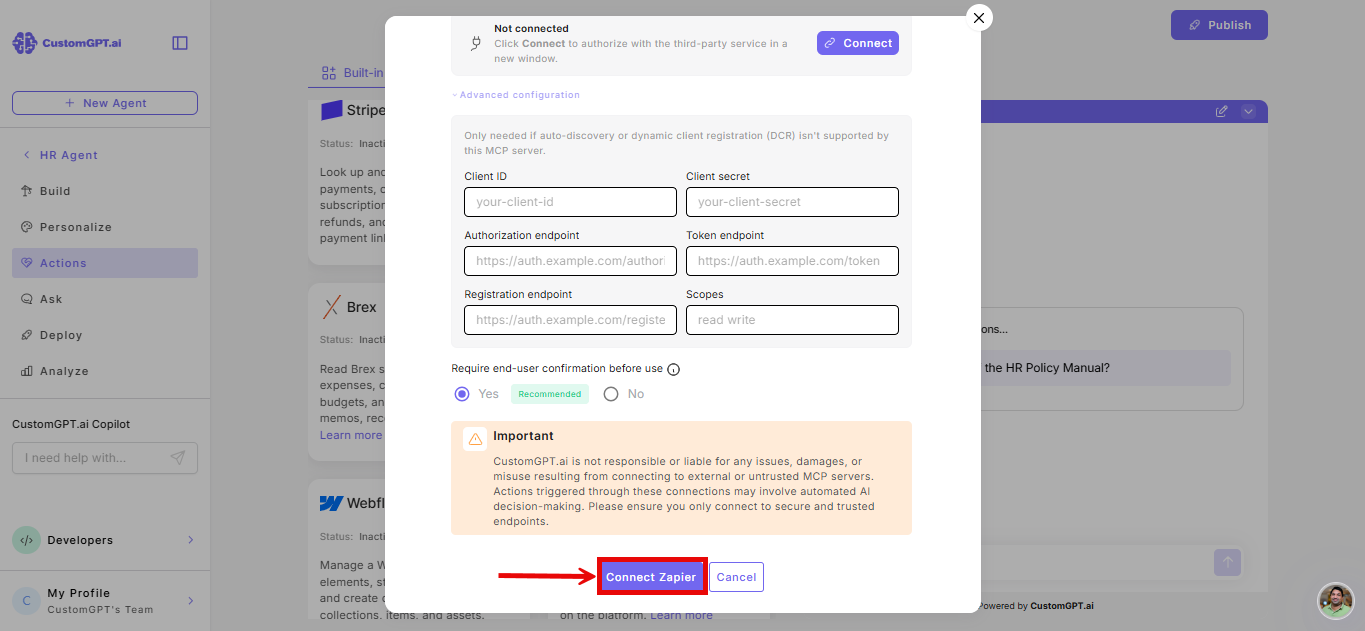
Click Connect [Platform] (e.g., Connect Zapier) at the bottom of the window.
Disconnect a platform
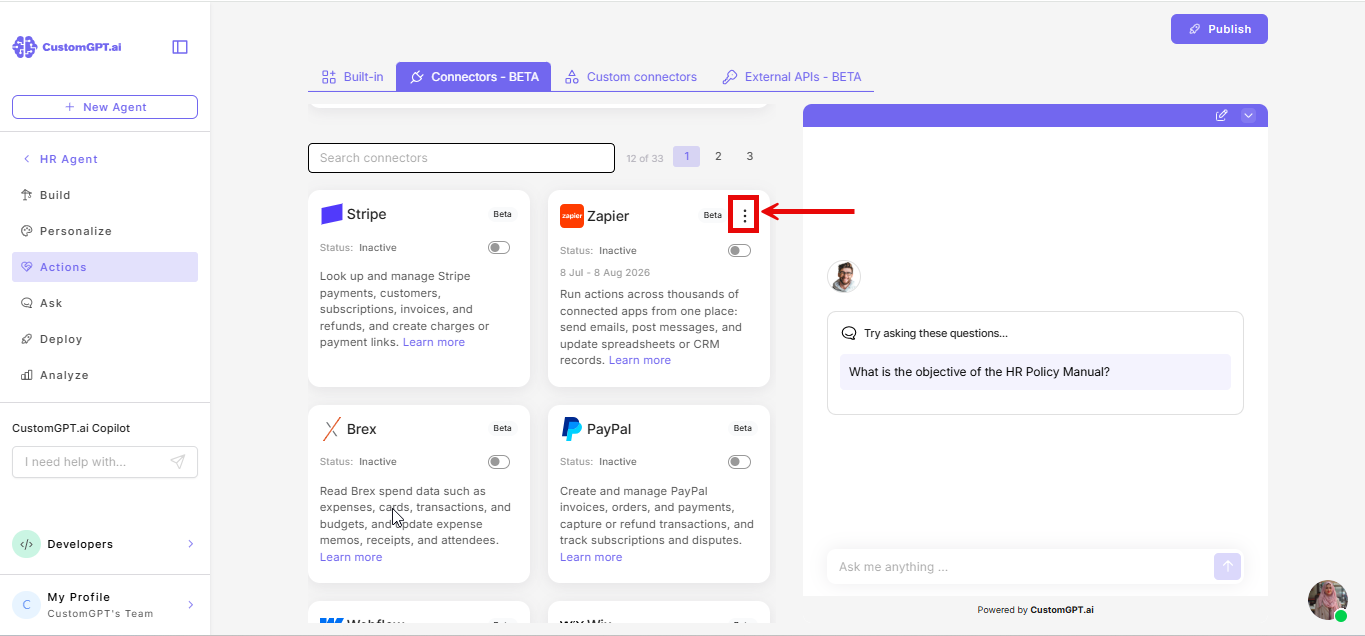
- On the Connectors - BETA tab, click the three dots on the card for the platform you want to disconnect.
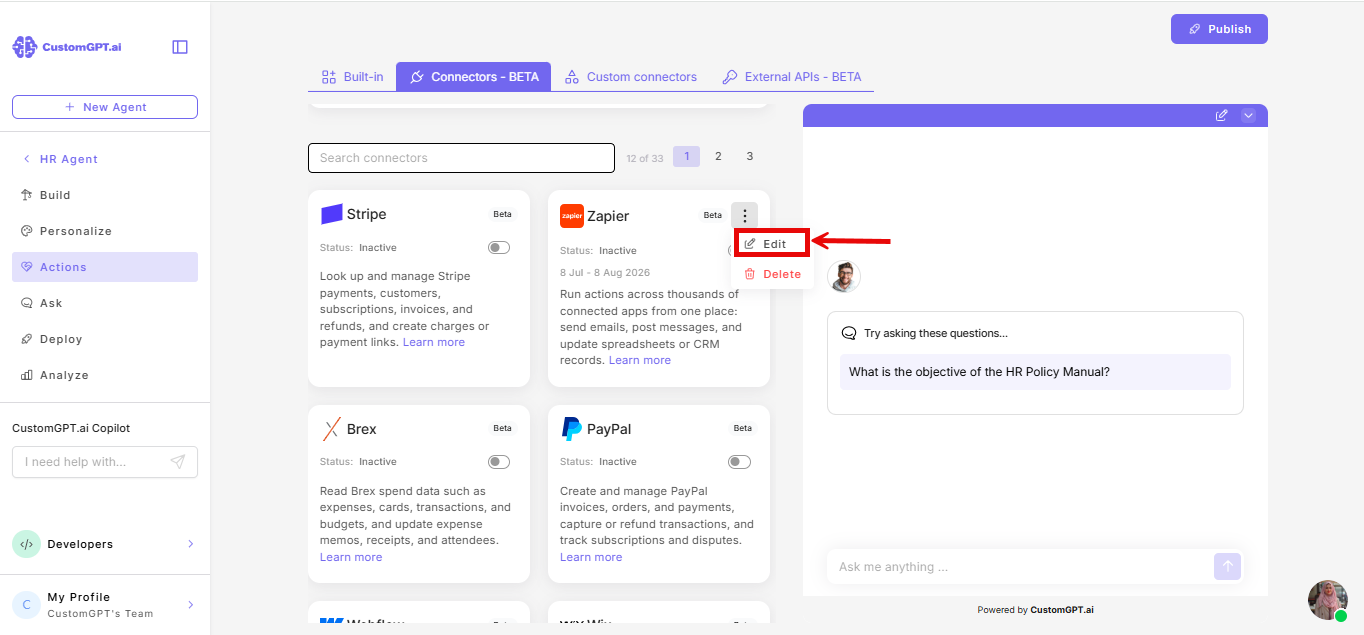
- Select Edit.
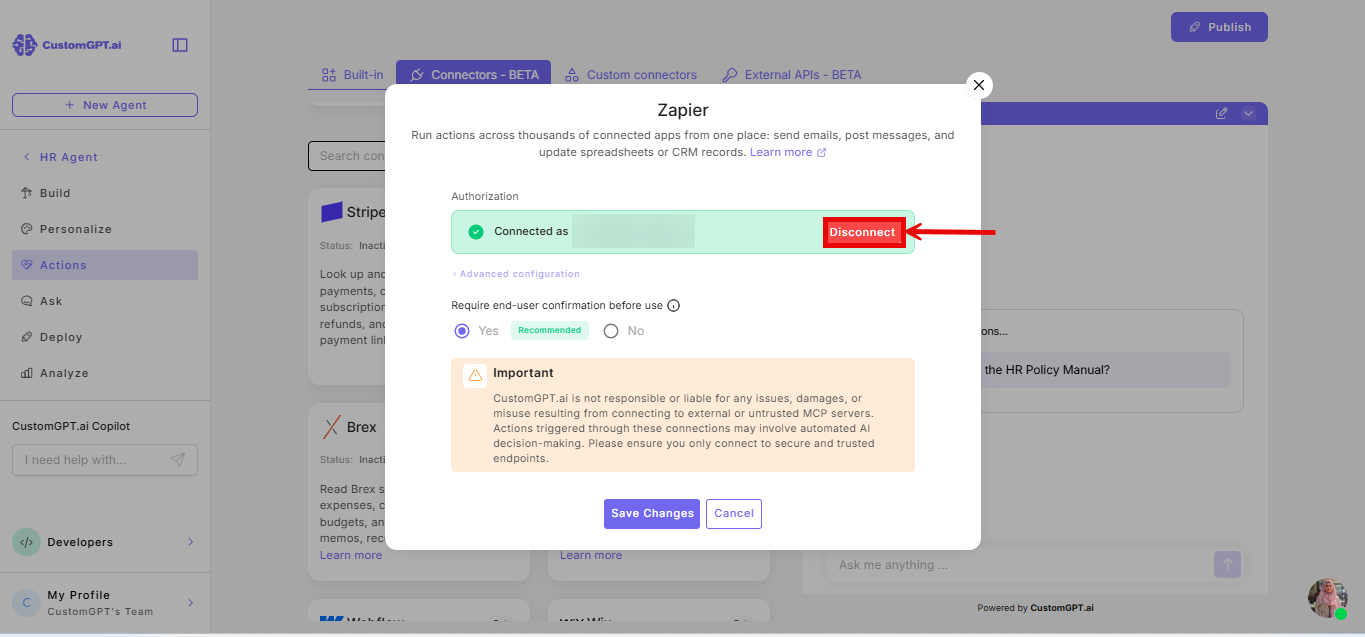
- Click Disconnect.
Things to know
- There's no limit on how many connectors you can connect, but the number you can have enabled at once depends on your plan and whether Plan & Act mode is on. This limit is shared with any Custom Connectors you've enabled. See Limits and cost for the exact numbers.
- If your account already has more connectors enabled than your plan now allows, they'll stay enabled - but you won't be able to enable any more until you disable enough to get back under your limit. You'll see an alert about this in the top right of the page.
- Connected platforms are listed in this order: enabled connectors first, then connected (but not enabled), then everything else.
Related articles
- Available Connectors
- Add a custom MCP connector
- Add a Custom Connector with OAuth 2.1
- How custom MCP connectors work
Updated 3 months ago