
Connect your analytics agent with an MCP server
Connect your analytics agent to another agent using an MCP server, so it can read that agent's conversations and analytics.
This guide walks you through Method B of connecting an analytics agent: an MCP server. Use this if you want per-agent permission control, or you already work with MCP. If you haven't created your analytics agent yet, refer to Connect an analytics agent to your agent first.
Steps
- Click the three dots menu on your agent.
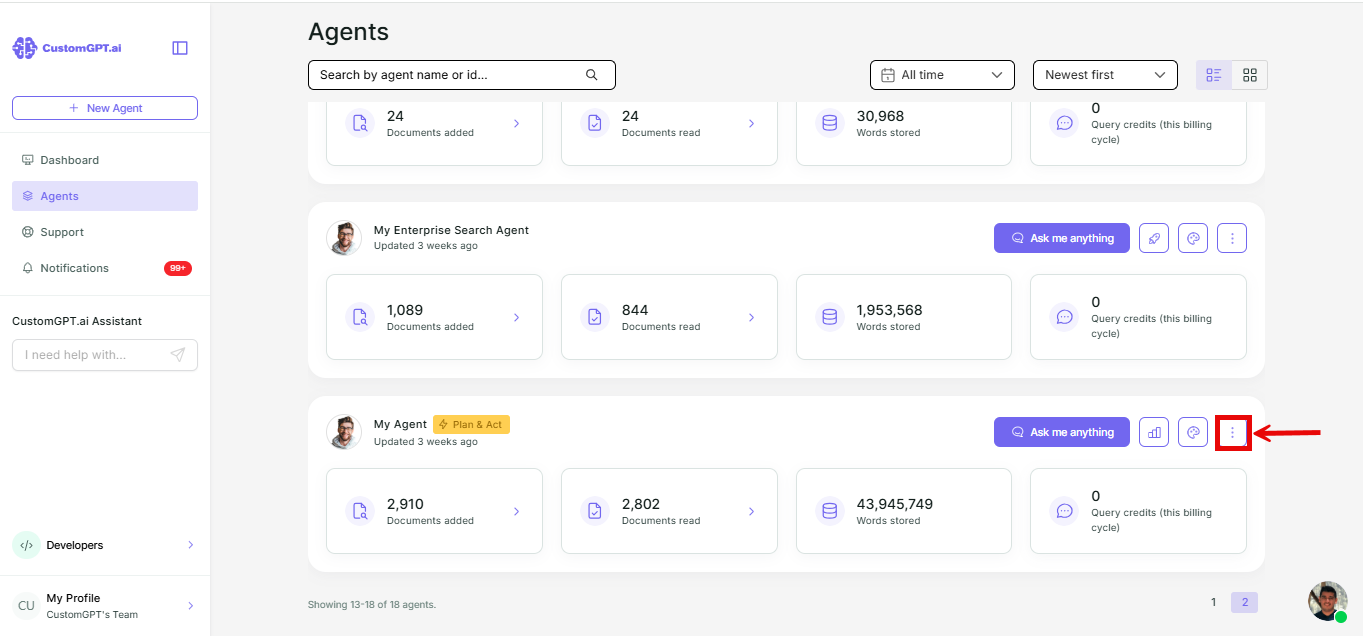
- Select Actions.
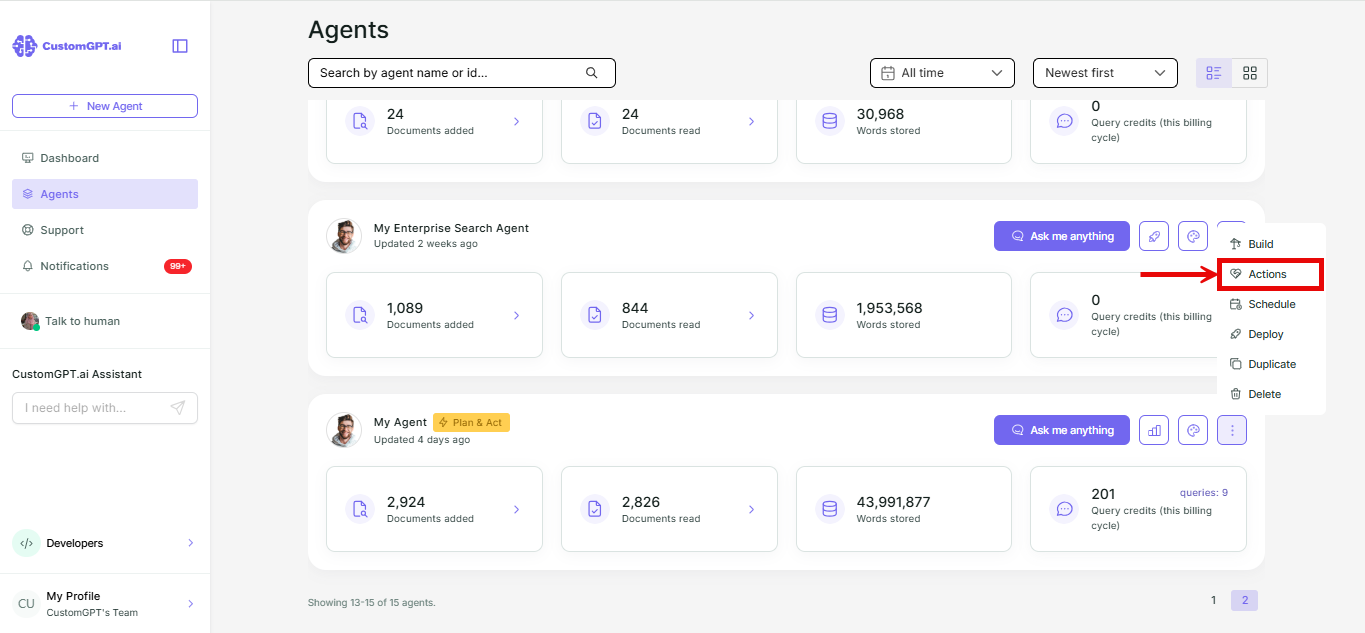
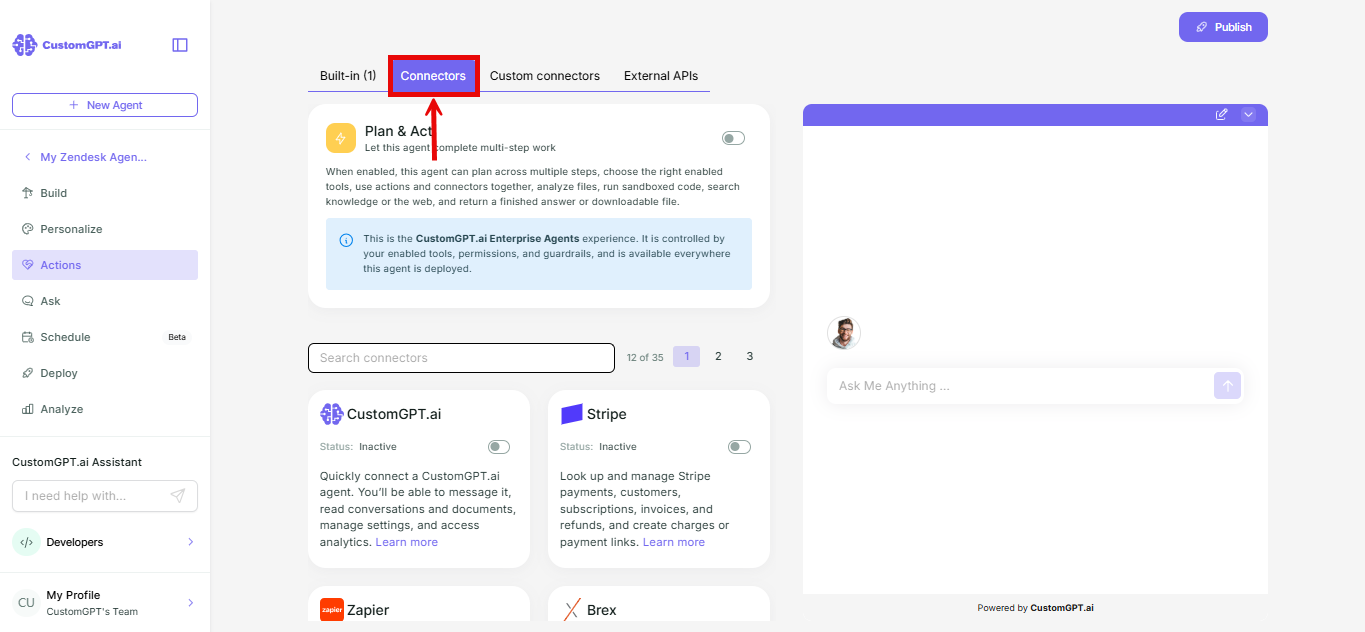
- Select the Connectors tab.
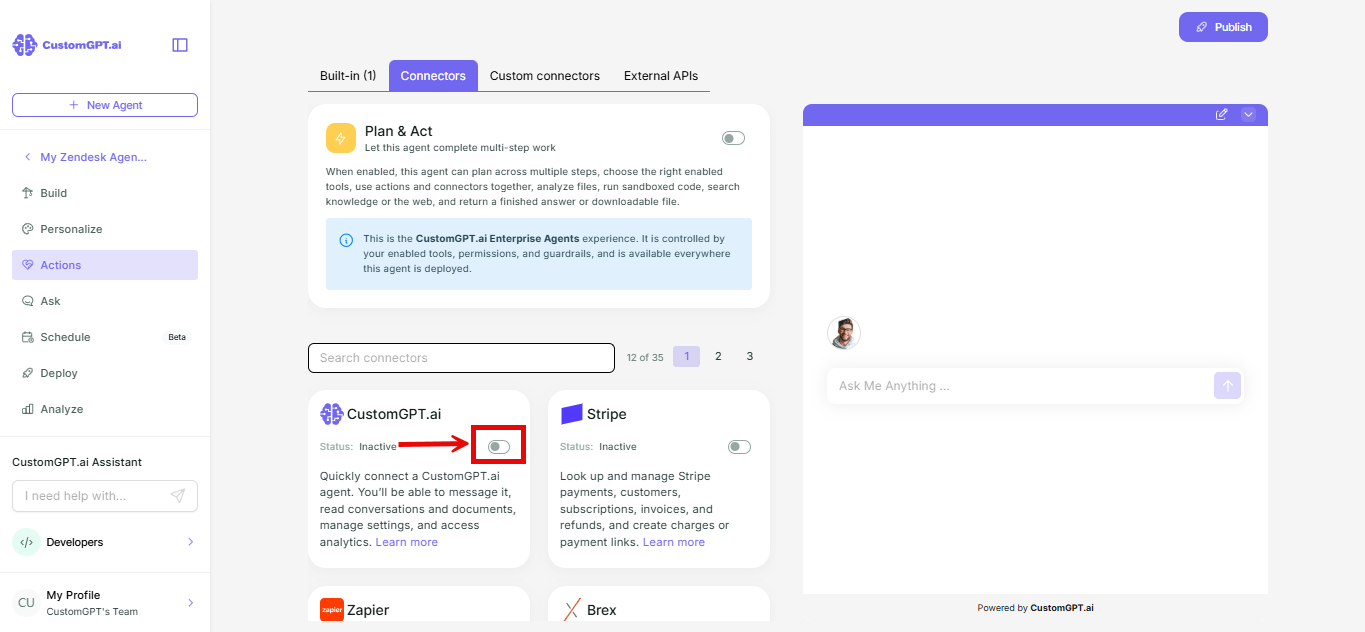
- Toggle on the CustomGPT.ai card.
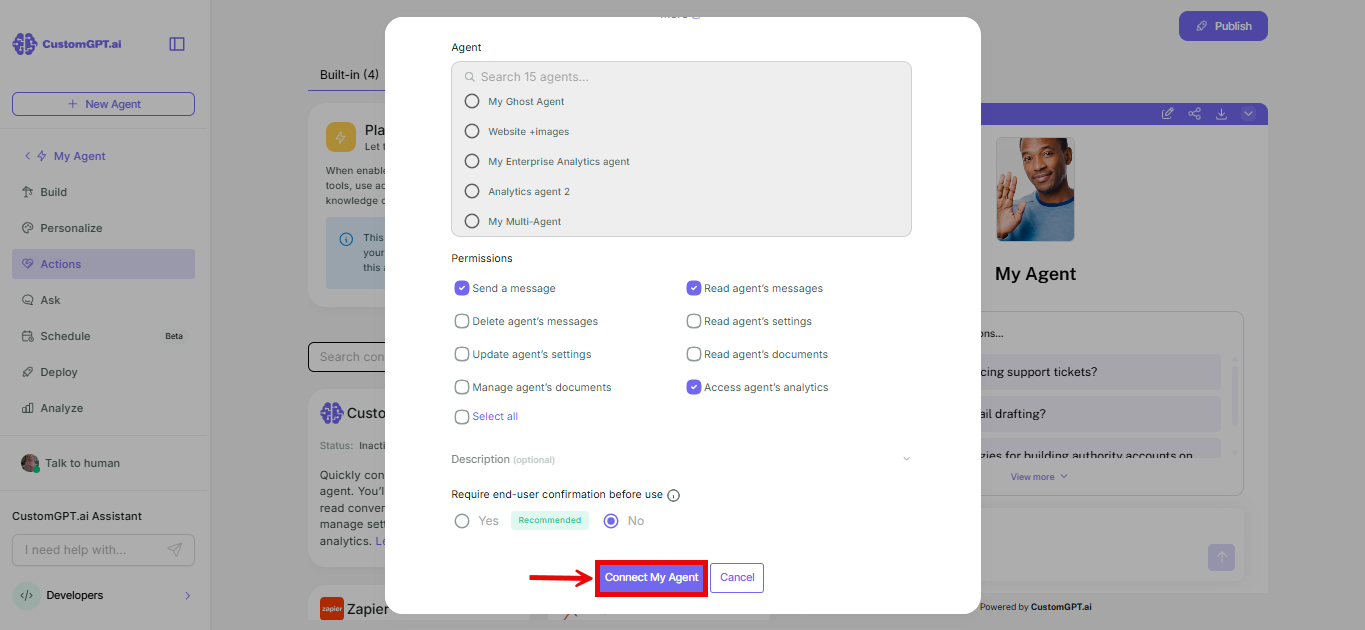
- Select the agent you want to analyze from the list.
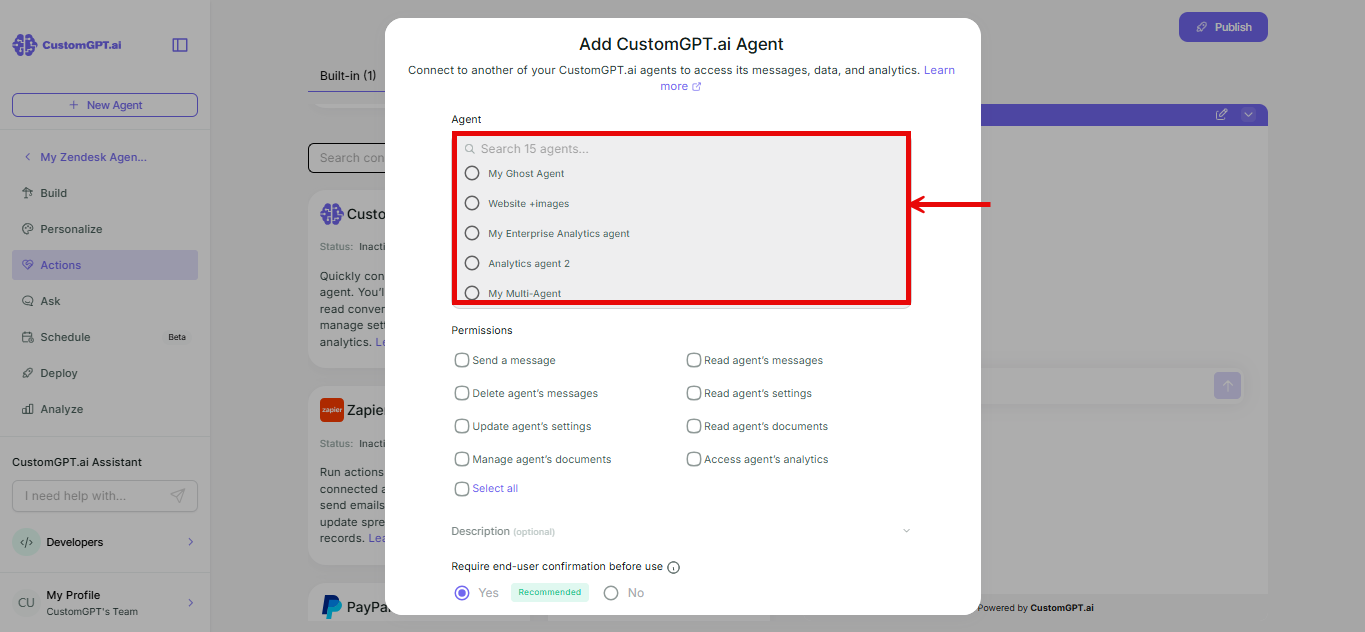
- Set permissions, using the table below.
| Permission | Setting | Why |
|---|---|---|
| Read agent's messages | Checked | Needed to read what users actually asked. |
| Access agent's analytics | Checked | Volume, deflection, and trend data. |
| Send a message | Unchecked | Your analytics agent should never post into the agent it's reporting on. |
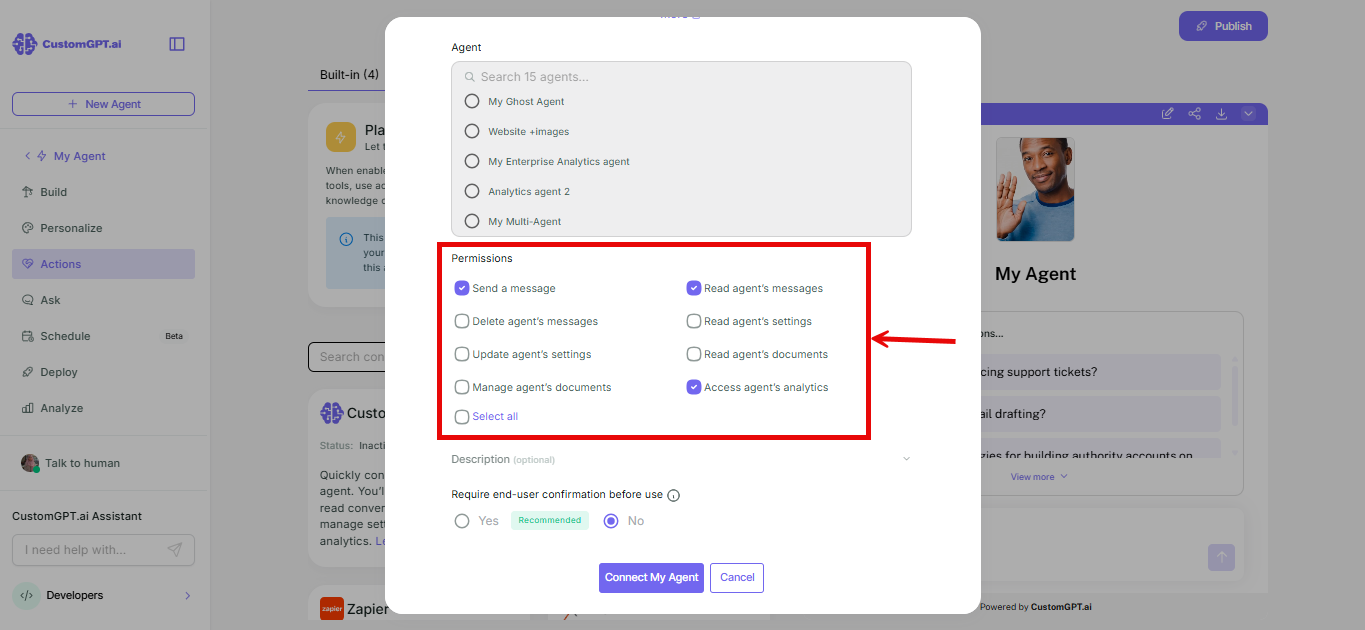
- Enter a description for the connection - for example, "Analytics connection."
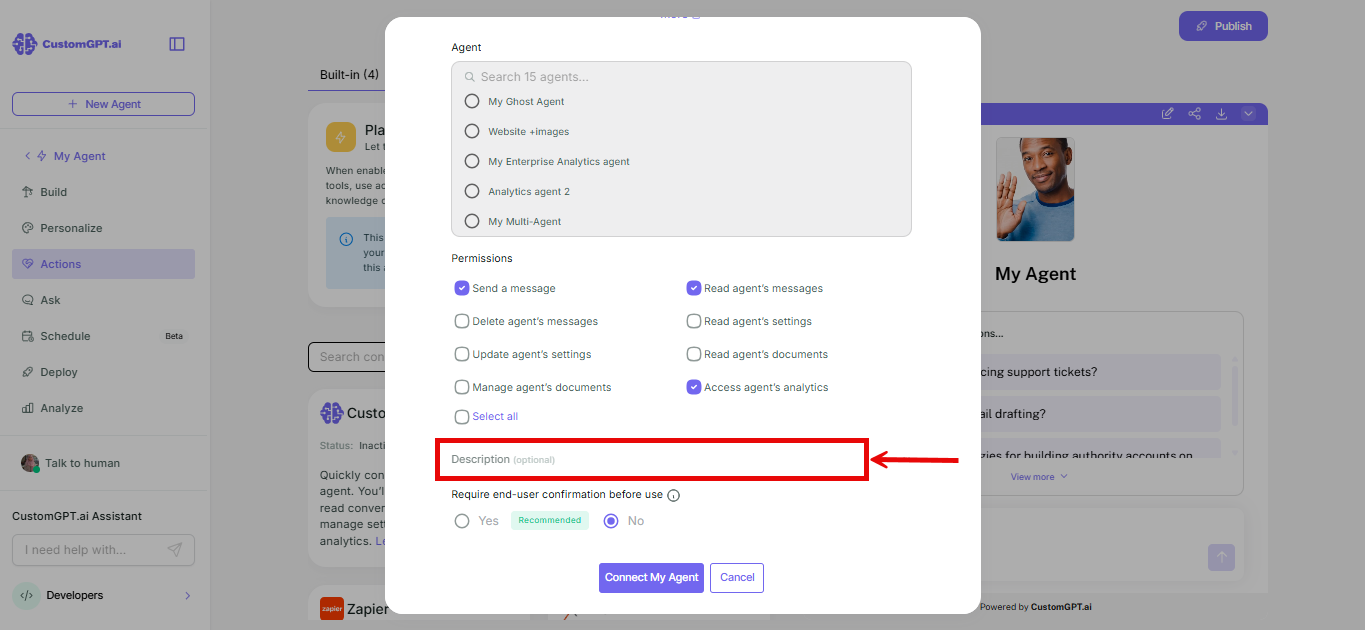
- Set Ask end user for confirmation to No
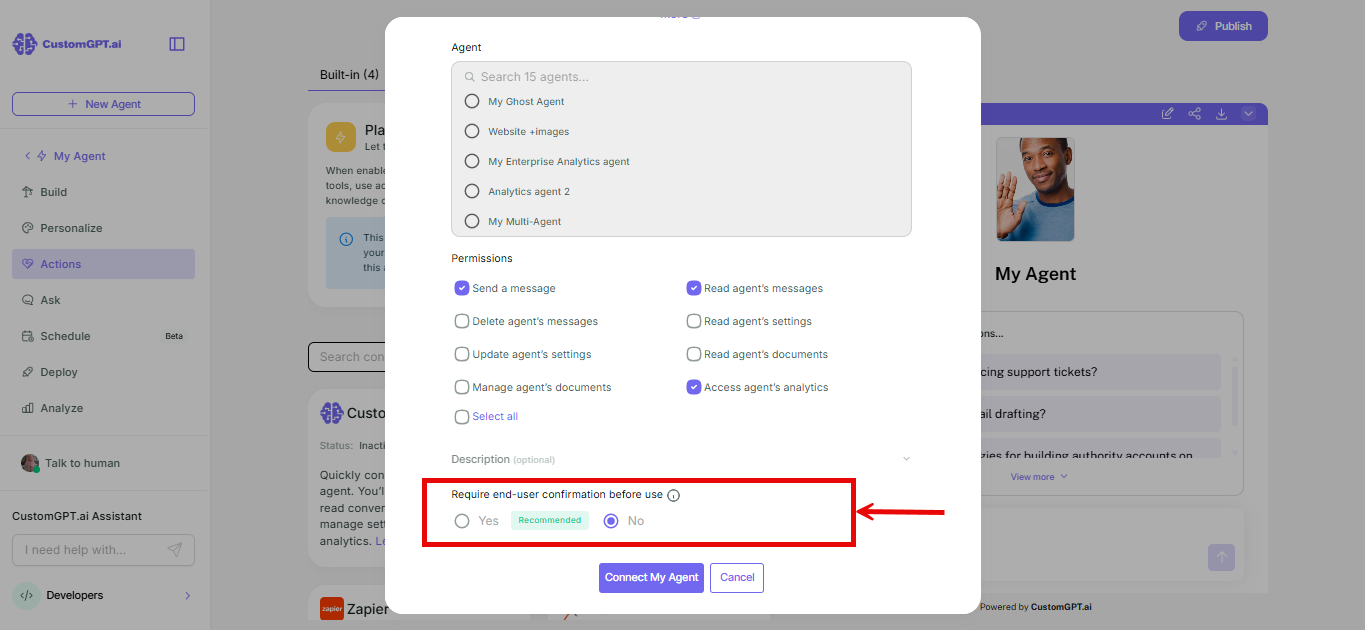
- Click Connect my agent.
What's next
Refer to 👉 Verify your analytics agent connection to confirm it's working.
Related articles
- Connect an analytics agent to your agent
- Connect your analytics agent with an API key
- [Connect a CustomGPT.ai agent using Connectors]
- Deploy to any MCP client
Updated about 1 month ago
Did this page help you?