
Turn your PDFs into conversion opportunities
This guide walks you through turning the "Limited" label on restricted PDF pages into a clickable link. The setup spans two separate settings screens, so this guide covers the full path in one place.
Use your PDFs to guide interested readers toward the next step. Add clickable links that can lead users to a purchase page, upgrade offer, signup form, contact page, or any other destination that supports your business goals.
Before you start
- Your account must be on the Enterprise plan. PDF Citations is an Enterprise-only feature.
- Your agent has a PDF source that's used with the PDF viewer.
- Enable PDF viewer and Limit page visibility are both turned on for your agent. See How to configure PDF citations.
Steps
- Turn on Enable PDF viewer and Limit page visibility for your agent, if you haven't already. Refer to 👉 How to configure PDF citations for more details.
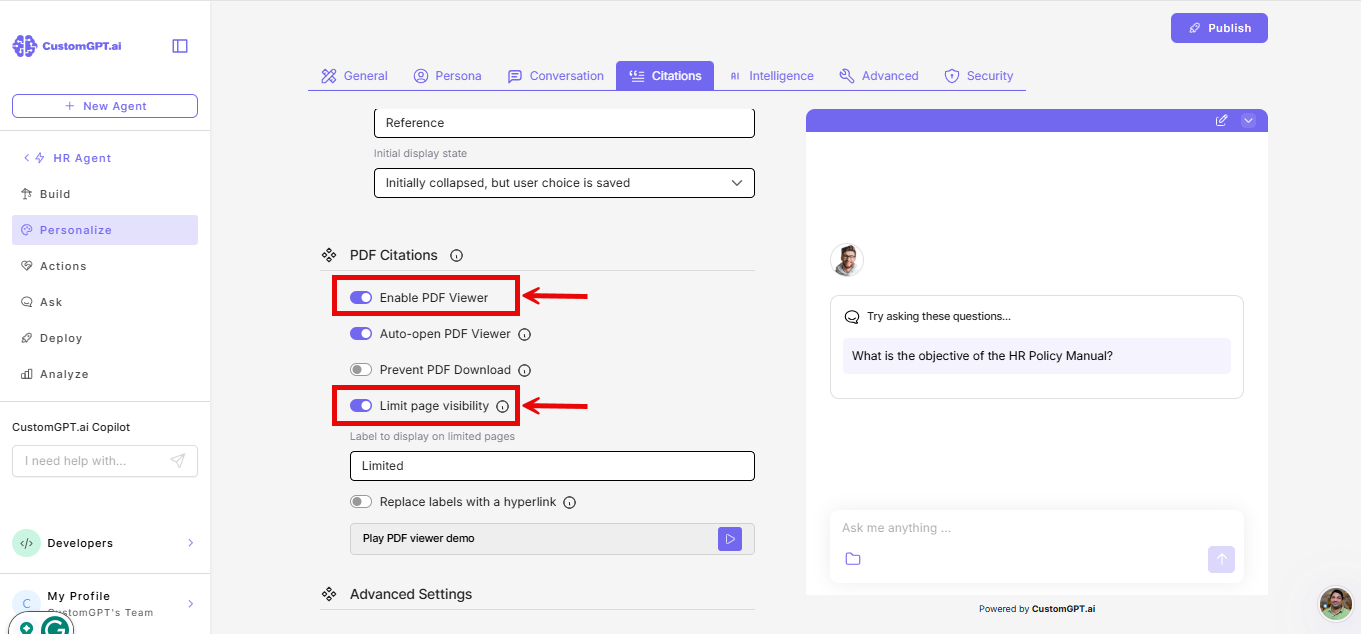
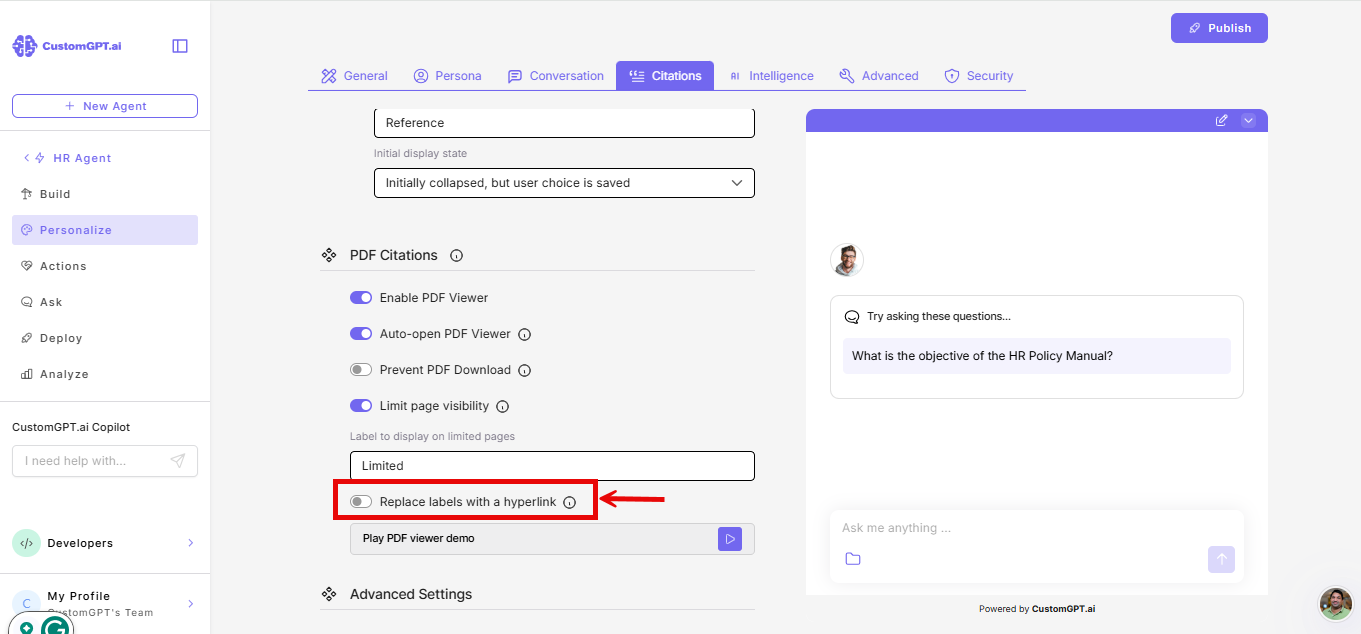
- Under Limit page visibility, toggle on Replace labels with a hyperlink. This is off by default.
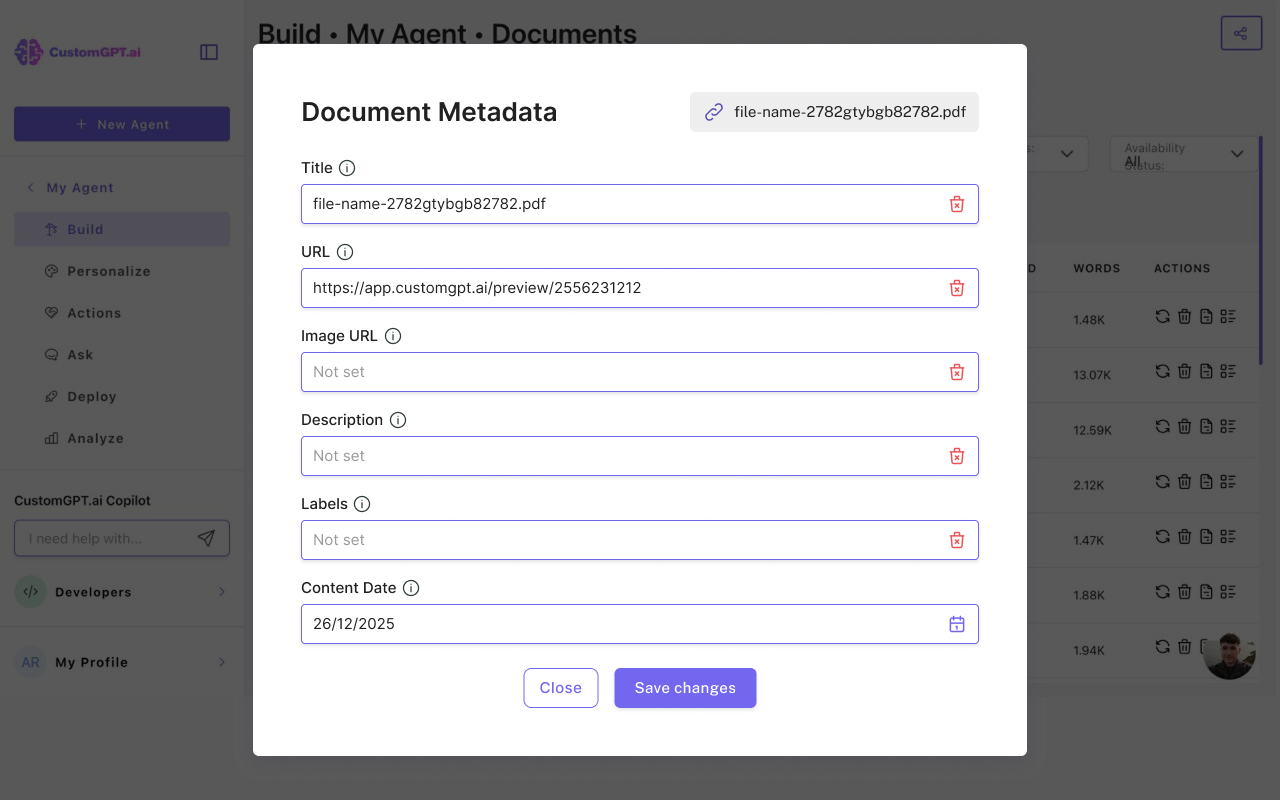
- Go to Build > Documents, open the document's metadata editor and change the URL field to the destination you want the label to link to. See How to Edit Metadata of Your Uploads for exact navigation and steps.
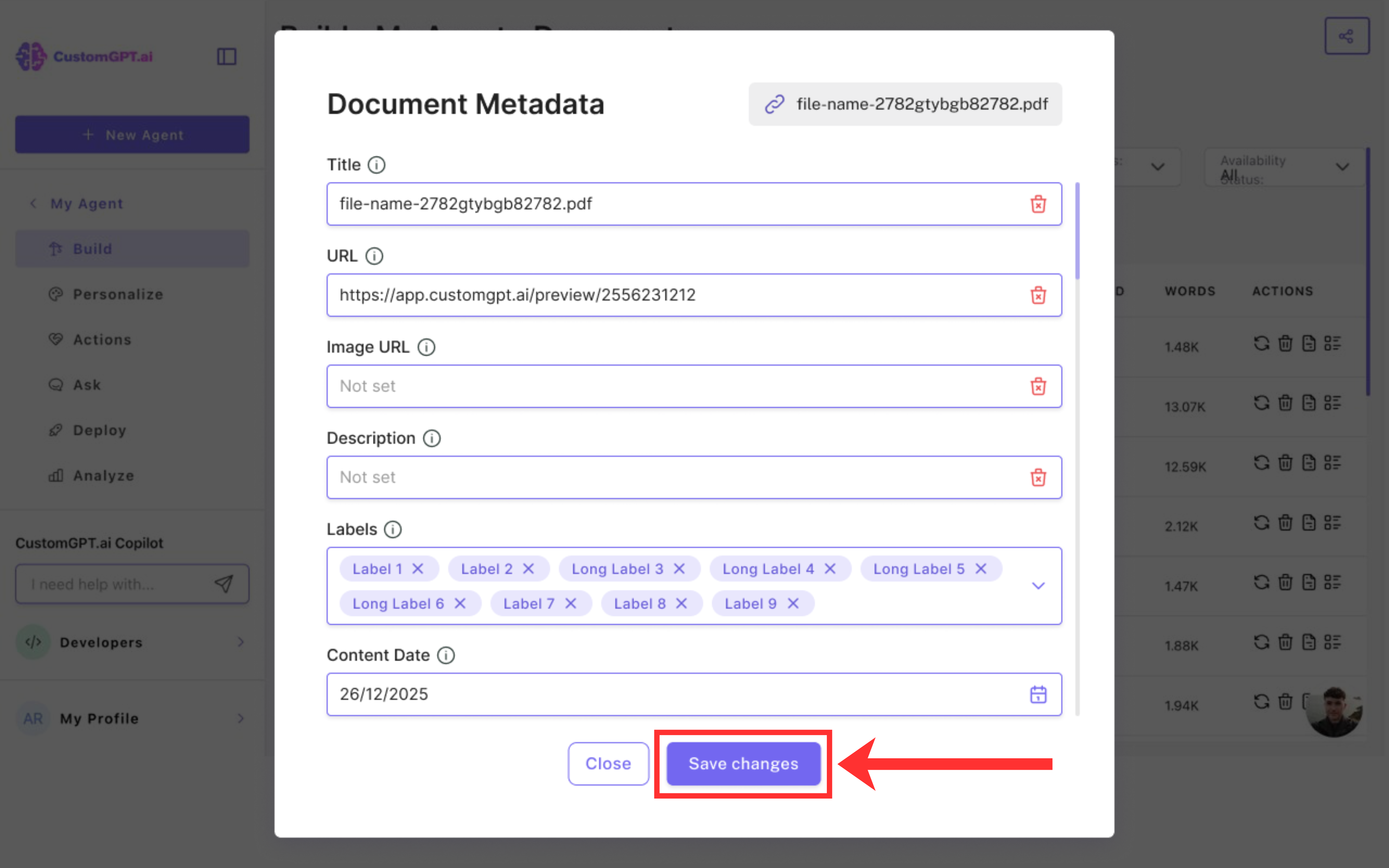
- Save your changes.
The "Limited" label on that document's restricted pages now shows underlined and clickable (the text color stays the same), leading to the URL you set.
Note: Opening a PDF that has one of these links, and clicking the link itself, are tracked separately as part of your account's Links & Sources analytics - so you can see how many readers see the link versus how many follow it.
Why the label might still show as plain text
The "Limited" label only becomes a hyperlink when all of these are true:
- The source is a PDF and is eligible for the PDF viewer.
- Enable PDF viewer is on.
- Limit page visibility is on.
- Replace labels with a hyperlink is on.
- The document's metadata URL has been changed from its default (the original document URL).
If the metadata URL is still the default, the label stays as plain text - there's nothing to link to yet.
Note: Changing a document's metadata URL doesn't affect what the PDF viewer displays. The actual PDF content always loads from the document's original URL, regardless of what you set the metadata URL to. The metadata URL is used only as the link destination for the "Limited" label - it's safe to change without breaking the viewer.
Related articles
Updated 3 months ago