
Enable auto-sync for HubSpot Knowledge Base
This guide walks you through turning on Auto-sync for your HubSpot Knowledge Base source, so your agent's knowledge base stays current with your website automatically.
Note:This feature is available on our Enterprise plans. If you're interested in enabling it, please contact our sales team.
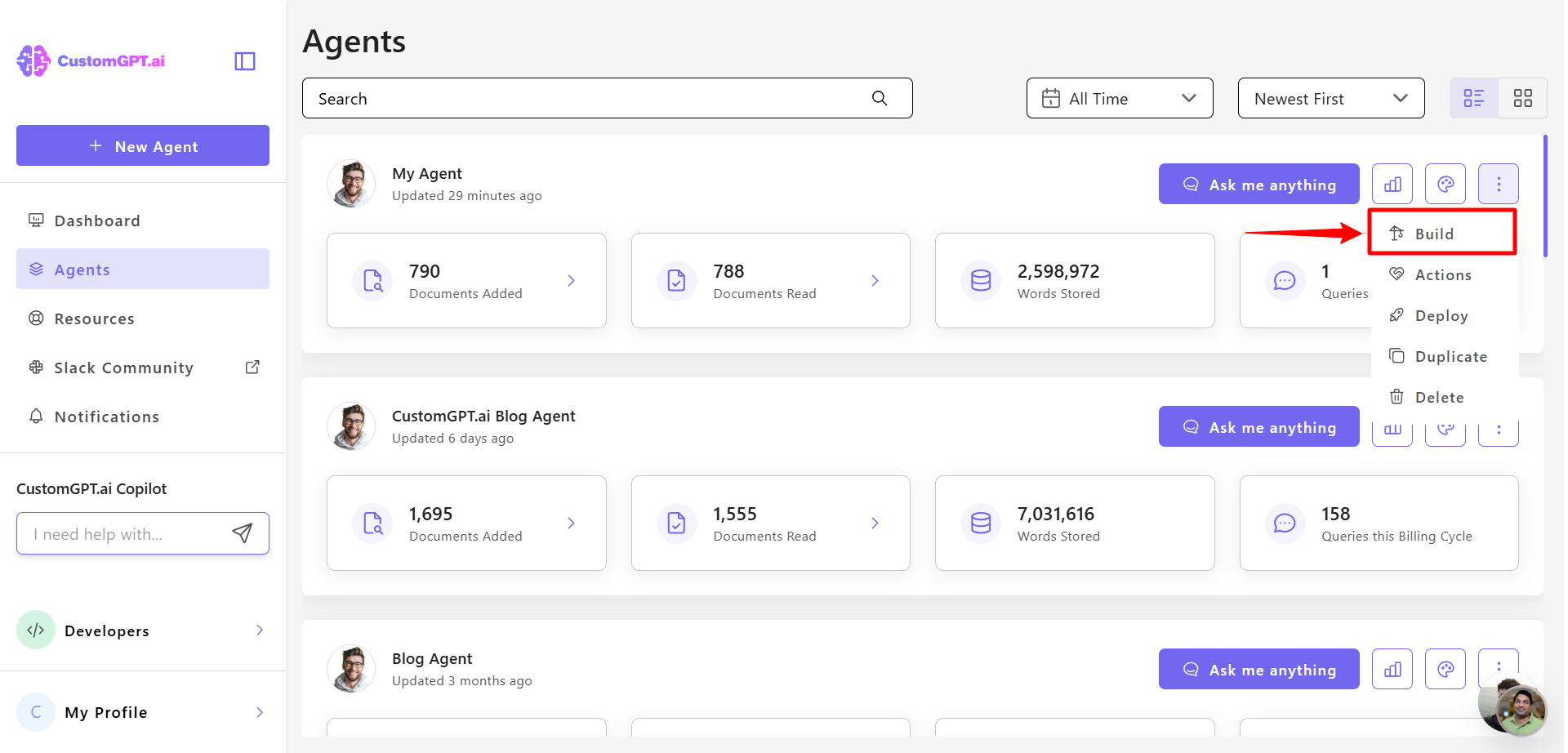
- Click the three dots next to your agent’s name, then select Build.
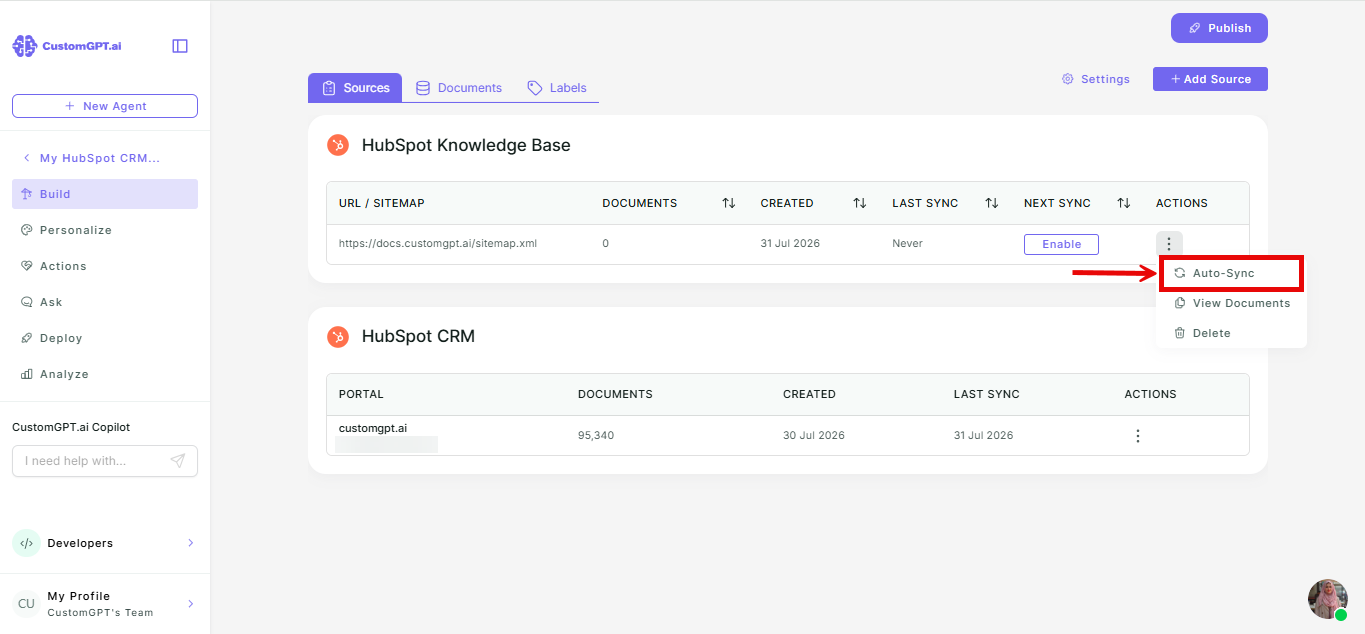
- In HubSpot section, find your connected knowledge base, click the three-dot menu next to it, and select Auto Sync.
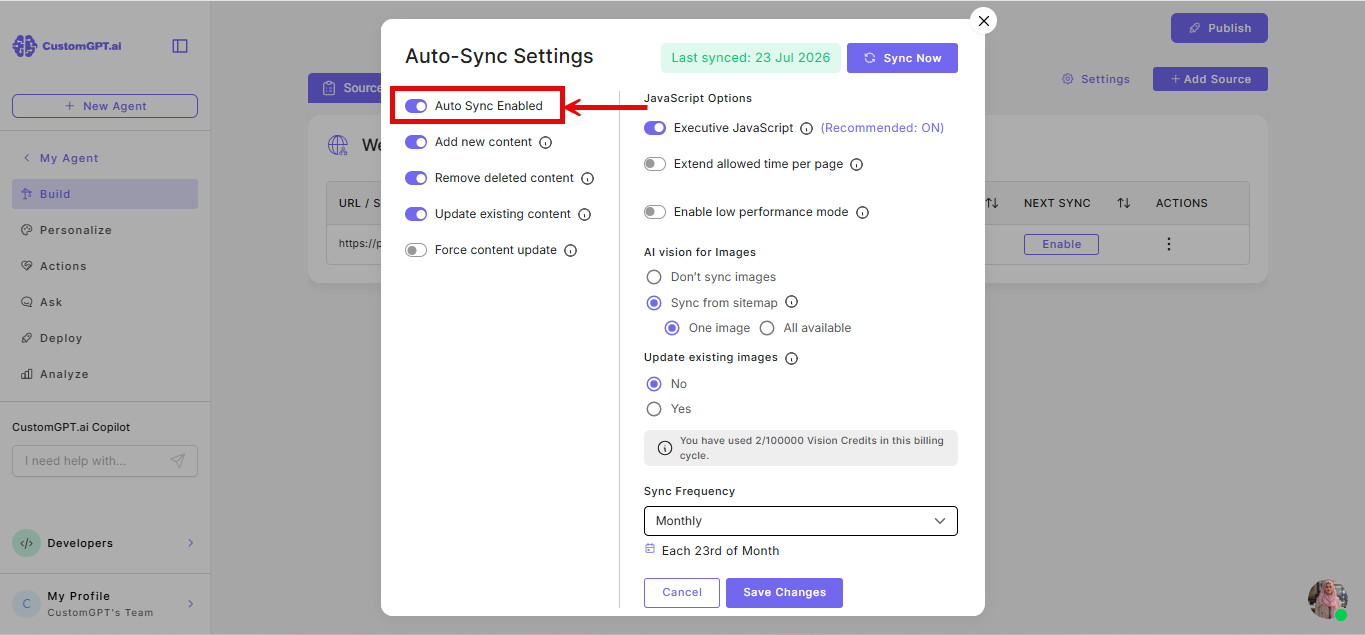
- Toggle Auto Sync to Enabled.
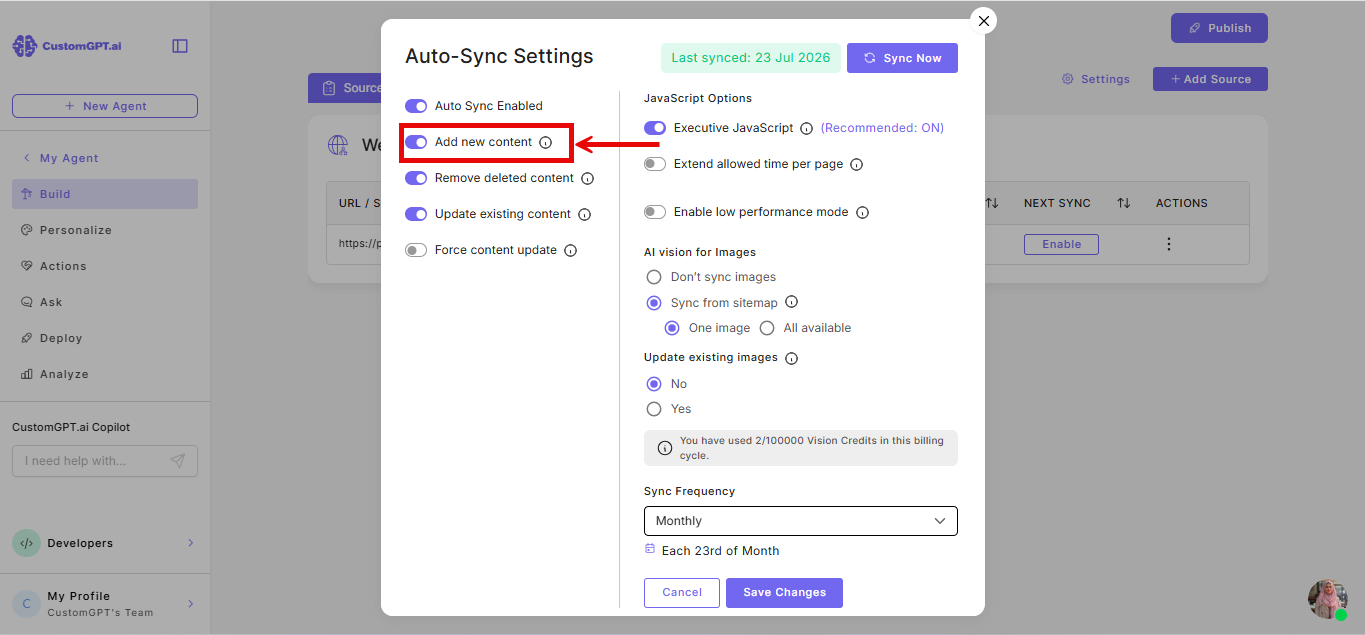
- Toggle Add new content to automatically add any new pages or documents found on your website to your agent’s knowledge base.
- Toggle Remove deleted content to automatically remove deleted or missing pages that are no longer found on your website.
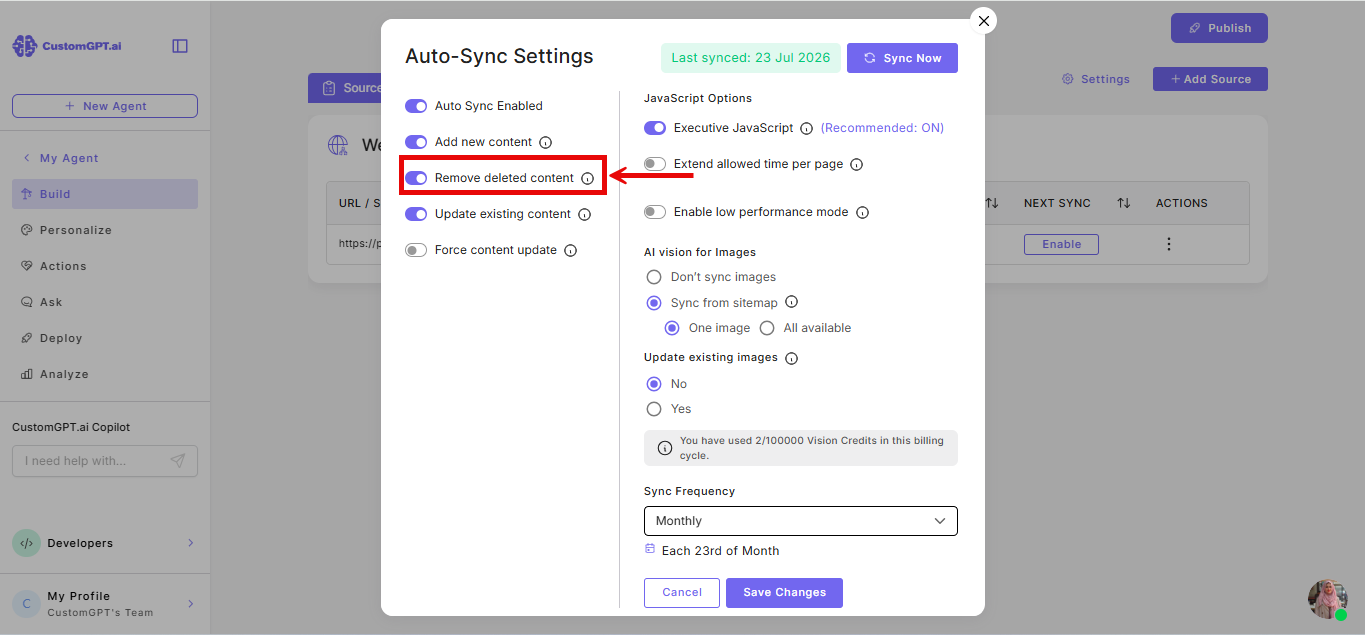
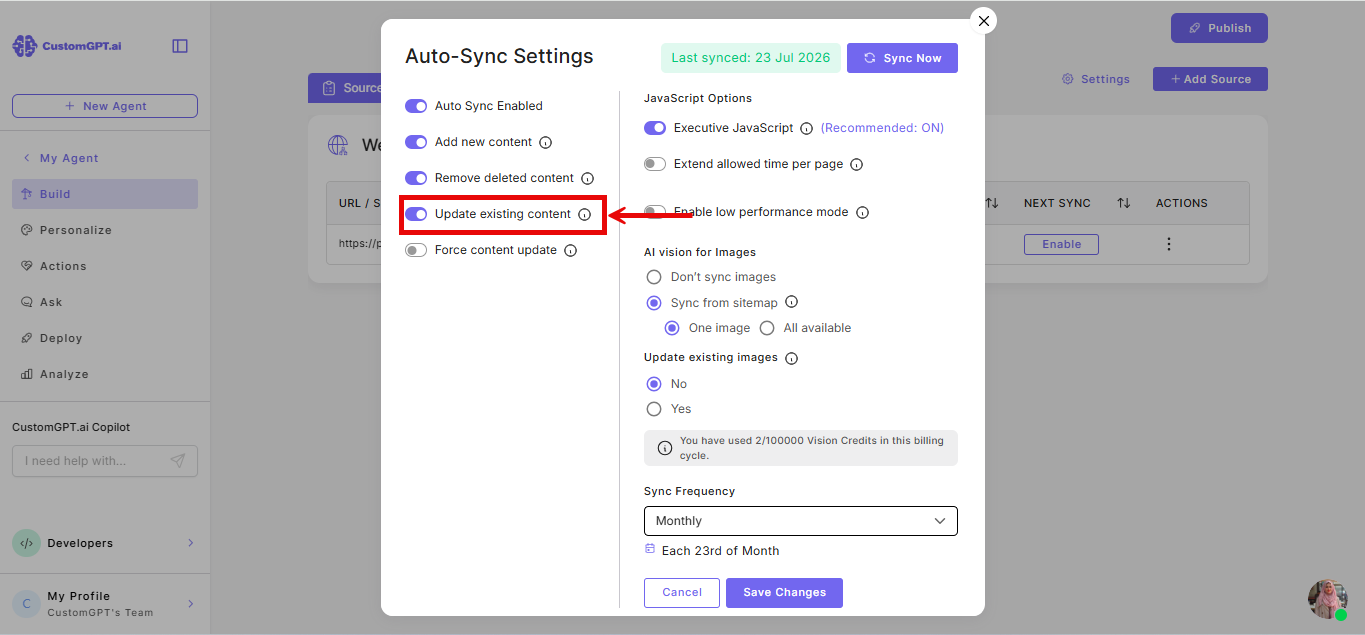
- Toggle Update existing content to define how CustomGPT should handle pages that already exist in your agent’s knowledge base.
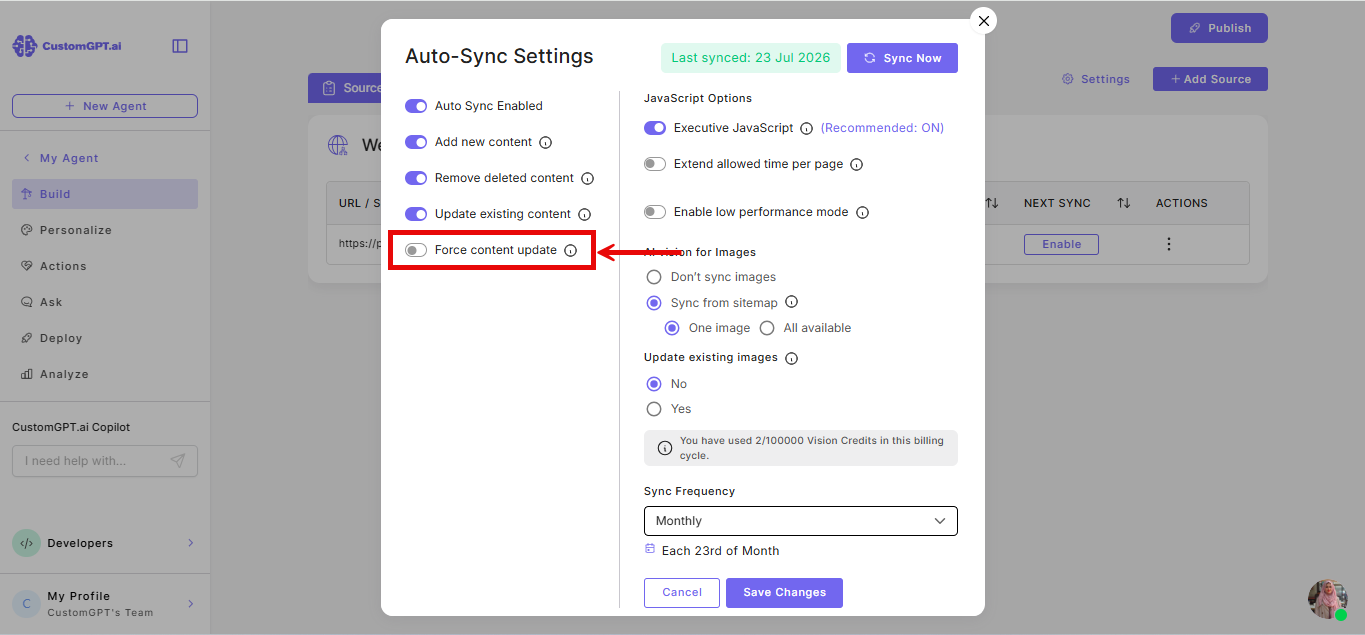
- Toggle Force content update if you want all content to refresh even when it hasn’t changed since the last sync. (This feature is available on the Enterprise plan. To enable, please contact our sales team).
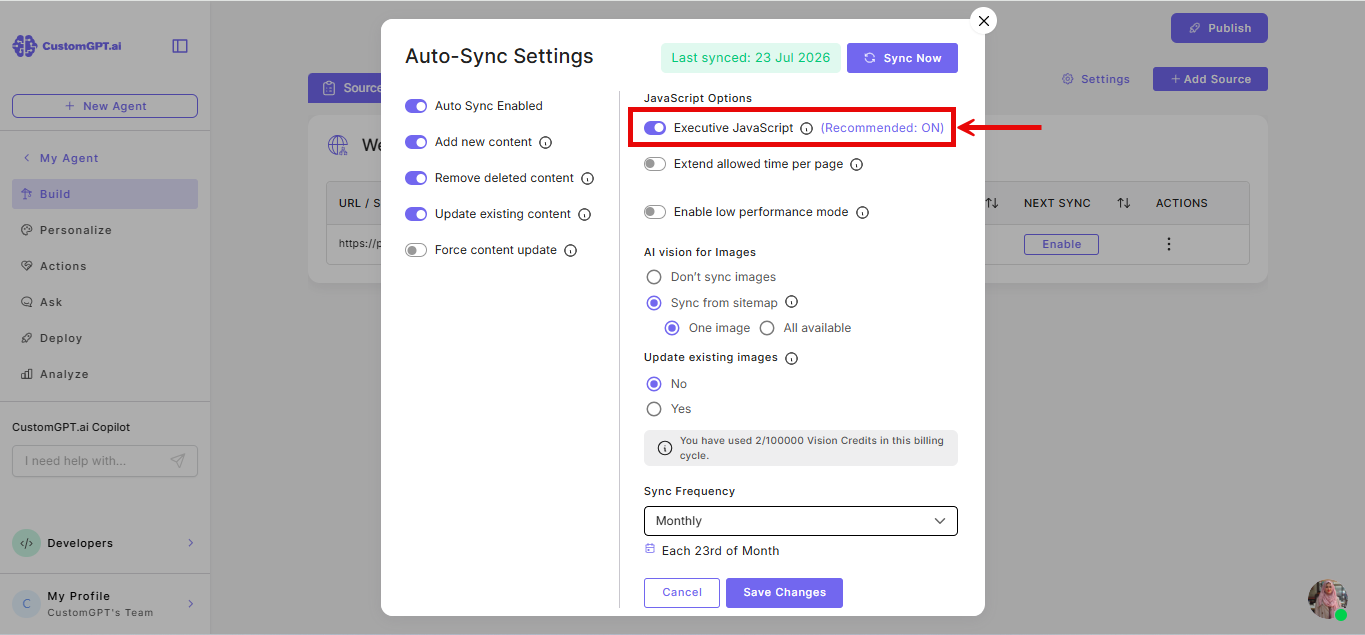
- Under JavaScript options, keep this enabled to use a headless HKJavaScript browser (recommended) for dynamic websites. But if you prefer not to use JavaScript rendering, toggle this Off, but note that some dynamic content may not load completely.
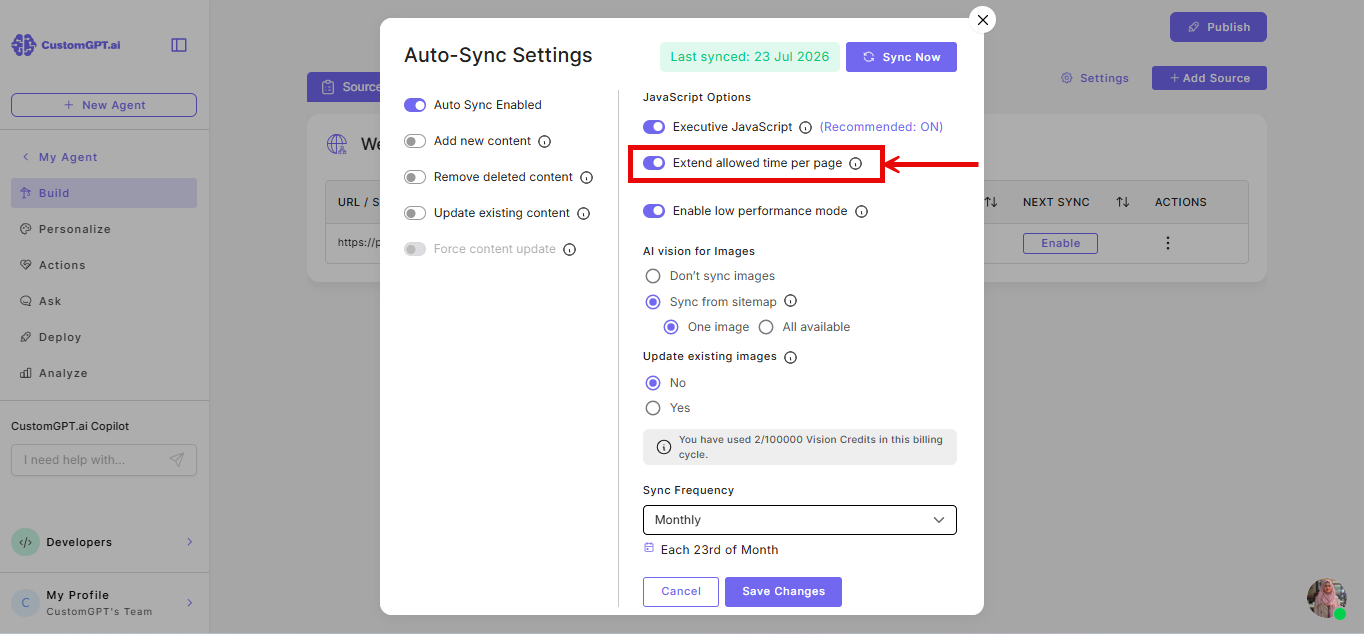
- Adjust Extend allowed time per page if your website requires more time to crawl each page. Increase this setting if not all pages are being captured.
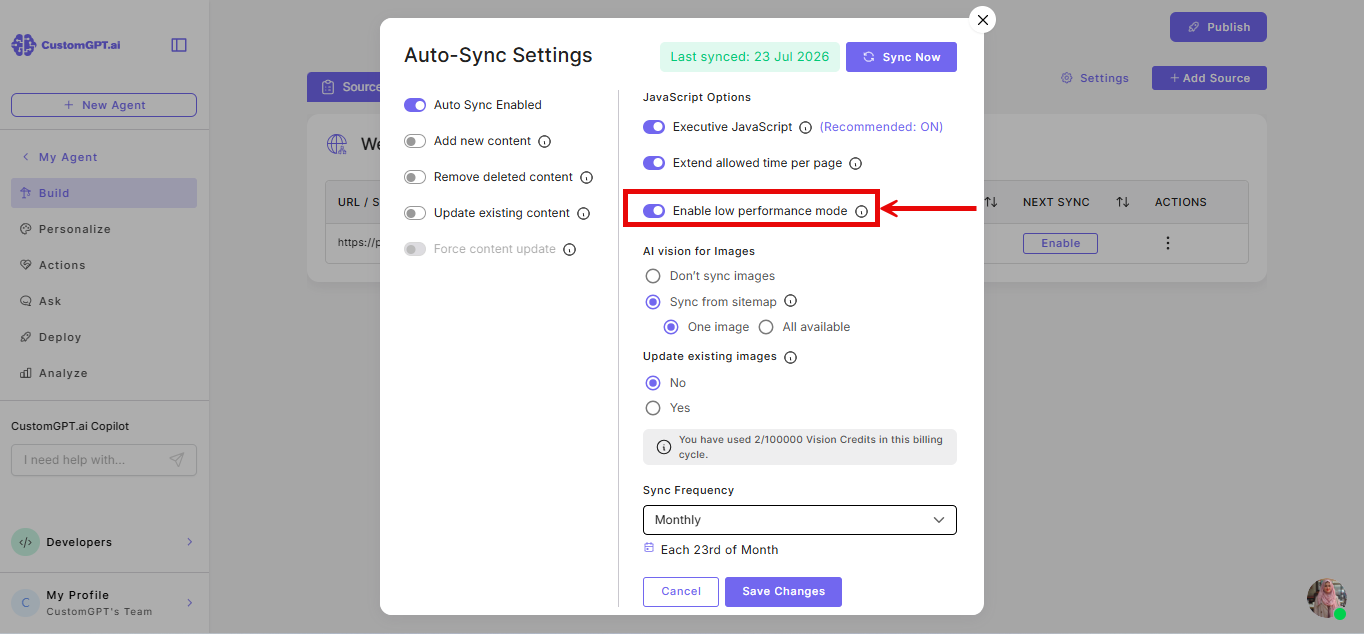
- Toggle Enable low performance mode on. Enable this only if pages from your website are failing to load after auto-sync runs. To know more refer to 👉 Enable low performance mode for website auto-sync
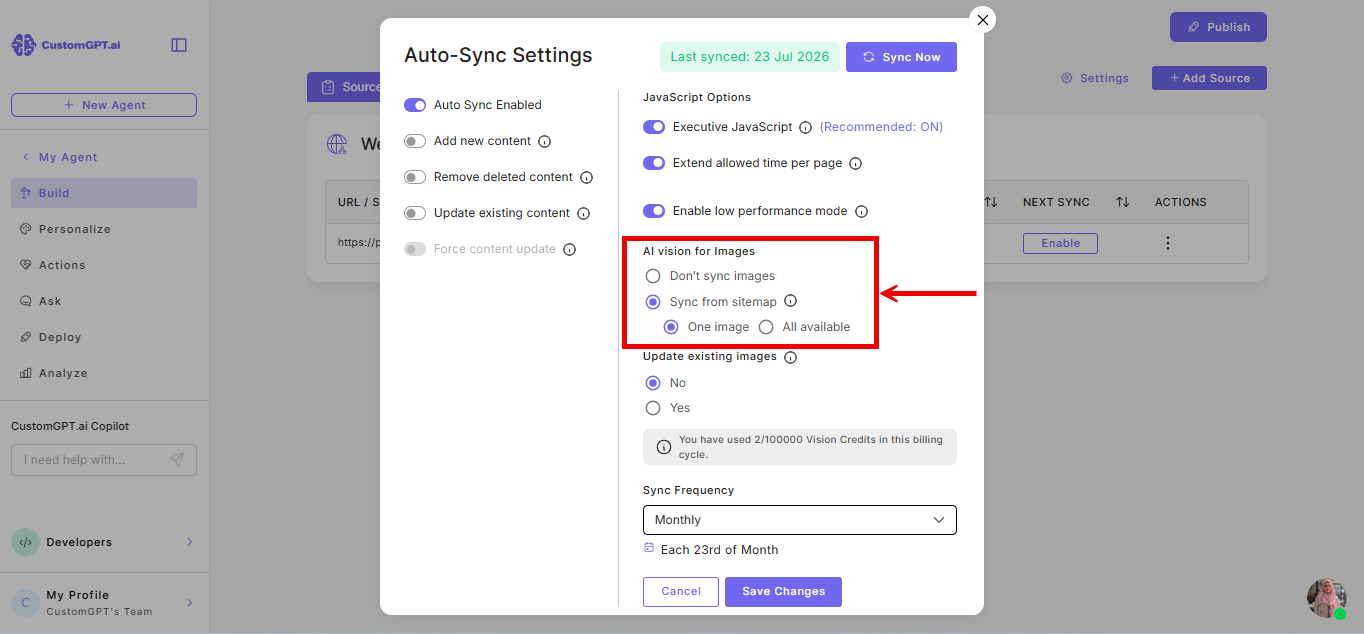
- Under AI vision for Images, select your sync preference:
- Don't sync images- Your agent will only use text from your website.
- Sync for sitemap- Your agent will use both text and images from your website. Your sitemap must follow the Google Image Sitemap schema.
- If you select Sync for sitemap, choose how many images per page to add:
- One image (default) - syncs a single image per page.
- All available - syncs every image listed for that page in your sitemap.
- If you select Sync for sitemap, choose how many images per page to add:
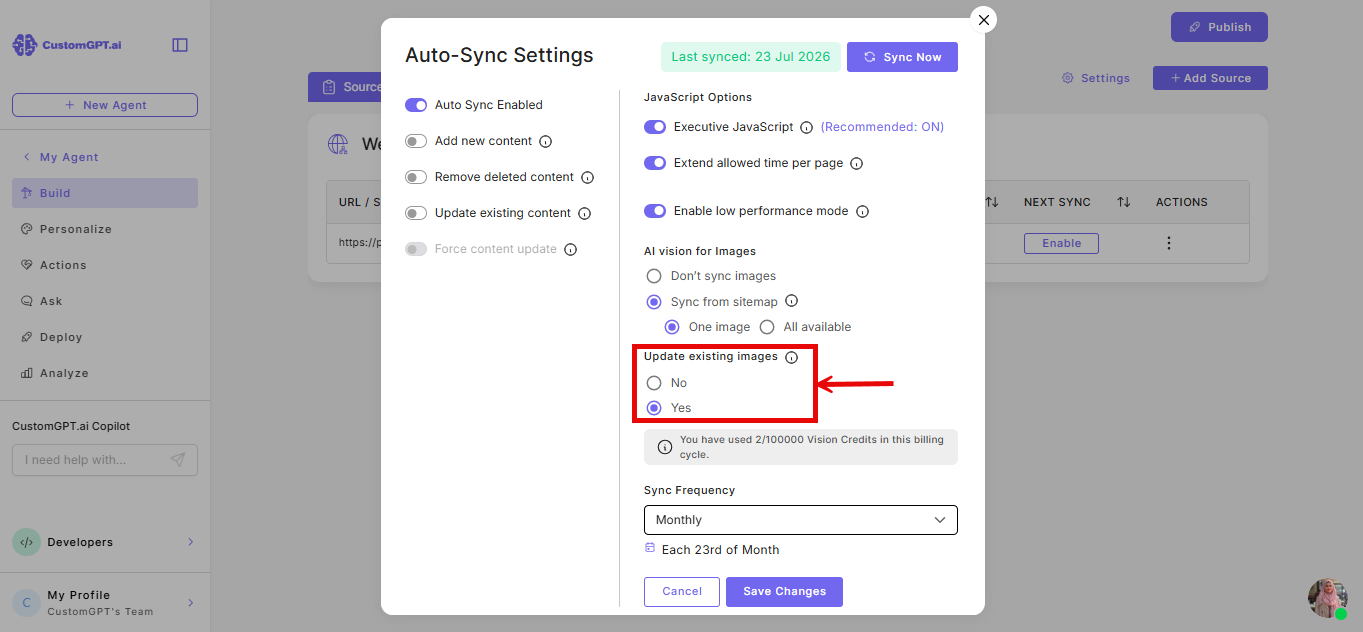
- Under Update existing images, select your preference:
- Yes- Images will be re-analysed during each auto-sync. Use this if your website images change frequently.
- No- Images are only removed when they no longer exist on your website, but won't be re-analysed. Use this if your images rarely change.
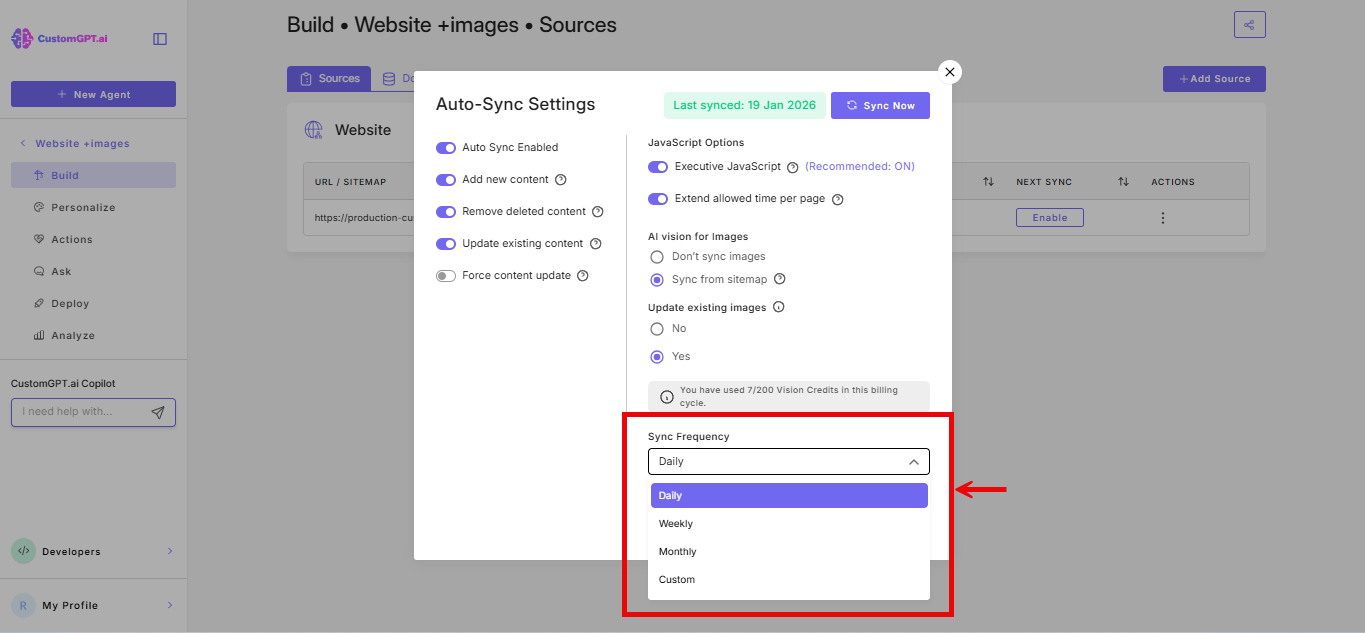
- In Set sync frequency, choose how often your website content should sync:
- Daily
- Weekly
- Monthly
- Custom
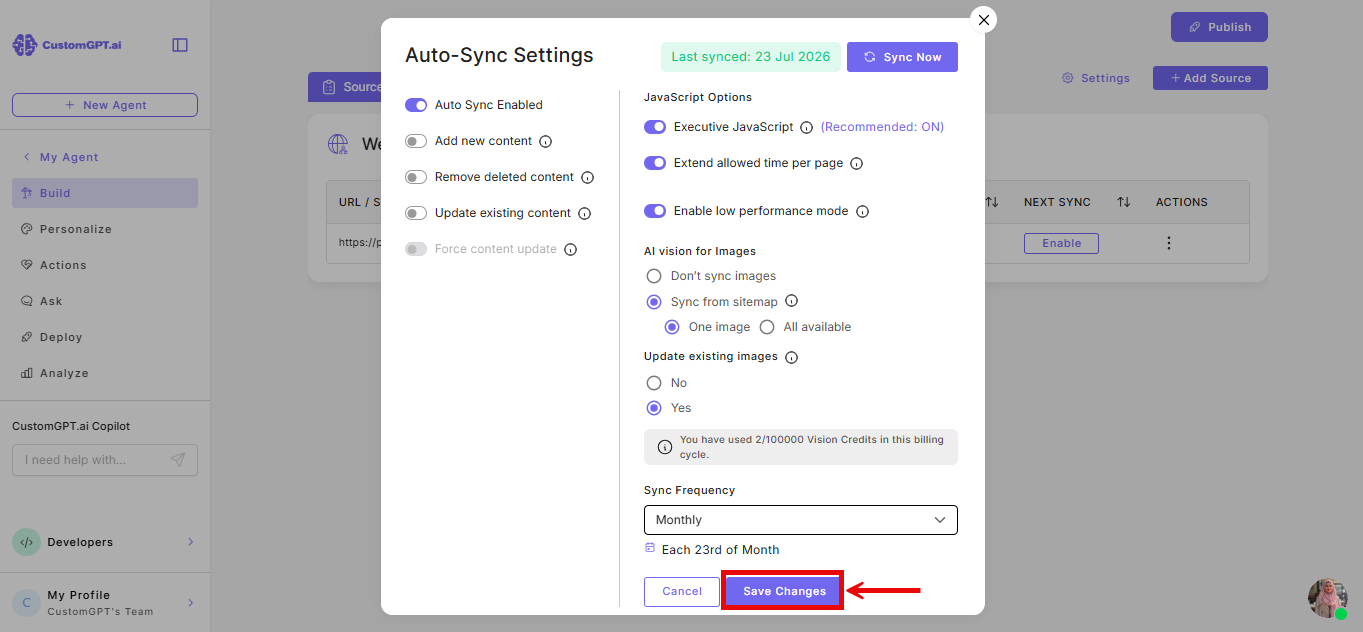
- Click Save changes to apply your settings.
Related articles
Updated 3 months ago
Did this page help you?