
Configure usage limits for your users
This guide walks you through setting usage limits for your agent's end users. Use it to control how many query credits individual users or guests can spend per day or per month.
This feature is available on Enterprise plans.
Set a usage limit
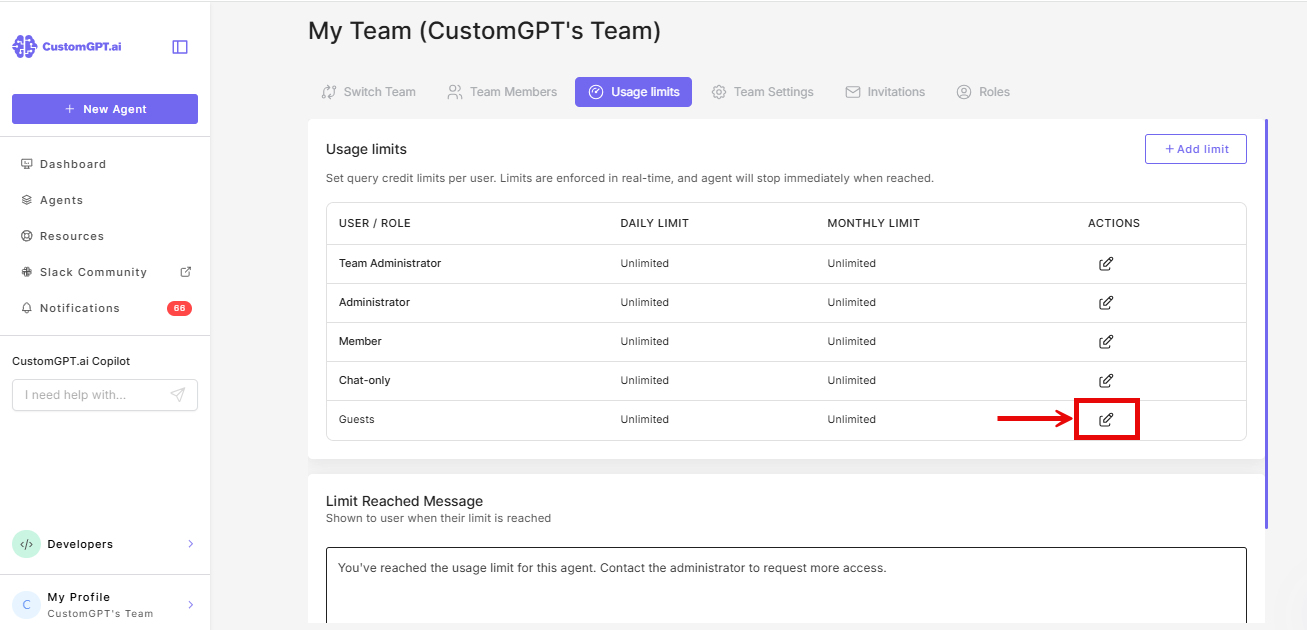
You can set limits for user roles, individual users, and guests. The process is the same for each- find the entry in the list and click the icon beside it.
- Click My Profile.
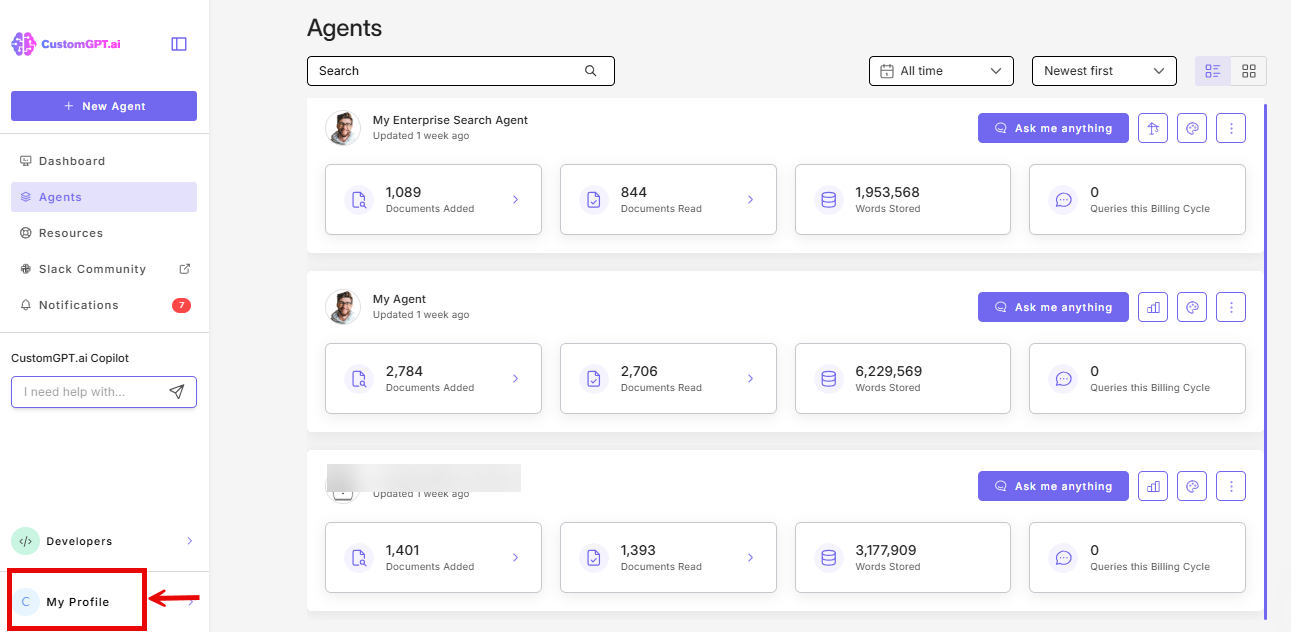
- Select Teams.
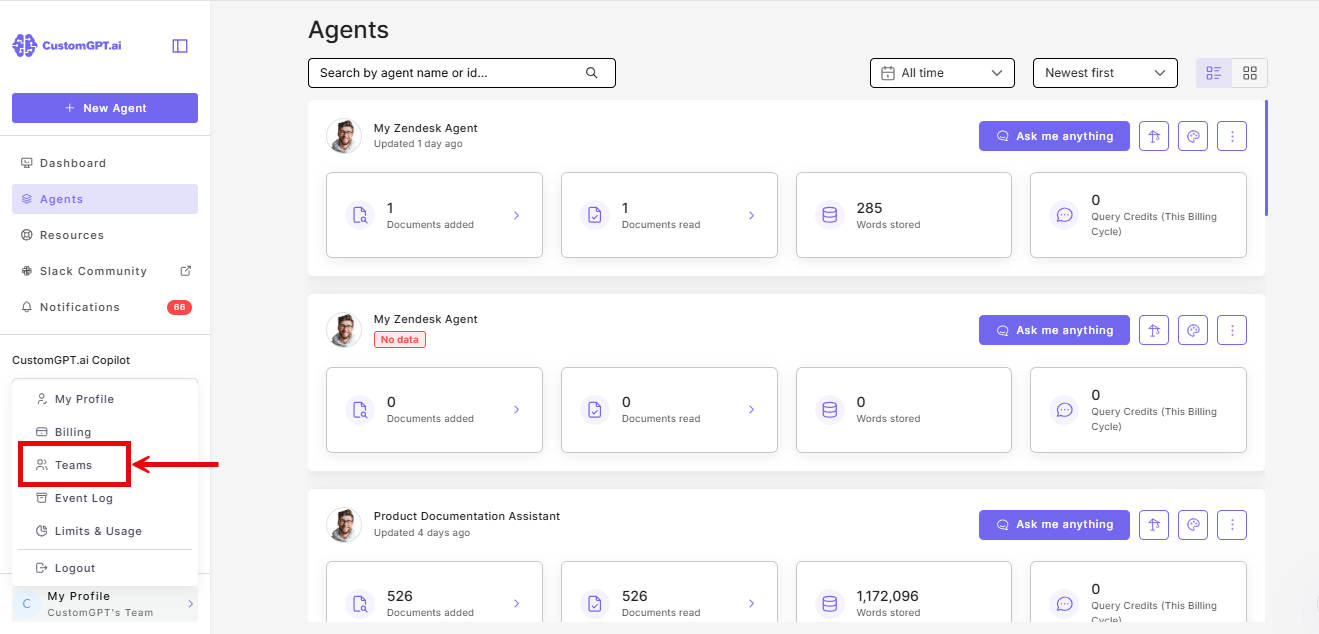
- Click the Usage Limits tab.
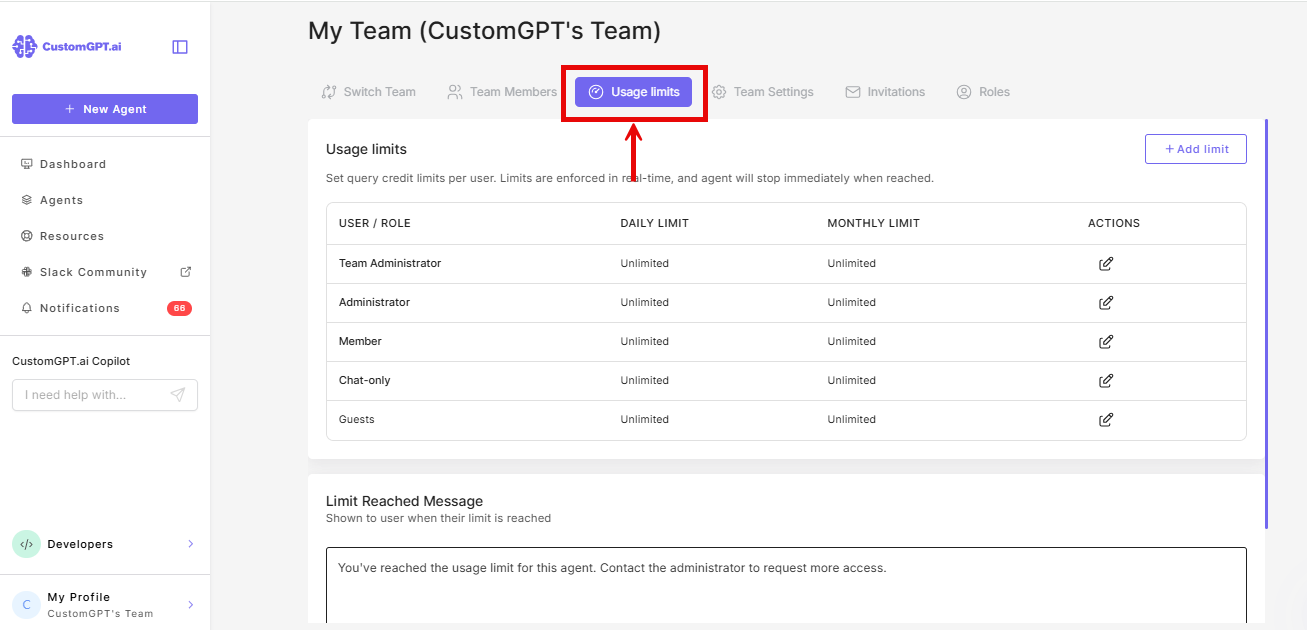
- Find the user role, user, or Guests row you want to limit and click the limit icon under the Actions column.
- Enter a limit value in query credits. You may enter values for Daily, Monthly, or both.
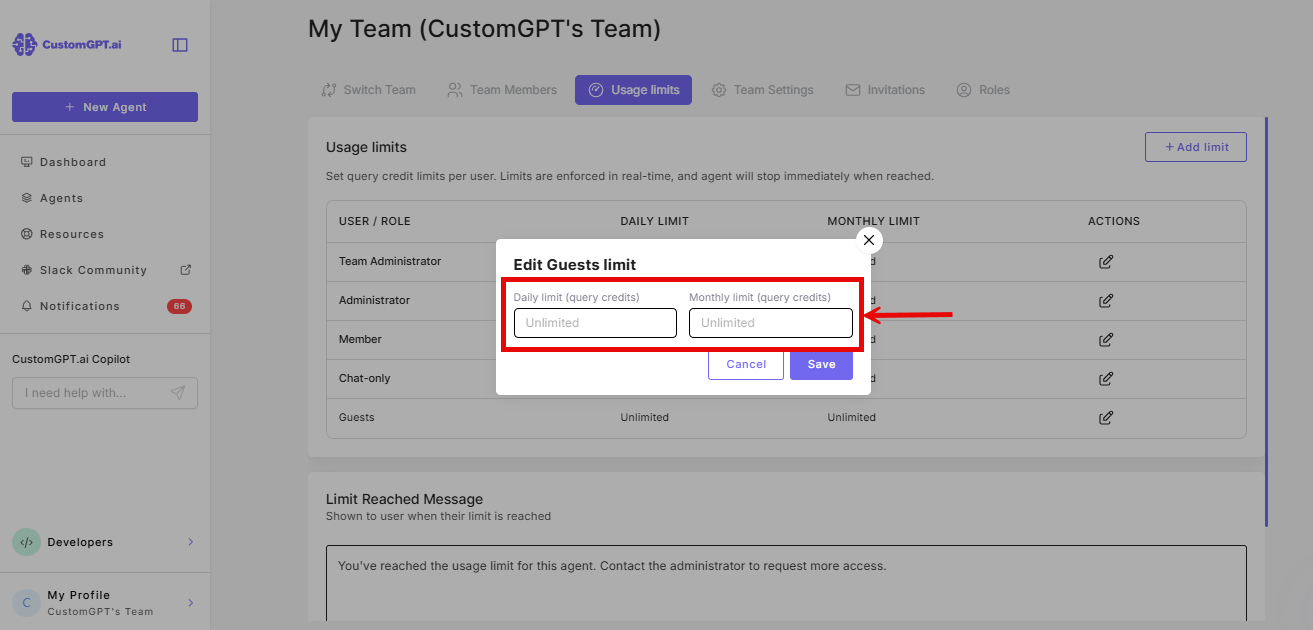
- Click Save.
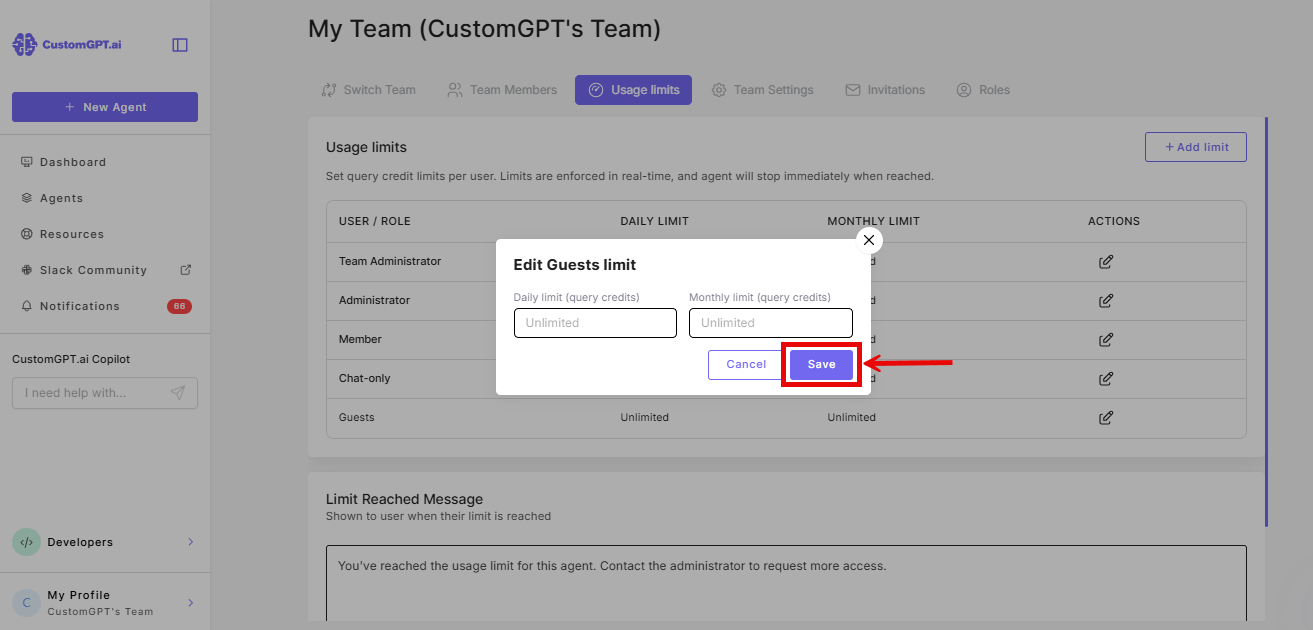
Note: Role limits apply to each user in that role individually. If a user also has their own individual limit set, the individual limit takes precedence. Guest limits apply per individual guest, not to all guests combined.
Setting a limit for Guests also shows guests a Log in option in the chat window on public deployments - see Enable conversation history for your deployments for the full condition.
Customize the limit message
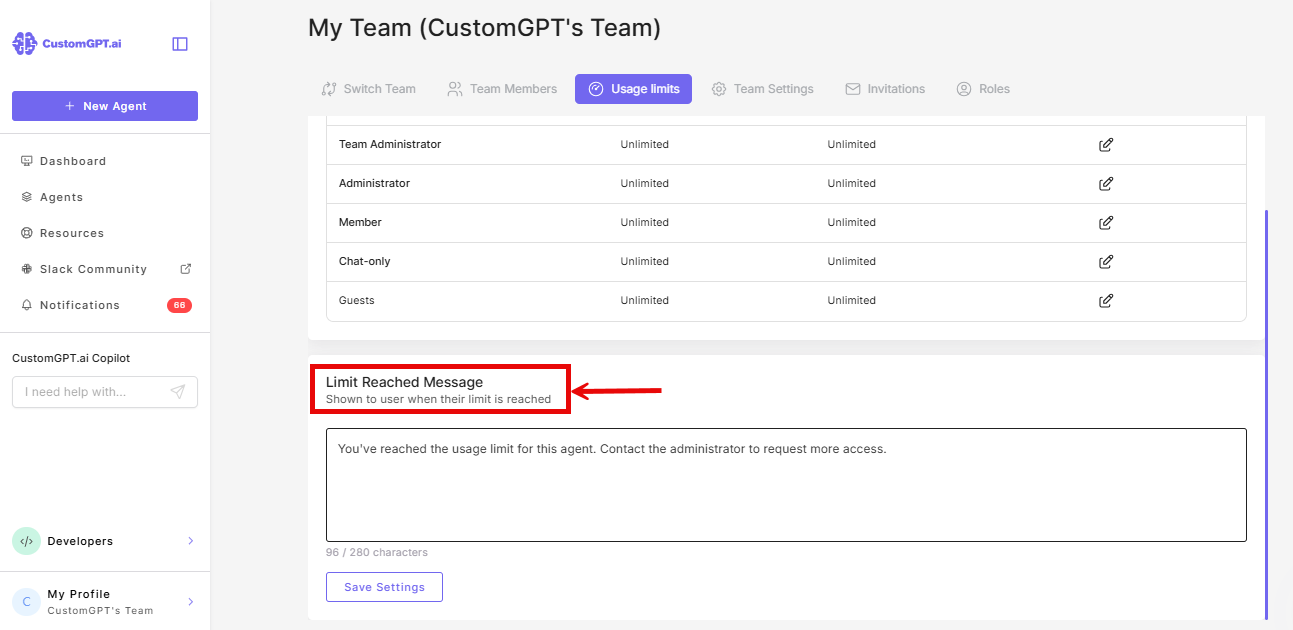
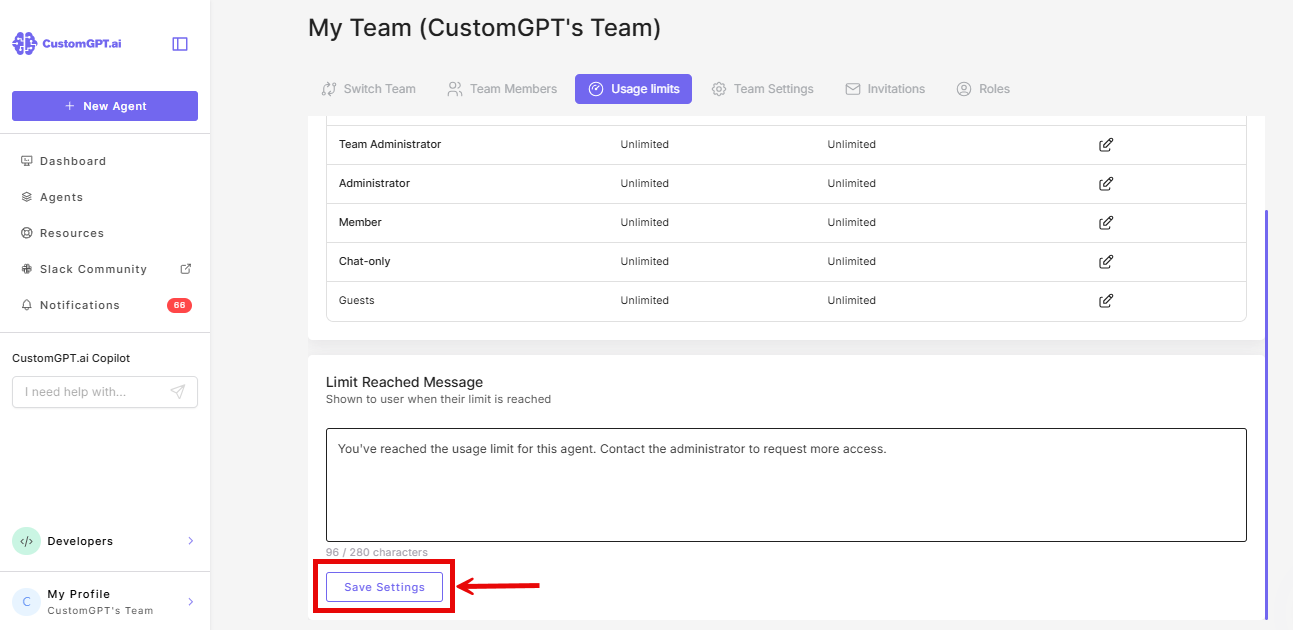
When a user hits their limit, they see a pop-up notification. The default message is: "You've reached the usage limit for this agent. Contact the administrator to request more access."
To customize it:
- Click My Profile.
- Select Teams.
- Click the Usage Limits tab.
- In the Usage limits tab scroll down to Limit Reached Message field
- Enter your custom text.
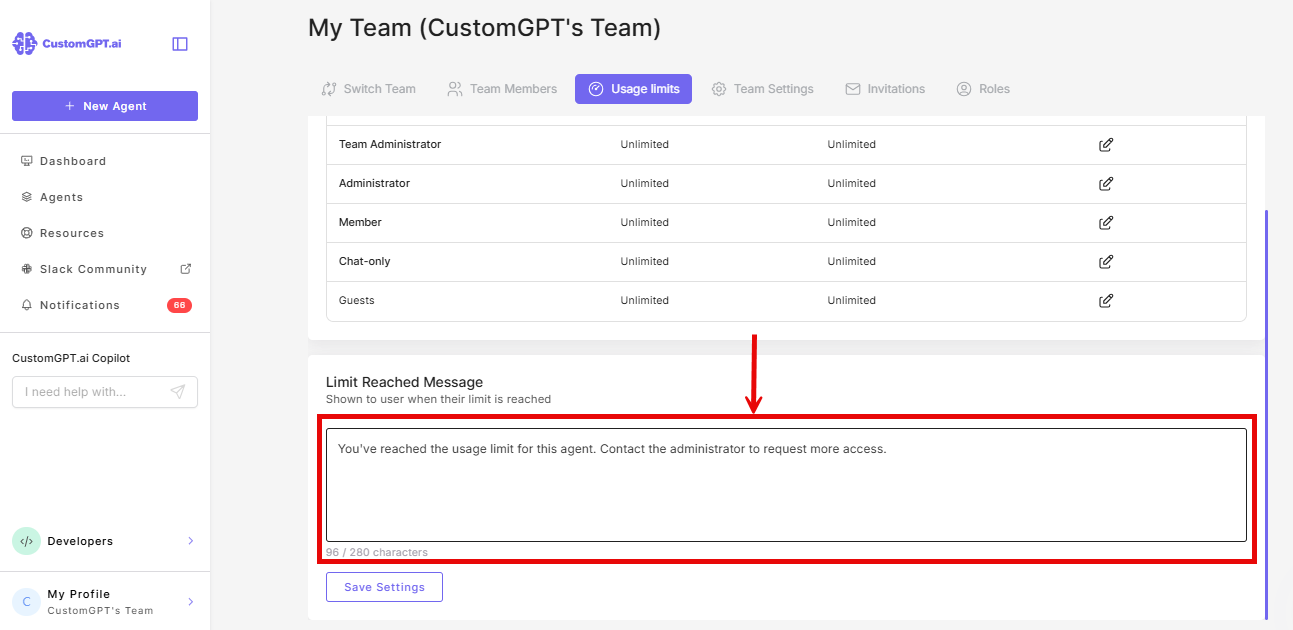
- Click Save Settings.
Note: Limits count query credits, not messages. A single message can use more than 1 query credit depending on which features your agent uses - Plan & Act is one example. See Actions Cost for a full breakdown.
Troubleshooting
| Situation | What happens |
|---|---|
| User hits their limit | The agent stops responding. The message field disappears until the limit resets. |
| User has both a role limit and an individual limit | The individual limit applies. |
| Limit set to 0 | The user cannot interact with the agent. |
| No limit set | Defaults to unlimited. |
Related articles
Updated 2 months ago