
Enable and configure Smart Routing
Turn on Smart Routing for your Multi-Agent, choose a routing mode, and control whether end-users can switch agents themselves.
This guide walks you through turning Smart Routing on, choosing a routing mode, and controlling whether end-users can switch child agents themselves.
Before you start
- You have a Multi-Agent with at least one child agent attached.
- Smart Routing works best with more than one child agent attached, since its job is choosing between them.
Steps
- On your Multi-Agent, click the three dots.
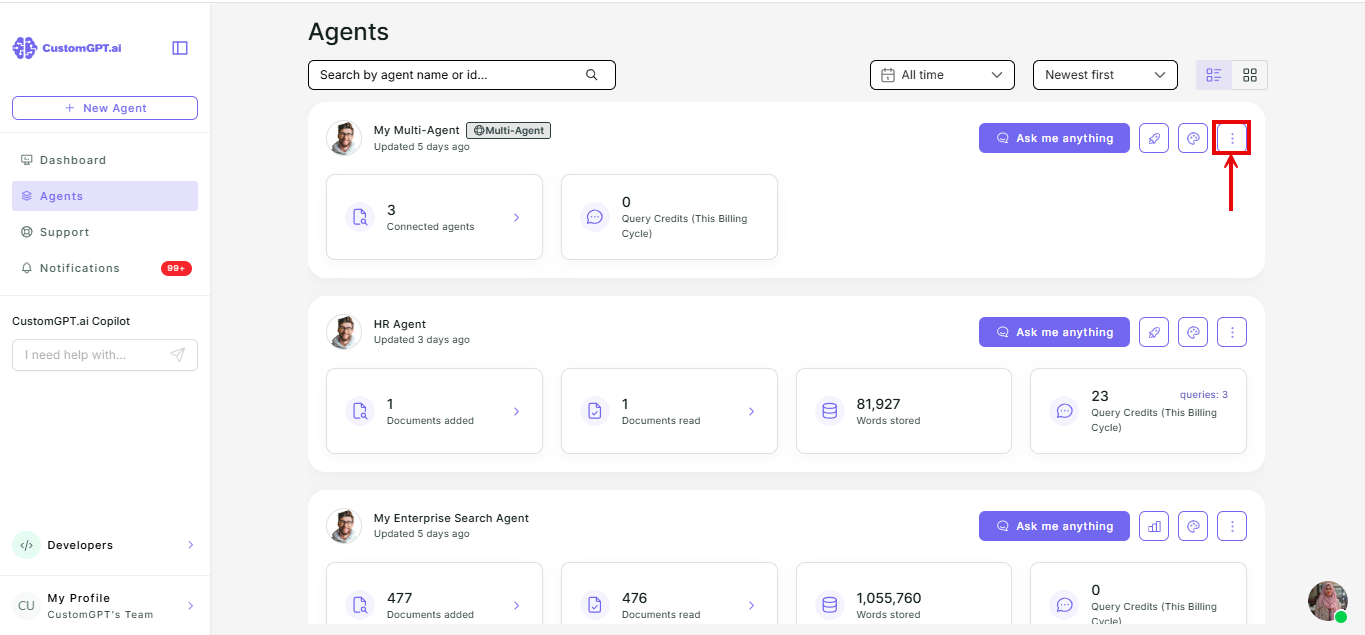
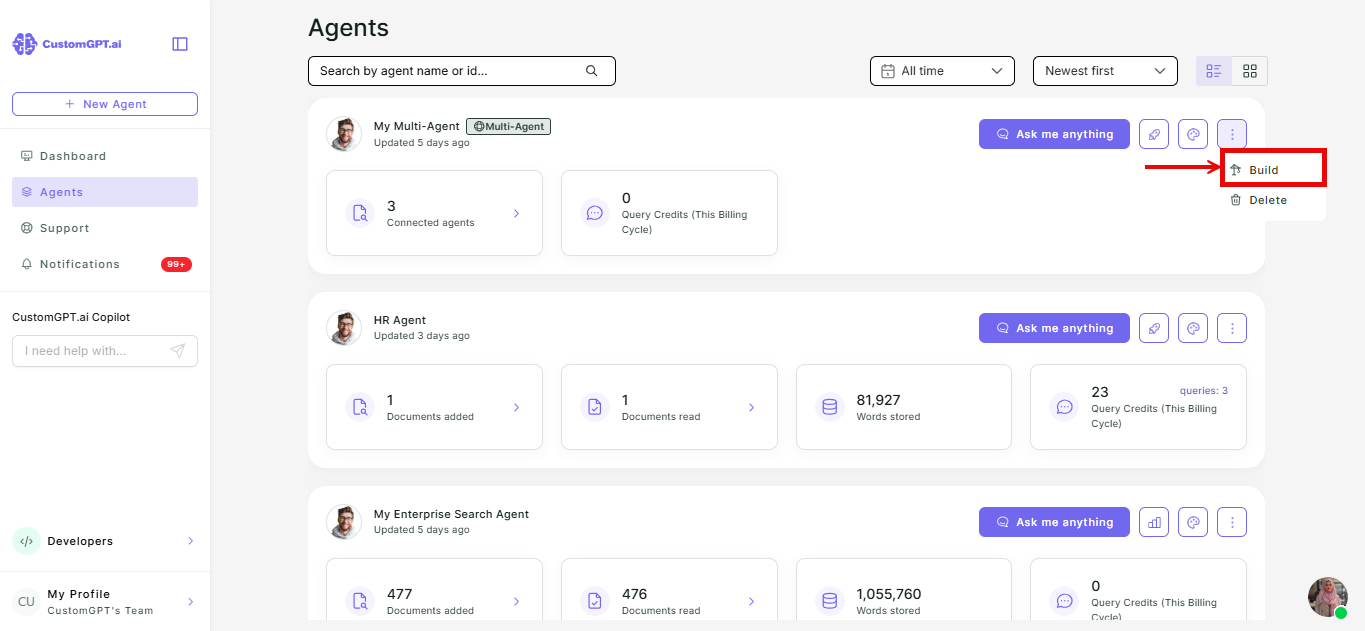
- Select Build.
- Turn Smart Routing on or off.
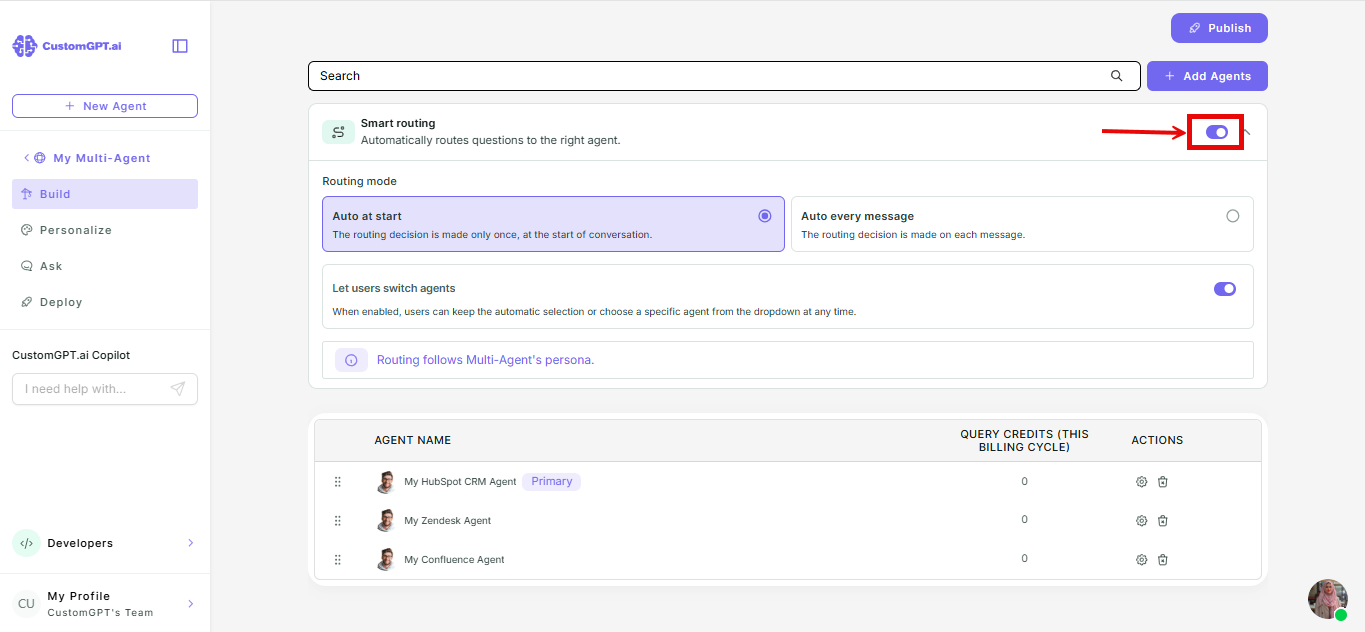
Note: New Multi-Agents have Smart Routing on by default.
- Choose a routing mode. Two radio buttons appear below the toggle:
- Auto at start - Smart Routing picks the best-fit child agent once, at the start of the conversation.
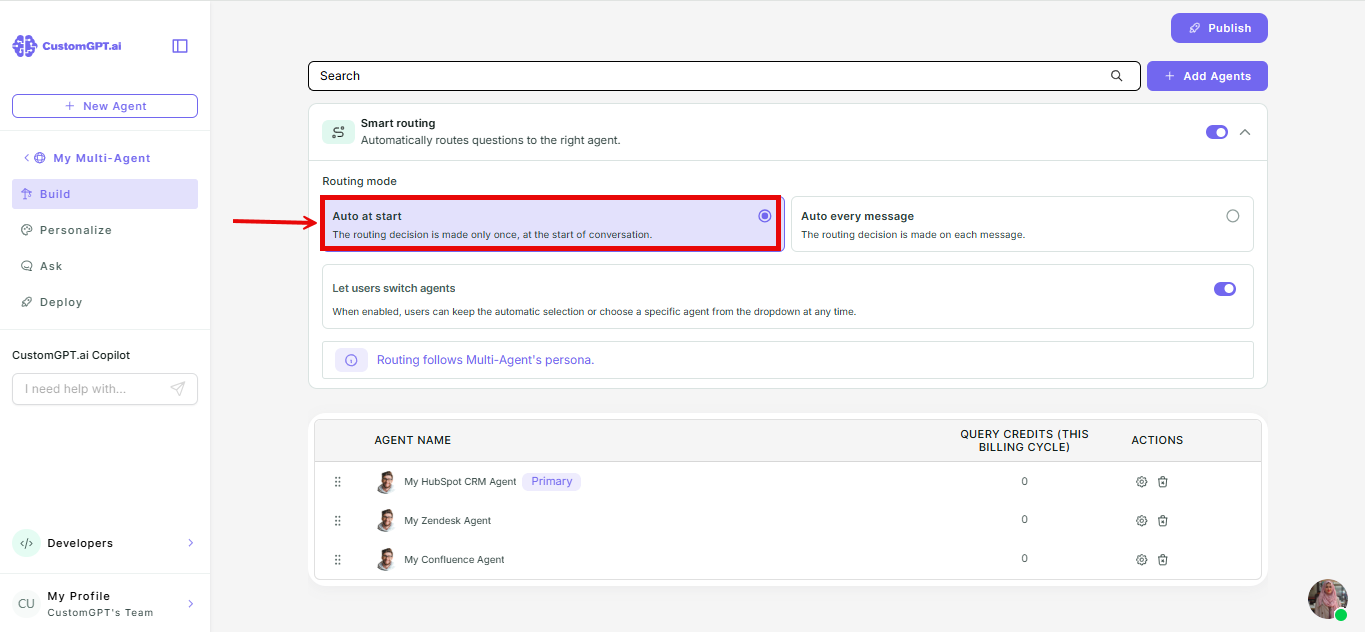
- Auto every message - Smart Routing re-evaluates every message and can switch agents mid-conversation.
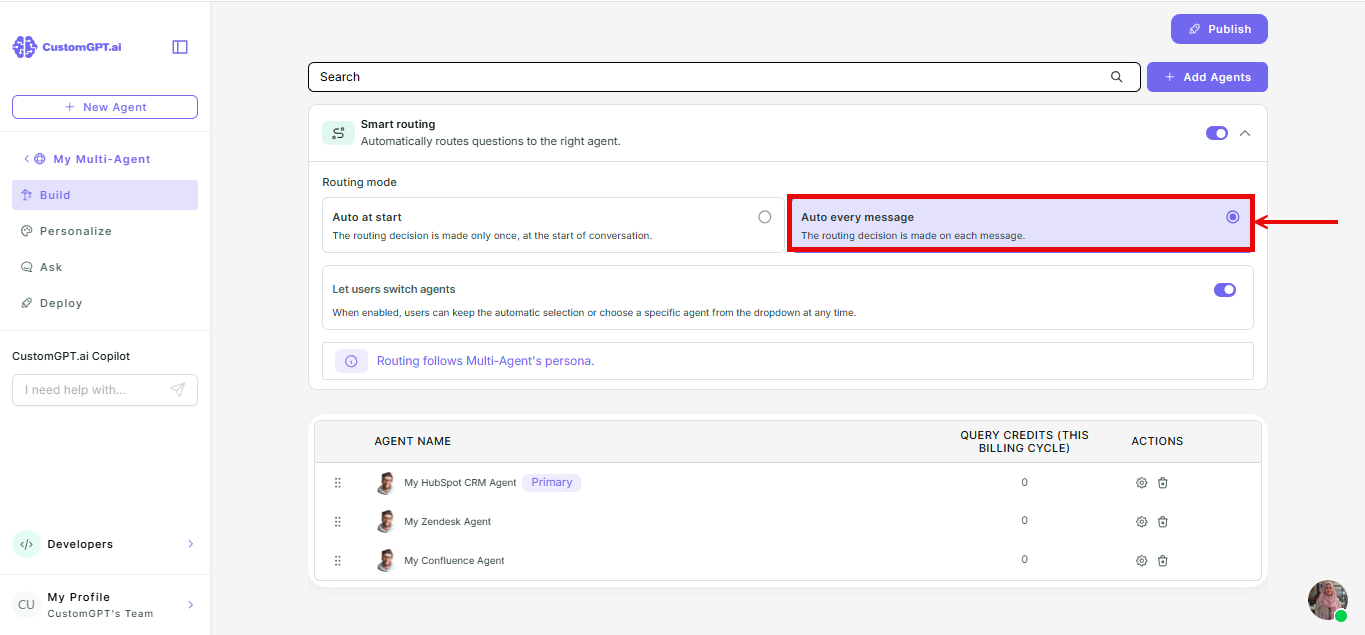
Leaving Smart Routing off is the same as Manual mode. End-users pick a child agent from the dropdown themselves, as before.
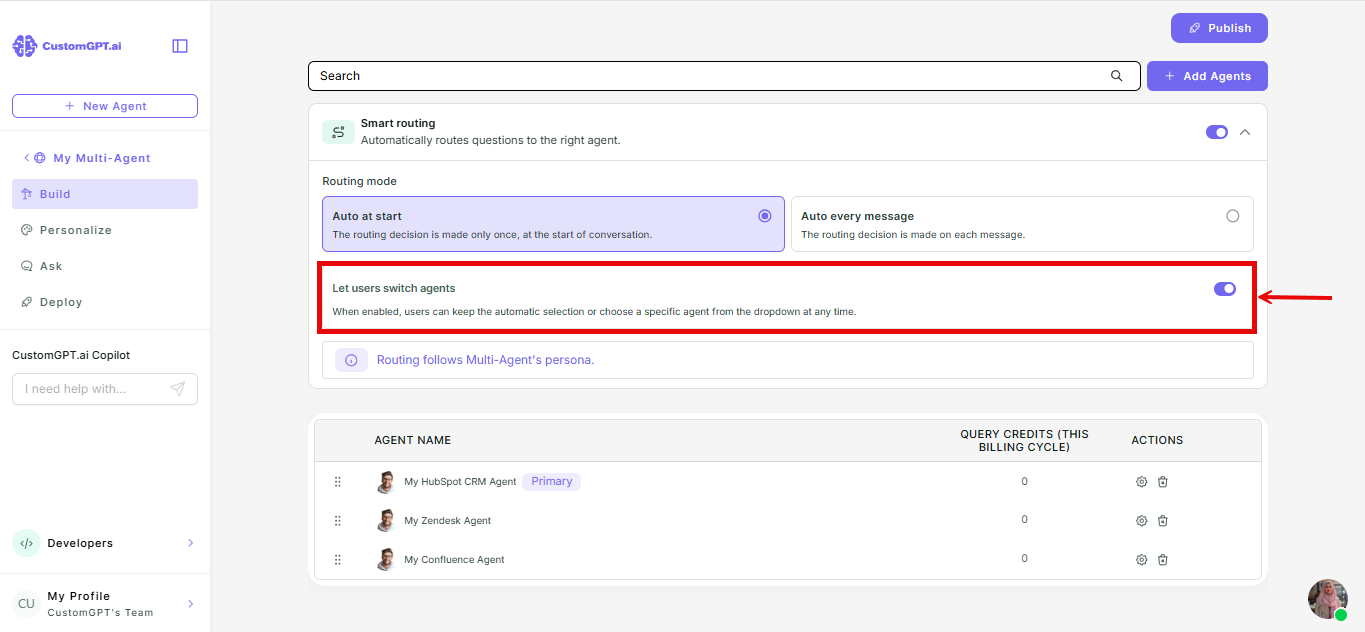
- Toggle Let users switch agents on or off. This works the same way whether your mode is Auto at start or Auto every message.
- On (default): end-users see a dropdown with Auto plus every child agent, and can switch to a specific agent at any time.
- Off: end-users don't see a dropdown at all.
Things to know
- End-users' dropdown defaults to Auto unless they've previously chosen a specific agent on that device, in which case their last choice is remembered.
- Smart Routing uses the conversation itself to decide, and can also use your Multi-Agent's routing instructions if you've set them - refer to Set routing instructions for your Multi-Agent.
- If your child agents have different file-upload capabilities or limits, what's available to an end-user depends on whether they're on Auto or have picked a specific agent - refer to How Smart Routing works for details.
Related articles
Updated 2 months ago
Did this page help you?