
How to configure PDF Citations
Configure PDF viewer settings for your agent so end-users can view cited PDFs directly inside the chat.
Before you start
- Your account must be on the Enterprise plan.
- Your agent must already have PDF files added as sources. PDF citations has no effect on agents with no PDF sources.
Steps
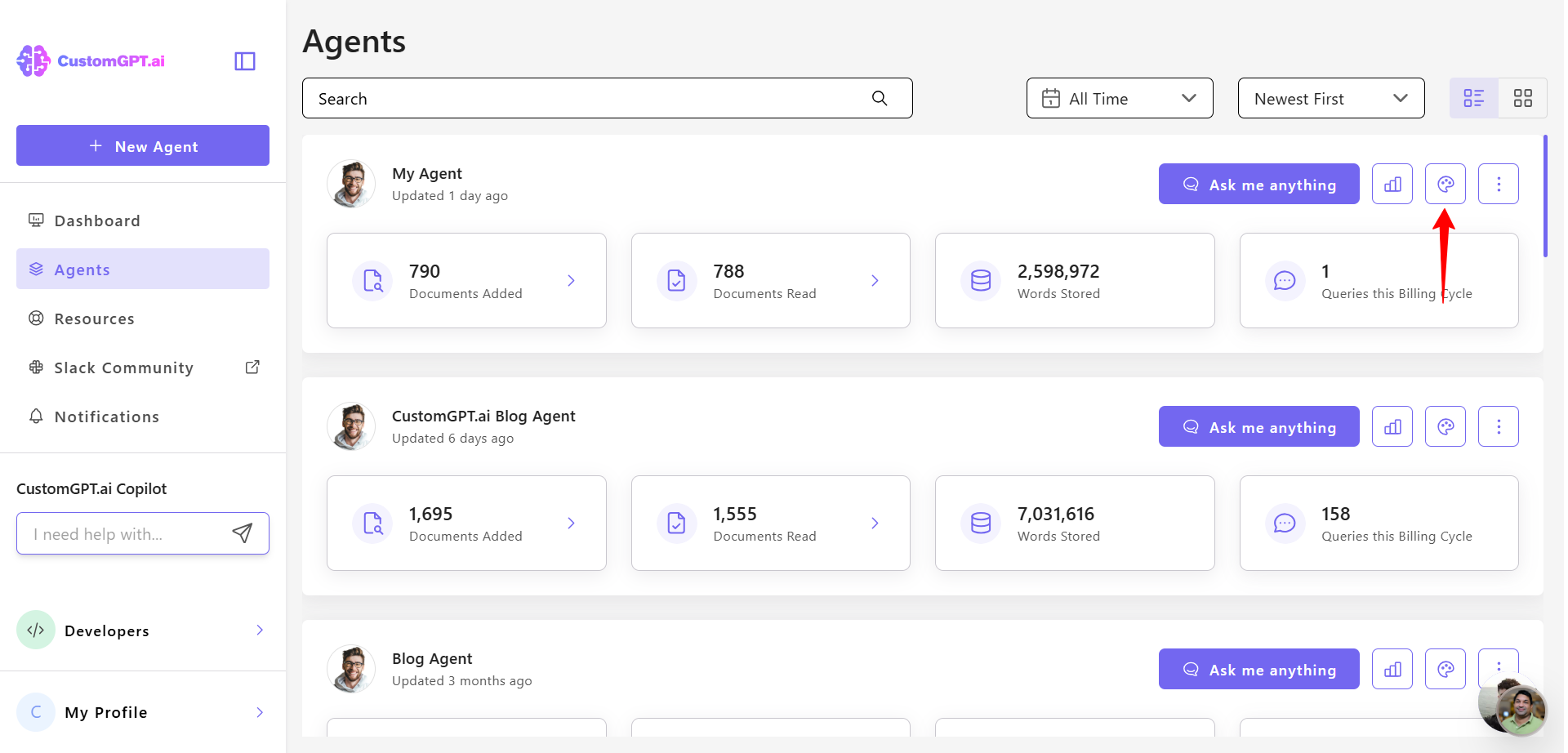
- Go to your agent and click Personalize.
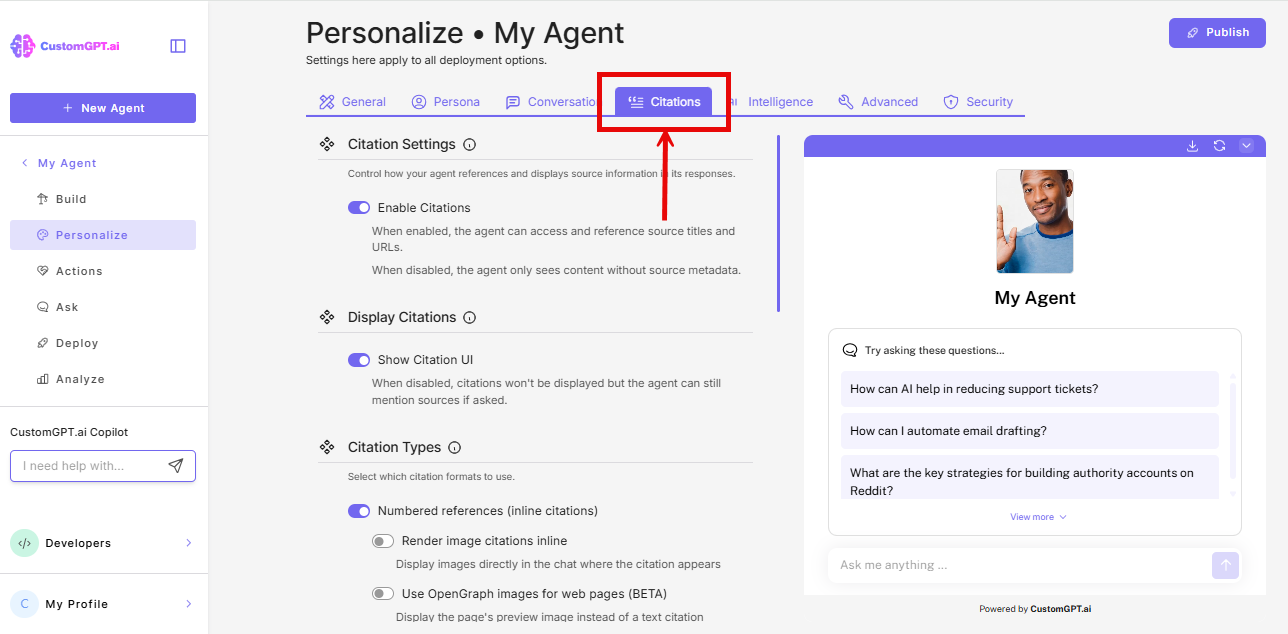
- Navigate to the Citations tab.
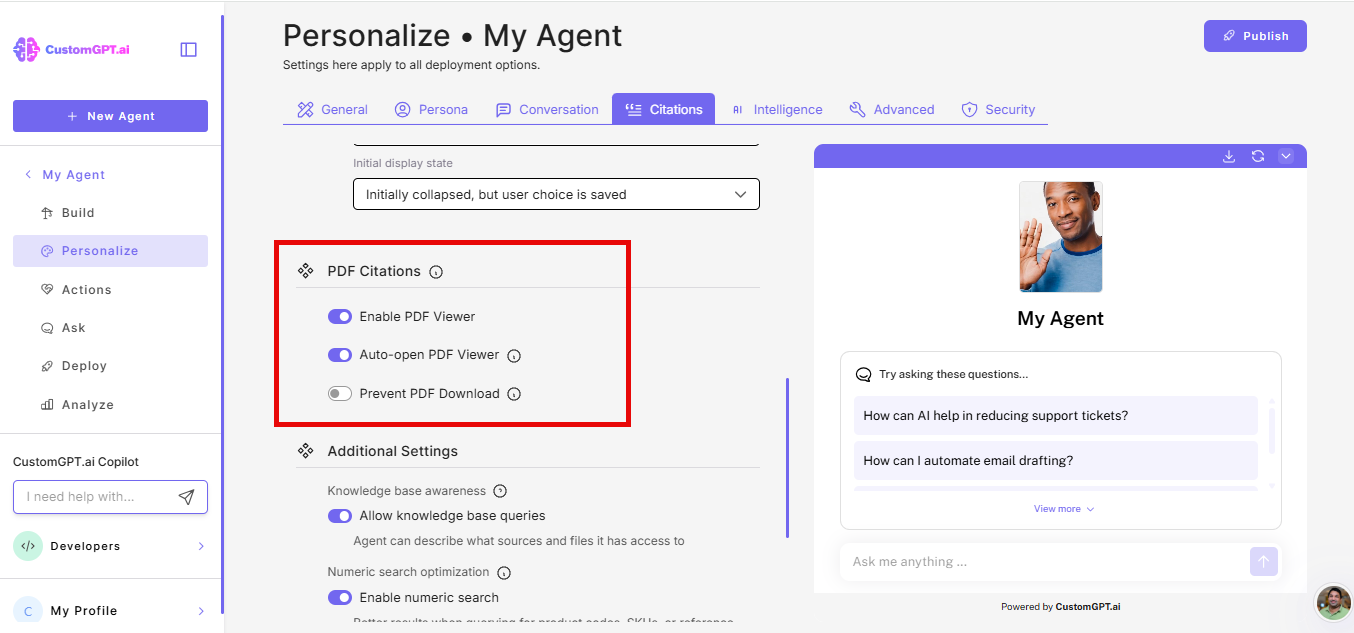
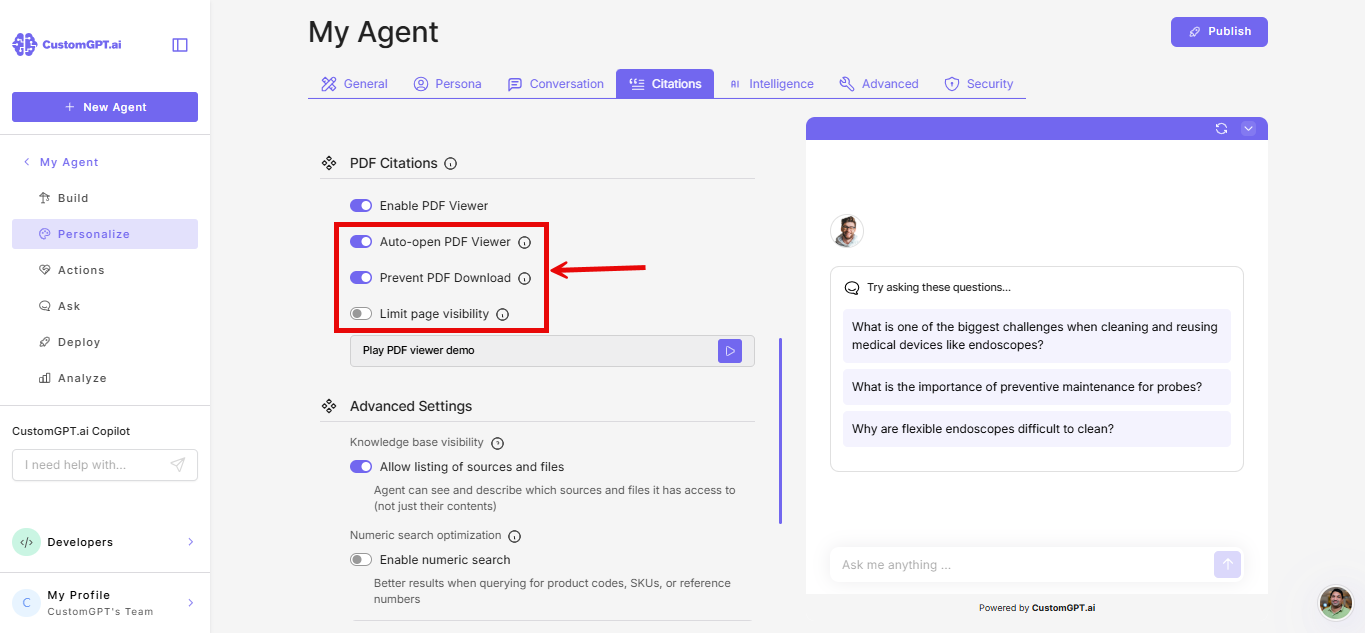
- Locate the PDF citations section.
- Toggle Enable PDF viewer to on.
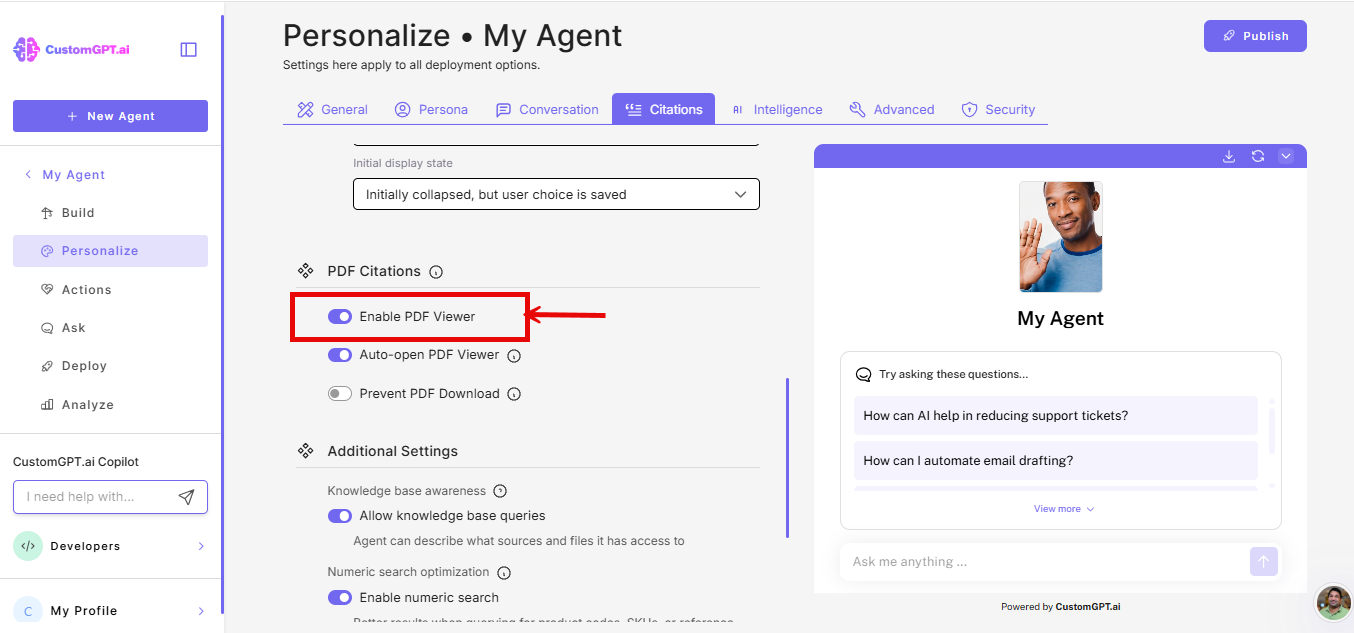
- (Optional) Configure the two additional settings:
- Auto-open PDF viewer - When on, the PDF opens automatically alongside each AI response that cites a PDF. When off, the viewer only opens when the user clicks the citation link.
- Prevent PDF Download - When on, the file's source path is hidden and the download option is removed. Users can still open and read the PDF in the chat, but they cannot see the file location or download it. When off, the file path is visible and users can download the PDF directly from the viewer.
- Limit page visibility - When on, users see only the page containing the cited text, plus one page before and after. The rest of the PDF is hidden.
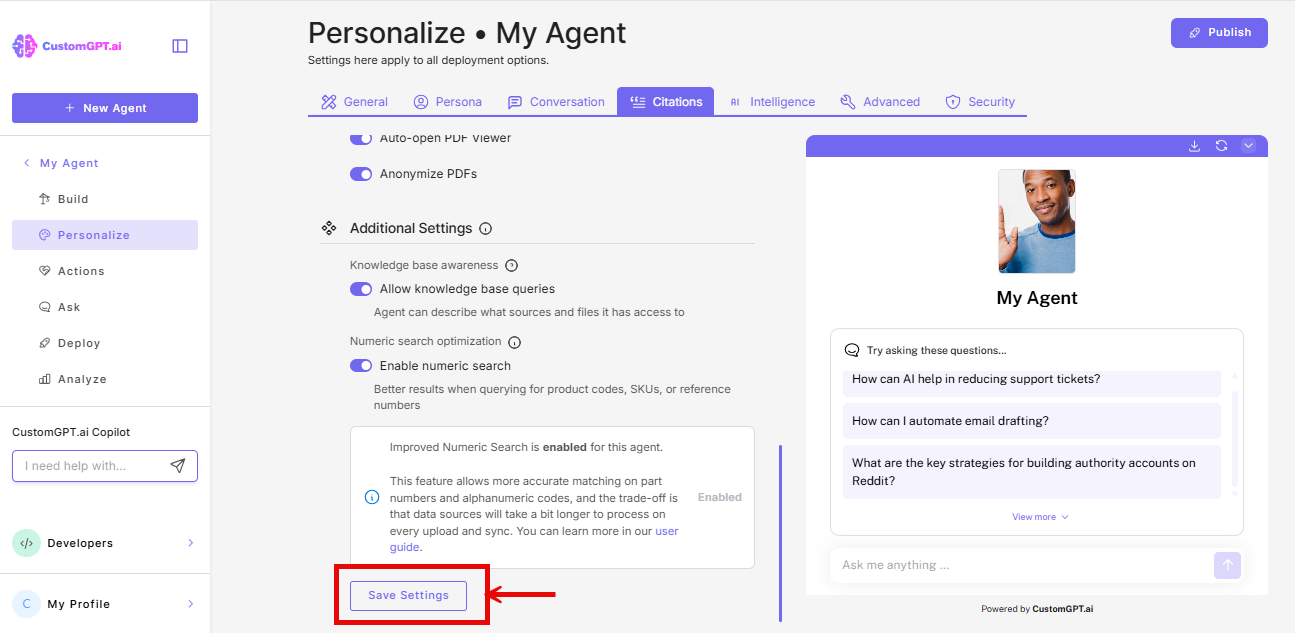
- Click Save Settings.
Note: If your agent uses scanned or image-based PDFs, the viewer opens to the correct page but does not highlight the cited passage. Text highlighting requires text-based PDFs. For details, see How PDF Citations Work.
Related articles
- How PDF Citations work
- How to Add Instant Viewer to Your Website (Legacy)
- Activate citations for your AI agent
- Link the limited label on restricted pdf pages
Updated 3 months ago
Did this page help you?