
Connect HubSpot CRM to your agent
Connect your HubSpot CRM as a source so your agent can answer questions using your deals, contacts, companies, and other CRM records.
Note: To connect HubSpot's website or knowledge base content instead, see Connect HubSpot Knowledge Base to your agent.
Before you start
- You have sufficient permissions in HubSpot to authorize the connection - typically Super Admin or admin-level access.
Steps
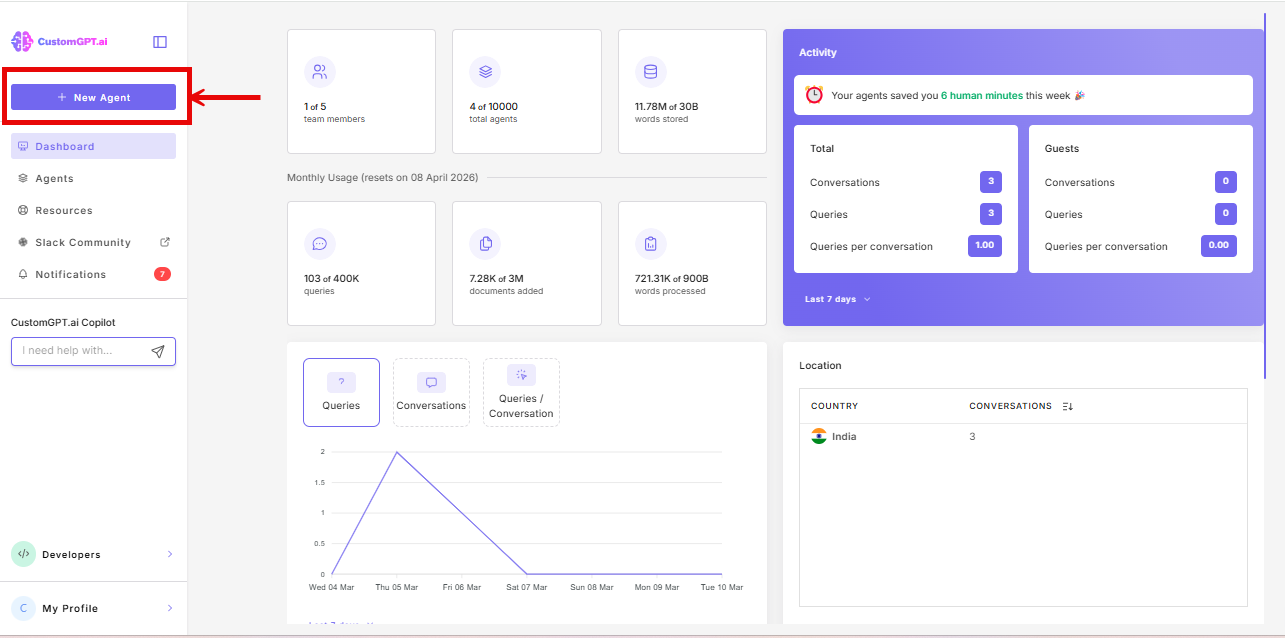
- On the CustomGPT.ai dashboard, click New Agent.
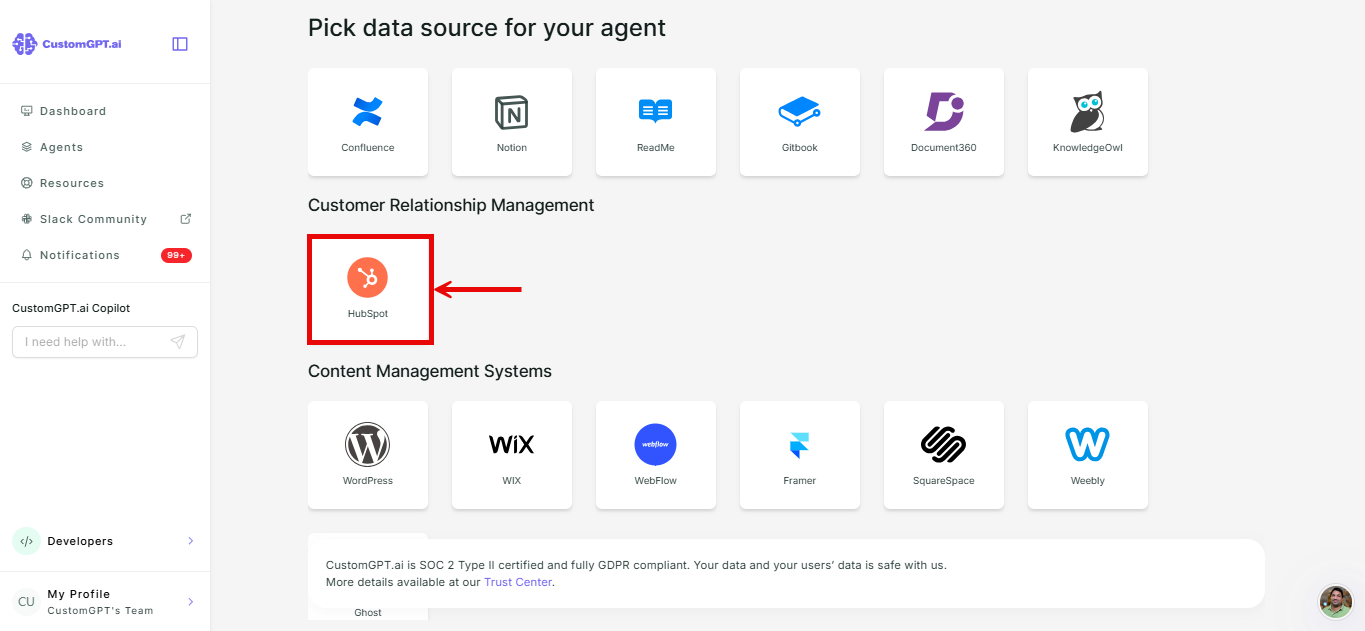
- Scroll down to the Customer Relationship Management section and click HubSpot.
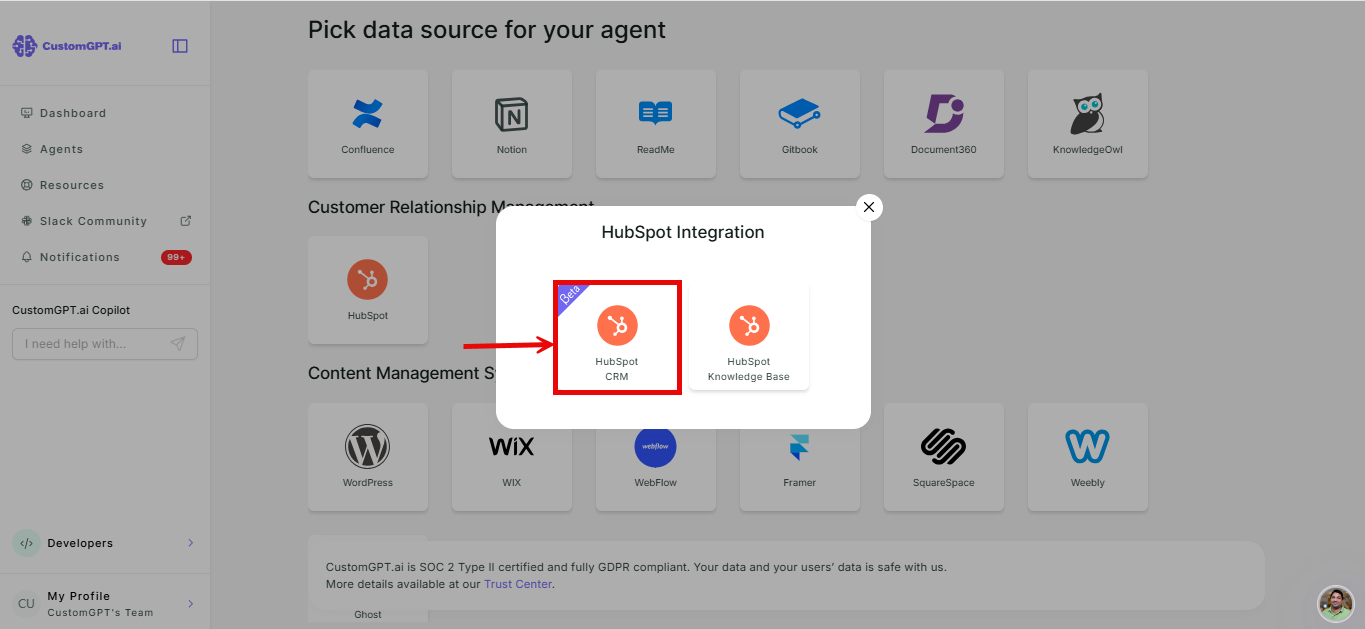
- In the pop-up window, click HubSpot CRM.
-
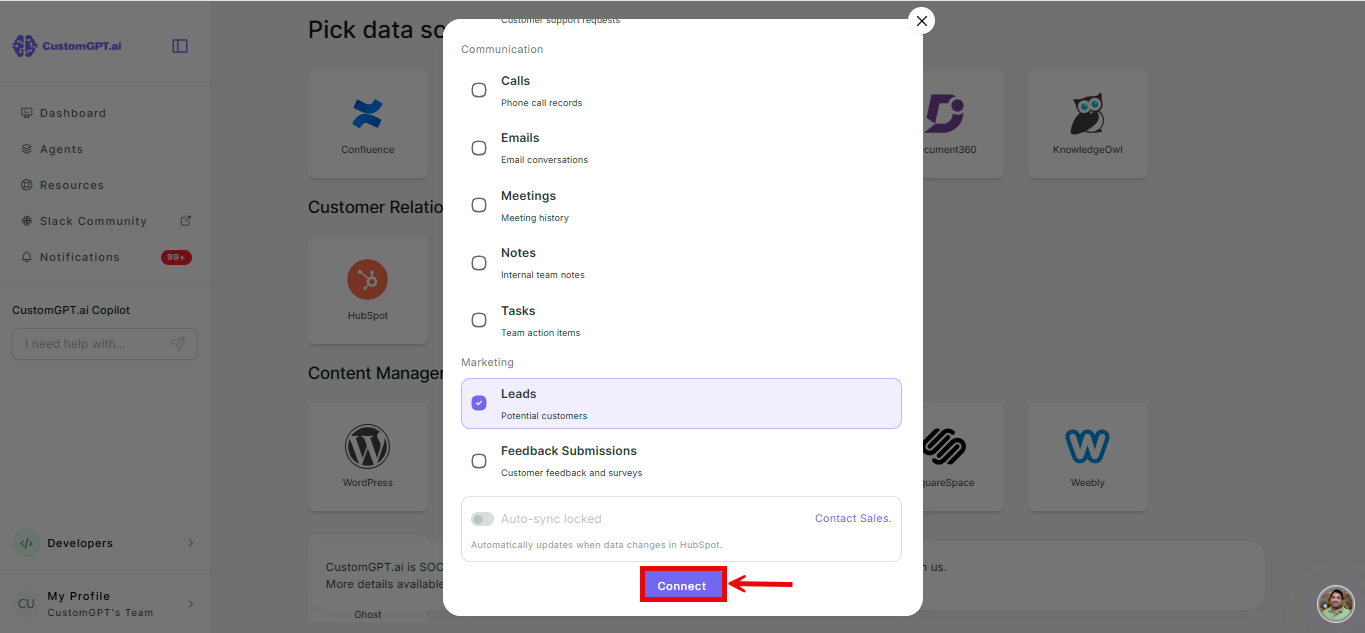
In the pop-up window, select which HubSpot data you want to add as sources (Contacts, Companies, Deals, Tickets, Notes, Calls, Emails, Meetings, Tasks, Line Items, Quotes, Products, Leads, Feedback Submissions).
- Use Select all / Deselect all to toggle everything at once.
- At least one item must be selected before you can continue.
5. You're redirected to HubSpot. Log in to your HubSpot account.
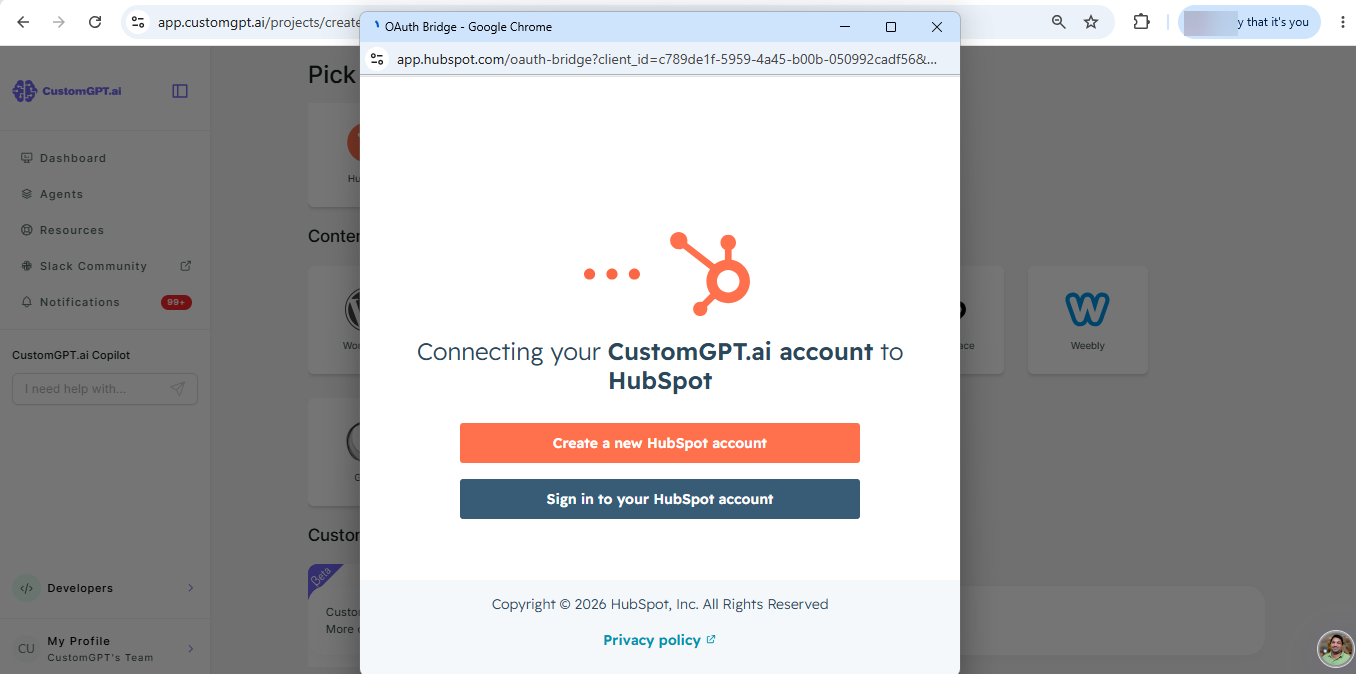
Note: If you're on an Enterprise plan, turn on Auto-sync to keep synced data current automatically. On other plans, this toggle is disabled with a Contact Sales button.
6. HubSpot asks you to confirm the connection. Click Connect app.
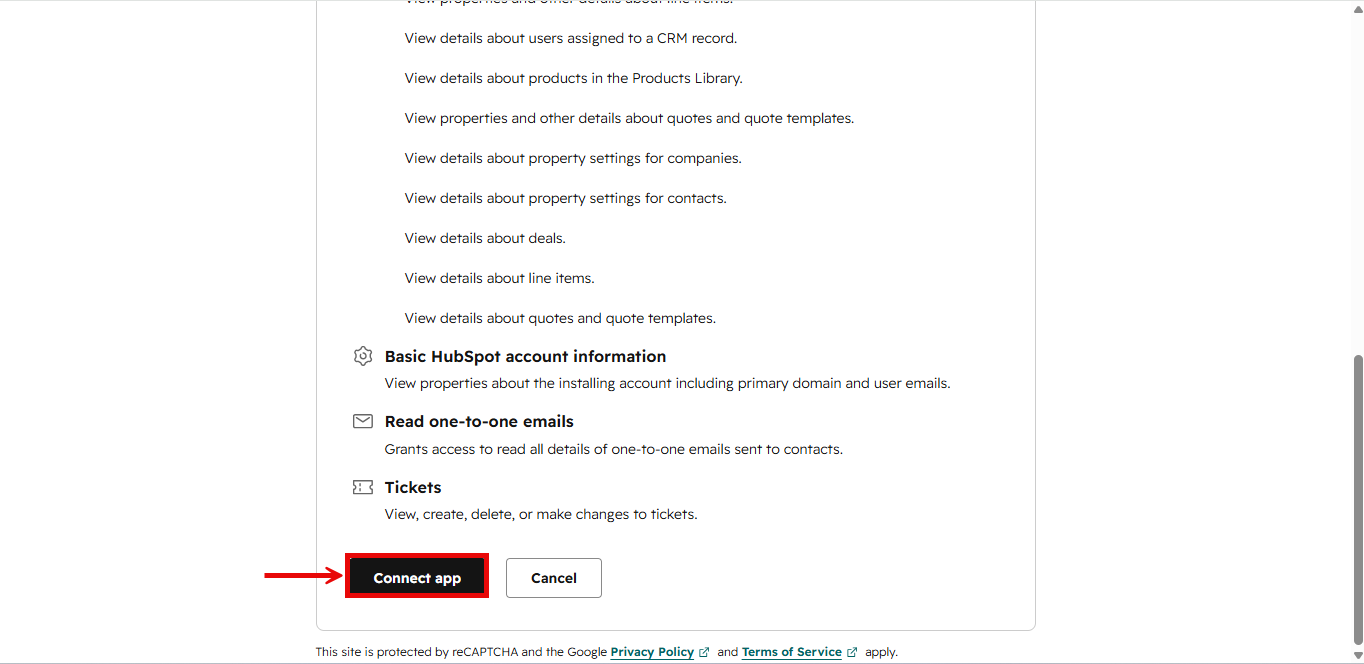
Related supporting data (pipelines, stages, owners, and associations between records) syncs automatically with the data you select.
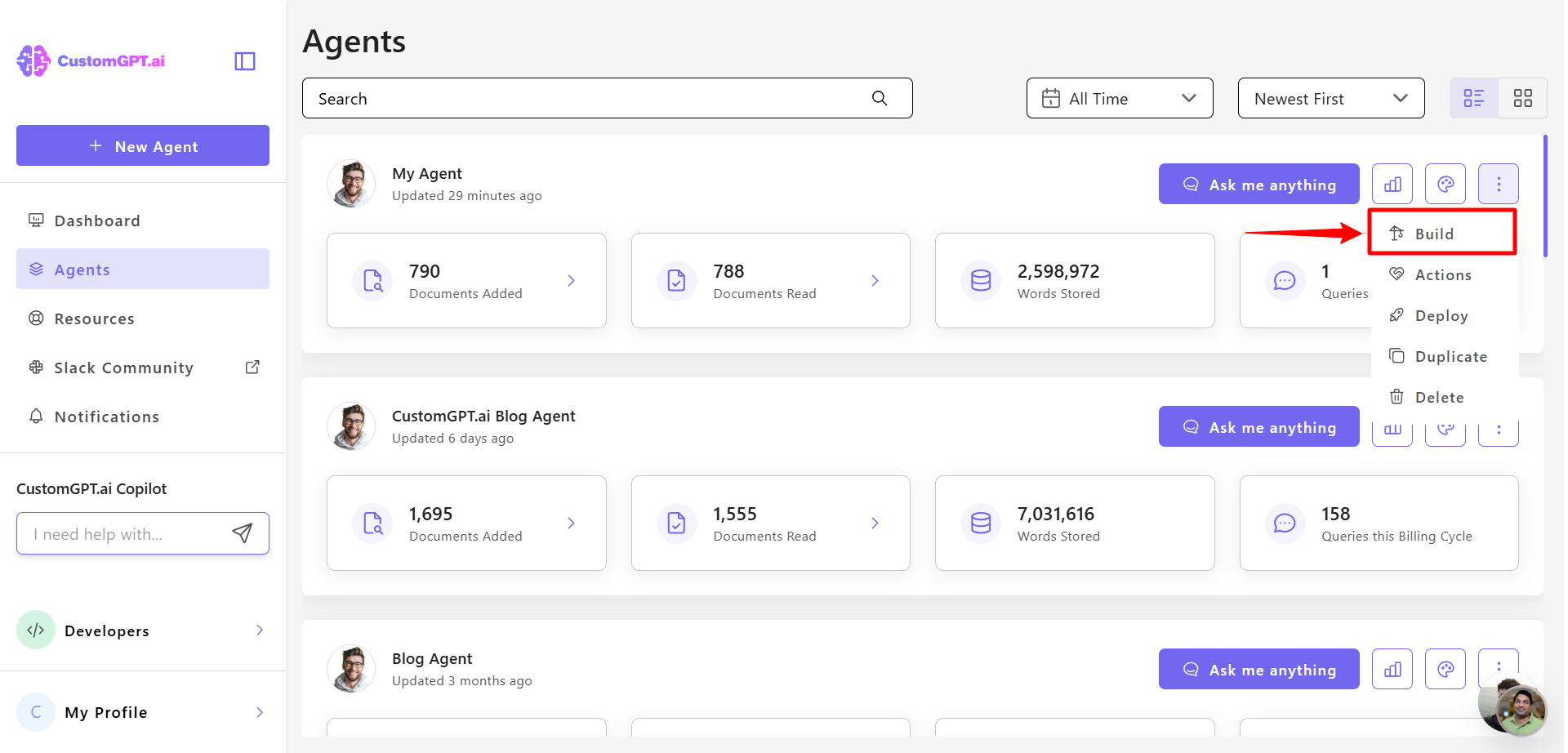
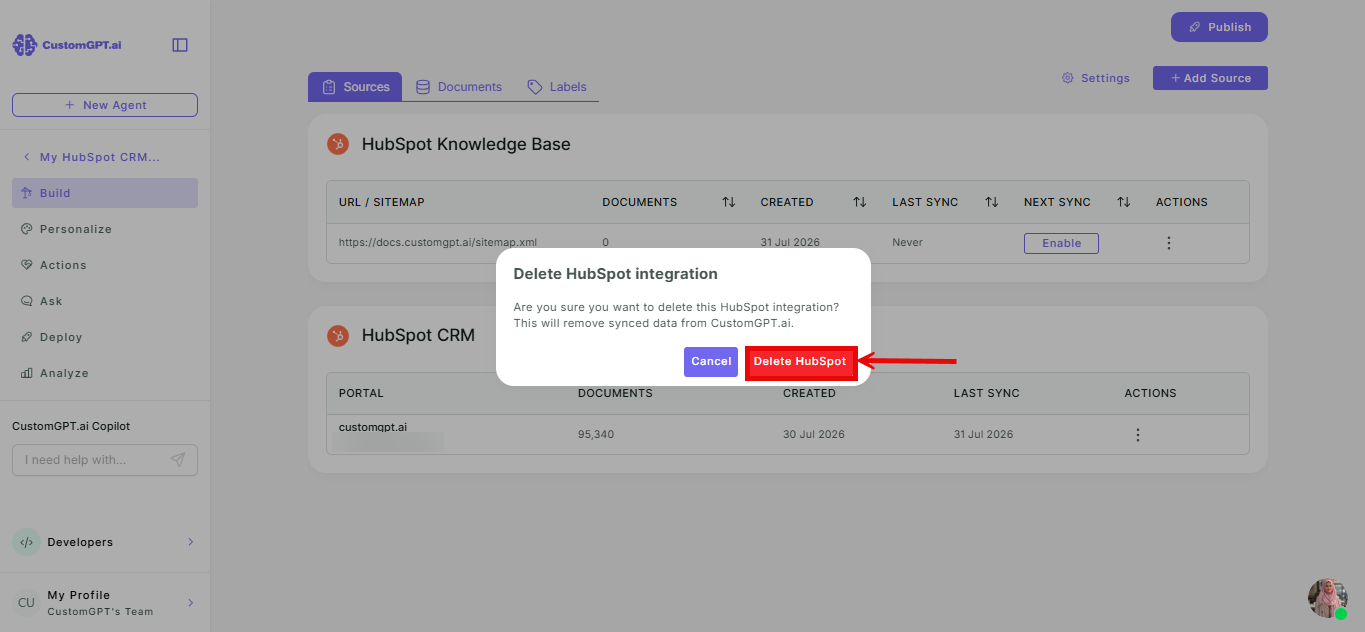
Remove HubSpot Knowledge Base1. Go to Build.
2. In HubSpot section, find your connected portal, click the three-dot menu next to it, and select Delete.
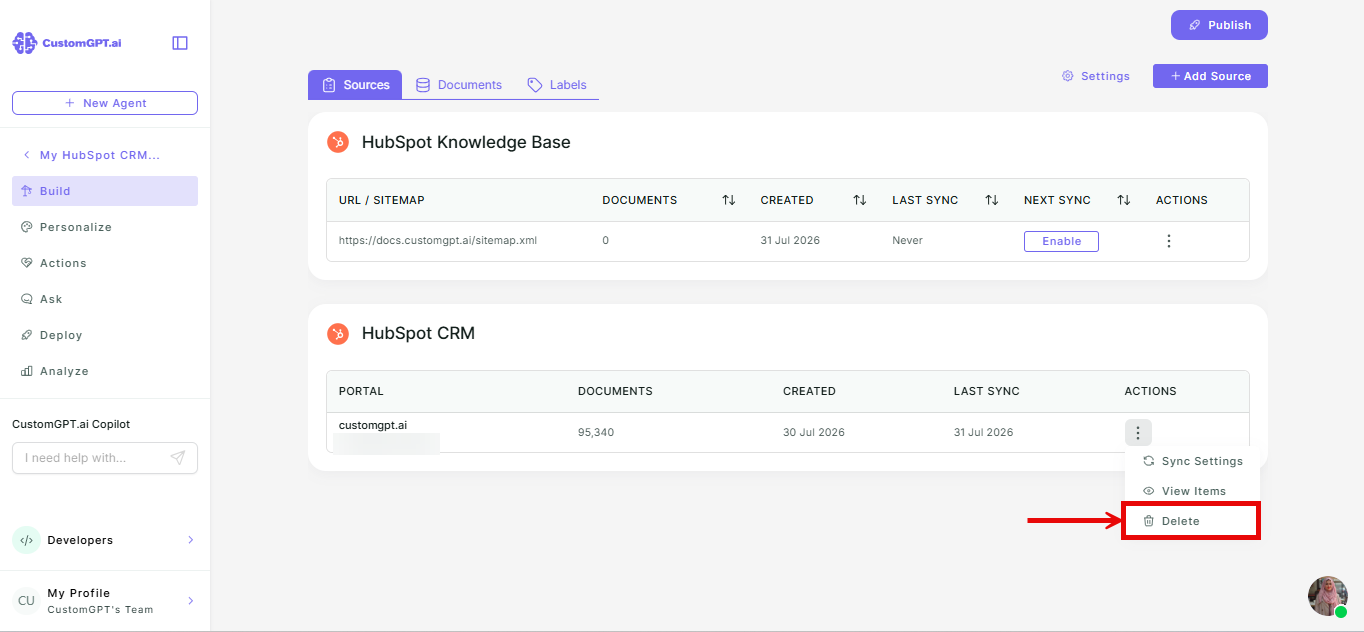
3. Confirm Delete HubSpot.
Related articles
Updated 3 months ago