
Export Conversation Leads Using Zapier
This guide walks you through setting up the Export Conversation Leads action in Zapier. Use it to automatically export lead data when a conversation ends.
Configuration steps
- Log in to your Zapier account and click Create Zap.
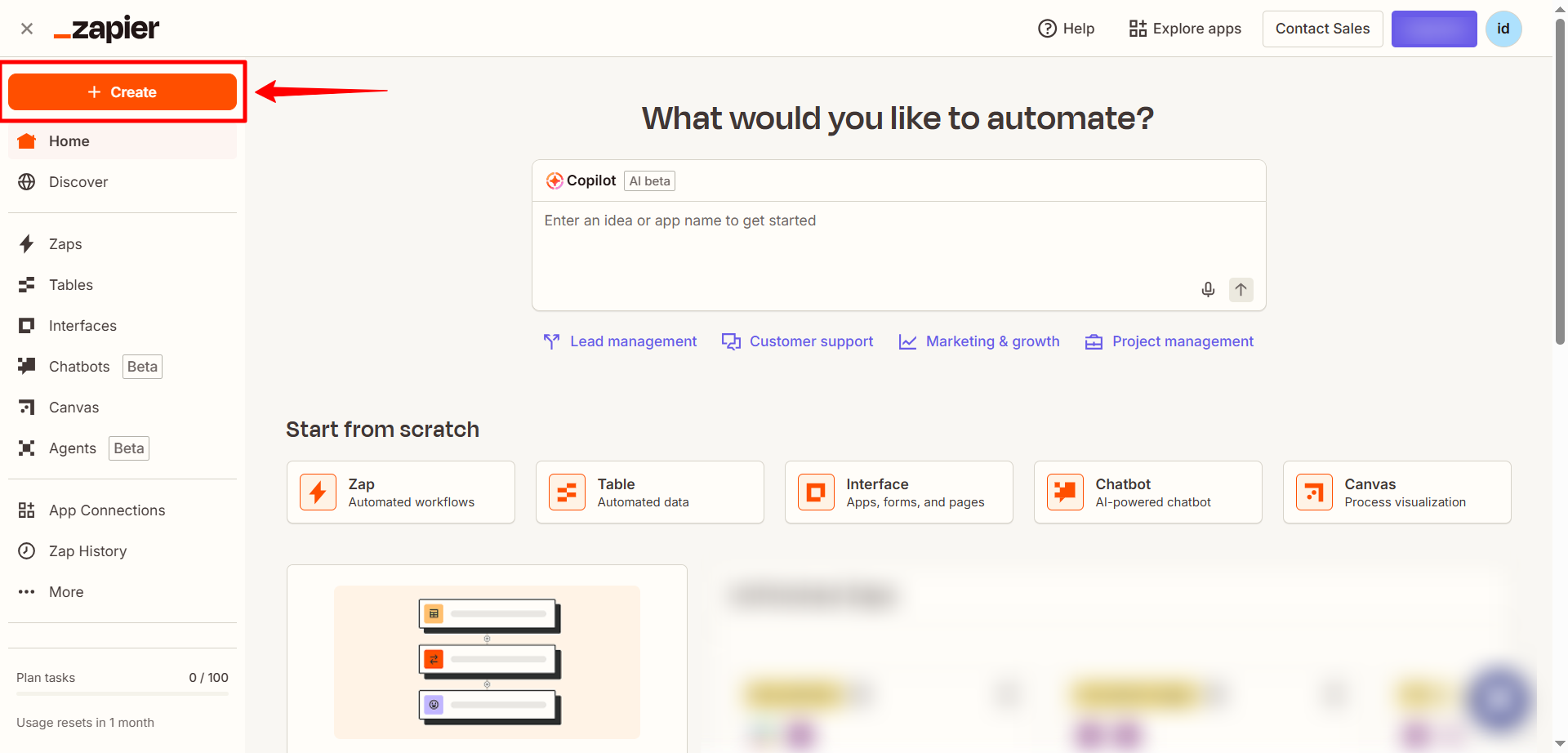
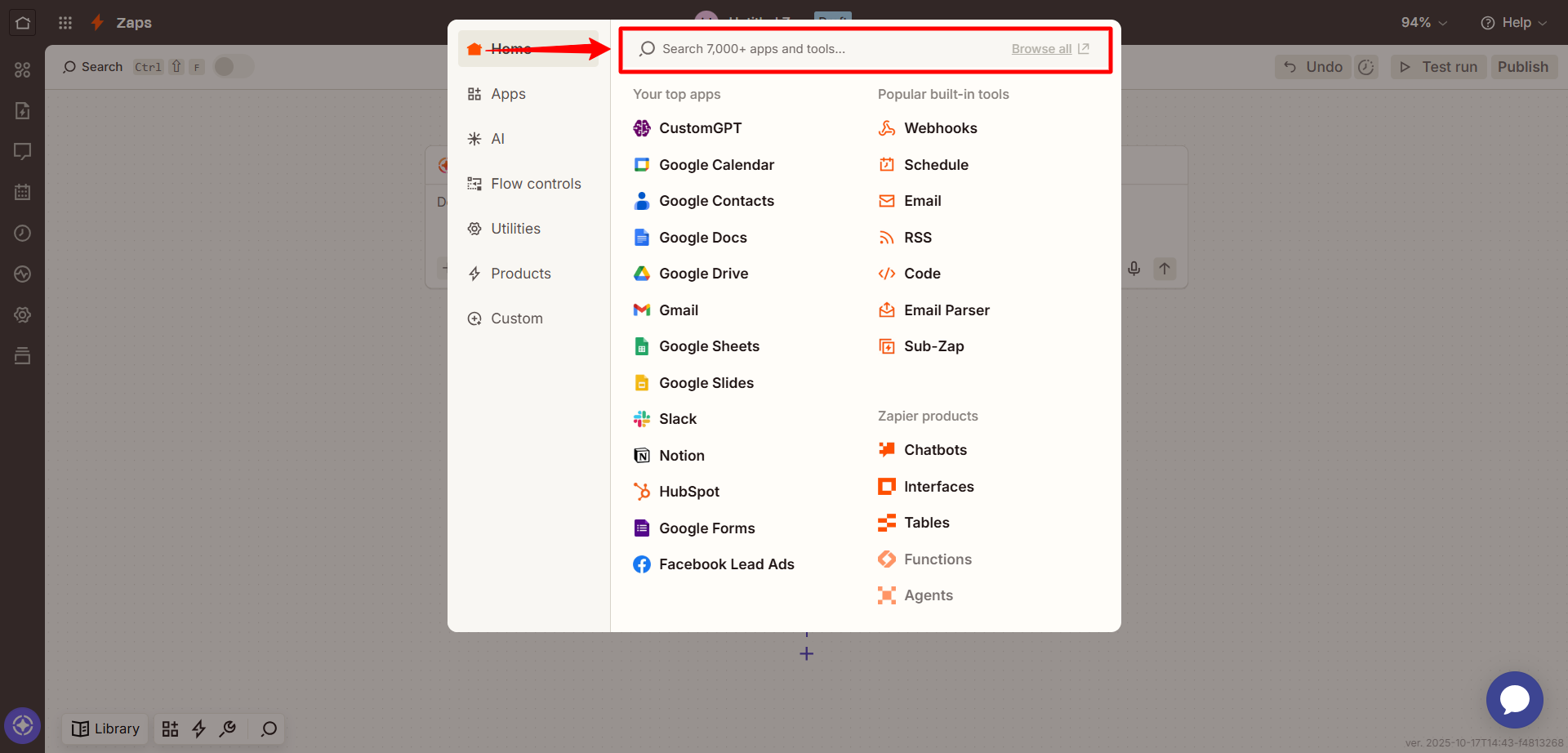
- In the Trigger section, select the app that will start the workflow (e.g., Slack, Google Drive, or any supported Zapier app trigger. ).
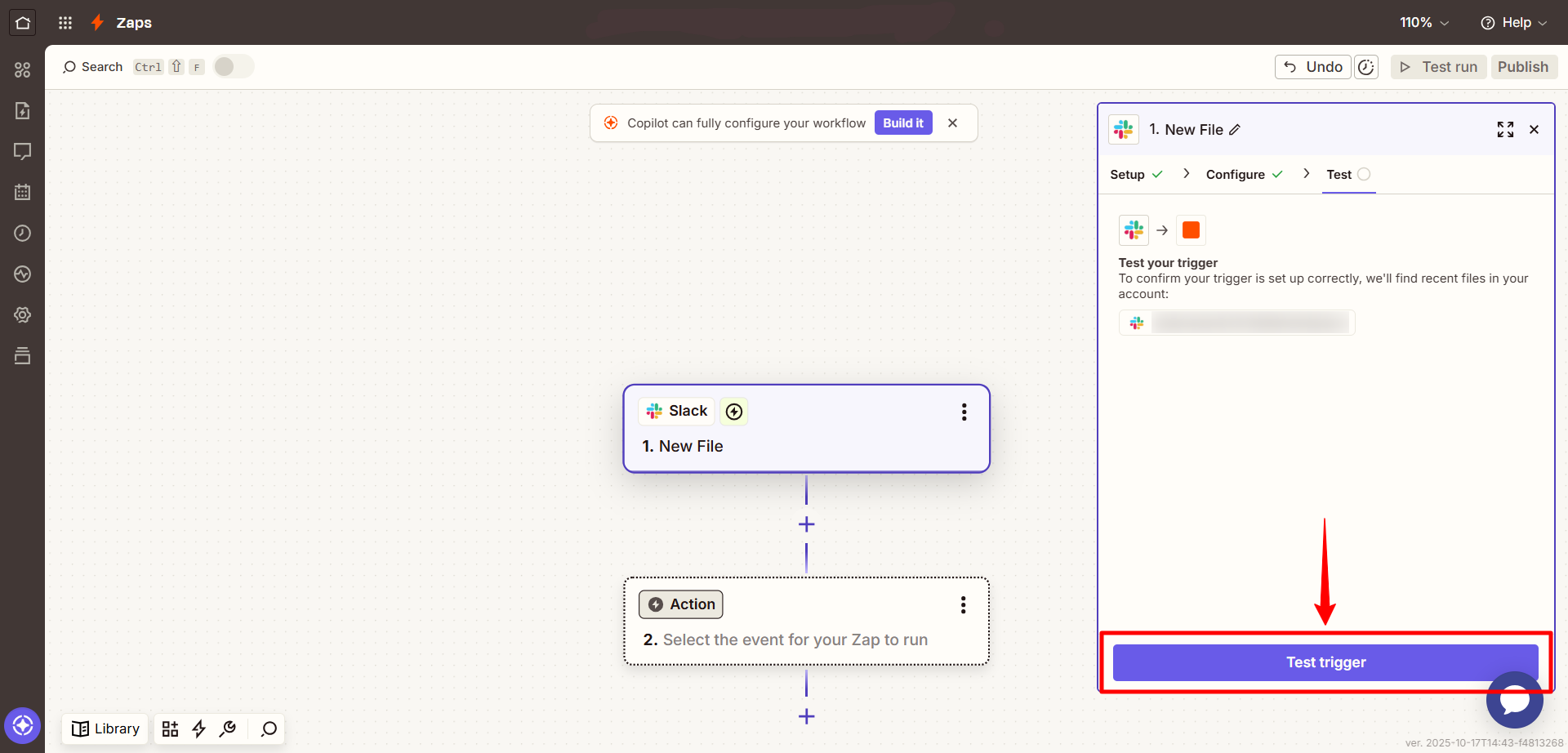
- Choose a trigger event such as New file, New message, or Form submission and test the trigger to make sure it’s working correctly.
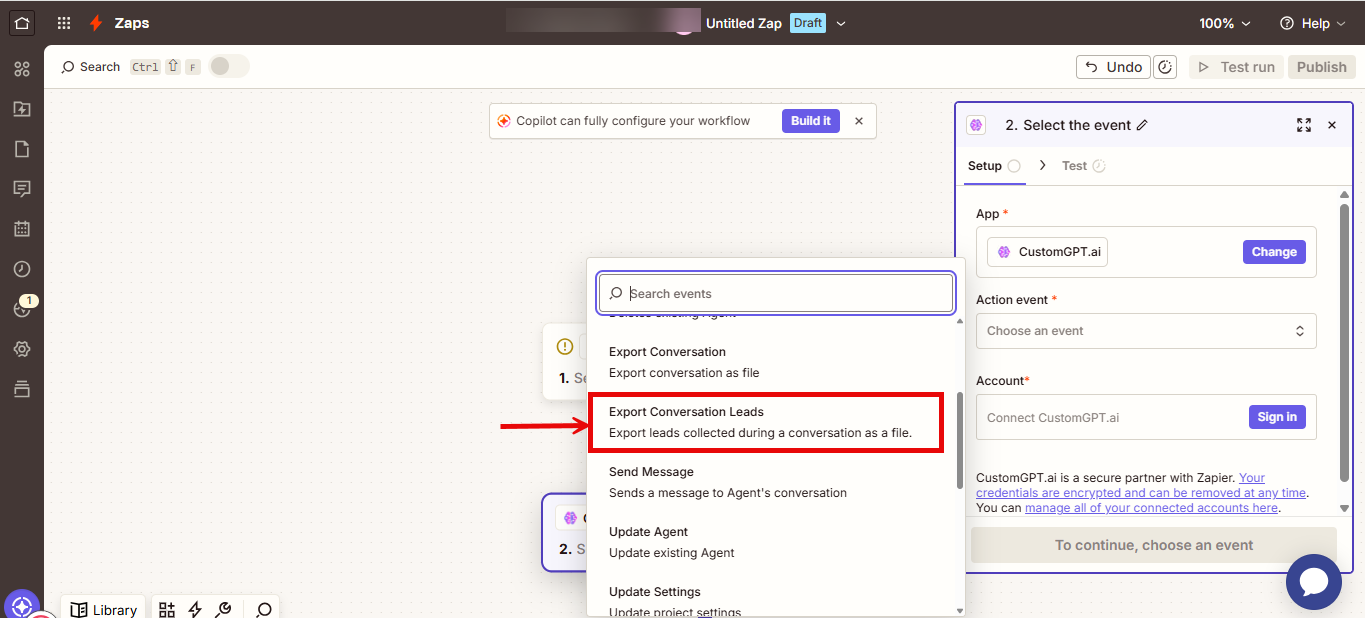
- In the Action step, search for CustomGPT.
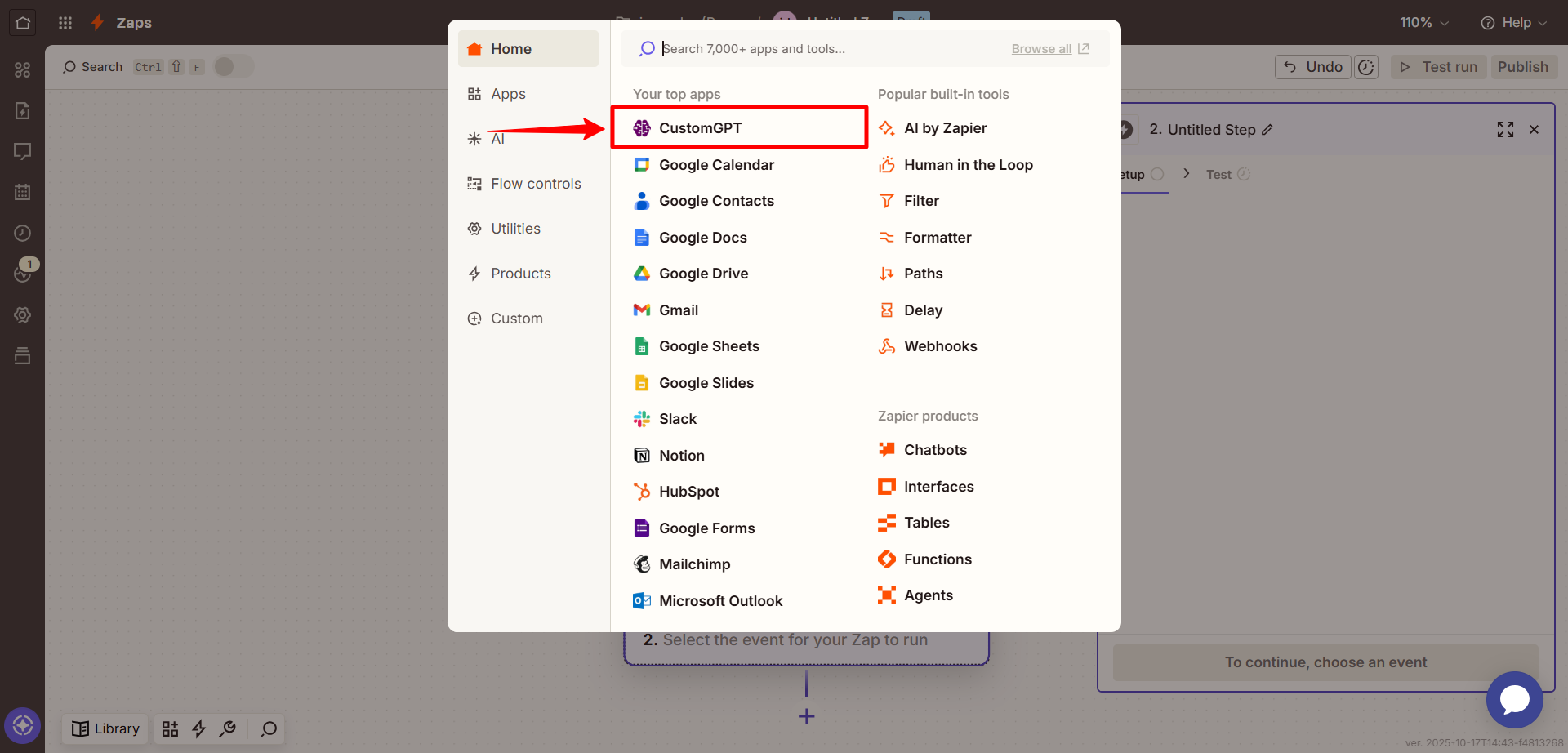
- Select Export Conversation Leads action.
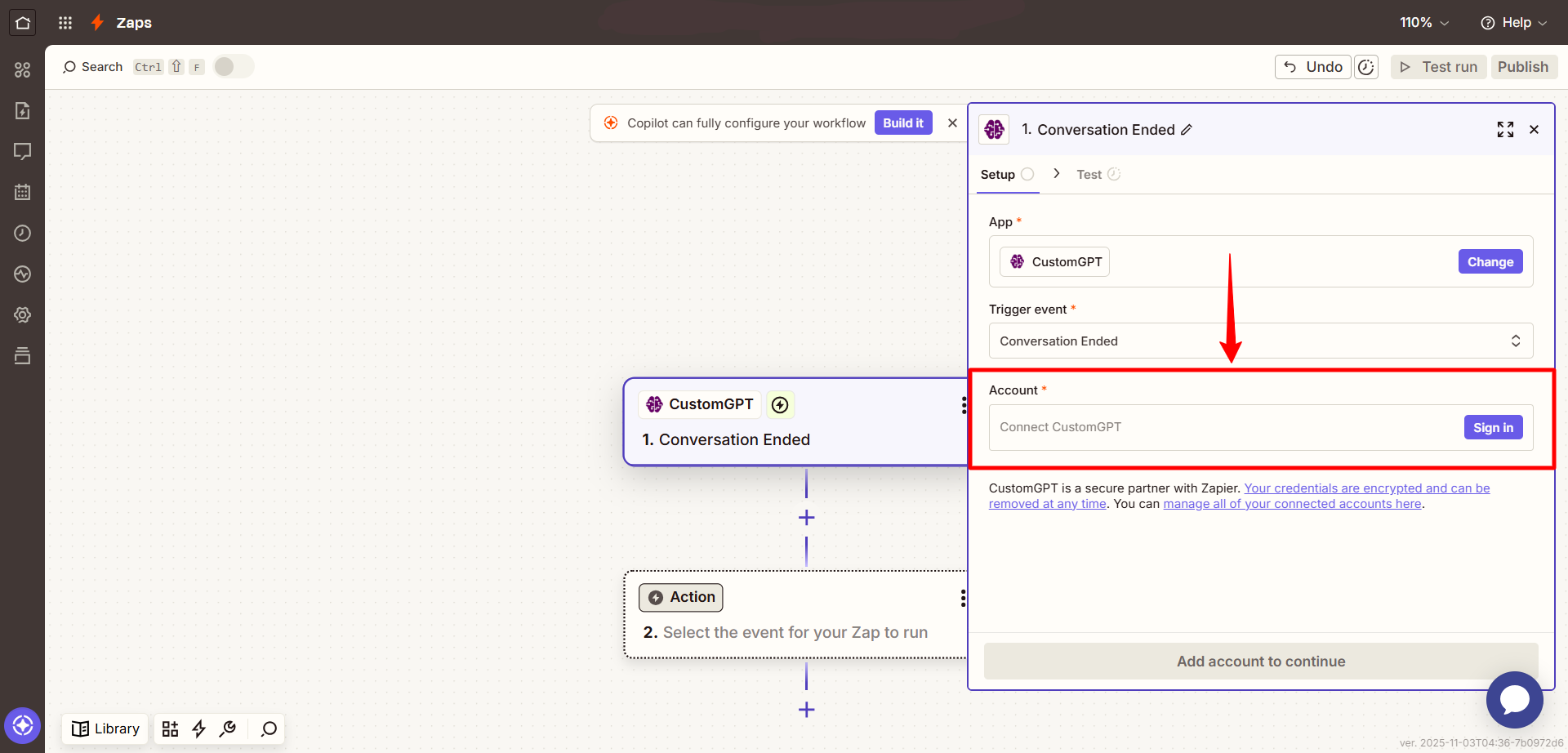
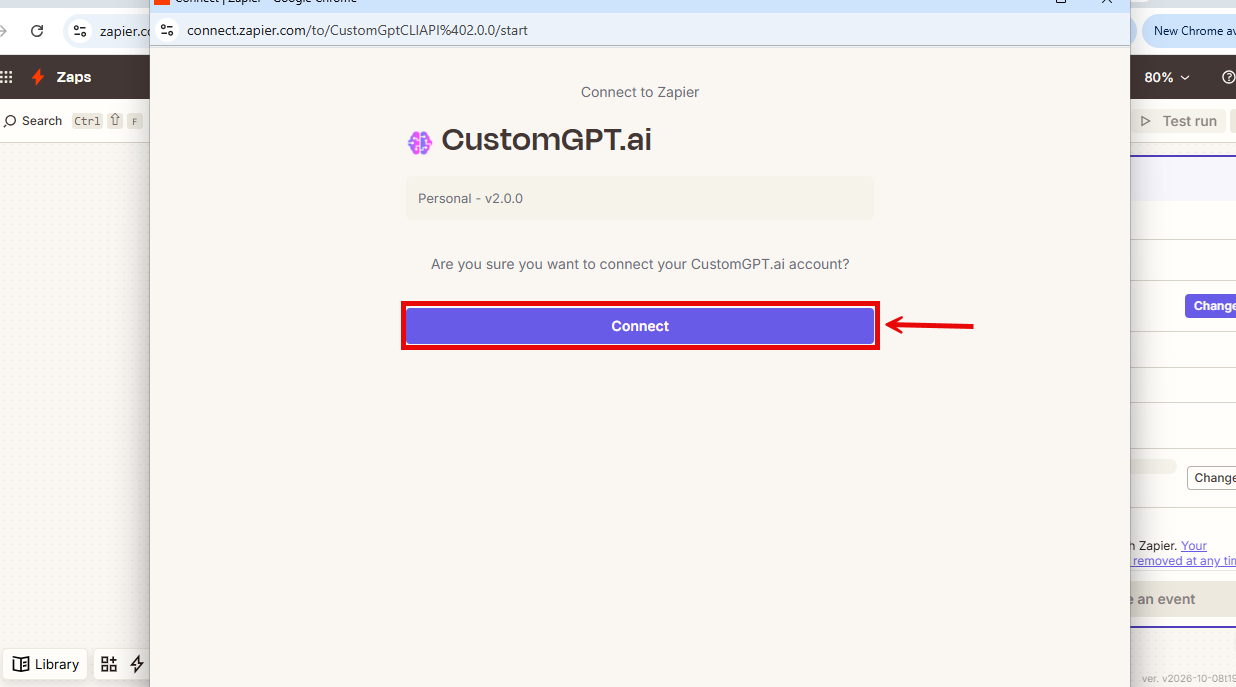
- When prompted, sign in to your CustomGPT.ai account using OAuth.
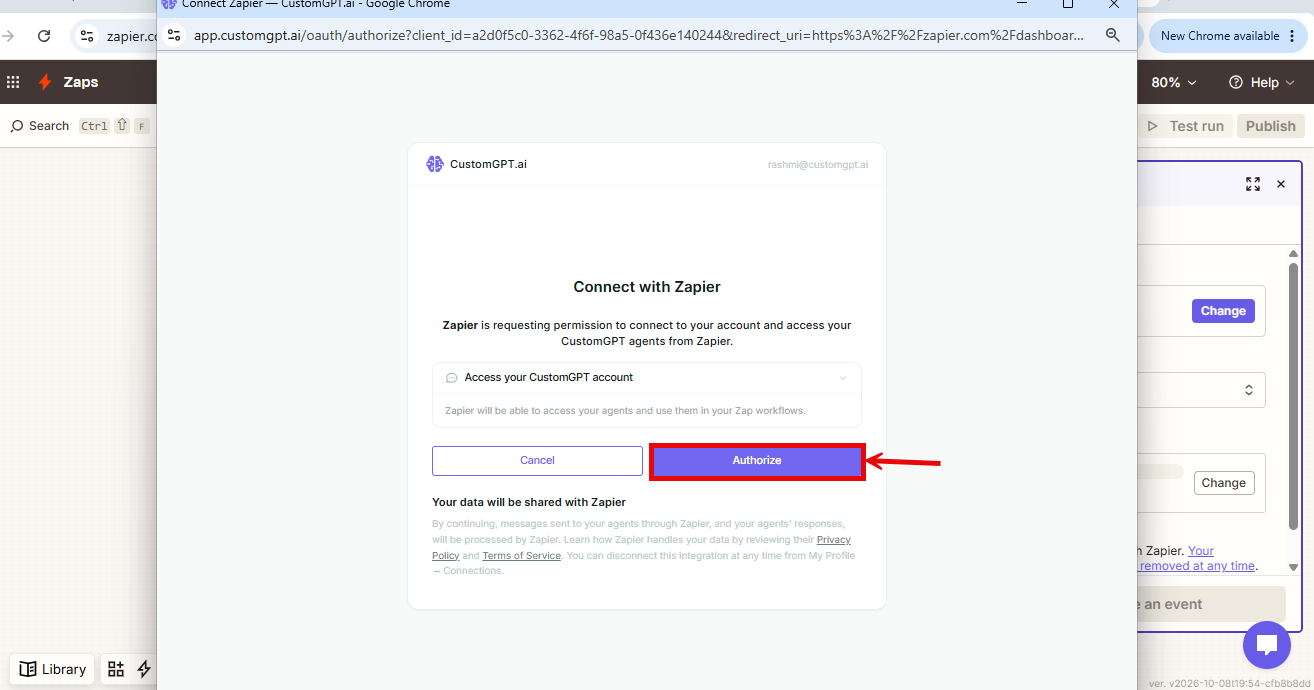
- On the CustomGPT.ai authorization screen, click Authorize
Note: Legacy connection: Connections you made earlier with an API key keep working. New connections use this sign-in.
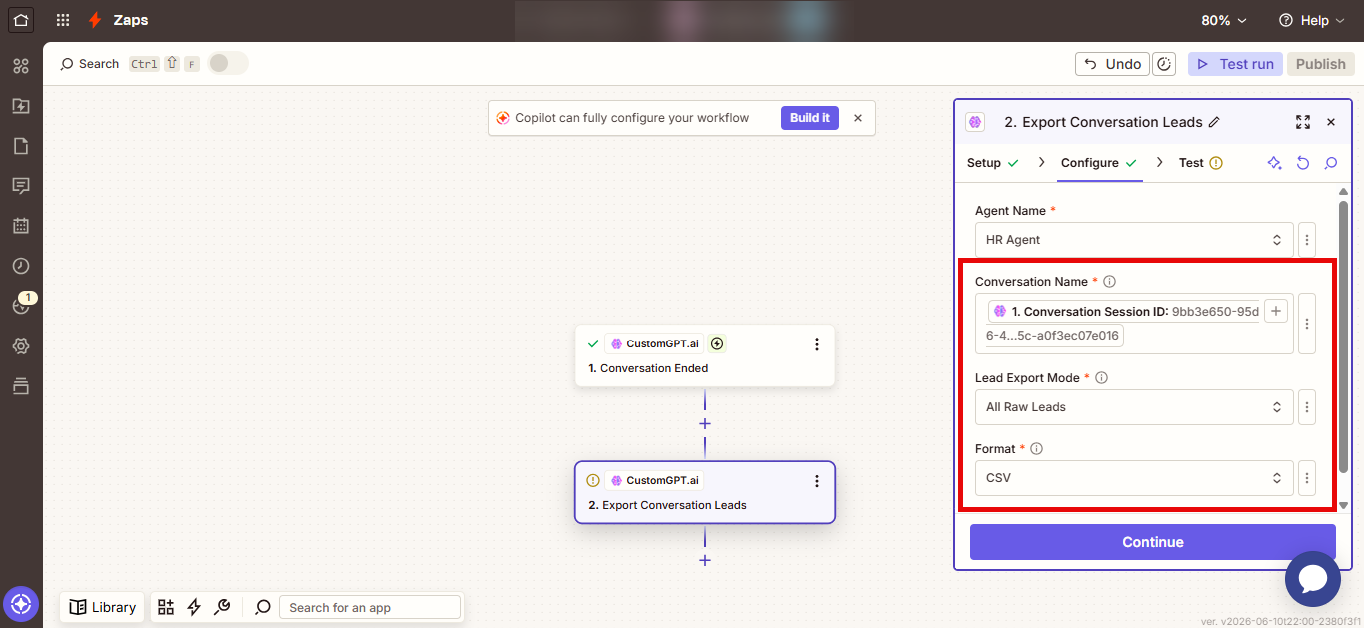
- In the Configure section, complete the following fields:
- Agent Name: Select the agent that owns the conversation.
- Conversation Name: Enter the session ID of the conversation you want to export.
- Lead Export Mode:
- Raw: each message where lead data was captured gets its own row in the export. Use this to see how lead data changed throughout the conversation.
- Collated: the entire conversation is summarized in one row. If the same detail was captured more than once, the latest value is kept.
- Format: Choose from PDF, CSV, XLSX, or JSON.
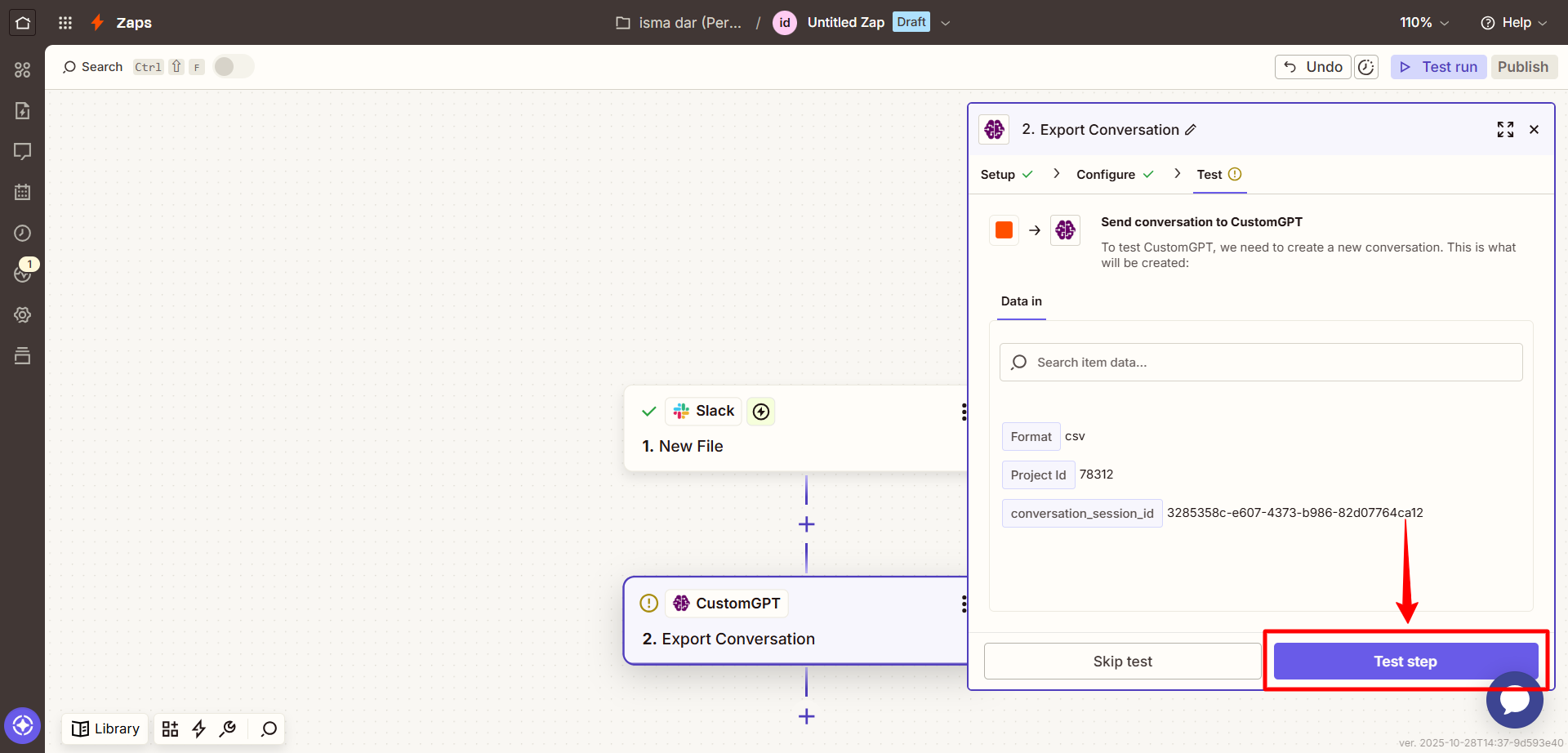
9.Use Test step to ensure the action runs as expected.
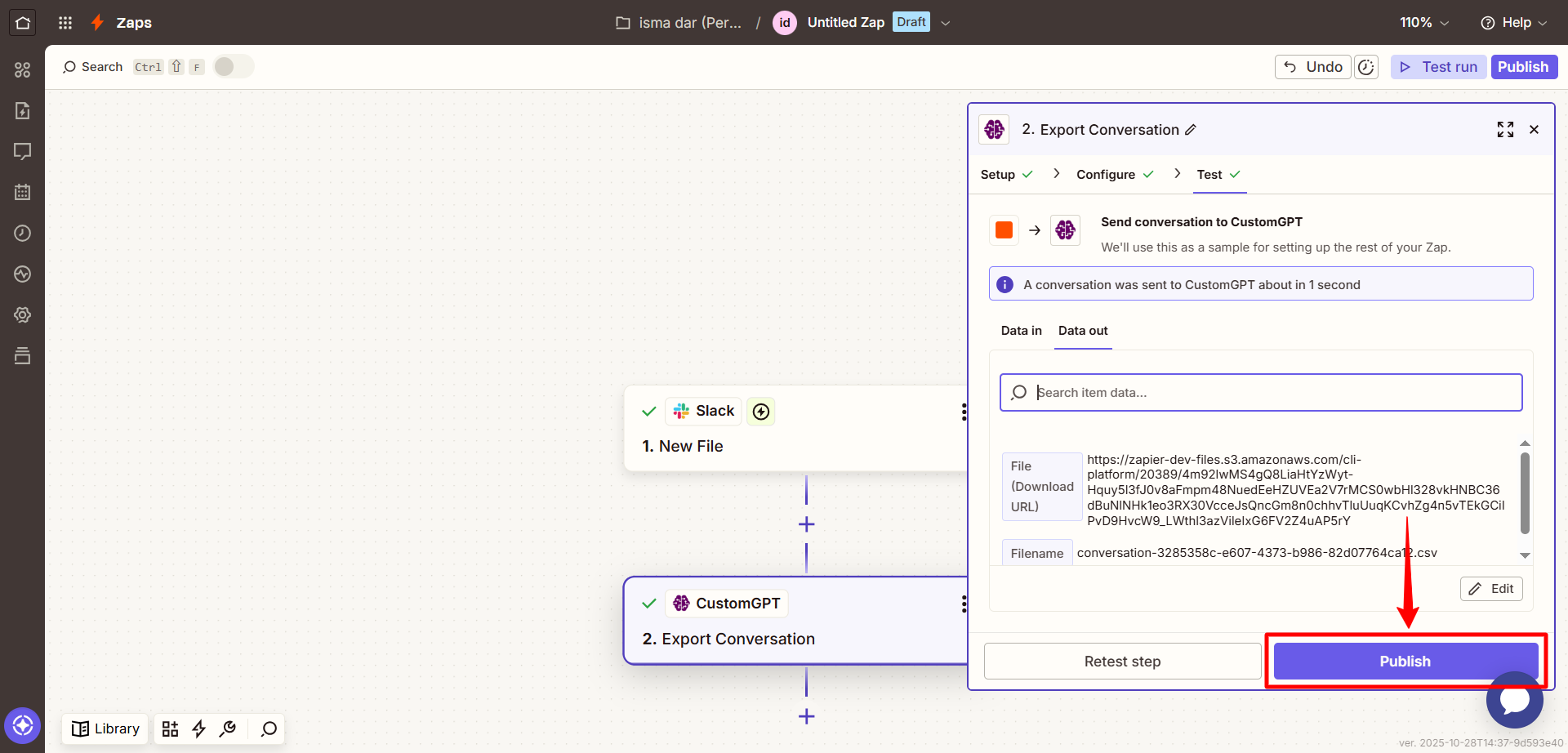
- Once the test is successful, click Publish to activate your Zap.
Related articles
Updated 3 days ago
Did this page help you?