
Customize how task steps appear
This guide walks you through setting the label and initial display state for task steps- the sections that show your agent's progress during task execution.
Steps
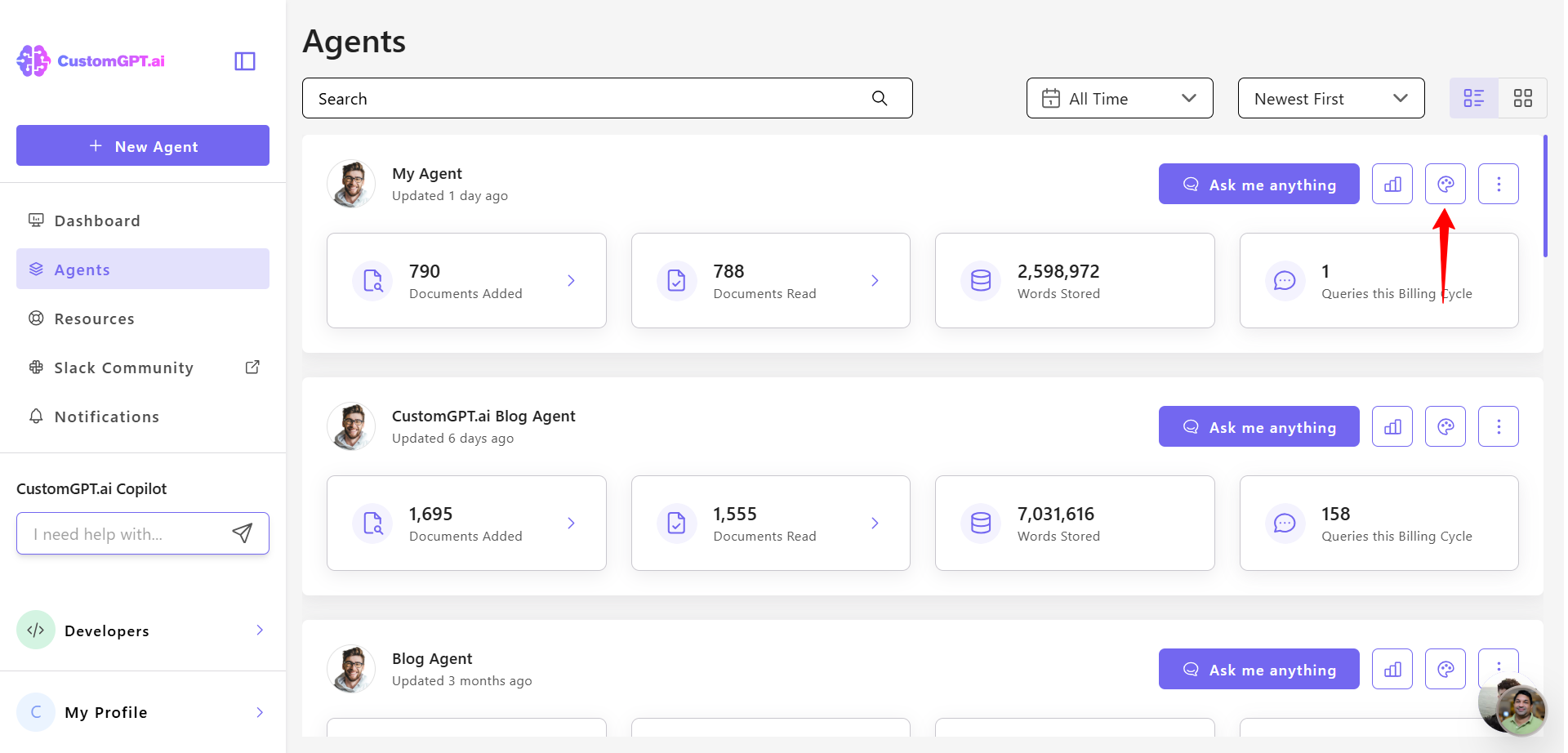
- Select the agent, then click Personalize in the right-side menu.
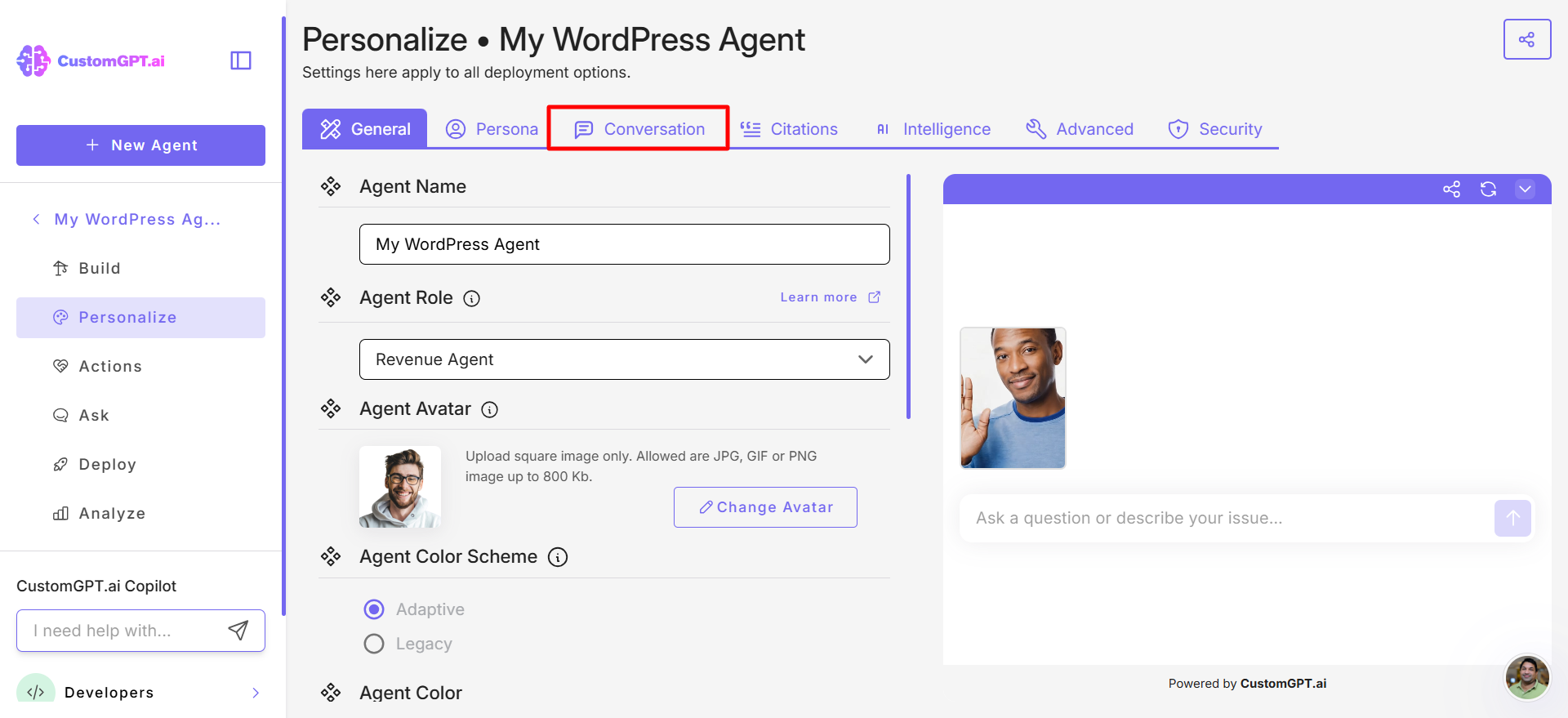
- Go to the Conversation tab.
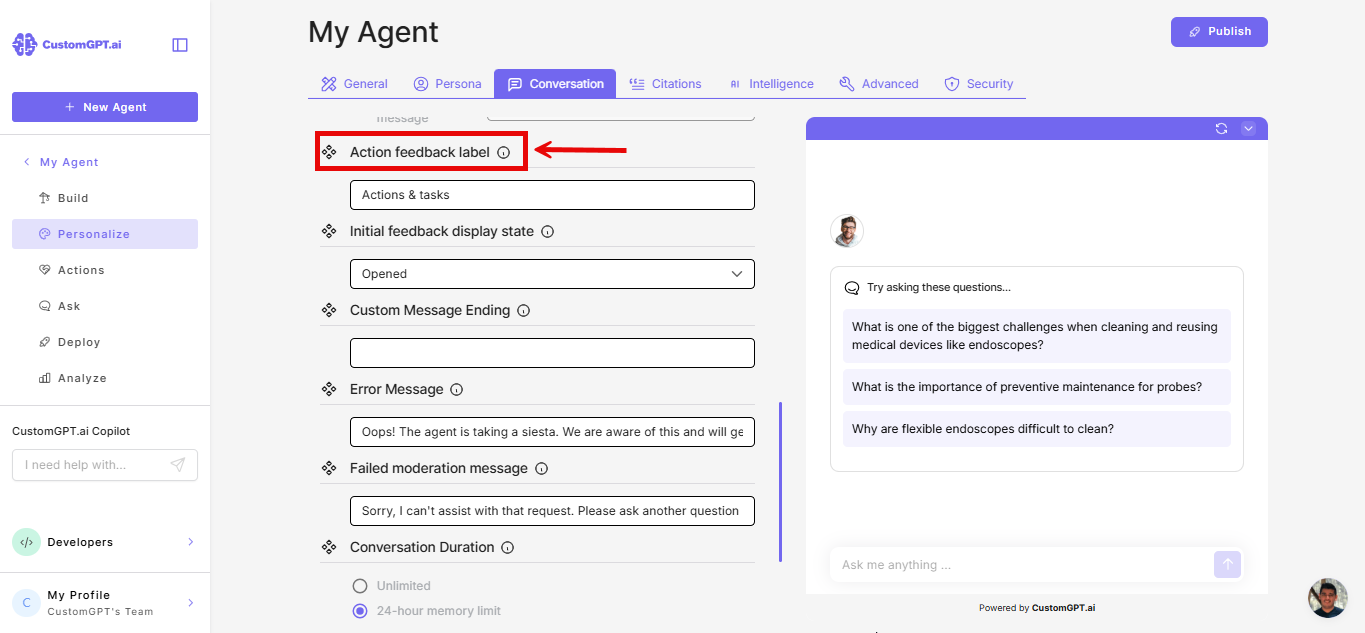
- Scroll to the Action feedback label field, below Loading Indicator.
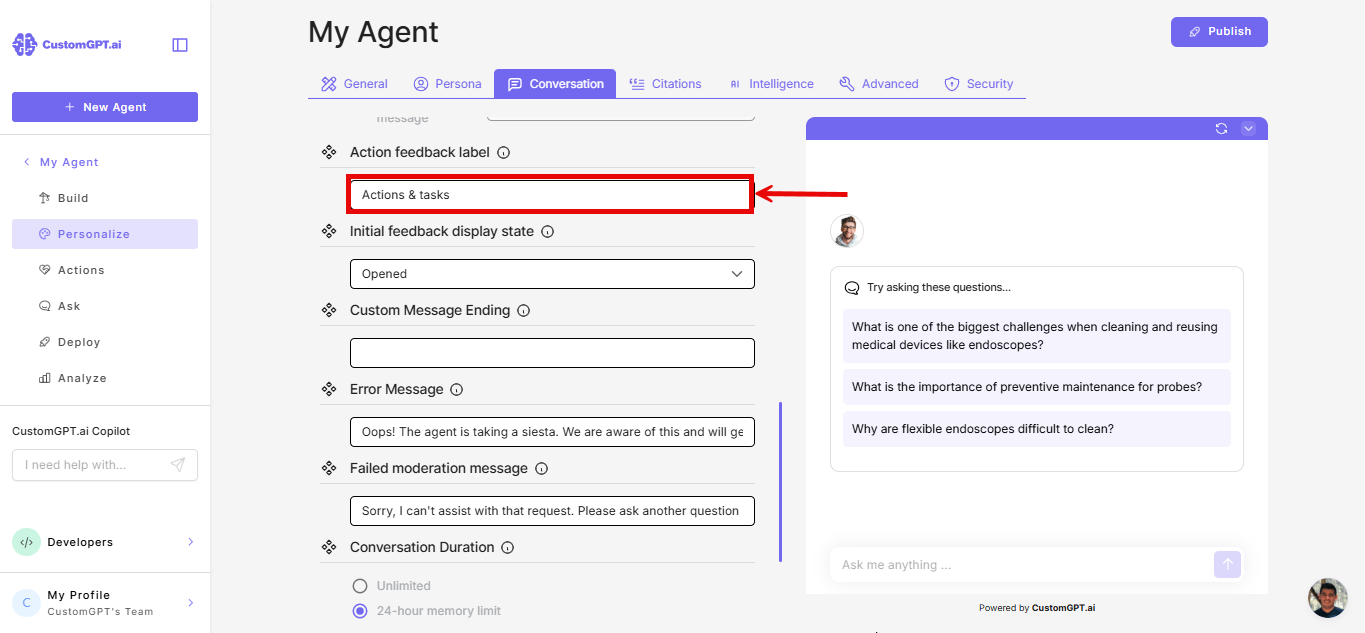
- Enter the heading to display above each task step. The default is Actions & tasks. Maximum 32 characters.
Note: This label follows the same localization behavior as other text settings on the Conversation tab. If localization is enabled, the label is translated to match the user's language. To use a fixed label in all languages, enter it directly in the field.
- Open the Initial feedback display state dropdown and select an option:
-
Initially opened, but user choice is saved - Task steps open by default. If a user collapses or expands a step, that preference is saved in their browser and applied to all subsequent steps.
-
Opened - Task steps always open, regardless of user preference.
-
Collapsed - Task steps always collapsed, regardless of user preference.
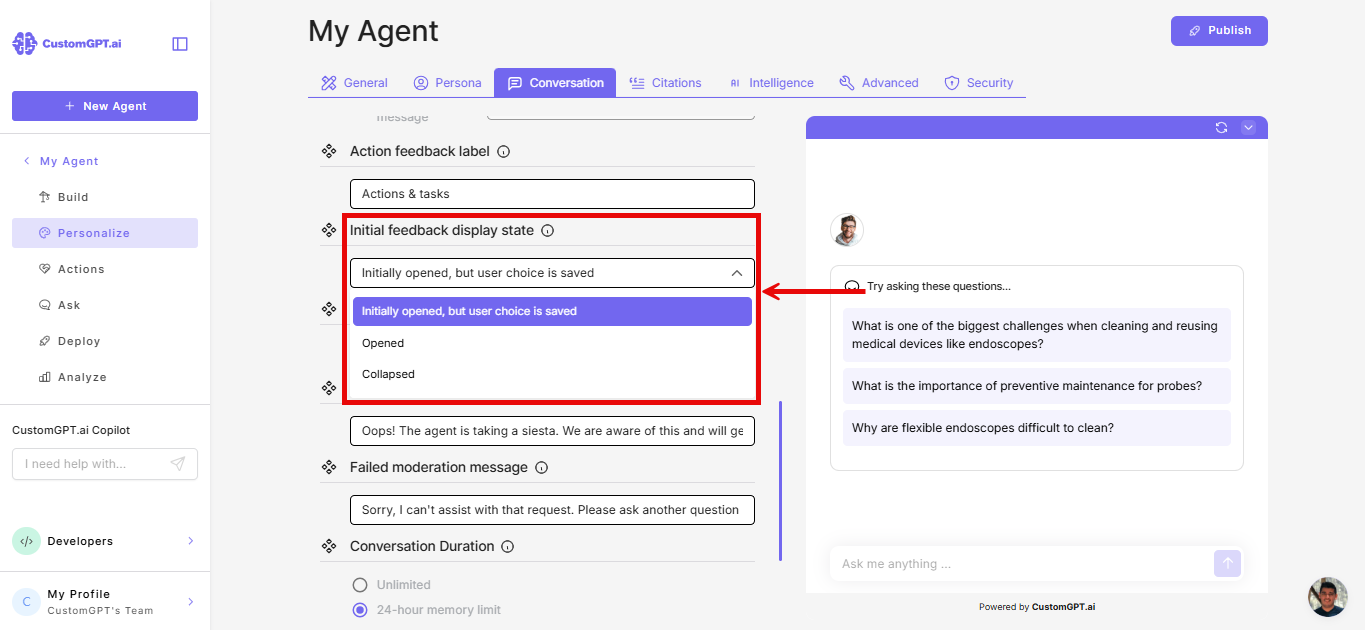
Note: This setting controls how new task steps appear when they first load.
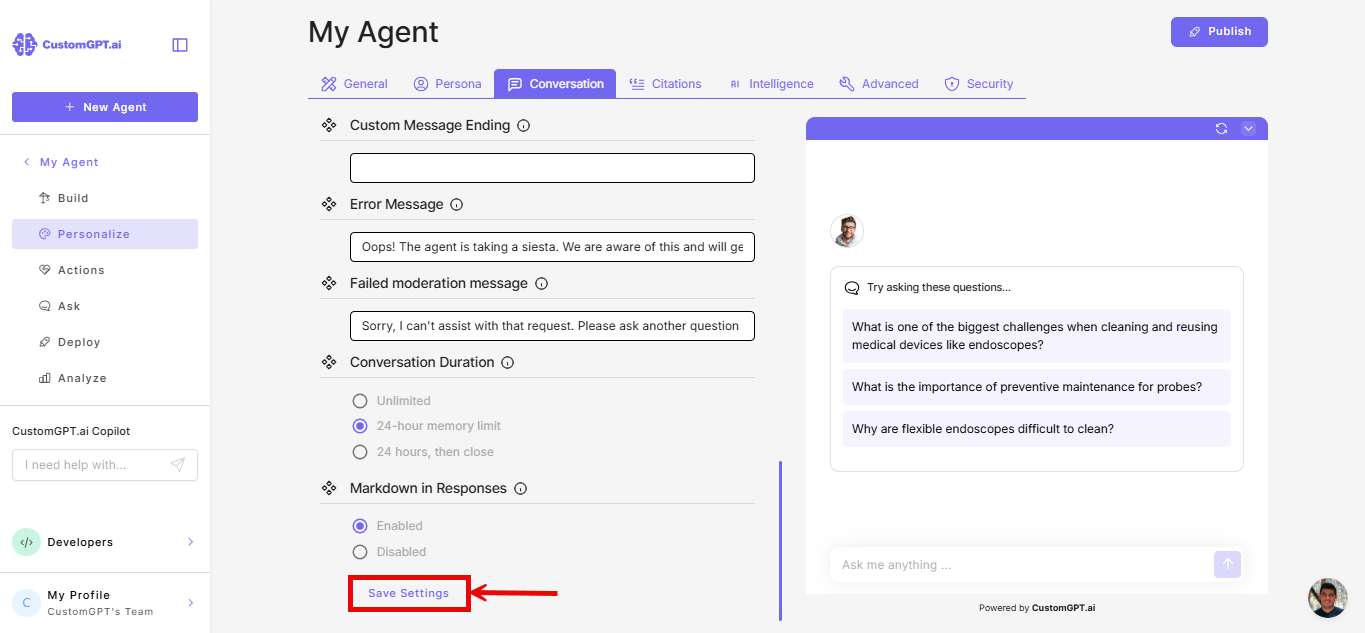
- Click Save Settings.
Updated 3 months ago