
Get a Slack alert when an n8n workflow fails
Get a Slack message naming the workflow, the failed step, and the error, whenever any n8n workflow fails, using one small reusable alert workflow.
This guide walks you through setting up a small n8n workflow that posts to Slack whenever another workflow fails, naming the workflow, the step that failed, the error text, and a link to the run. Set it up once, then point any number of your other workflows at it - including the one from Set up automatic ticket tagging for Freshdesk.
Why do this
n8n records a failure when a workflow breaks, but it doesn't tell anyone. This adds the missing notification without touching the failing workflow's own canvas.
Use this if:
- You're running any n8n workflow you'd want to know about the moment it fails
- You don't want to rely on manually checking n8n to notice a broken run
How it works
- A workflow fails
- n8n runs your alert workflow and hands it the failure details
- The alert workflow posts one message to a Slack channel
The alert workflow does nothing on its own. It only runs when another workflow you've pointed at it fails.
What you need
| Thing | Where to get it |
|---|---|
| An n8n account | n8n Cloud, or your own installation |
| Permission to add a Slack app | Your workspace may require an admin to approve it |
| A Slack channel for alerts | Create it first - a channel, not a DM (see "Things to watch" for why) |
| The workflow file | n8n-slack-error-alert-template.json |
Step 1: Create the Slack app
- Go to api.slack.com/apps and choose Create New App > From scratch.
- Name it something recognizable - the name appears on every alert - and pick your workspace.
- Open OAuth & Permissions and add these under Bot Token Scopes:
chat:write- lets the bot post messageschannels:read- lets it find your channel by name, if the channel is publicgroups:read- use this instead ofchannels:readif your channel is private
- Leave User Token Scopes empty.
- Install the app to your workspace, then copy the Bot User OAuth Token (it starts with
xoxb-). Treat it like a password.
Note: if you change scopes later, you have to reinstall the app, or the new permissions won't take effect.
Step 2: Invite the bot to the channel
Run /invite @your-app-name in the channel.
This is the most common reason alerts never arrive: chat:write lets the bot post, but only in channels it's actually a member of.
Step 3: Add the credential in n8n
Go to Credentials > Add credential > Slack API.
Note: pick Slack API, not Slack OAuth2 API. The OAuth2 option runs a browser sign-in flow and asks for a client ID and secret - you already have a token, so the plain Slack API credential is the one you want.
Paste the xoxb- token into Access Token. Leave Signature Secret empty (it verifies requests coming from Slack, and this workflow only sends). Leave Allowed HTTP Request Domains on All.
Give the credential a name you'll recognize later in a dropdown.
Step 4: Import the alert workflow
In n8n, choose Import from File and select n8n-slack-error-alert-template.json. Three nodes appear: an Error Trigger, a Code step that formats the message, and the Slack step.
Open the Slack Error Alert node and set two things:
- Credential - the one you just created
- Channel - replace
#YOUR-ALERTS-CHANNELwith your own
Then activate the workflow. It won't run on its own; activating it is what makes it available to other workflows.
Step 5: Point a workflow at it
Open the workflow you want watched, go to Workflow > Settings > Error Workflow, and choose the alert workflow. Save.
That setting is the entire connection - nothing gets added to the canvas, and no node connects to anything. Repeat it on every workflow you want covered; they can all share one alert workflow.
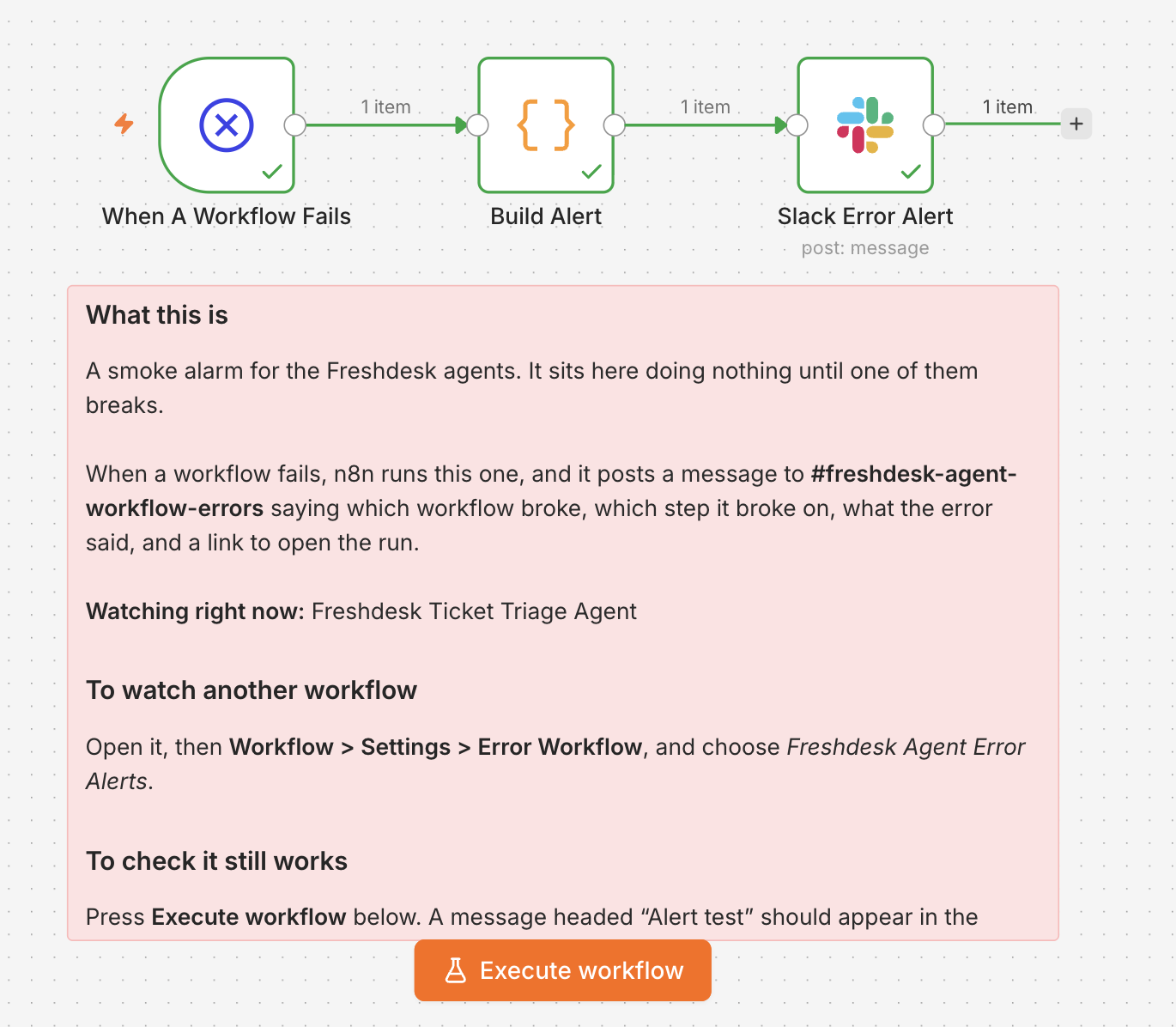
Test it
Open the alert workflow and click Execute workflow. A message headed Alert test should appear in your channel within a few seconds. This only confirms the Slack side works - nothing has actually failed.
You can't test it from the watched workflow itself, since running a workflow by hand never triggers an alert (see "Things to watch" below).
If nothing arrives, open the Slack step and check the error:
| Error | Cause |
|---|---|
not_in_channel | The bot isn't in the channel. Invite it. |
missing_scope | A scope is missing, or the app wasn't reinstalled after you added one. |
channel_not_found | The channel name is wrong, or the read scope for that channel type is missing. |
invalid_auth | The token is wrong or has been rotated. |
What the alert contains
The workflow name, the step it failed on, the error text, and a button linking to the run in n8n. The step name is usually enough to tell you which credential or service is at fault before you open anything.
Things to watch
It only fires on real runs. Manual runs never trigger it, however badly they fail. A workflow you're testing by hand won't alert.
It only fires on unhandled failures. If a step has an error output wired to another step, or is set to continue on failure, the run finishes as a success and no alert is sent. Failures you've already built a path for don't need a Slack message, so adding this doesn't change how your existing workflows behave.
One message per failed run. If something systemic breaks, like an expired API key, every failed run sends its own message. Use a channel rather than a DM, and expect a burst of alerts rather than a single one.
Questions?
If you have questions about this setup, raise a ticket at our helpdesk and our support team will help.
Related articles
Updated about 11 hours ago