
Connect a YouTube livestream
Add a live or upcoming YouTube livestream as a source so your agent can answer questions while the event is still happening.
Paste a livestream link and your agent starts following the stream, so people can ask what they missed while the event is still going.
Before you start
- Available on Premium and Enterprise.
- You need the link to a YouTube livestream that's currently live, or scheduled and not yet started.
- The livestream must have auto-captions enabled. In YouTube, turn on Closed captions in the stream settings and choose Automatic captions as the source. Refer to Automatic captions on live-stream videos in YouTube Help.
- This applies even if you stream to YouTube through another tool, such as StreamYard. StreamYard doesn't add captions to live streams itself, so the captions need to be turned on in YouTube.
Add a livestream to a new agent
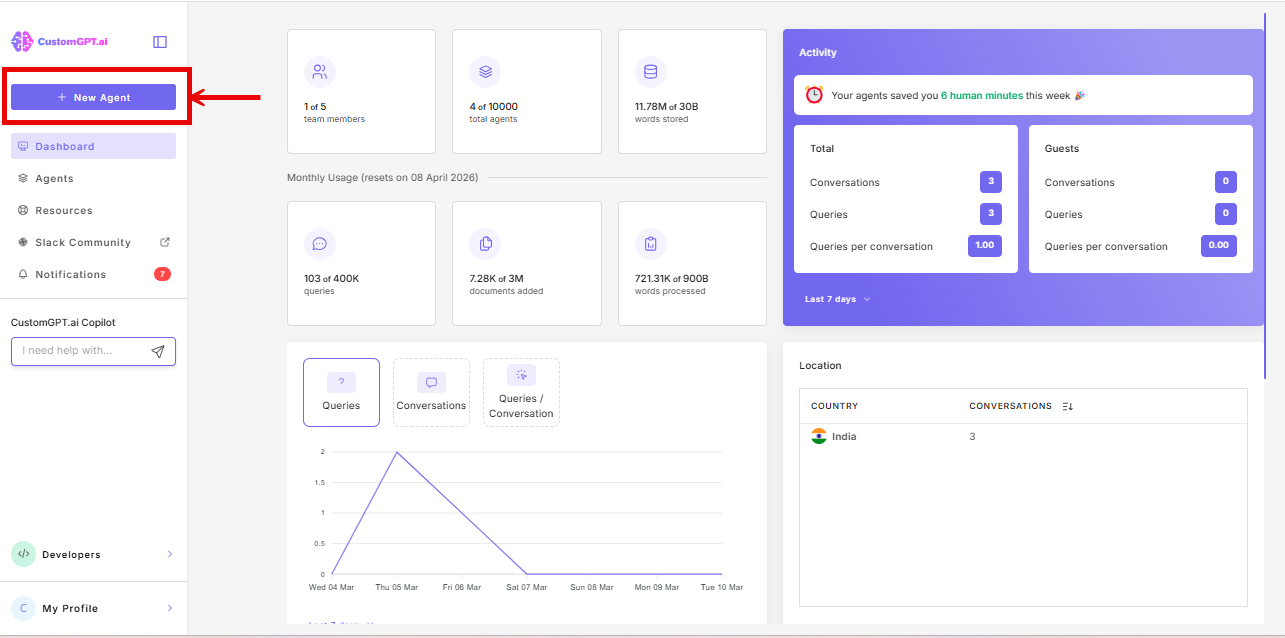
- Click New Agent.
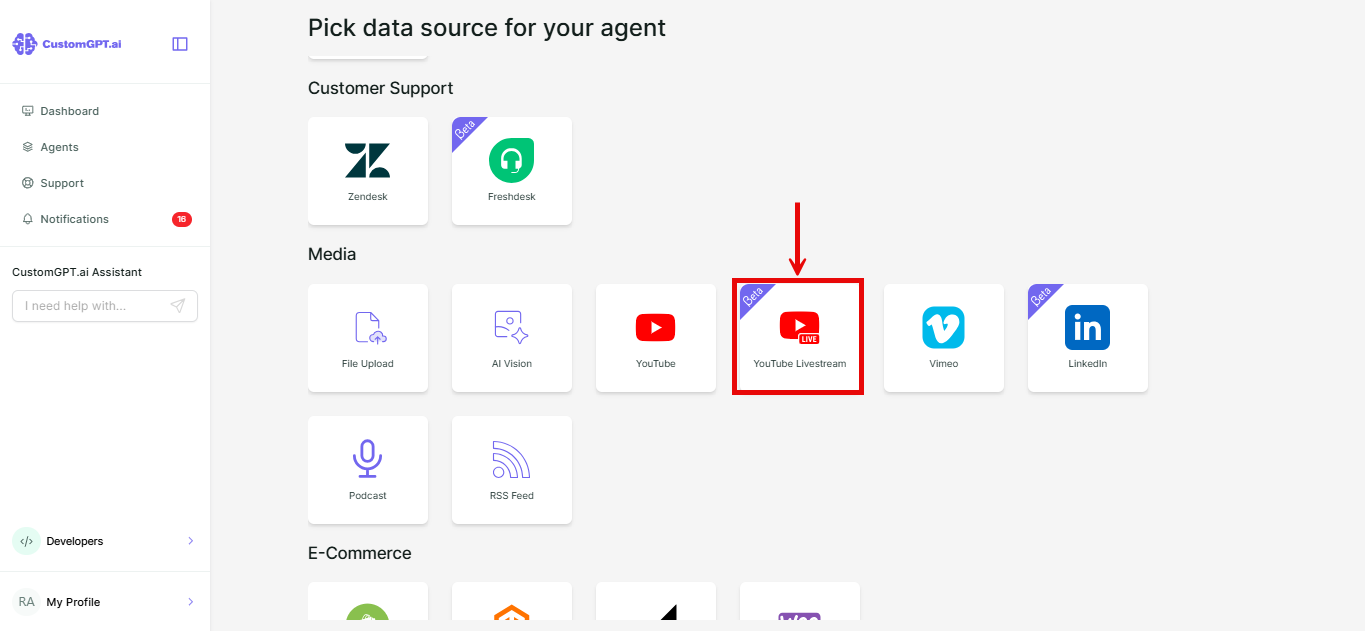
- Under Media, click YouTube Livestream.
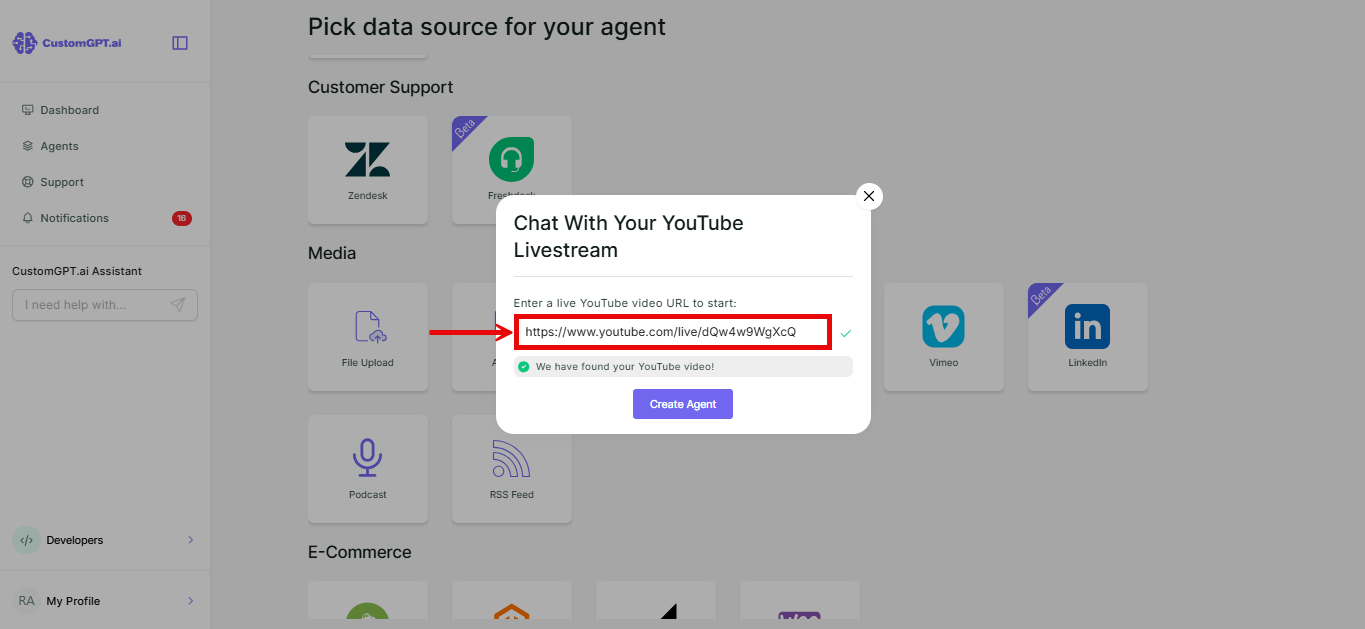
- Paste the livestream link.
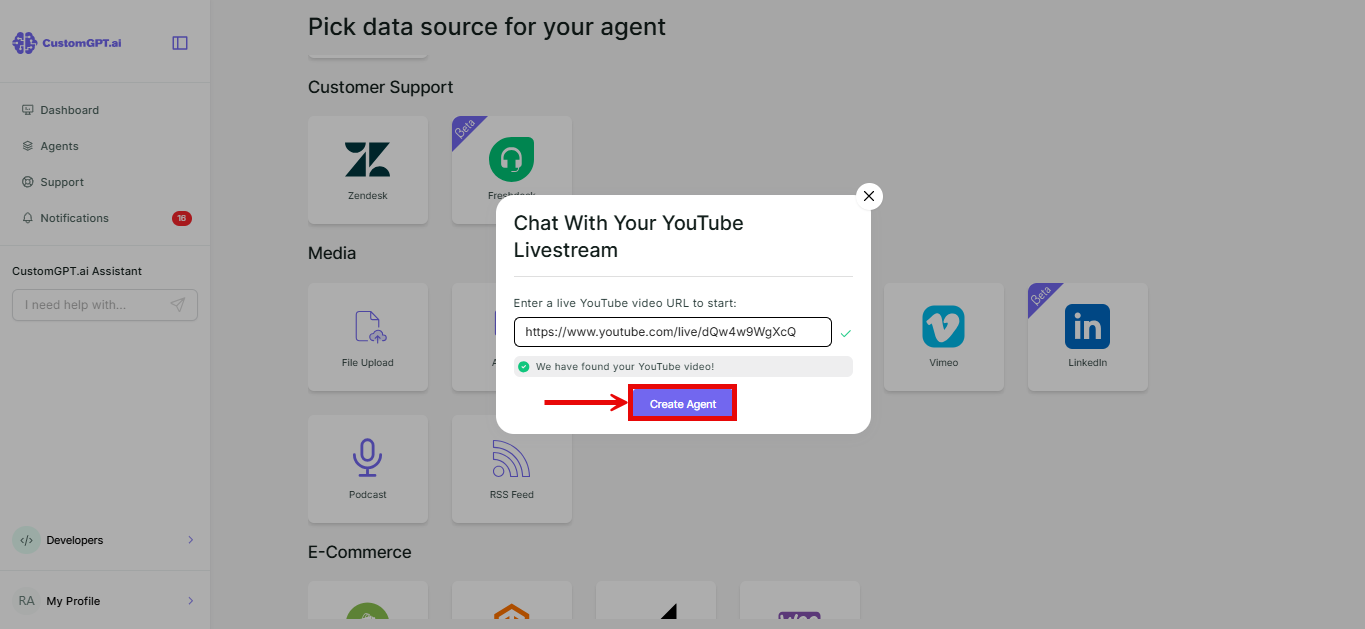
- Click Create Agent.
Add a livestream to an existing agent
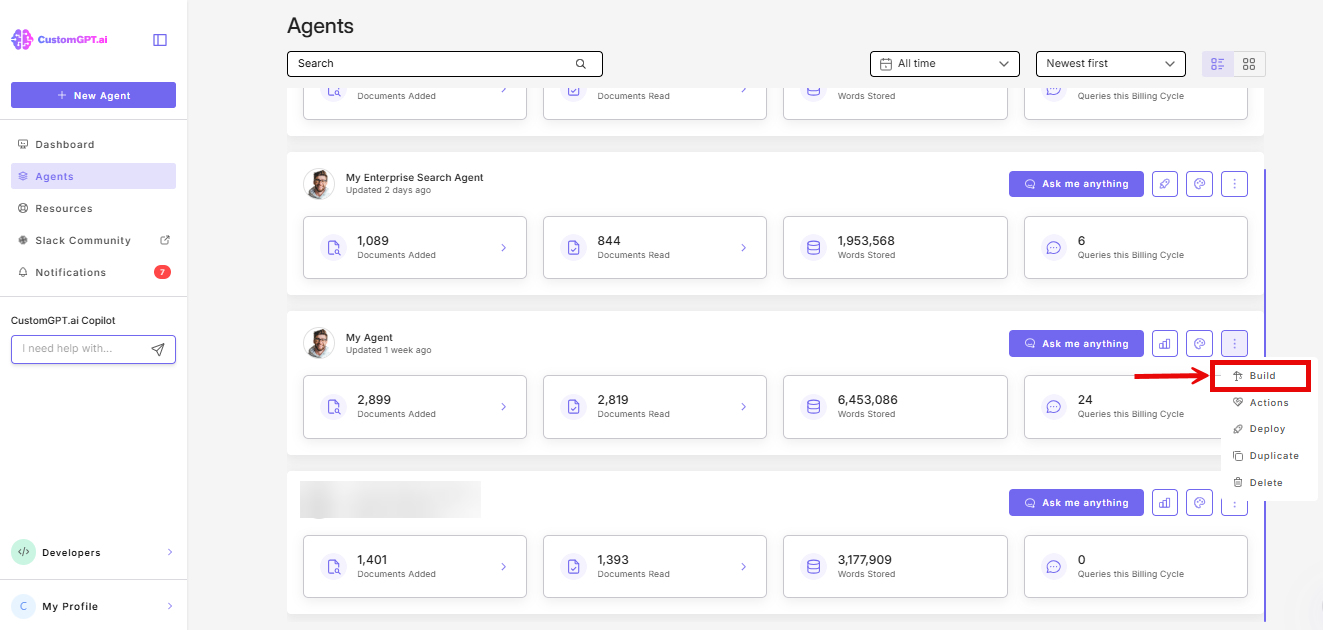
- On the agent you want to add it to, click the three dots and select Build.
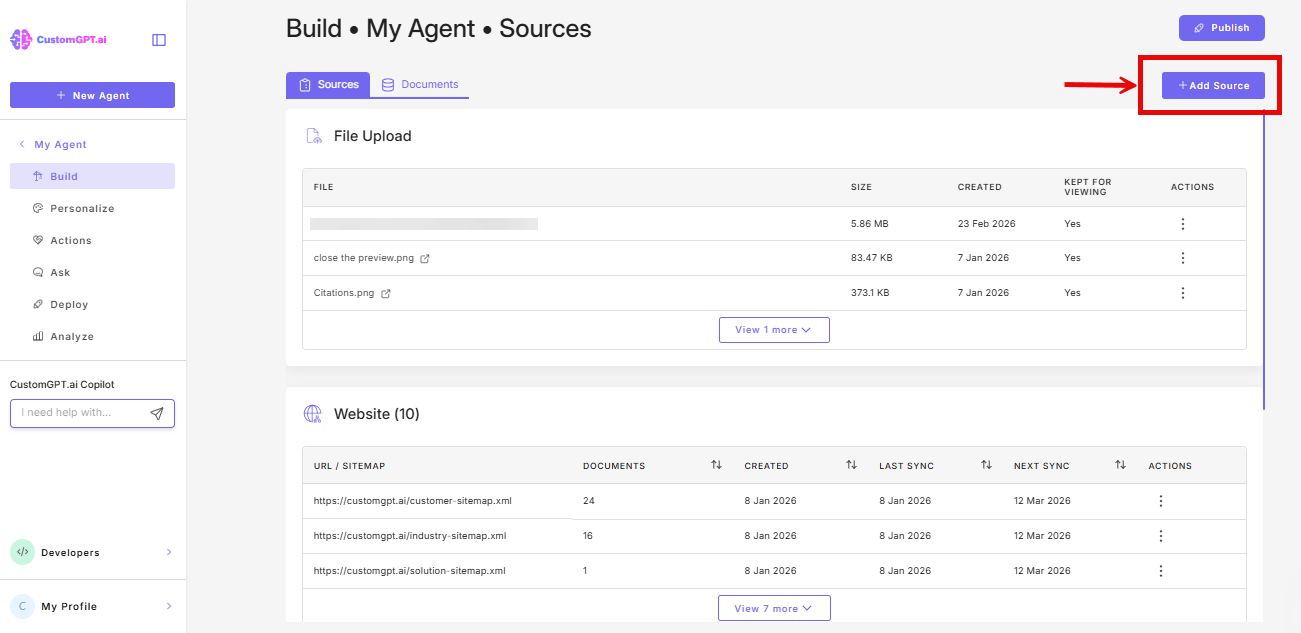
- Click Add Sources.
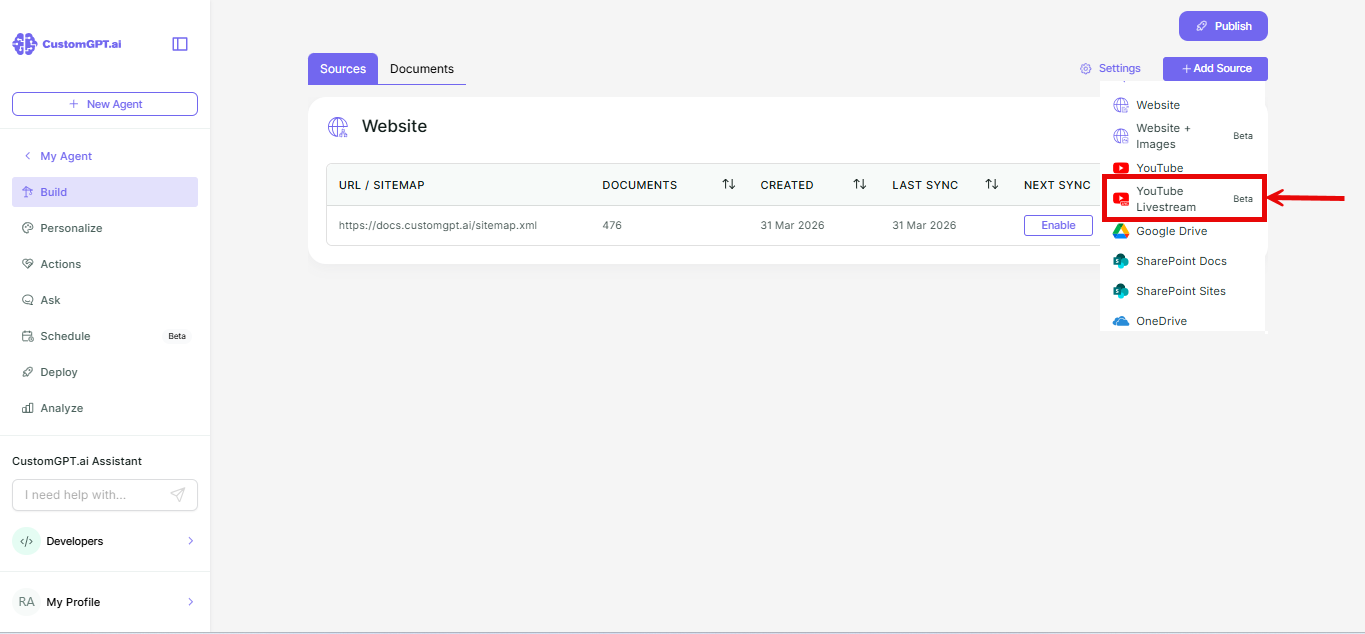
- In the dropdown menu, select YouTube Livestream.
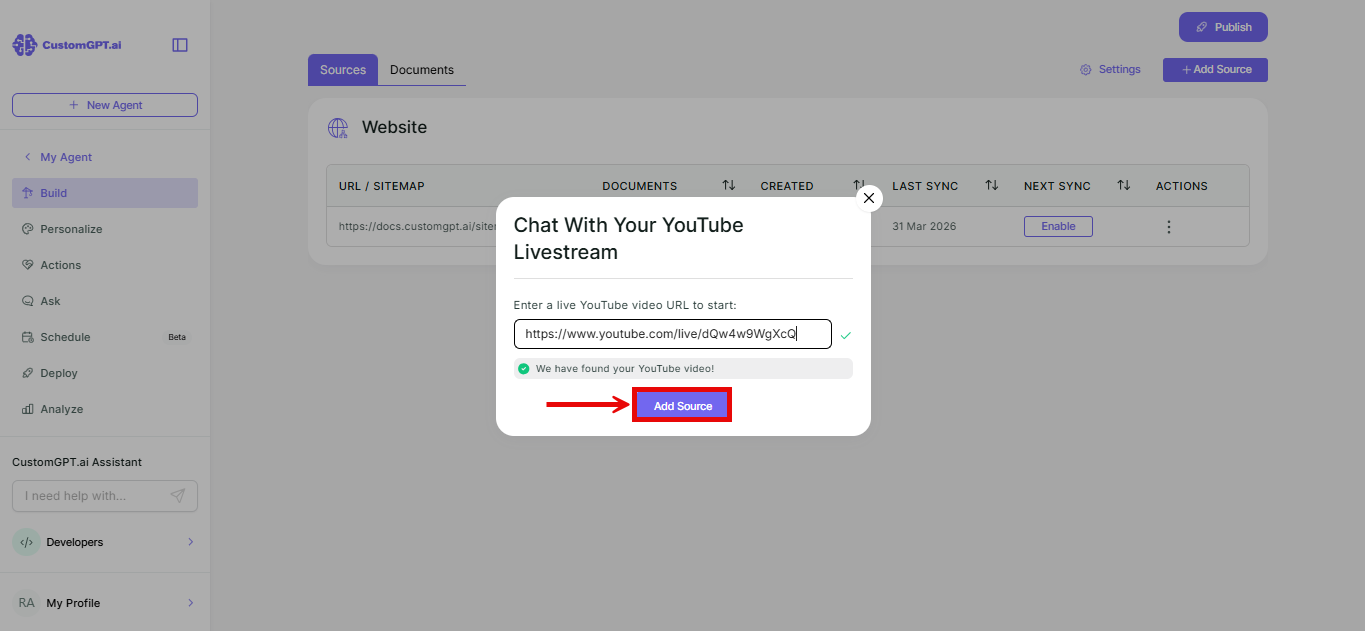
- Paste the livestream link.
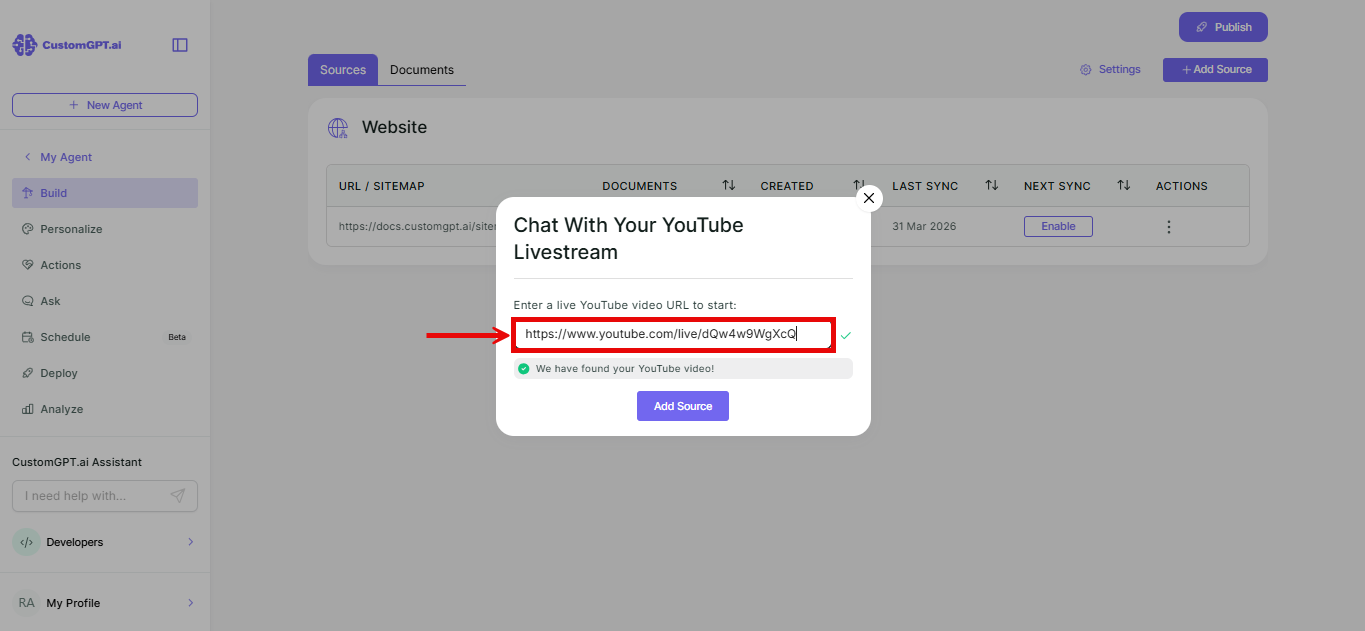
- Click Add Source.
Things to know
- Private livestreams can't be added.
- Pasting a regular YouTube video, channel, or playlist link here shows a message pointing you to the YouTube source instead. Click it to switch popups with your link already filled in.
- If the stream hasn't started yet, it's added with the status Not started, and your agent starts following it automatically the moment it goes live.
- Your agent picks up what's said from the moment you add the source onward. Refer to How YouTube Livestream works for why.
Related articles
Updated 29 days ago
Did this page help you?