
Share an Interactive Dashboard
Share a link to an Interactive Dashboard your agent generated.
This guide shows you how to share a link to an Interactive Dashboard your agent generates, without sharing the full conversation. Use it when you want someone to see just the dashboard, not the conversation it came from.
Before you start
- Interactive Dashboards requires Plan & Act mode and the Interactive Dashboards capability under Smart Tasks. Refer to Enable and configure Smart Tasks.
Steps
- Open a dashboard your agent has generated in the conversation.
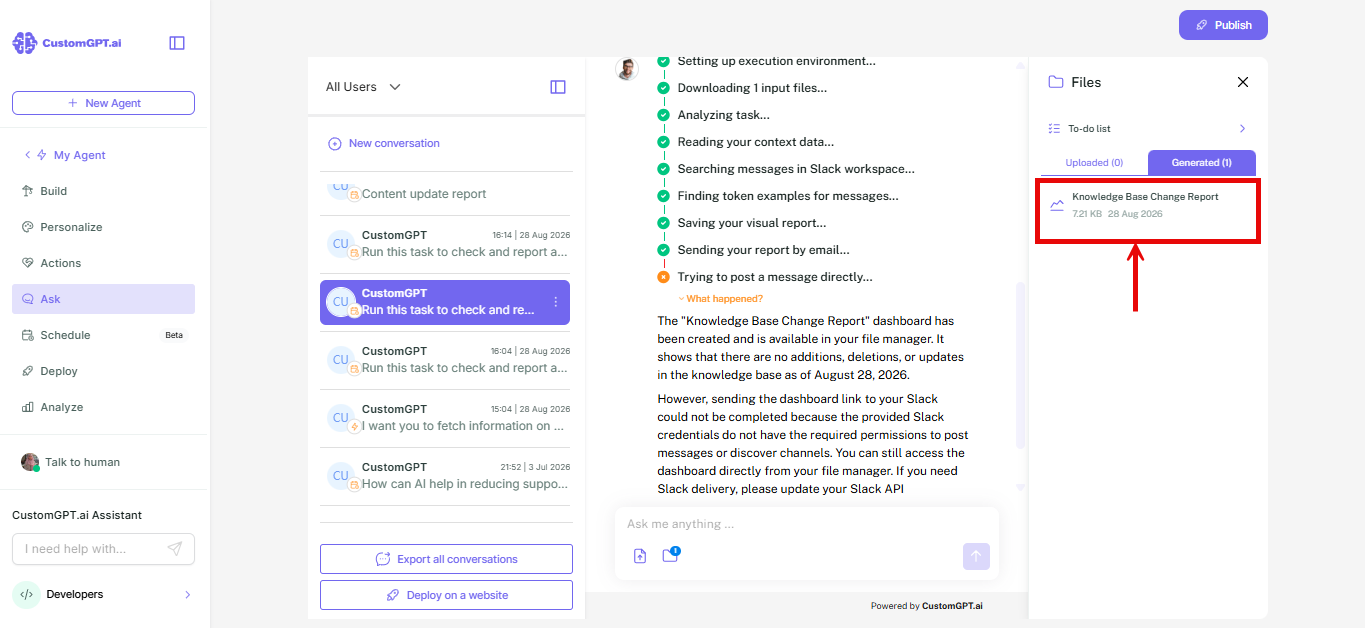
- Click the Share icon in the top right corner of the dashboard, to the left of the Download icon.
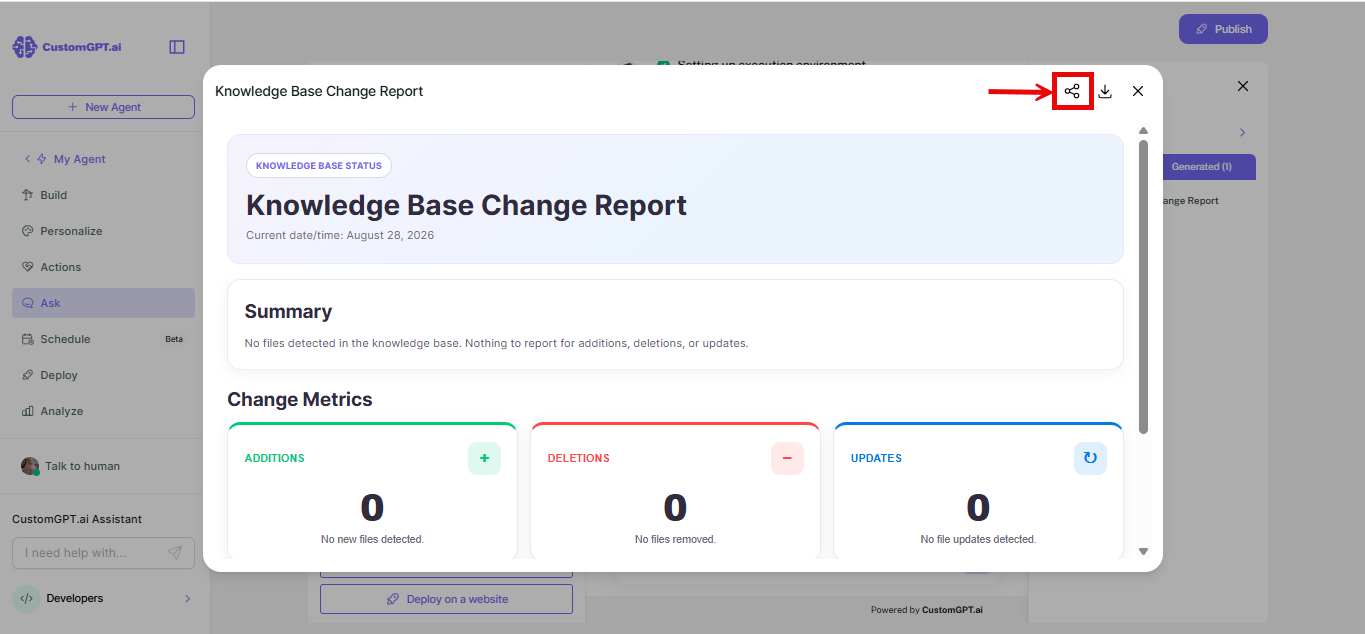
- Select a sharing option: Keep Private, Team members, or Anyone with the link.
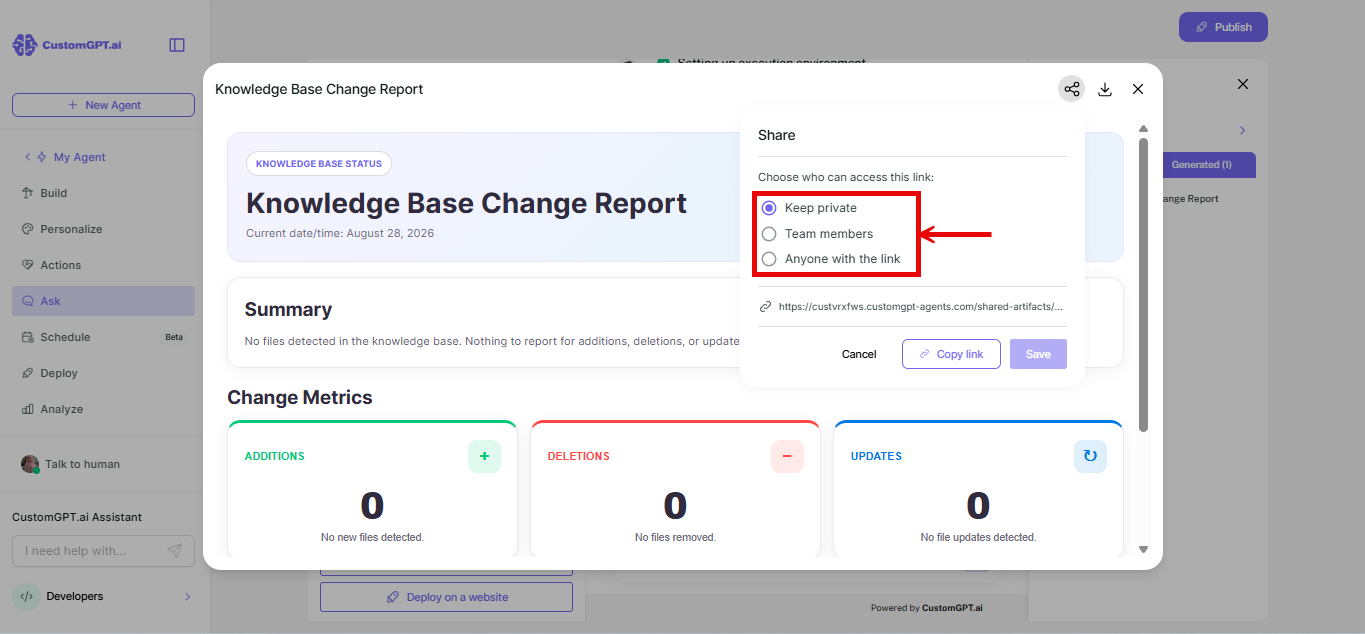
- Click Save.
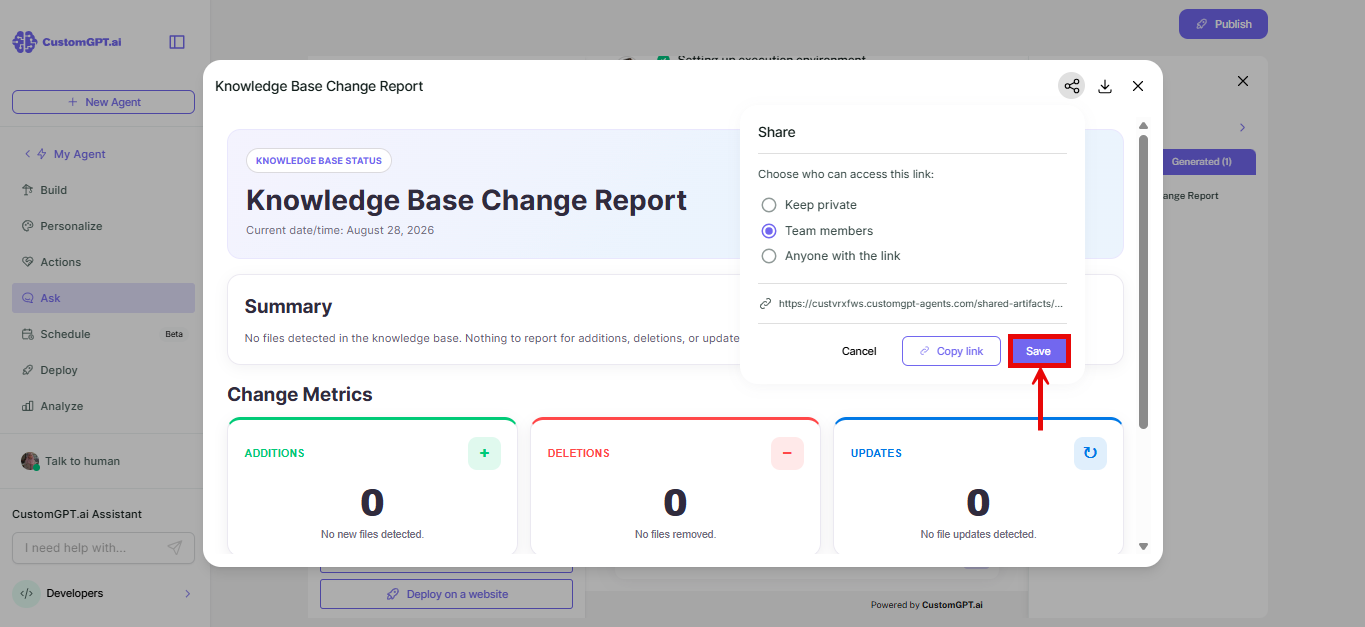
- Click Copy link.
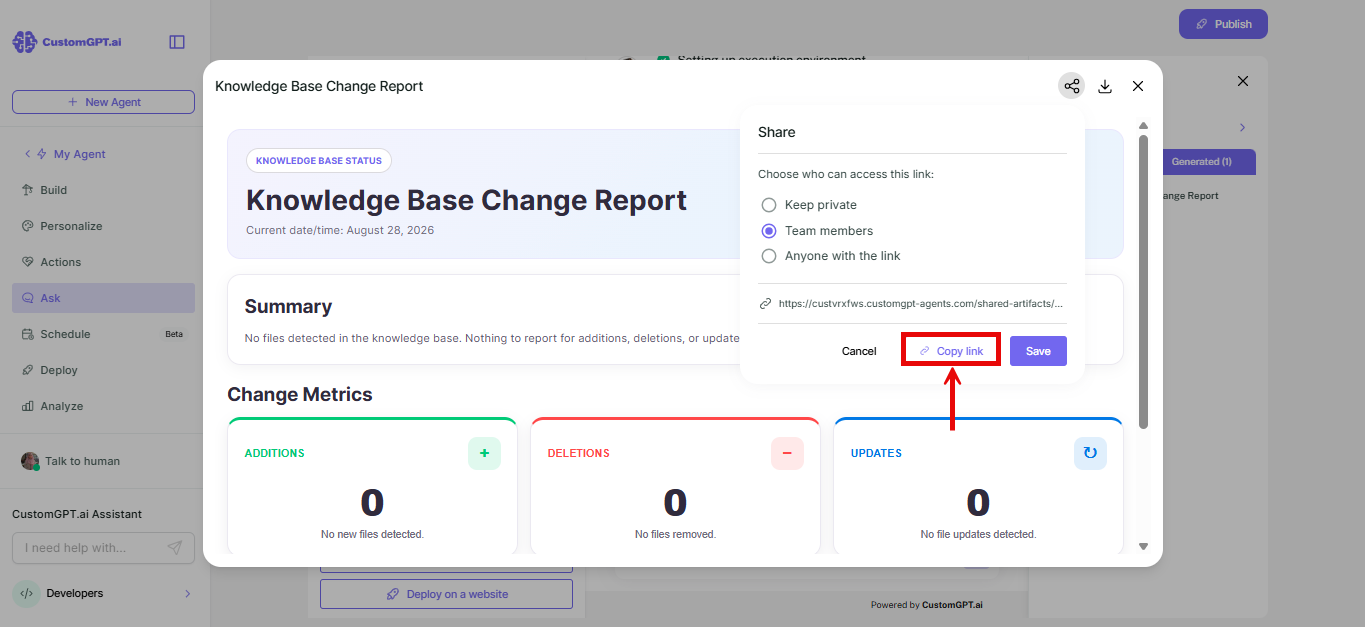
Sharing options
| Option | Who can view the dashboard |
|---|---|
| Keep Private (default) | No one. The link doesn't work until you change this. |
| Team members | Anyone signed in as a team member on your account. Only shown as an option if you're signed in. |
| Anyone with the link | Anyone who has the link, signed in or not. This applies even if your agent itself is private. |
Things to know
- Every new dashboard starts as Keep Private. You choose to share it each time.
- The Share icon is always available, like Download.
- The share link looks like
https://{your-agent-slug}.customgpt-agents.com/shared-artifacts/{id}and never ends in.html. - If your agent's share link prefix changes, existing shared dashboard links break, the same as conversation share links and iframe embeds. Refer to Customize your agent's share link.
- If someone opens a shared dashboard link without access, they see "401 Unauthorized" on an otherwise blank screen instead of the dashboard.
- If the dashboard's source conversation is later deleted, the shared link shows "Uh-oh! It seems like the page you're looking for has gone for a walk." instead of the dashboard.
Related articles
Updated about 1 month ago
Did this page help you?