
Remove a tag from a document
Remove a tag from a document in your agent's knowledge base.
This guide shows you how to remove a tag from a document. Use it when a tag no longer applies to that document.
Remove a tag from the Tags column
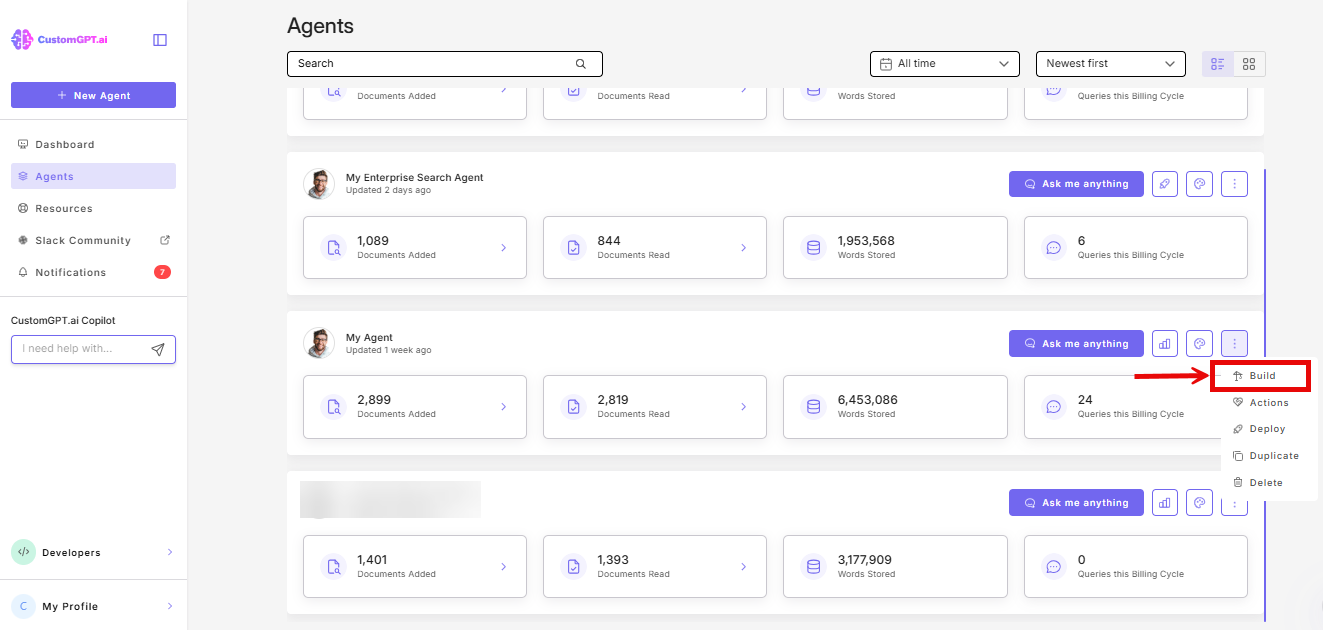
- On the agent whose documents you want to update, click the three-dot menu and select Build.
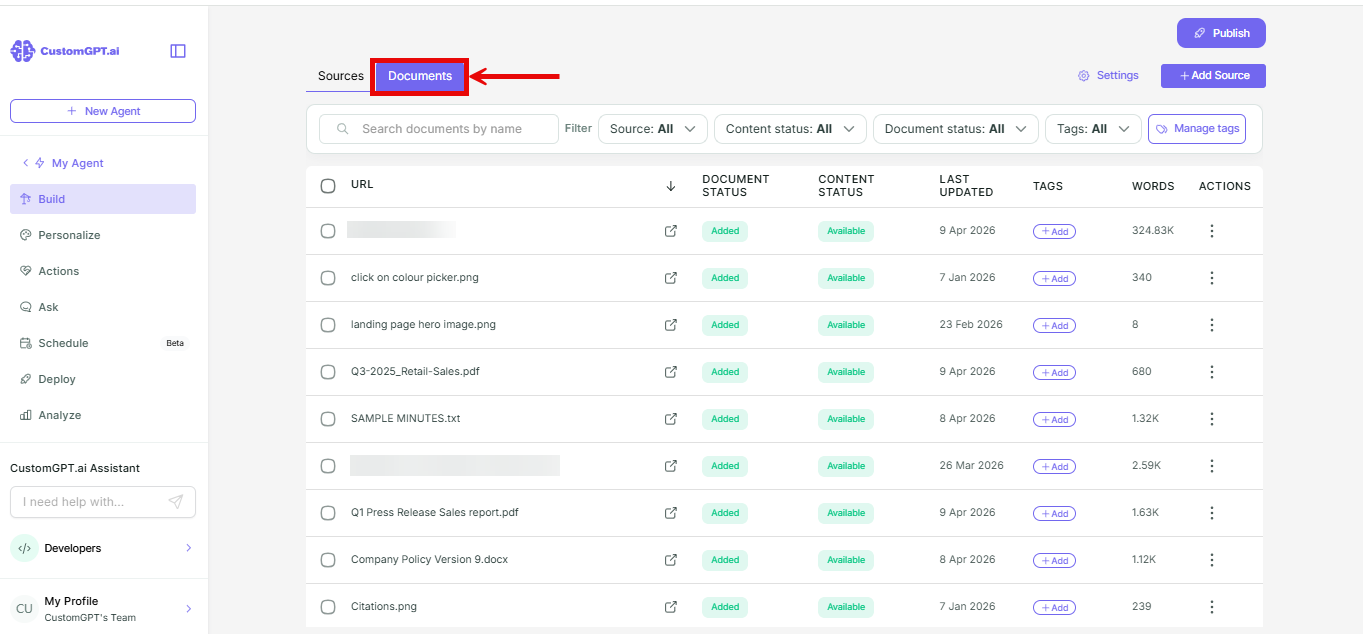
- On the Build page, select the Documents tab.
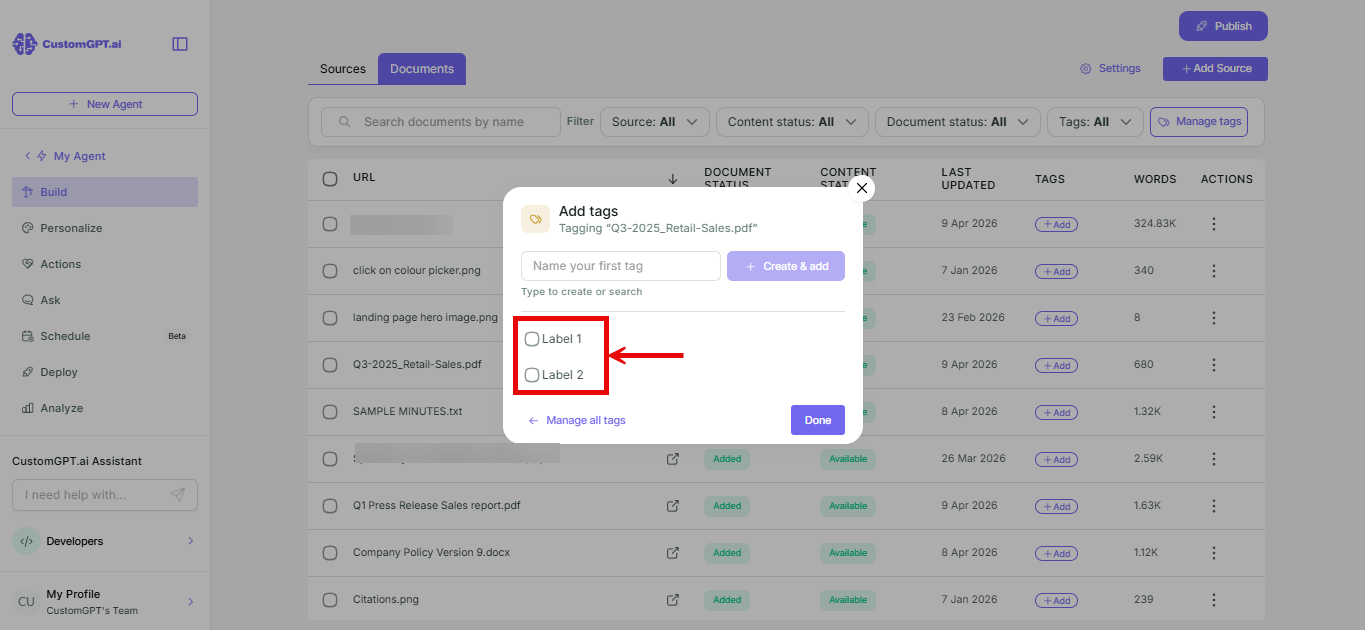
- In the Tags column, click the + sign next to the document. The Add tags pop-up opens.

- Deselect the tag you want to remove.
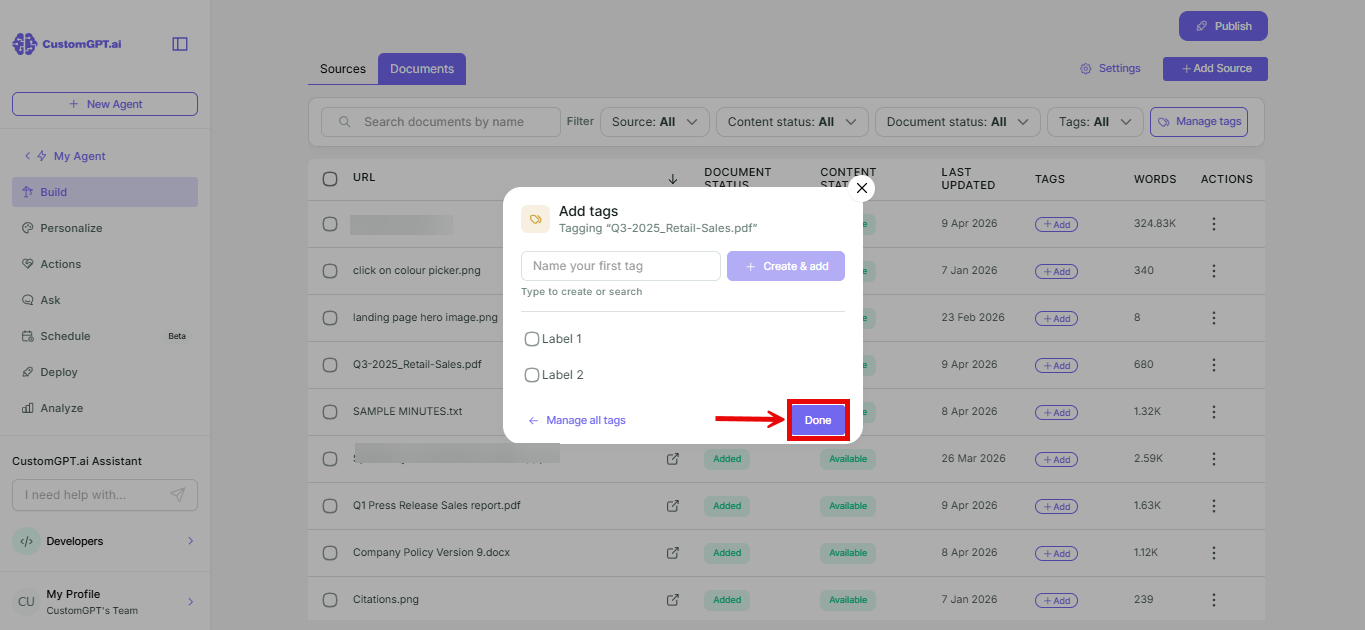
- Click Done.
Remove a tag from a document's Metadata
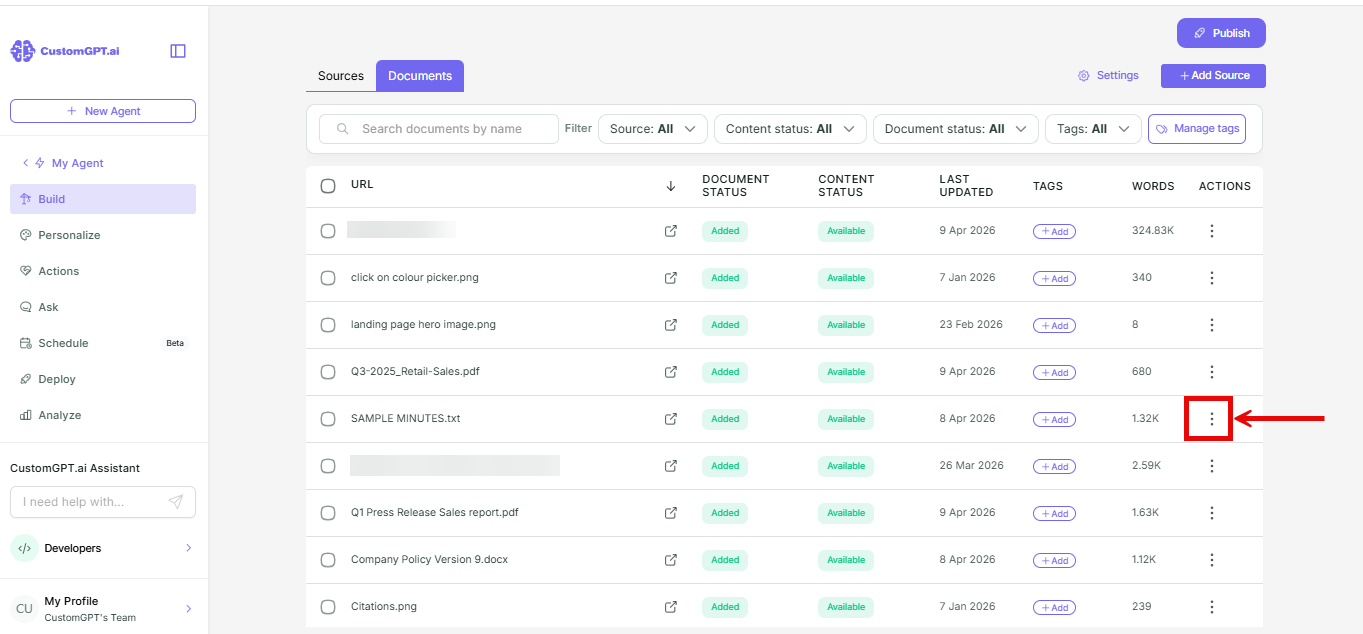
- On the Documents tab, click the three-dot menu in the Actions column next to the document.
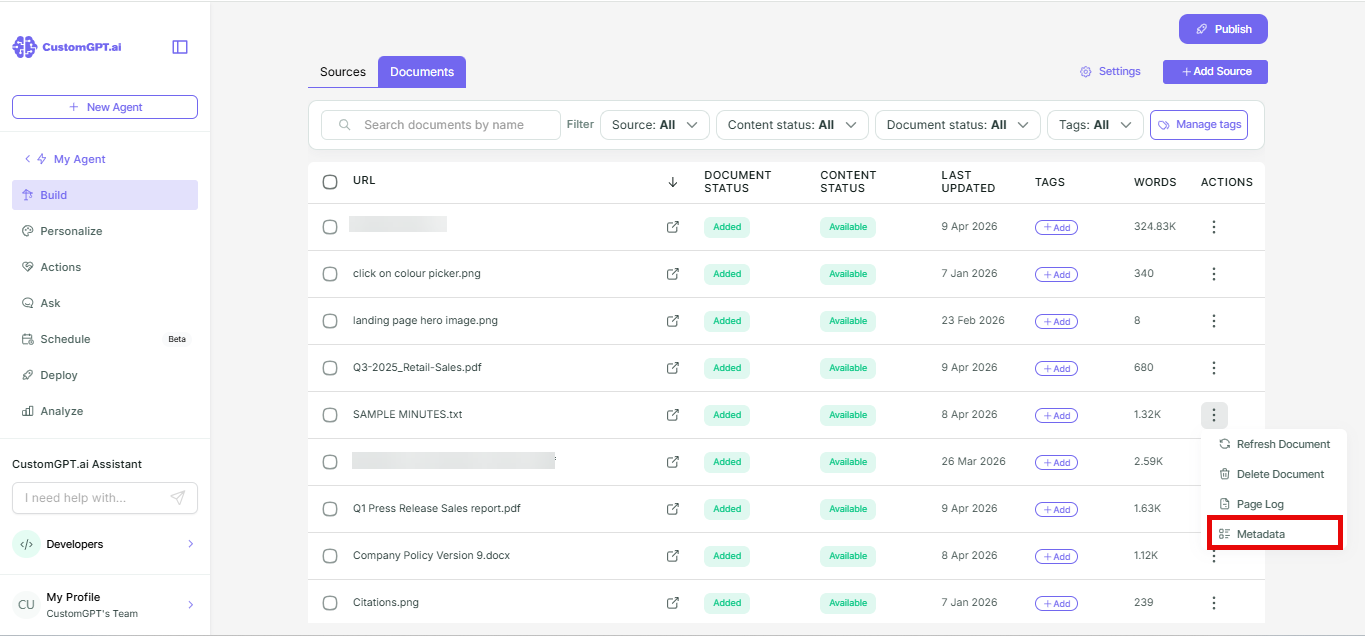
- Select Metadata.
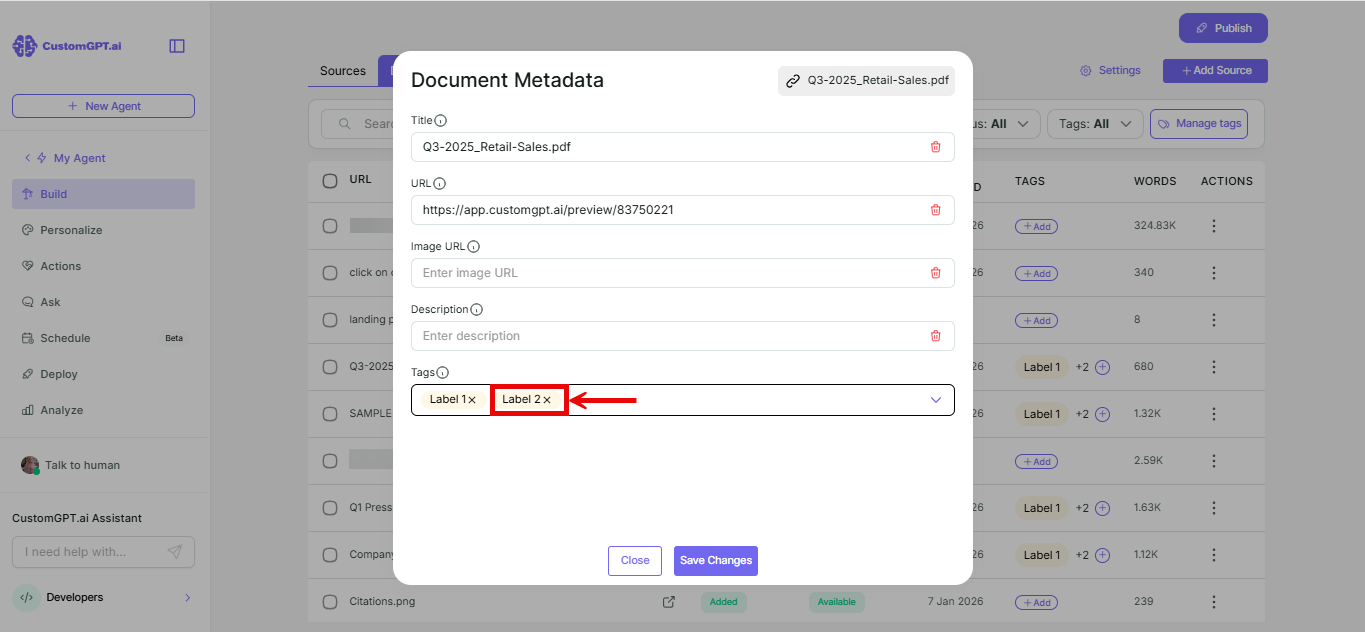
- In the Tags field, click the X sign on the tag you want to remove.
- Click Save Changes.
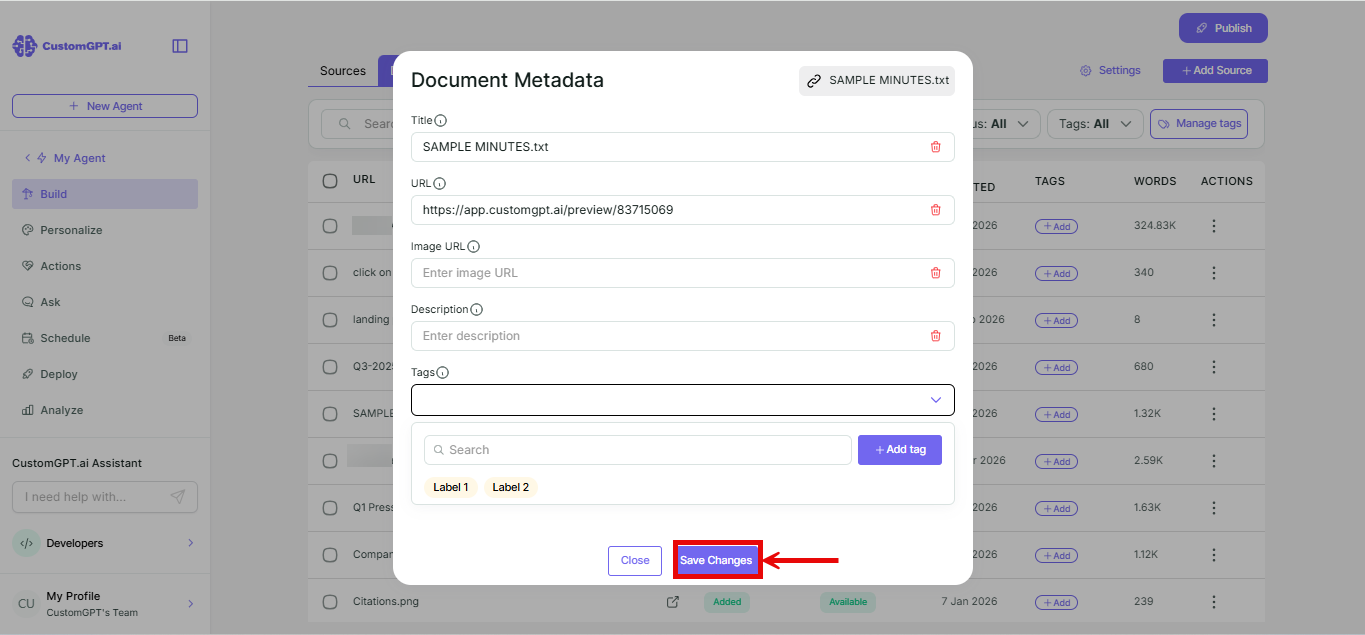
The tag is removed from the document but stays in your agent's tag library.
Related articles
Updated 20 days ago
Did this page help you?