
Enable Library Map
Turn on Library Map for an agent and choose when snapshots of your documents are taken.
This guide shows you how to turn on Library Map for an agent and choose when snapshots of your documents are taken.
Before you start
- Plan & Act mode is turned on for your agent. Refer to Enable Plan & Act mode.
Turn on Library Map
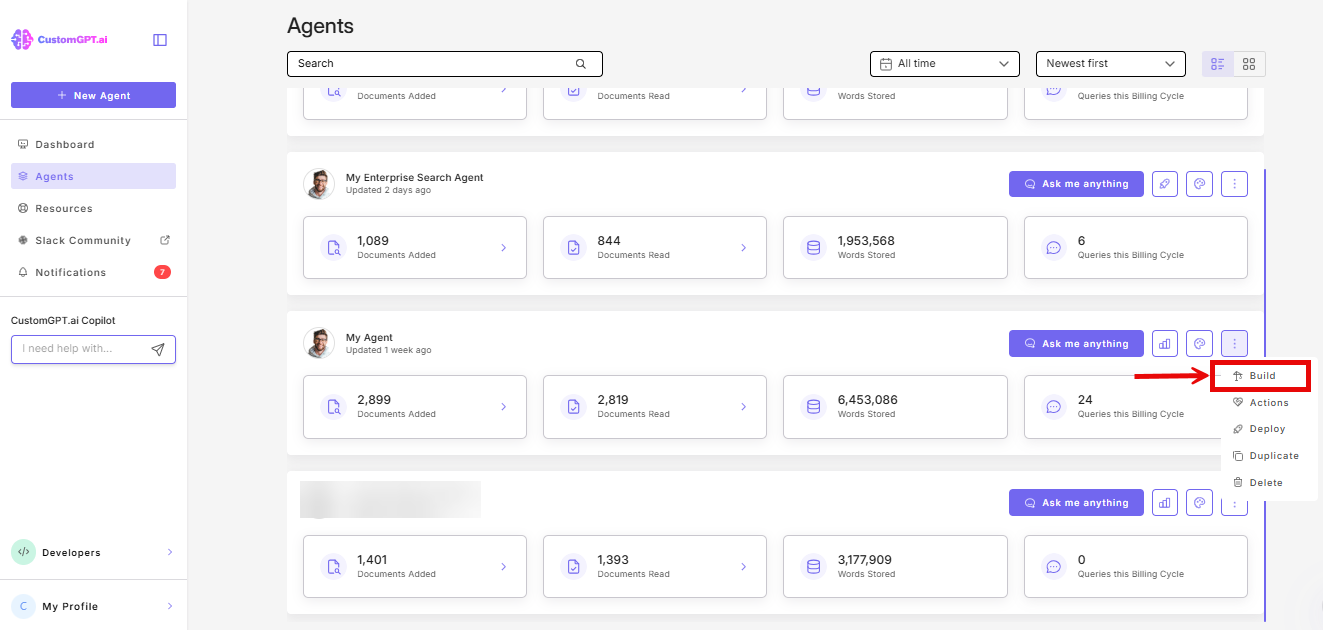
- Click the three dots next to your agent’s name, then select Build.
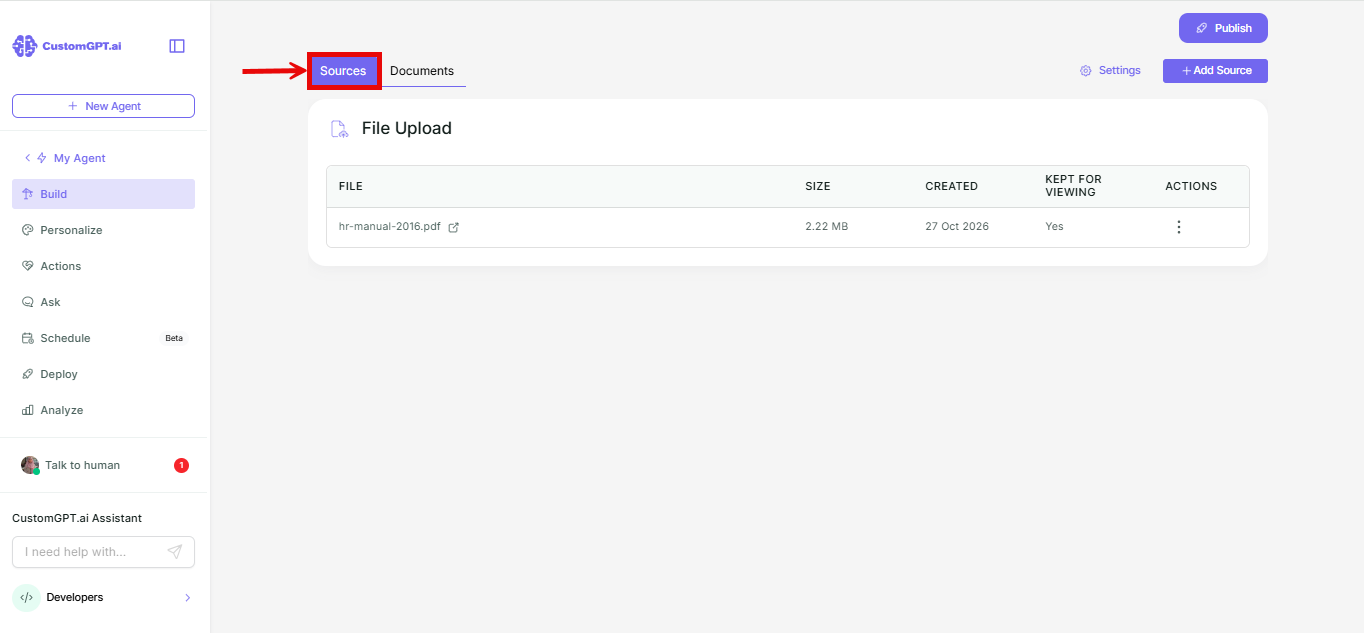
- Go to Sources.
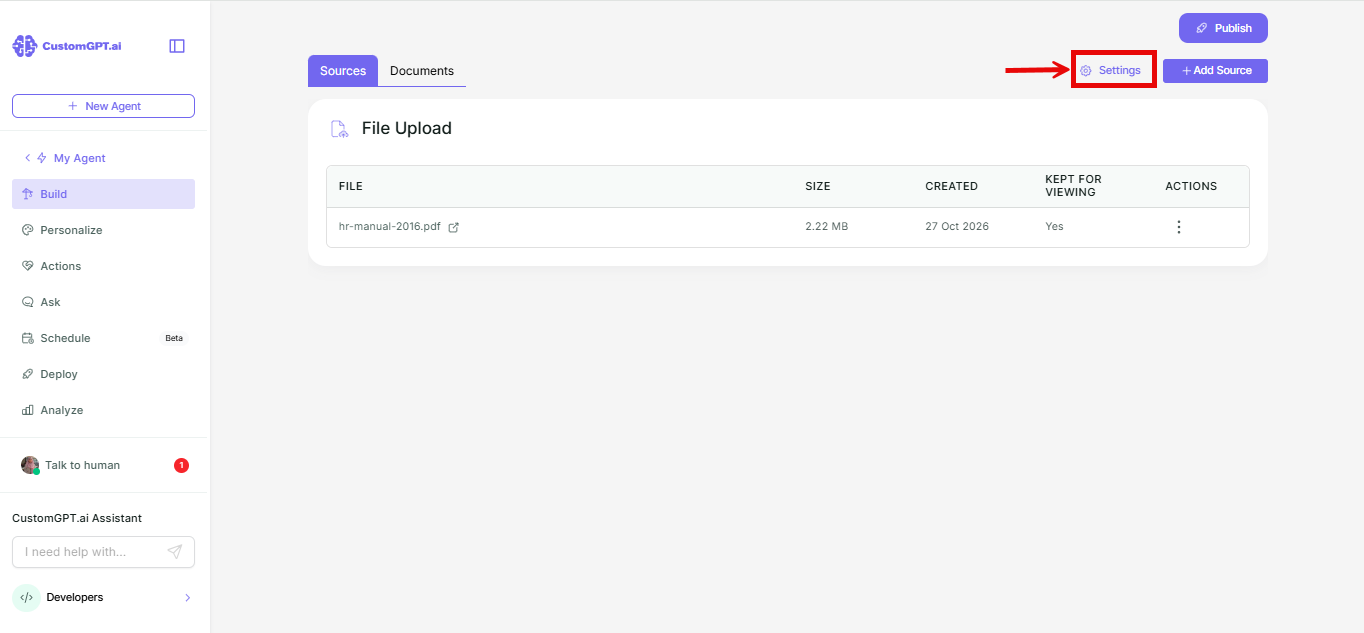
- Click Settings.
- In the Library Map tab, toggle on Use Library Map.
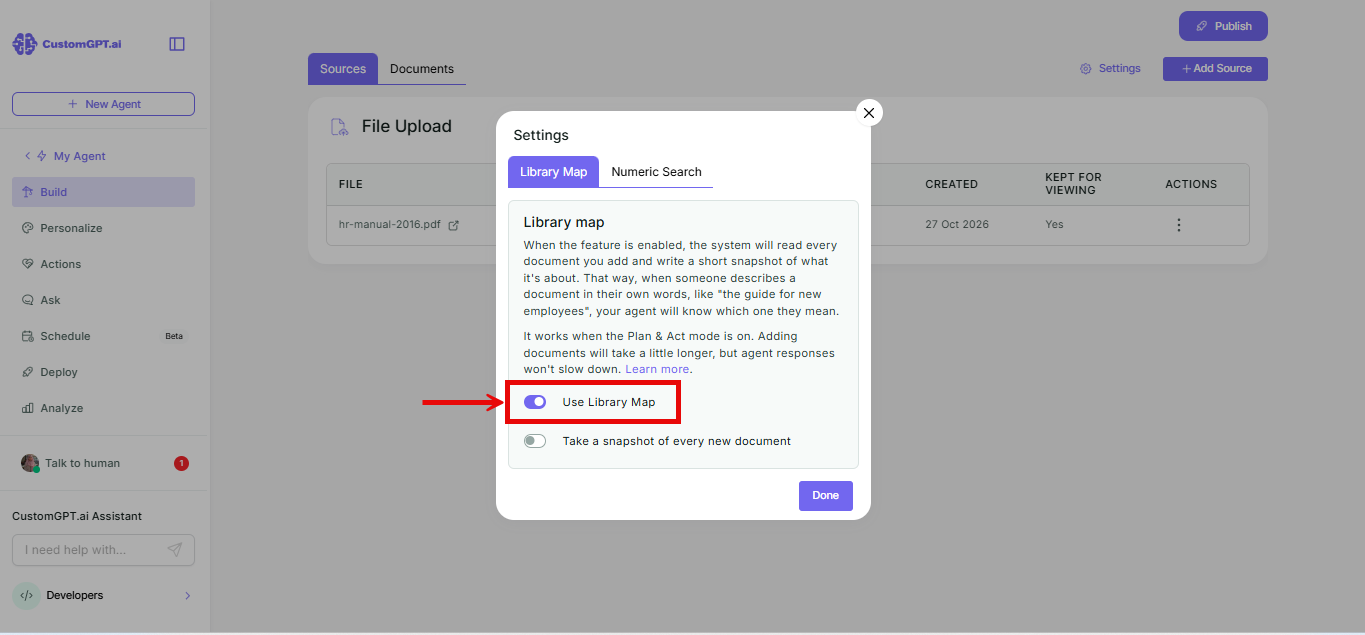
- To take a snapshot of each new document as you add it, toggle on Take a snapshot of every new document.
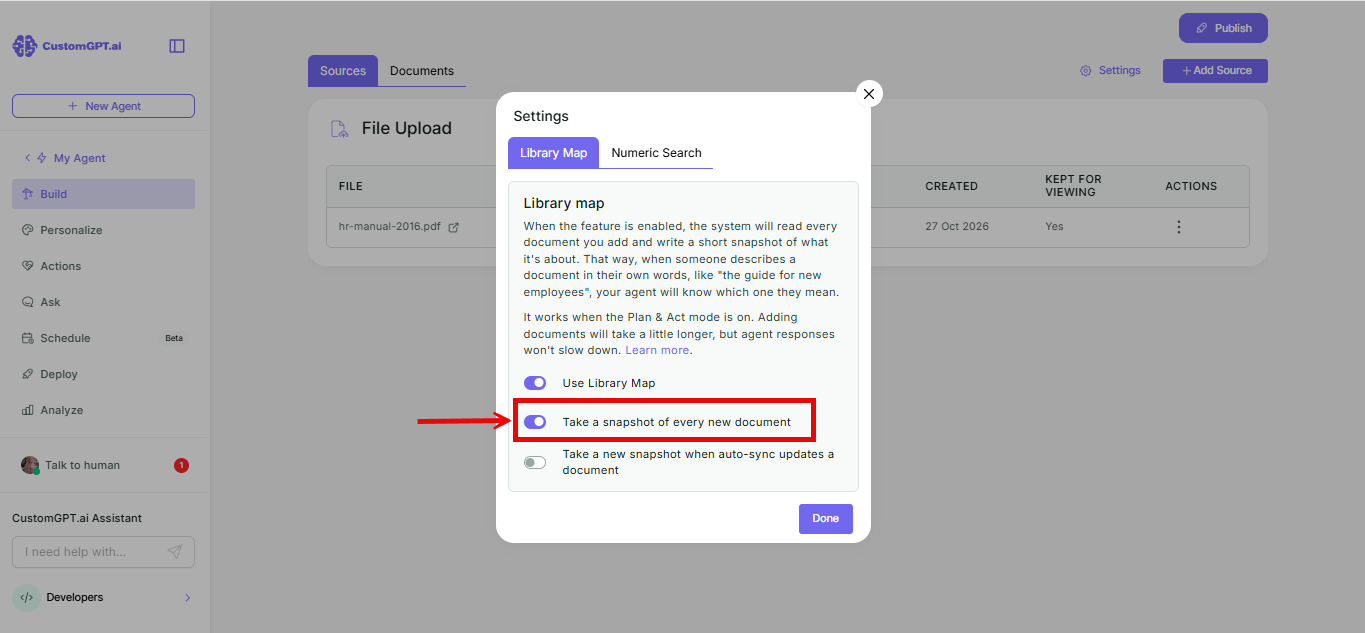
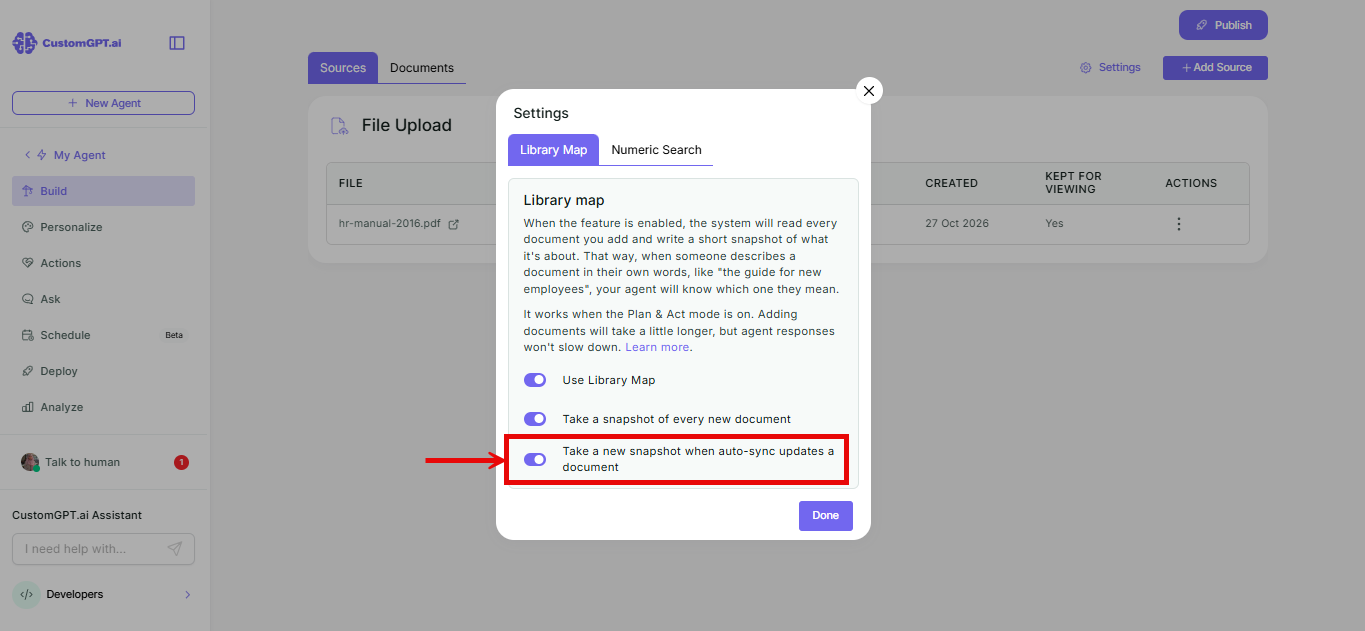
- To take a new snapshot when auto-sync updates a document, toggle on Take a new snapshot when auto-sync updates a document.
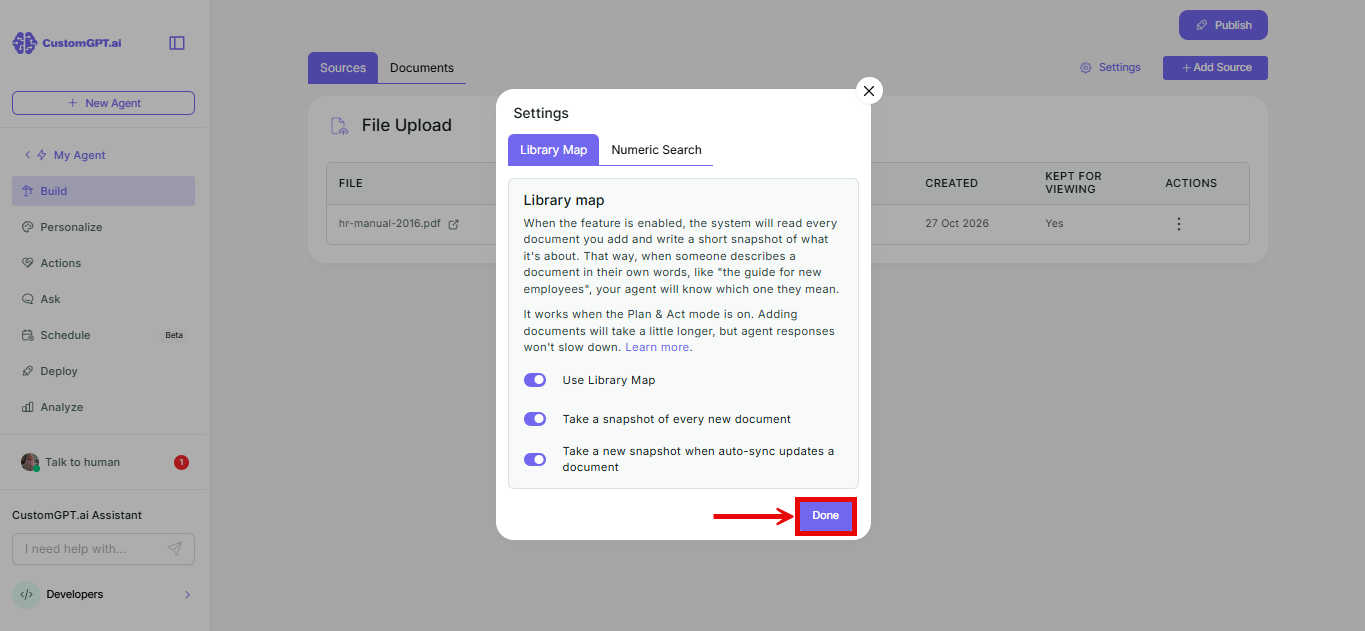
- Click Done.
Things to know
- Each option appears after you turn on the one above it.
- You can also turn on Library Map when you create an agent. On the Pick data source for your agent page, click Settings and use the same toggles.
- Each word of a document that Library Map takes a snapshot of counts as 3 additional words against your account's monthly word limits.
Related articles
Updated about 1 hour ago
Did this page help you?