
Manage your Freshdesk connection
View sync status, update your API key, control ticket anonymization, or remove your Freshdesk source.
Once you've connected Freshdesk, use this guide to check sync status, view synced documents, update your connection, or remove the source.
Before you start
- You've connected Freshdesk as a source. Refer to Connect Freshdesk to your agent.
View your Freshdesk source
- On the agent, click the three dots and select Build.
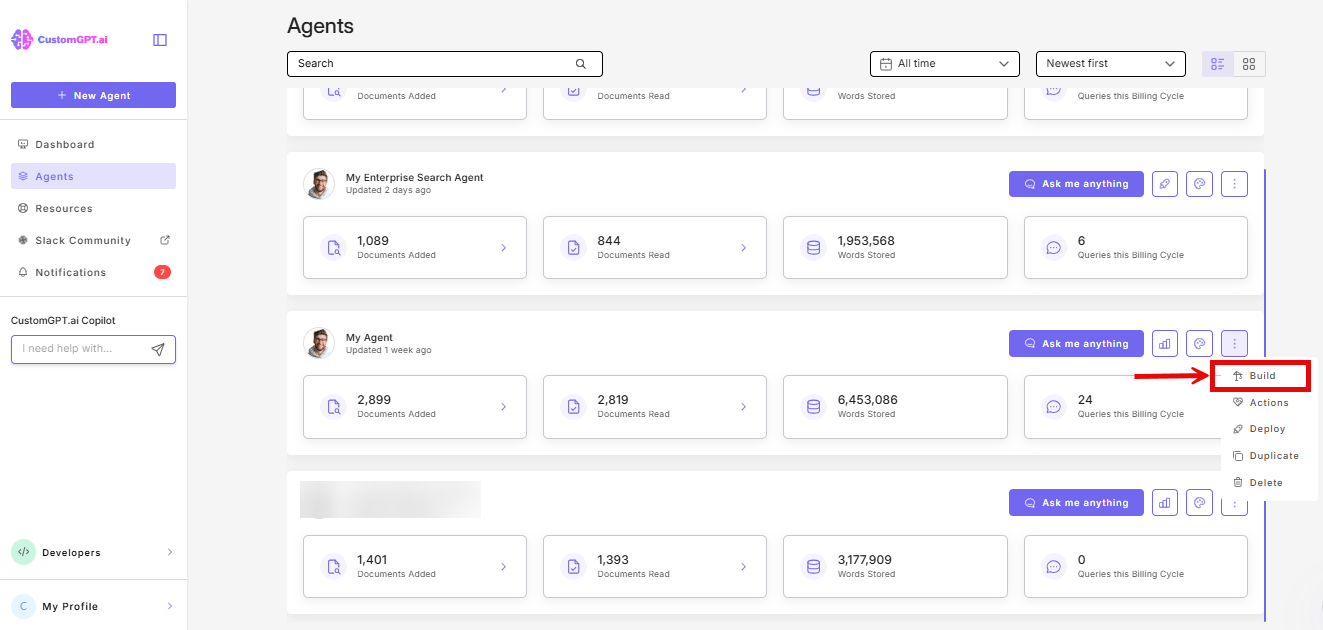
- Go to Sources and find your Freshdesk source.
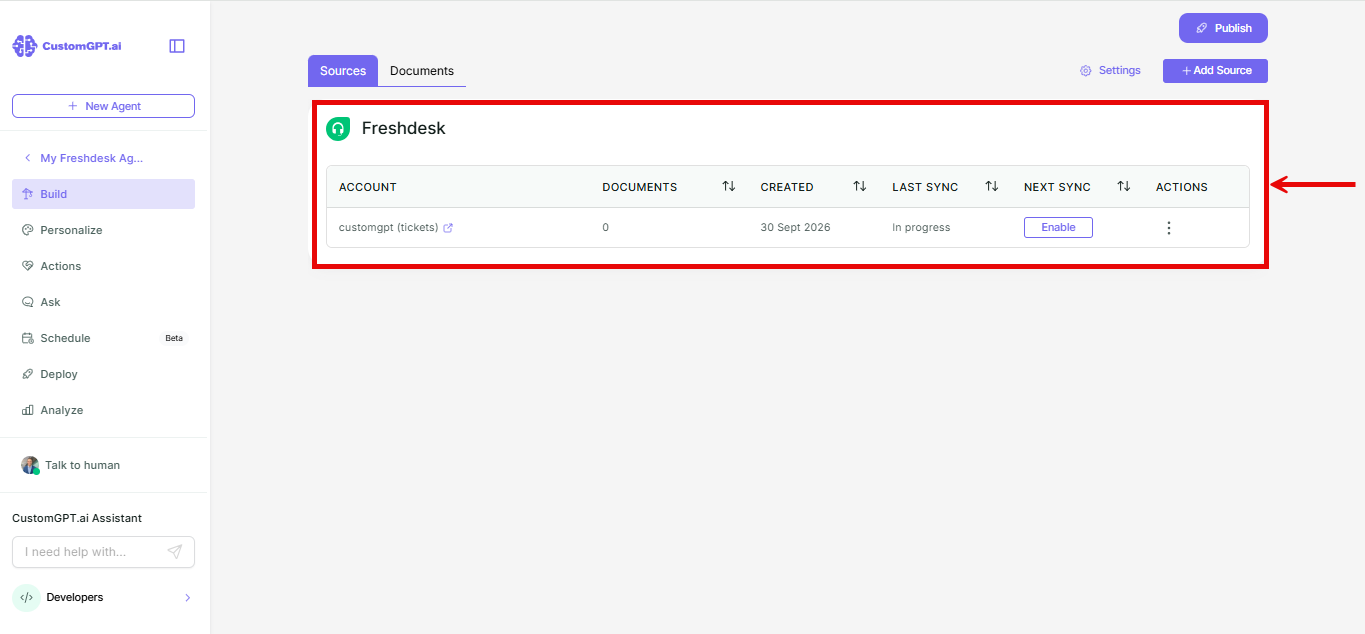
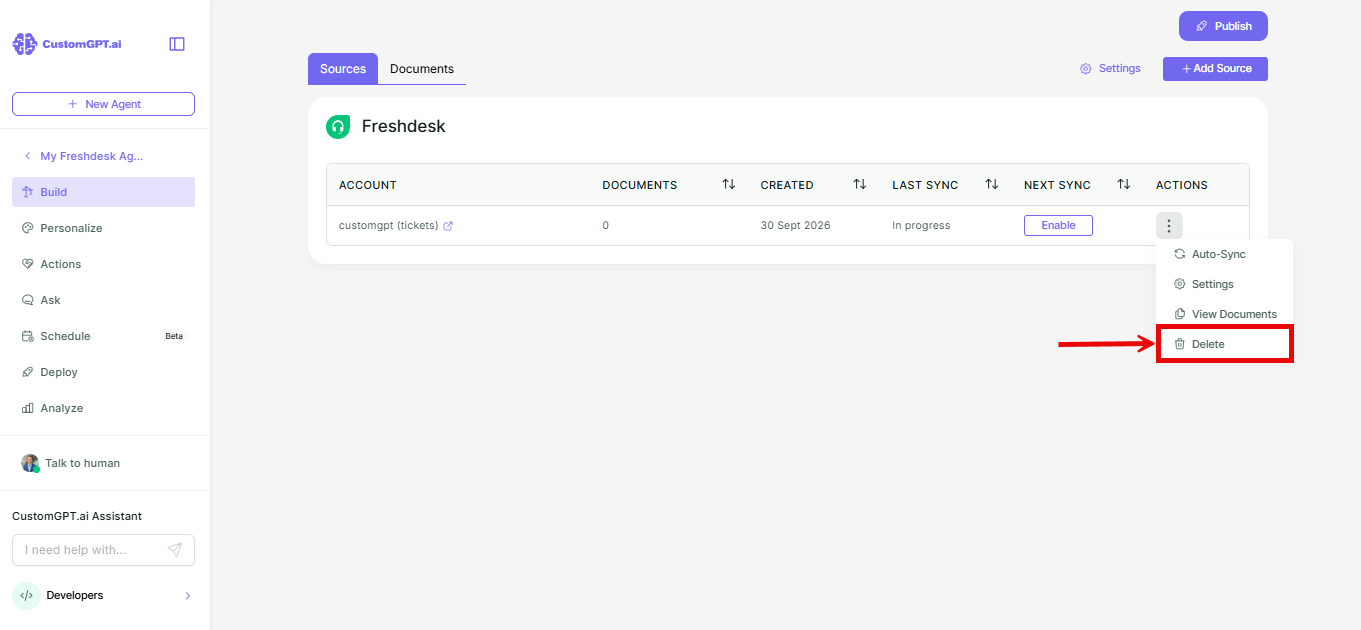
Your Freshdesk source appears as a row, showing Account, Documents, Created, Last Sync, and Next Sync.
View synced documents
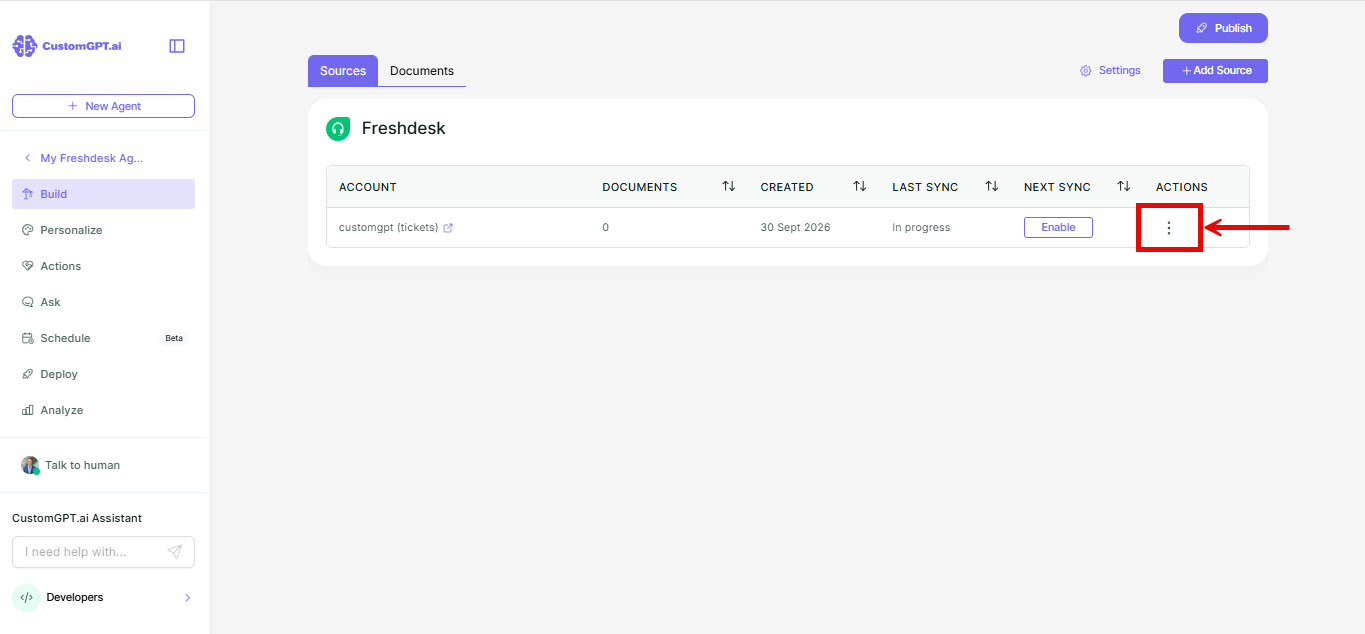
- On the row you want to check, click the three-dot menu under Actions.
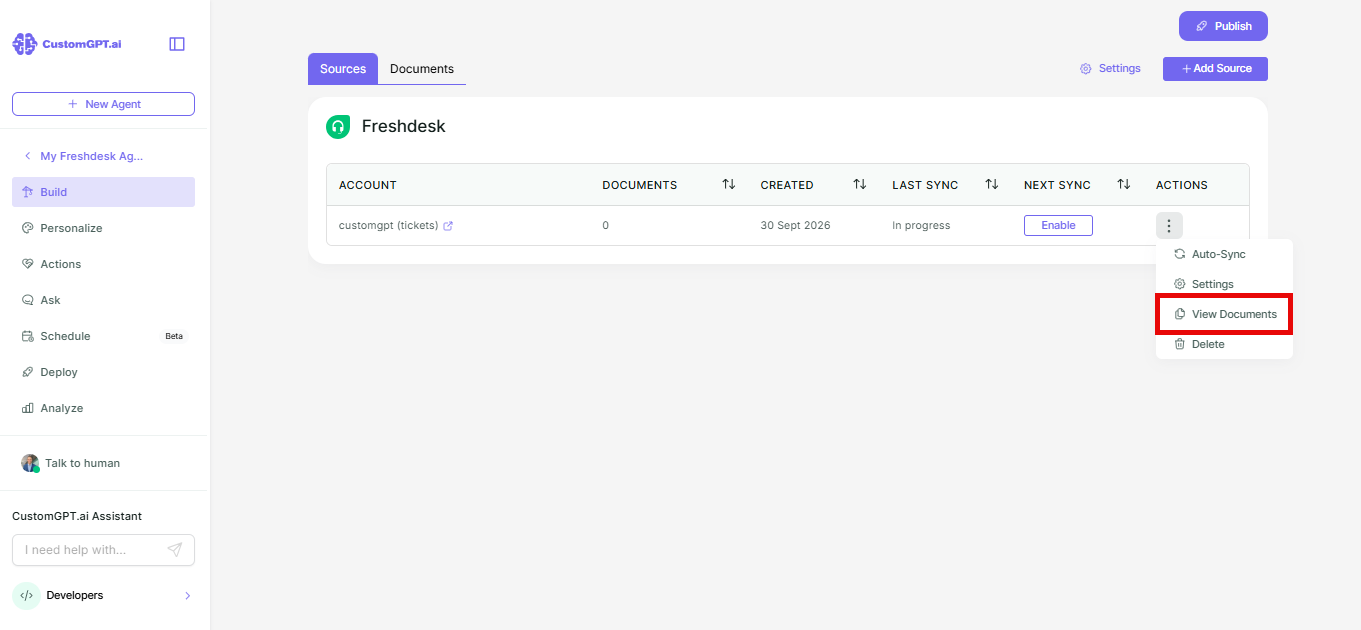
- Select View Documents.
Change your API key or anonymization setting
- On the row you want to update, click the three-dot menu under Actions.
- Select Settings.
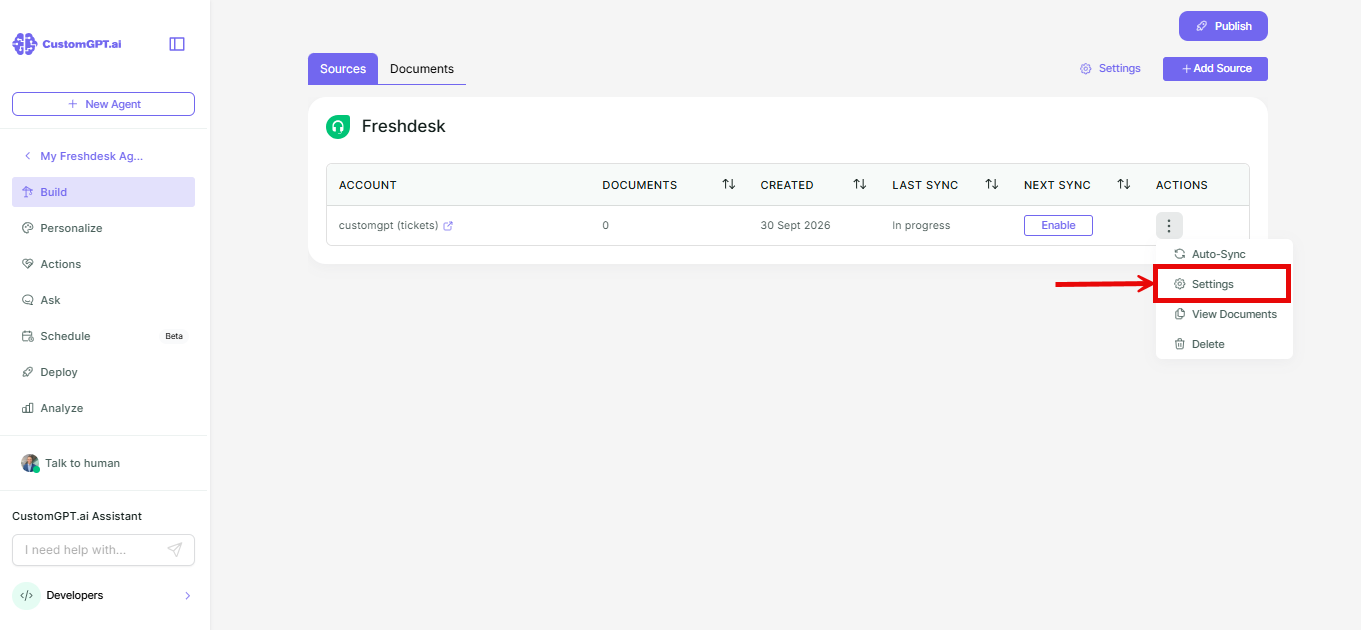
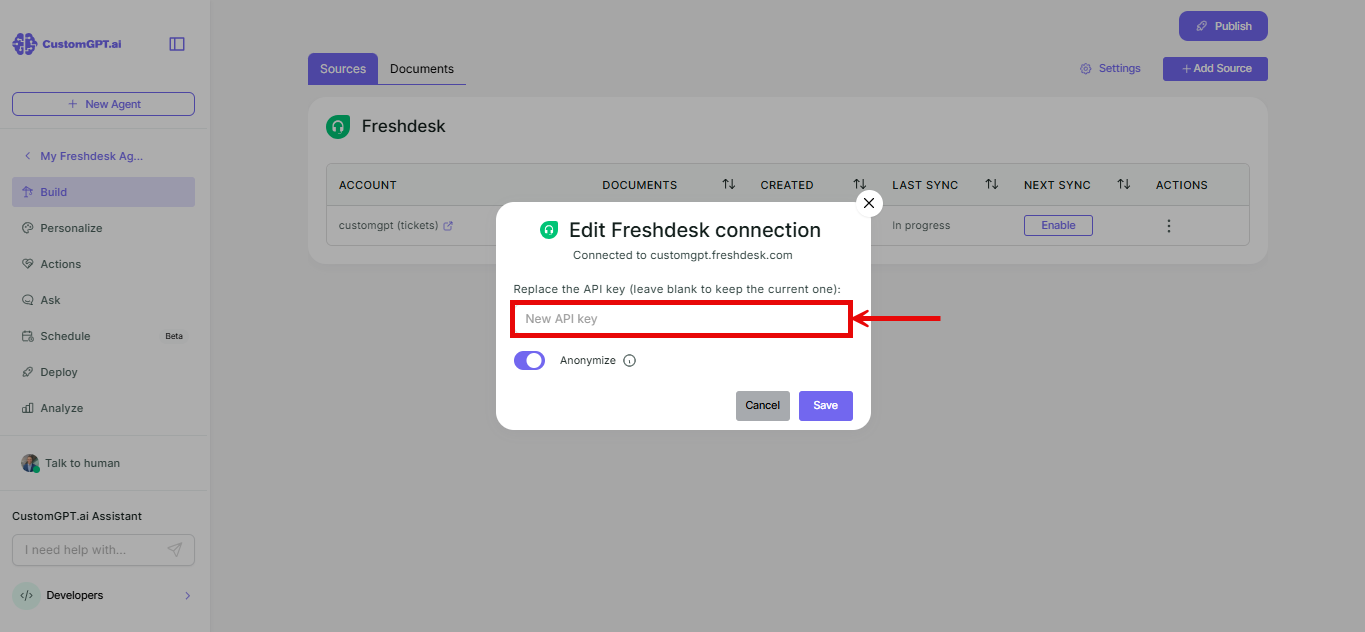
- Enter a new API key to replace the current one.
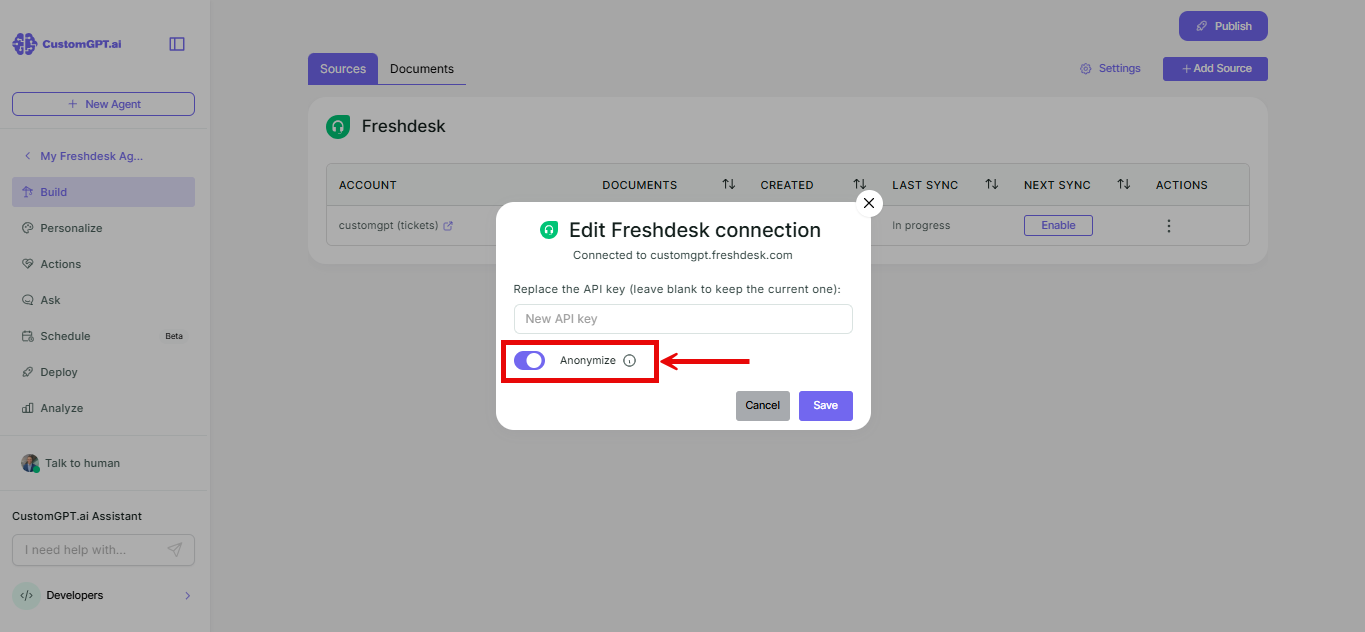
- Toggle Anonymize on or off for ticket content.
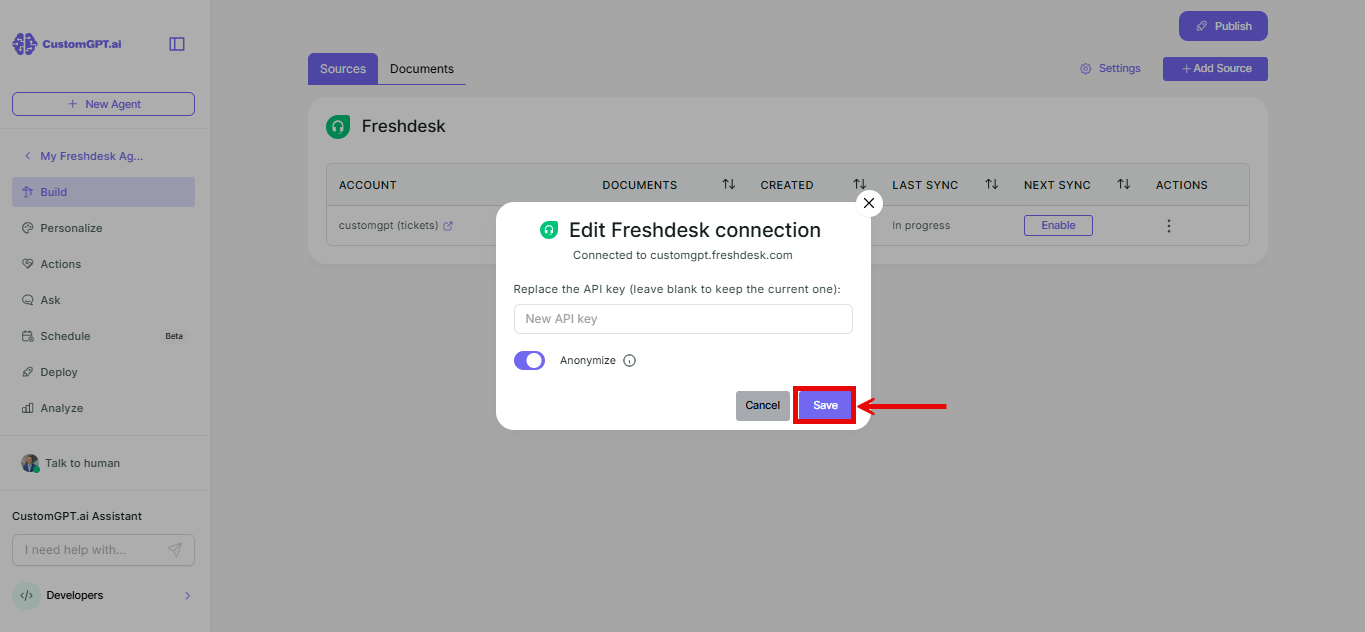
- Click Save.
Remove a Freshdesk source
- On the row you want to remove, click the three-dot menu under Actions.
- Select Delete.
- Click Delete.
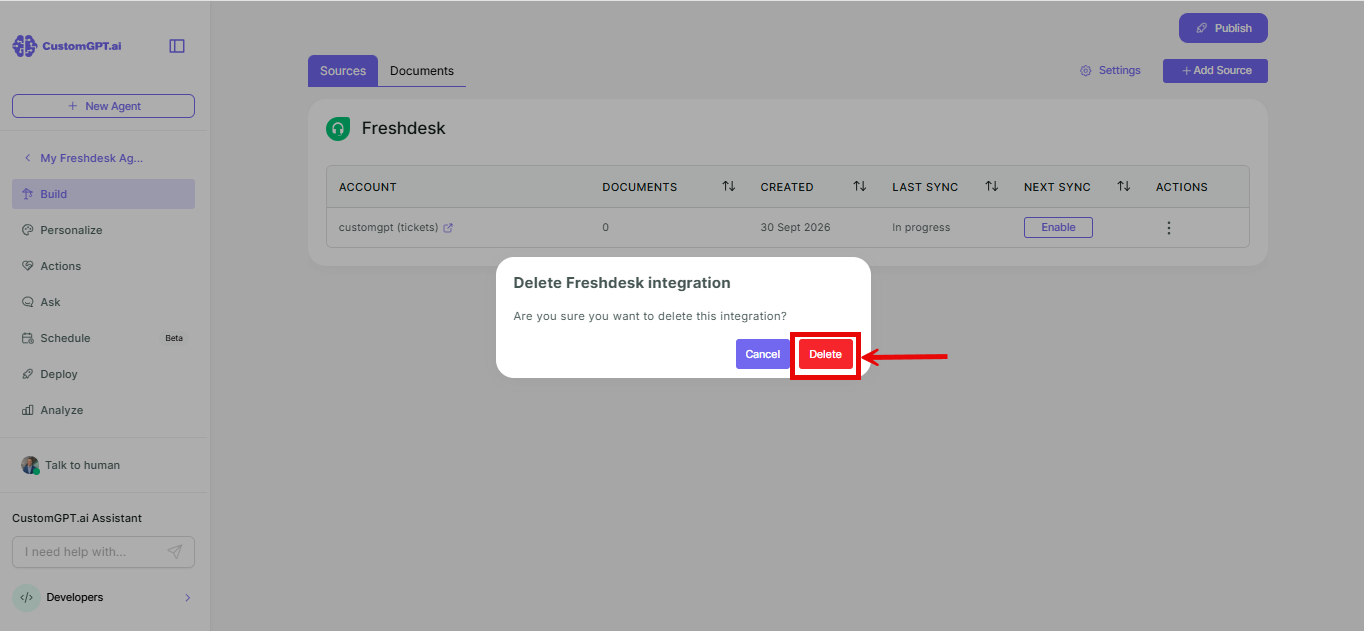
Note: This permanently removes that source's data from your agent's knowledge base.
Related articles
Updated 20 days ago
Did this page help you?