
Manage a YouTube livestream source
Check a livestream's status, pause or resume live syncing, or remove the source.
Once you've connected a YouTube livestream, use this guide to check its status, pause or resume it, or remove it.
Before you start
- You've connected a YouTube livestream source. Refer to Connect a YouTube livestream.
Check a livestream's status
- On the agent, click the three dots and select Build.
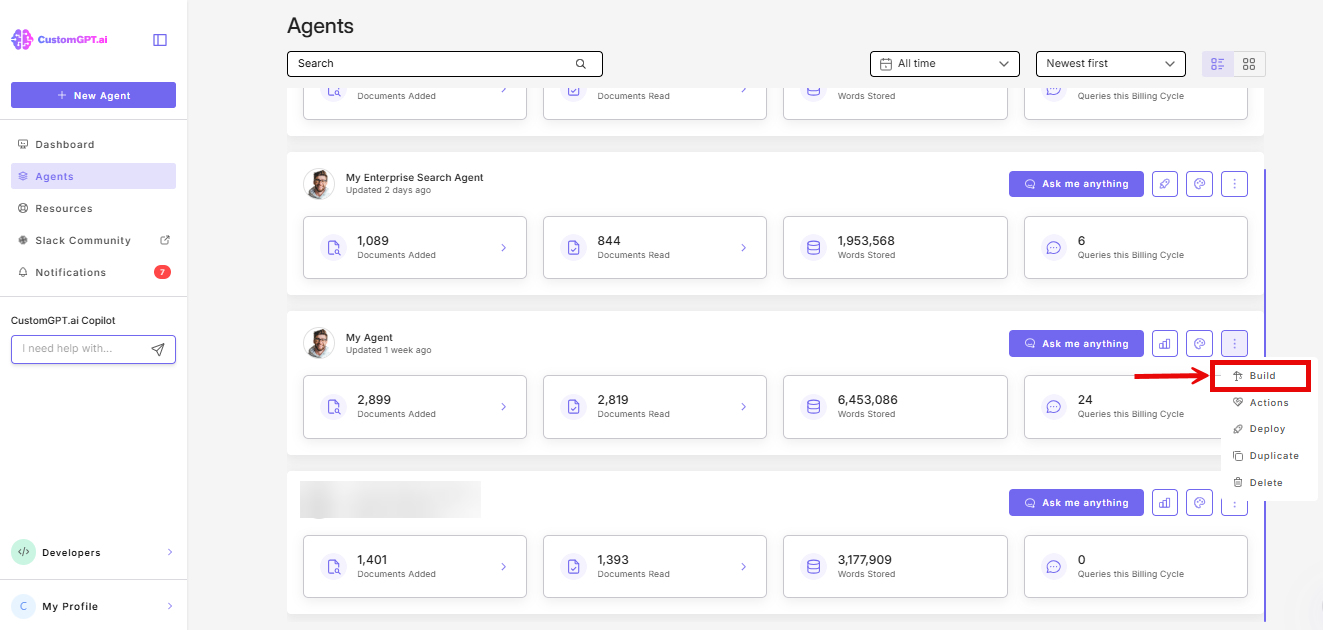
- Go to Sources and find your source under the YouTube Livestream group.
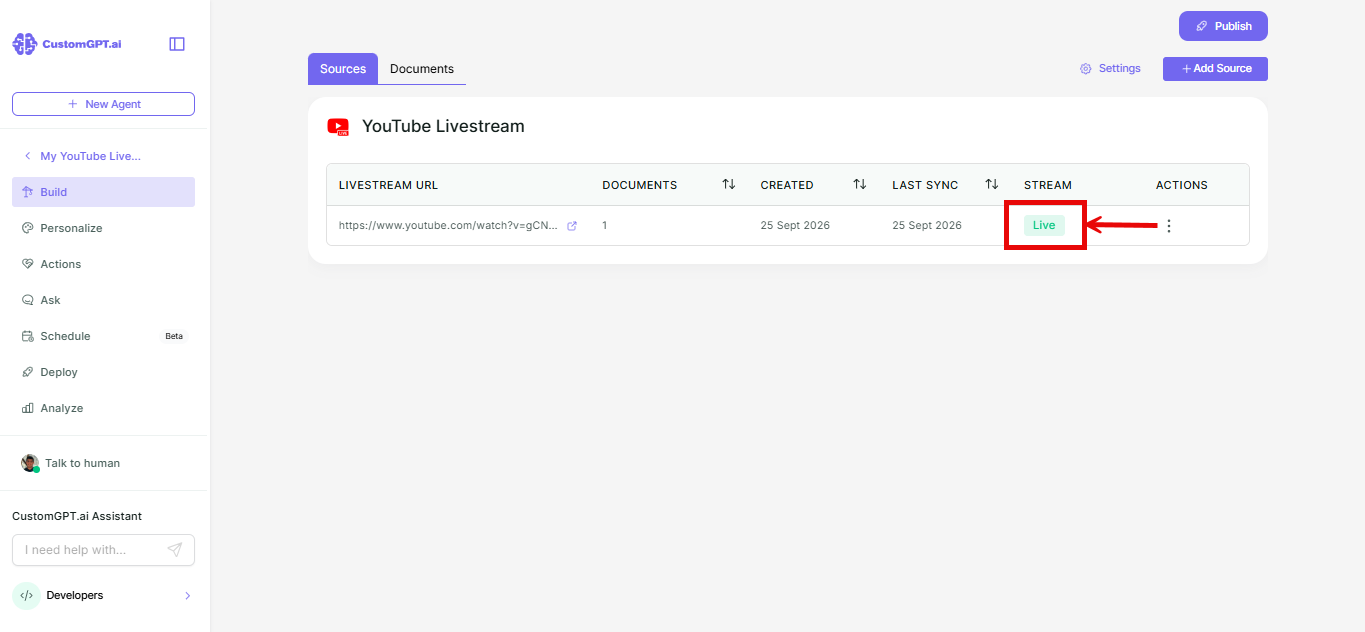
Each row shows when the source was created, when it last synced, and its status under Stream: Not started, Live, Paused, or Ended.
Pause or resume live syncing
- On the row you want to pause, click Settings under Actions.
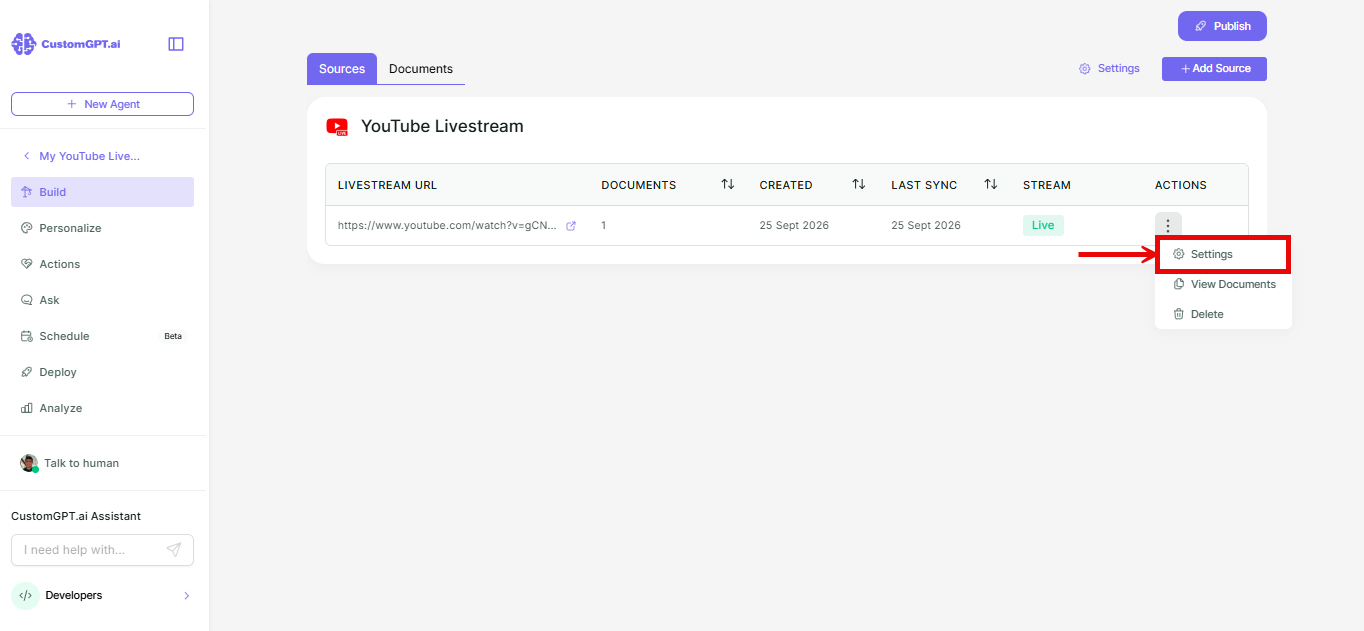
- Pause or resume streaming as required.
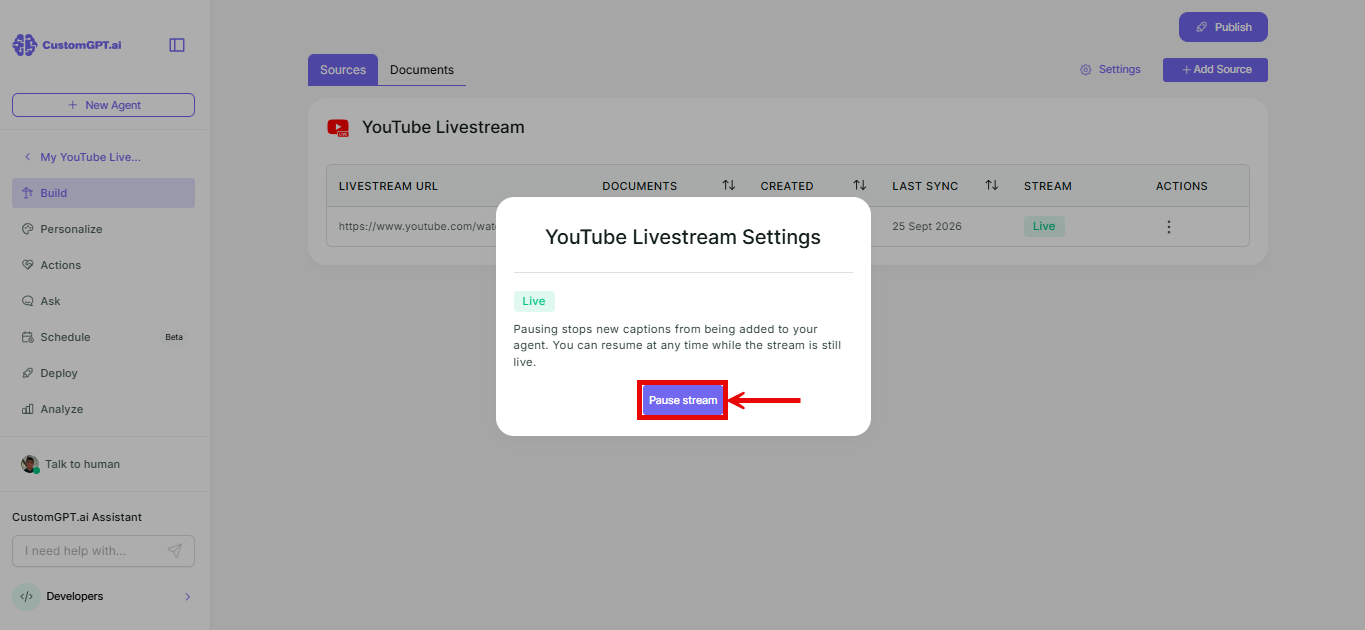
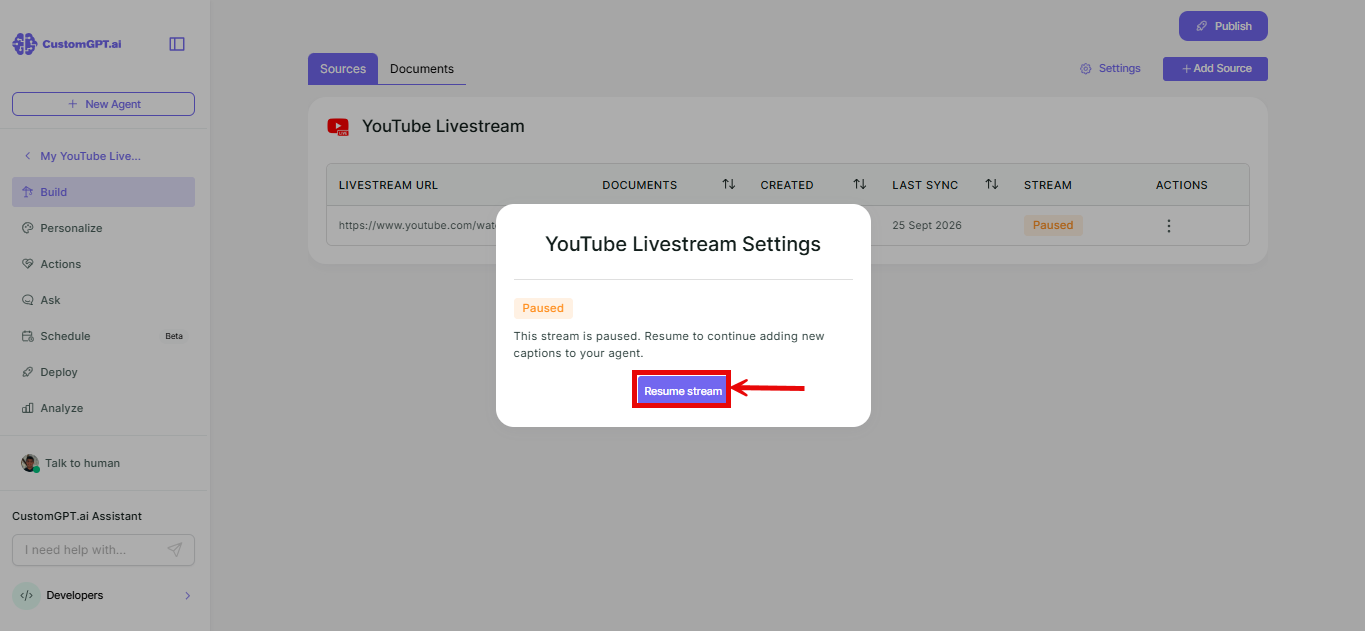
Note: While paused, nothing new is added. Resuming starts following the stream again from the moment you turn it back on.
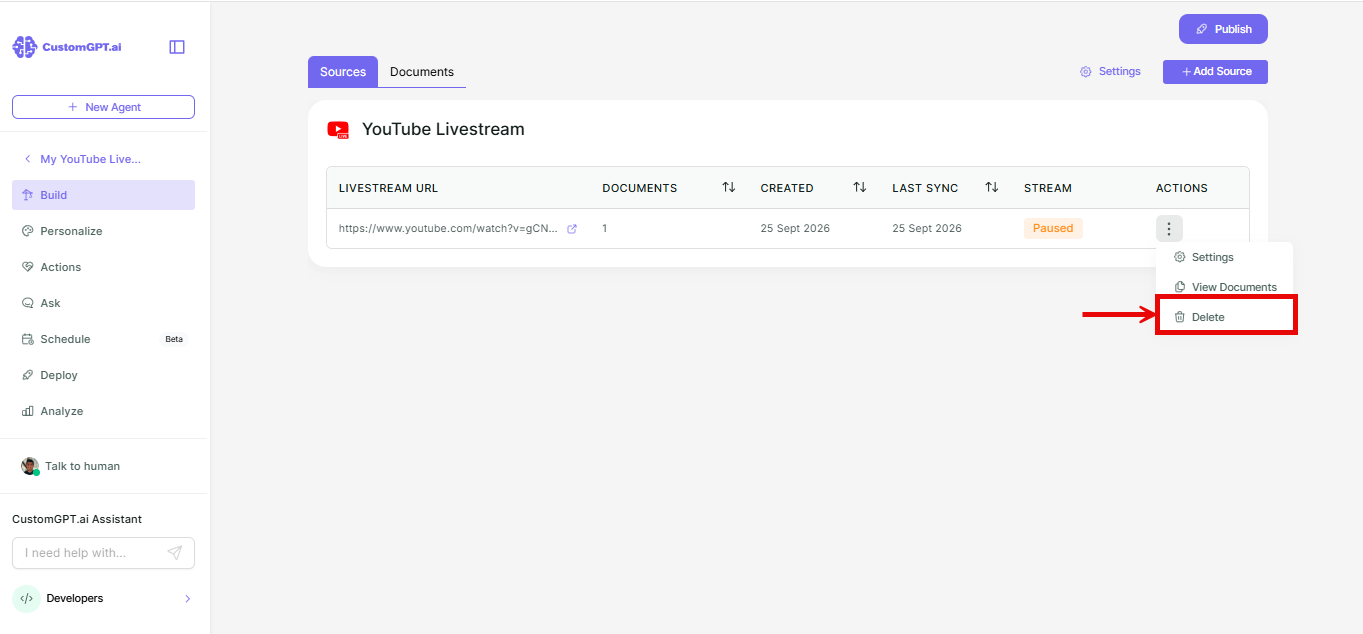
Remove a livestream source
On the row you want to pause, click Delete under Actions
Things to know
- The livestream must have auto-captions enabled.
- Once a stream ends, its status changes to Ended and it stays a YouTube Livestream source on its own.
- To bring in the full recording later, add it separately as a YouTube source. Refer to How YouTube Livestream works.
Related articles
Updated about 1 month ago
Did this page help you?