
Connect to LinkedIn
Add a LinkedIn profile or company page as a data source for your CustomGPT.ai agent.
Connect a public LinkedIn profile or company page and every post on it becomes something your agent can answer from, with comments and feed clutter stripped out.
Before you start
- You need the URL of a public LinkedIn profile (
linkedin.com/in/...) or company page (linkedin.com/company/...). - Available on every plan - Standard, Premium, and Enterprise.
- Each post counts as one page toward your agent's page limit. Refer to LinkedIn URL formats and limits for the limit by plan.
Note: CustomGPT.ai can't add the URL if it isn't a profile or company page, or if the profile or page is private or has no public posts.
Add LinkedIn to a new agent
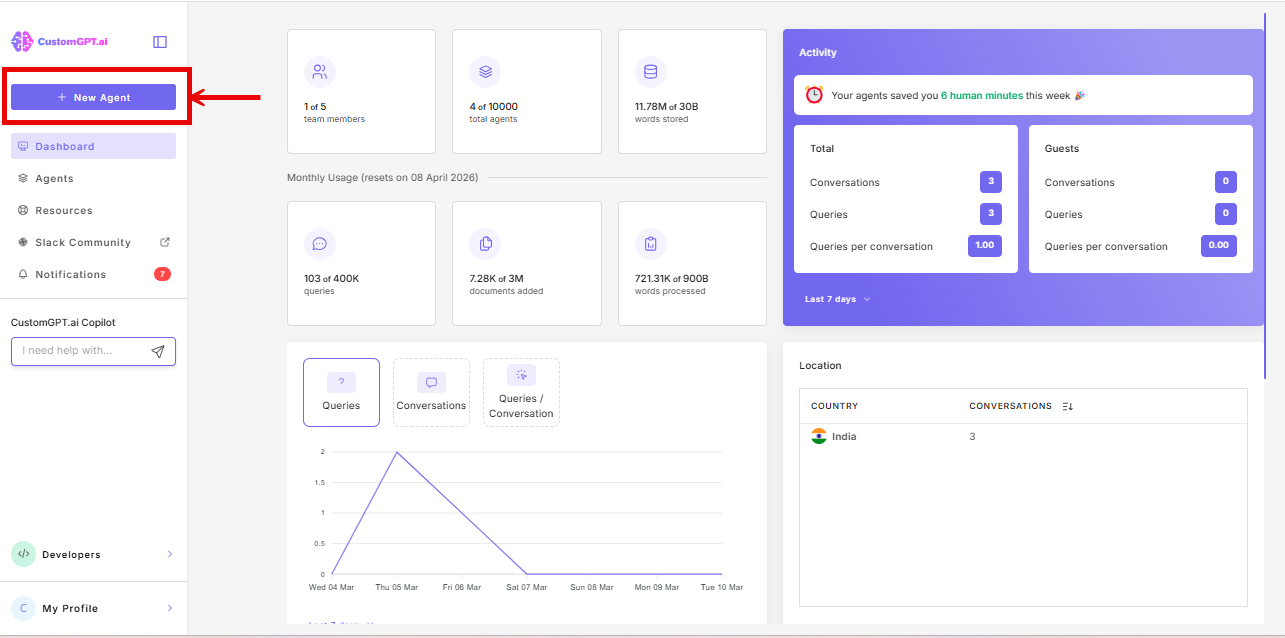
- Click New Agent.
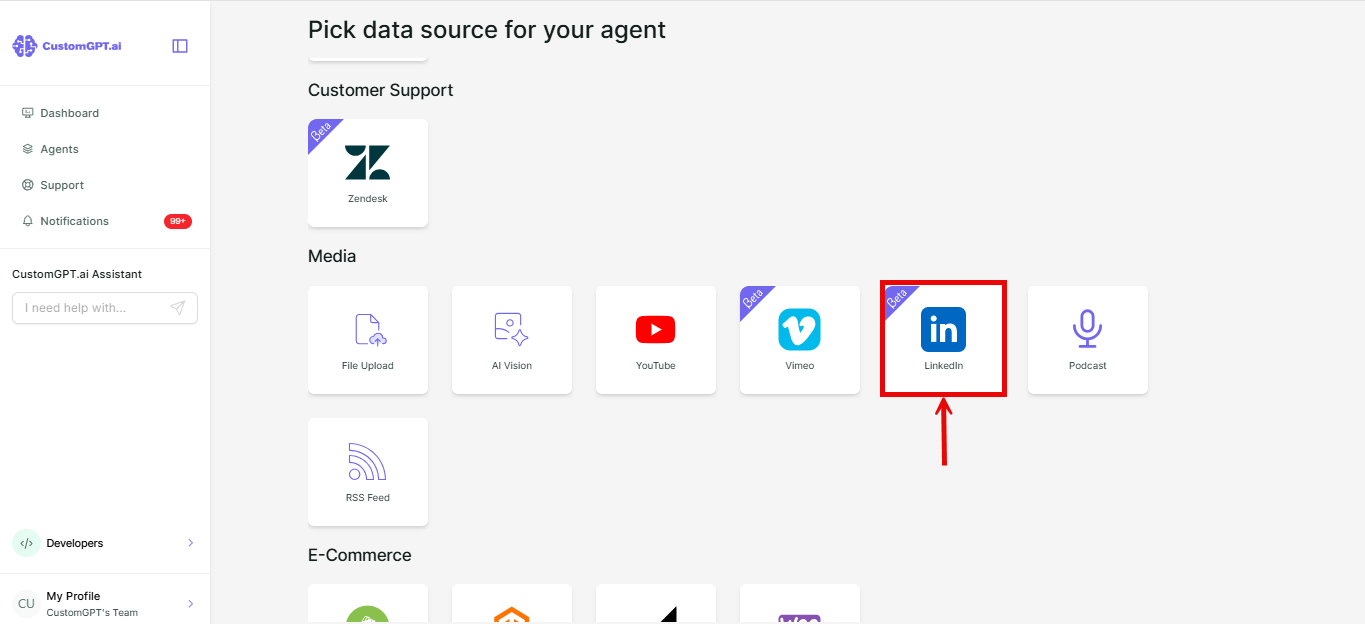
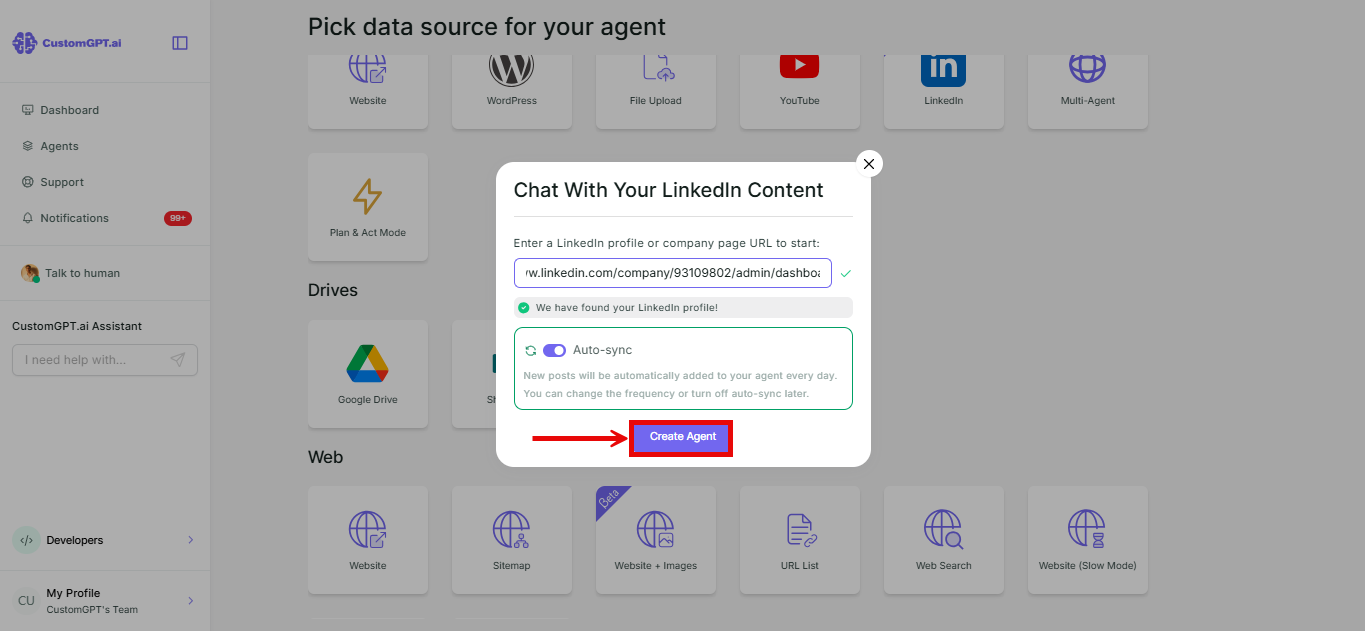
- Under Media, click LinkedIn.
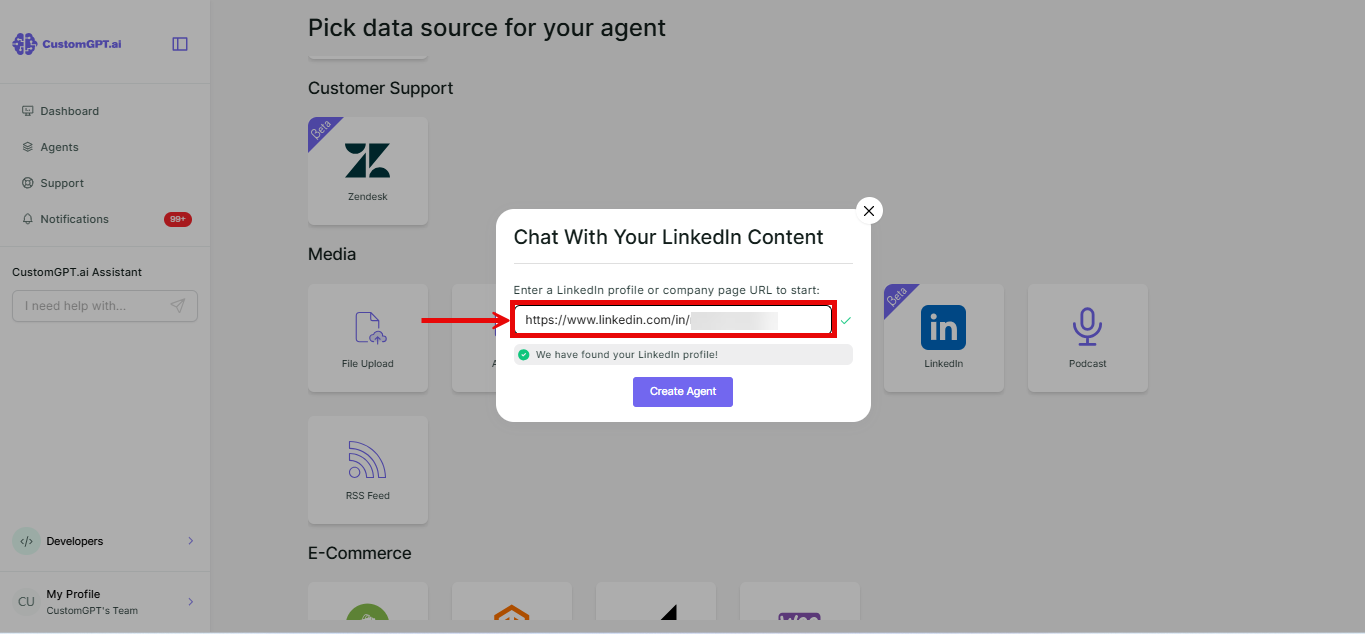
- Enter a LinkedIn profile or company page URL - however you copied it, with or without
https://orwww. Refer to [LinkedIn URL formats and limits] for every supported format.
- To keep your agent's LinkedIn posts current, toggle on Auto-sync.
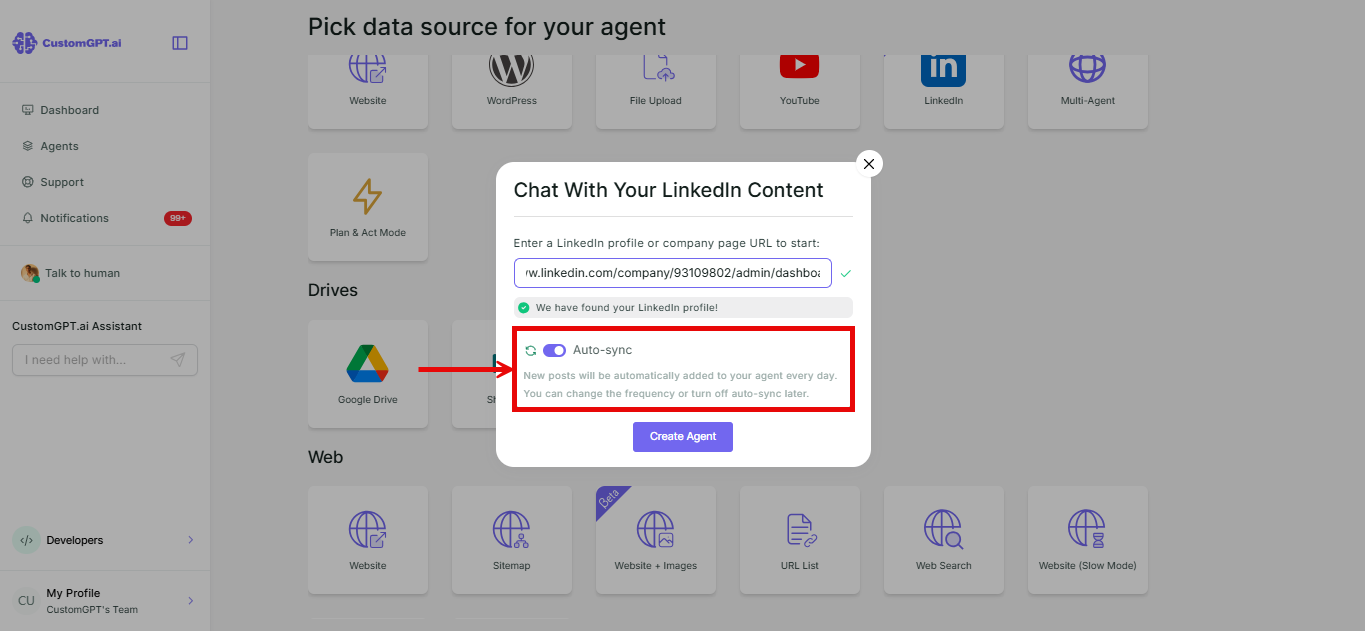
- Click Create Agent. Your posts are read in the background and added to your agent - a profile with a few hundred posts takes longer than a page with a few dozen.
Add LinkedIn to an existing agent
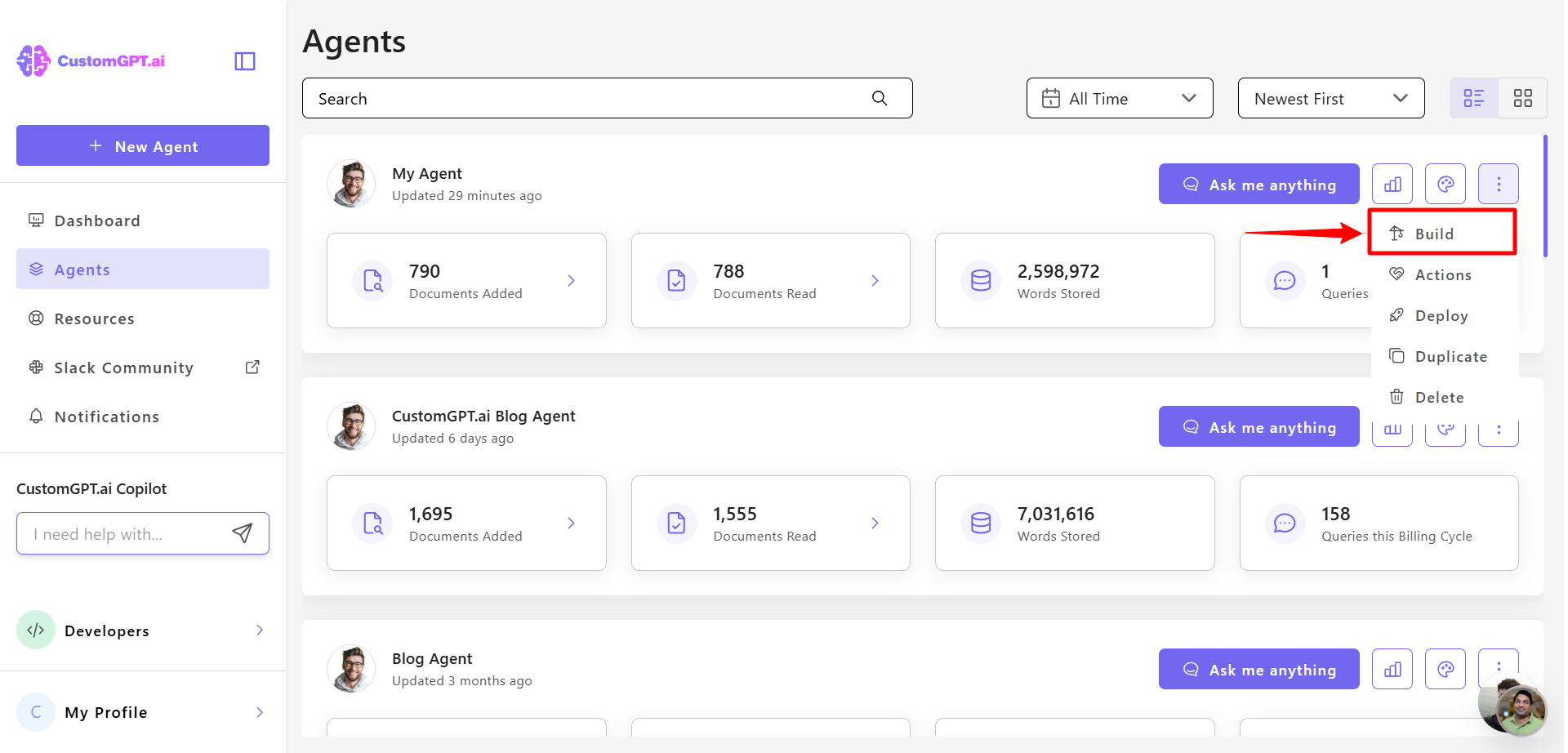
- On the agent you want to add LinkedIn to, click the three dots and select Build.
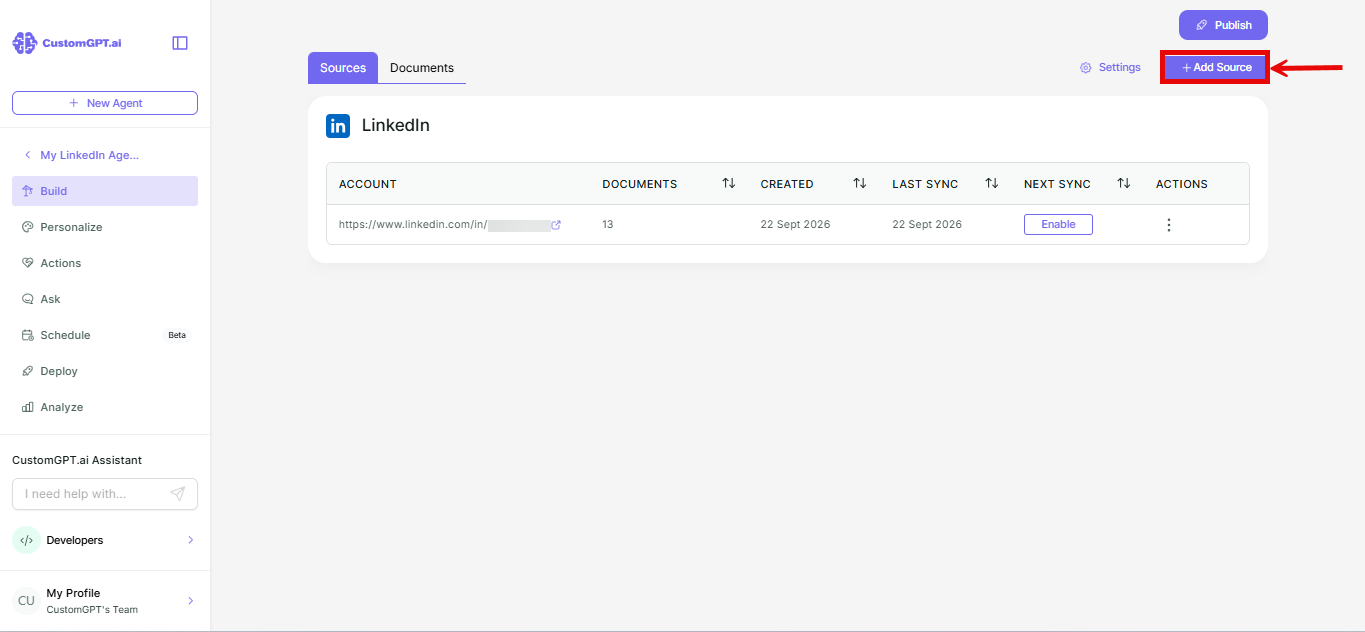
- Click Add Sources.
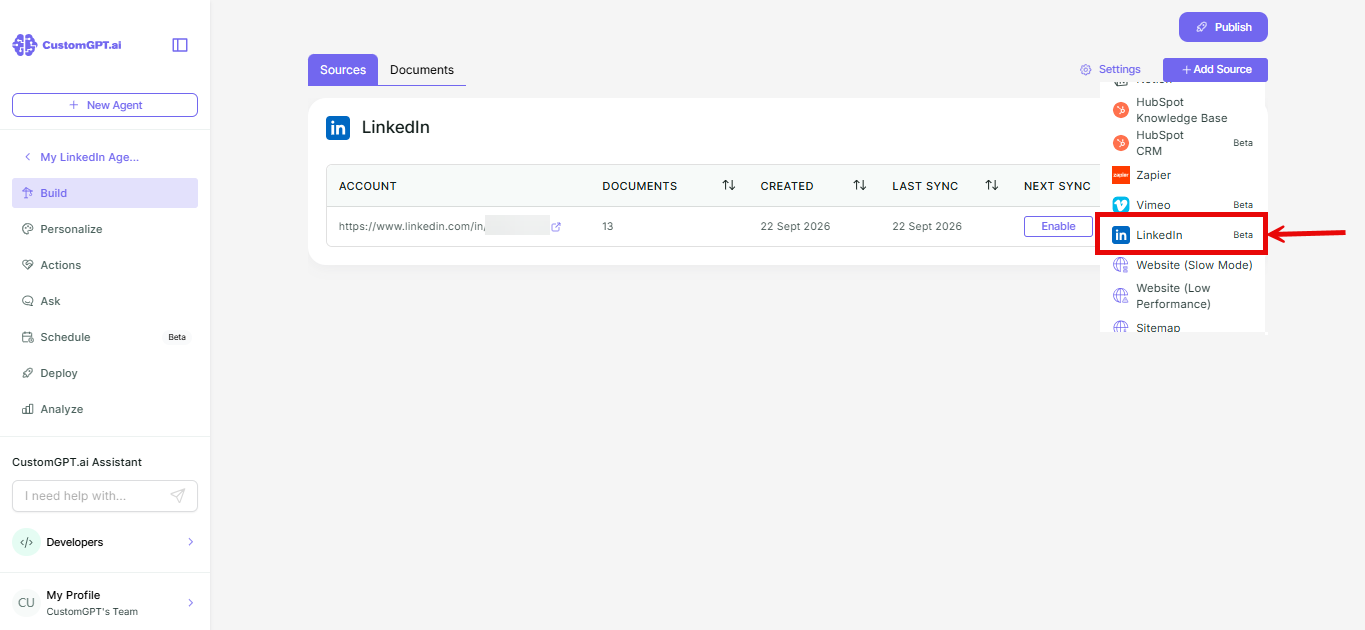
- Select LinkedIn from the dropdown.
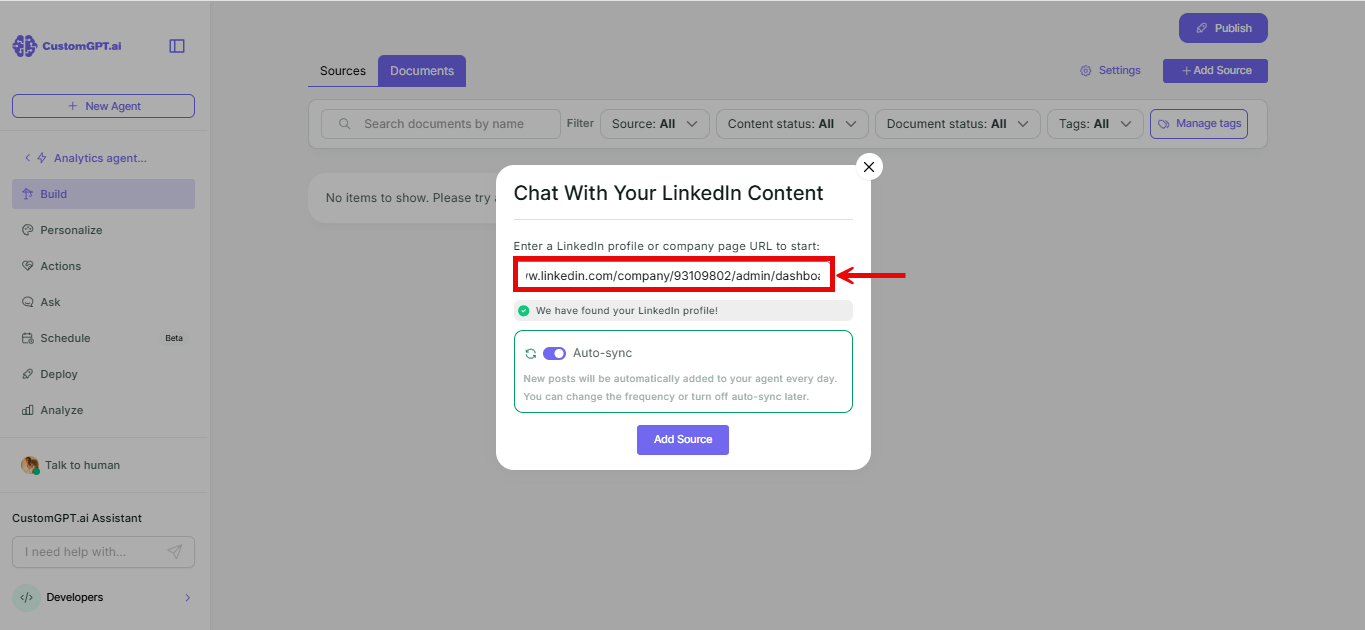
- Add your LinkedIn profile or company page URL.
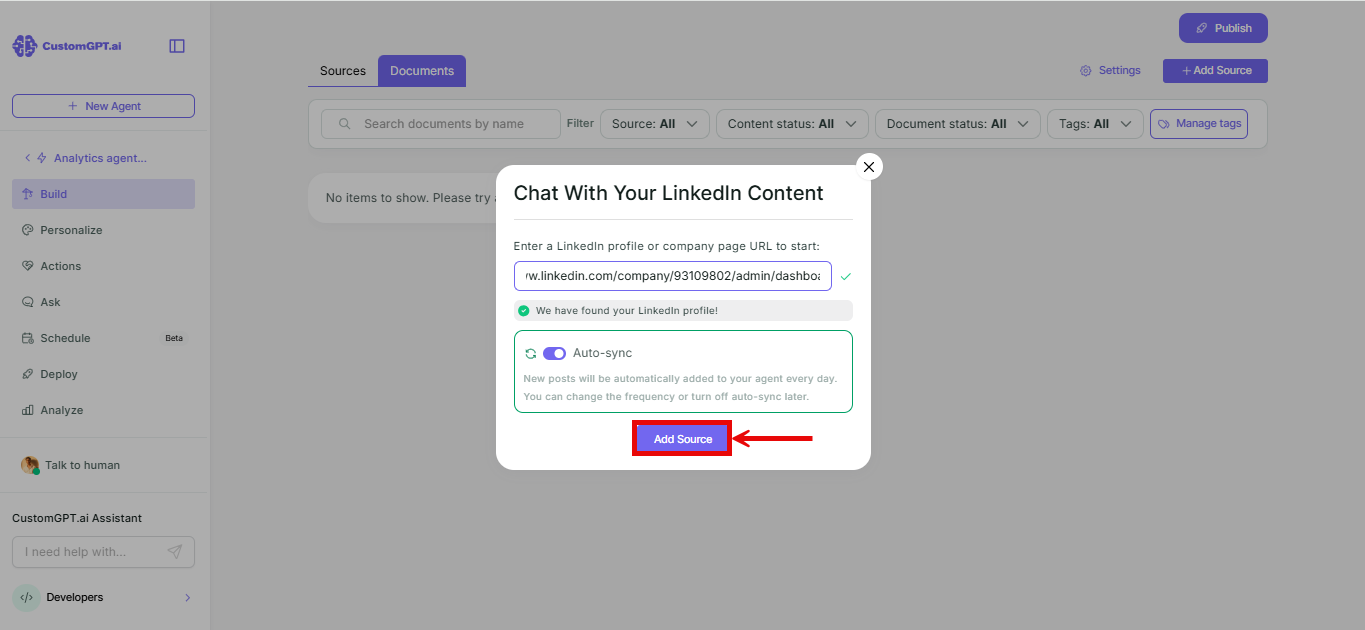
- Click Add Source. Your agent starts reading and adding posts.
Keep your agent up to date
New posts don't appear on their own unless you turn on auto-sync. You can turn it on when you create the agent, or later from Sources. Refer to Enable LinkedIn auto-sync.
Related articles
Updated 16 days ago
Did this page help you?