
Enable LinkedIn auto-sync
Keep your agent's LinkedIn source current by automatically syncing new and deleted posts on a schedule.
When enabled, new posts are added and deleted posts are removed on a schedule, without you having to reconnect the source.
You can also turn on Auto-sync when you create the agent. The options below are set from Sources, so use these steps to set them.
Before you start
- If you haven't connected a LinkedIn source yet, refer to Connect to LinkedIn.
- Available on every plan - Standard, Premium, and Enterprise.
Steps
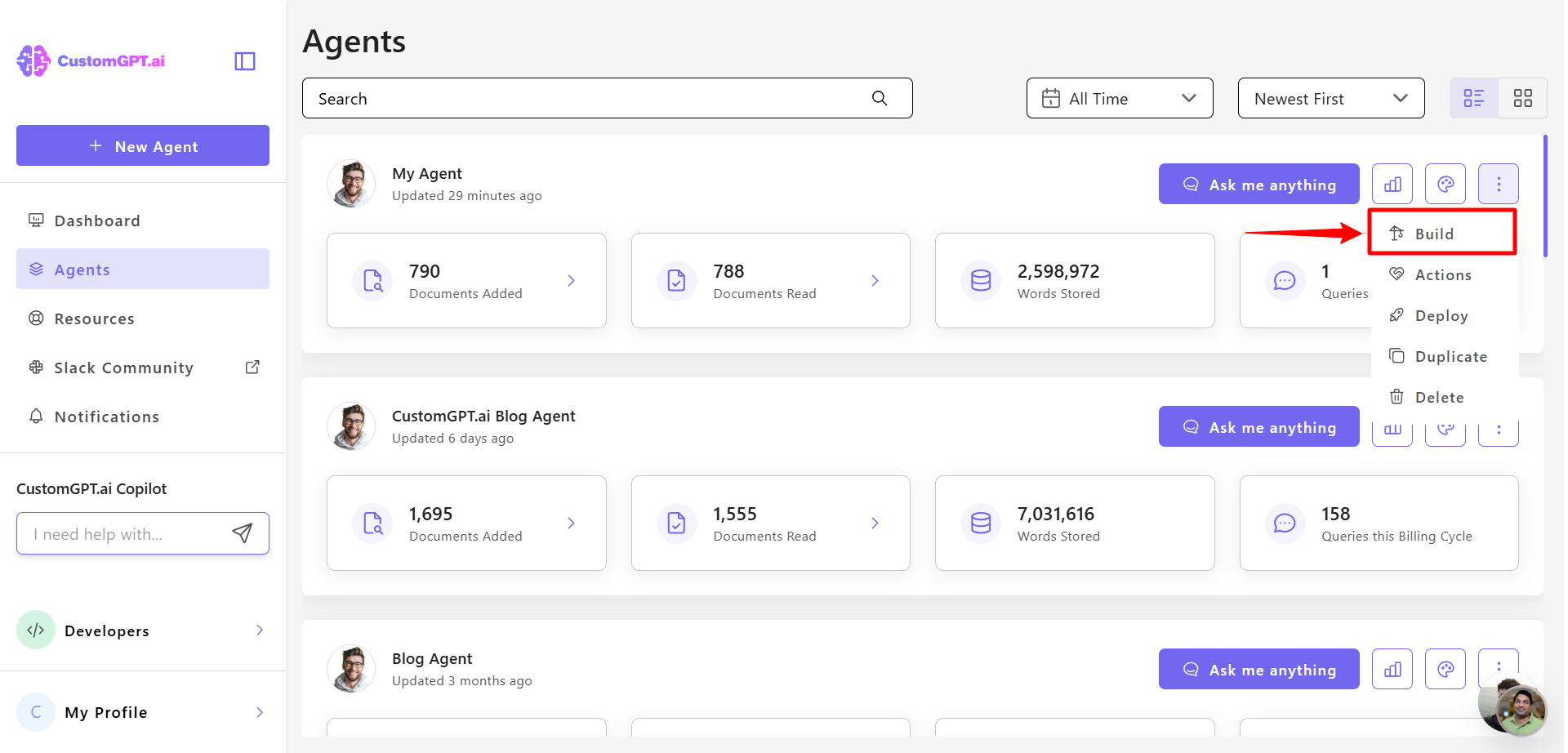
- On the agent you want to sync, click the three dots and select Build.
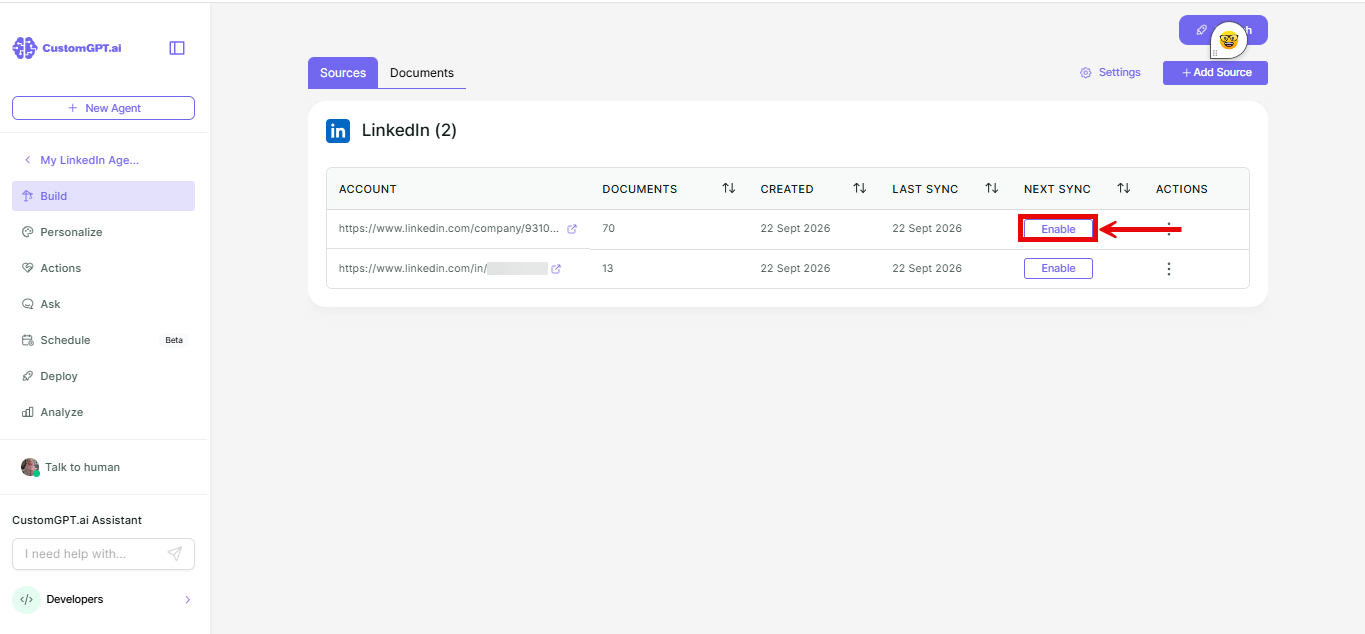
- Go to Sources, find your LinkedIn source, and click Enable under the Next Sync column.
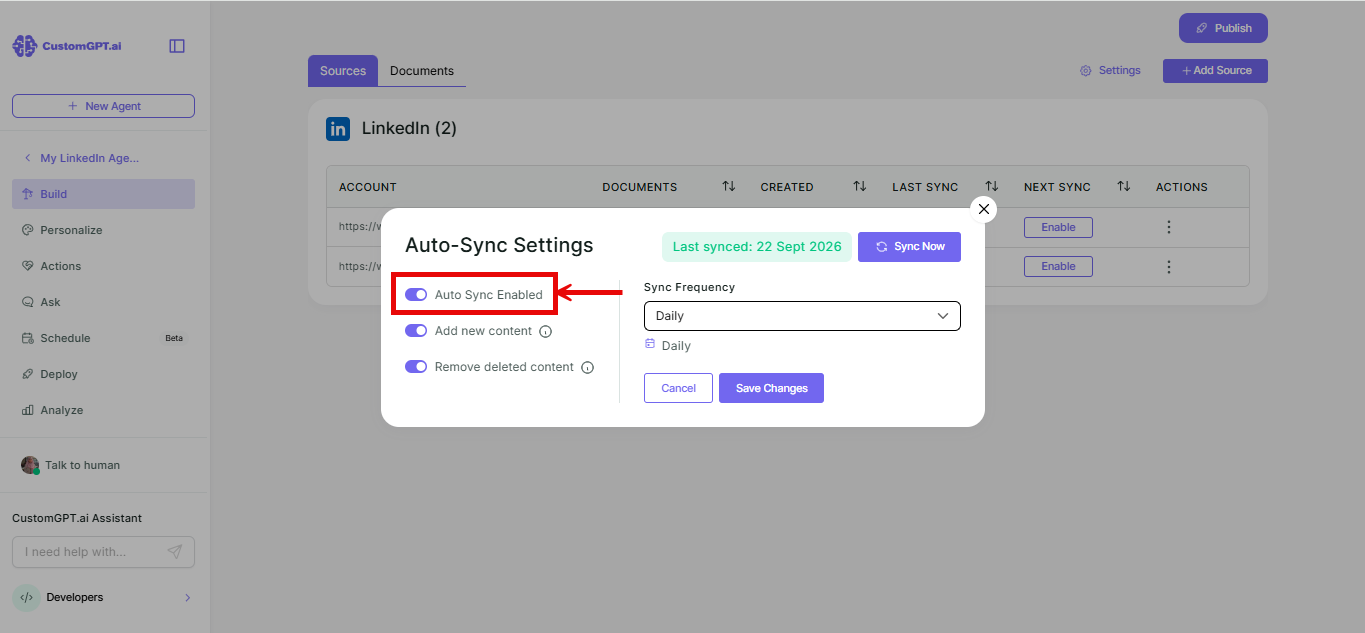
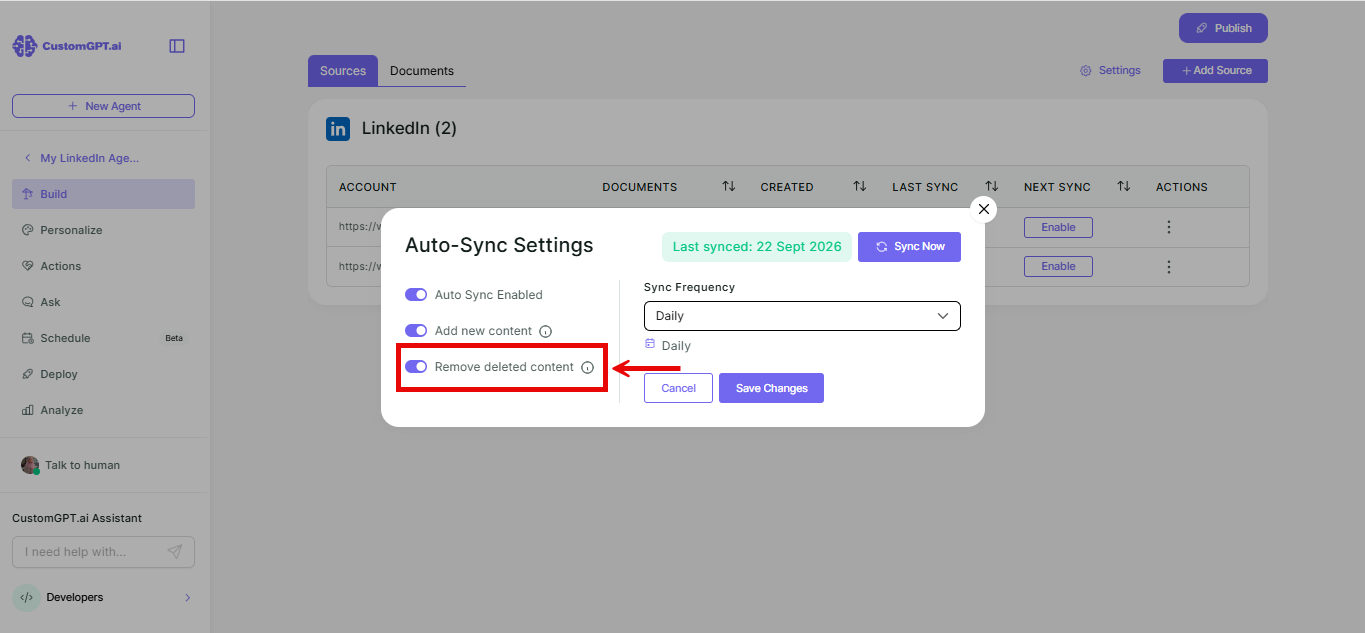
- Toggle on Auto-sync enabled.
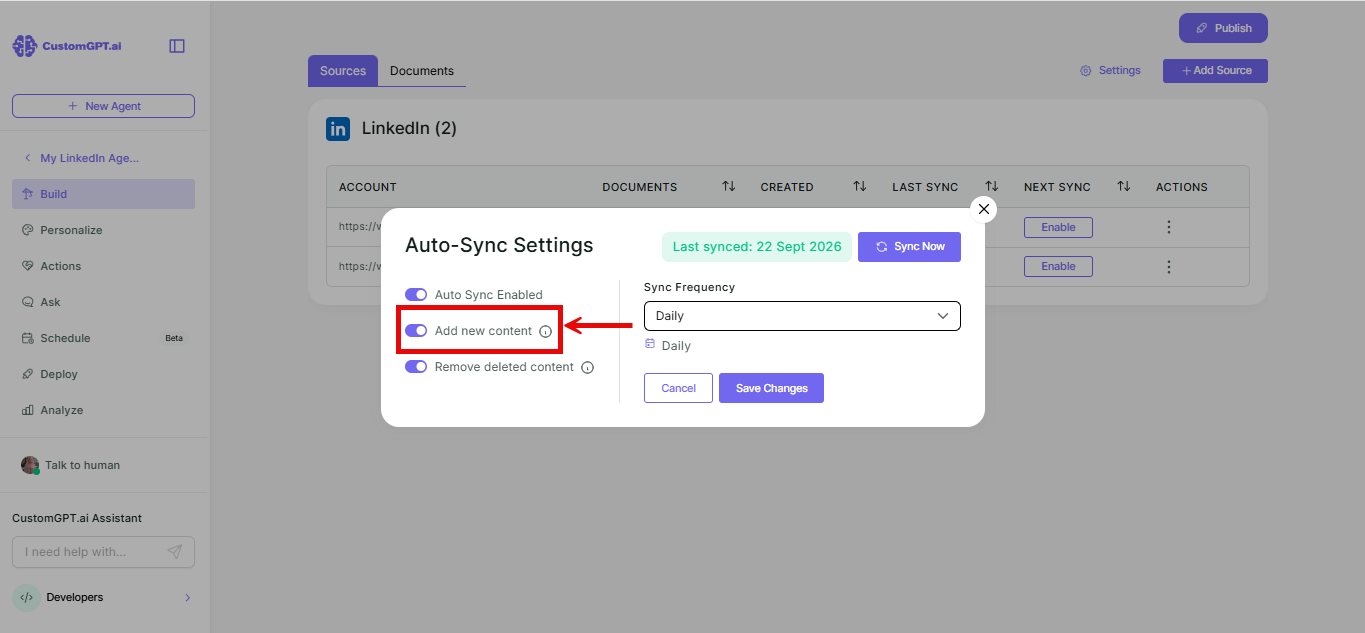
- Toggle on Add new content to bring in new posts on each sync.
- Toggle on Remove deleted content to remove posts that were deleted from LinkedIn.
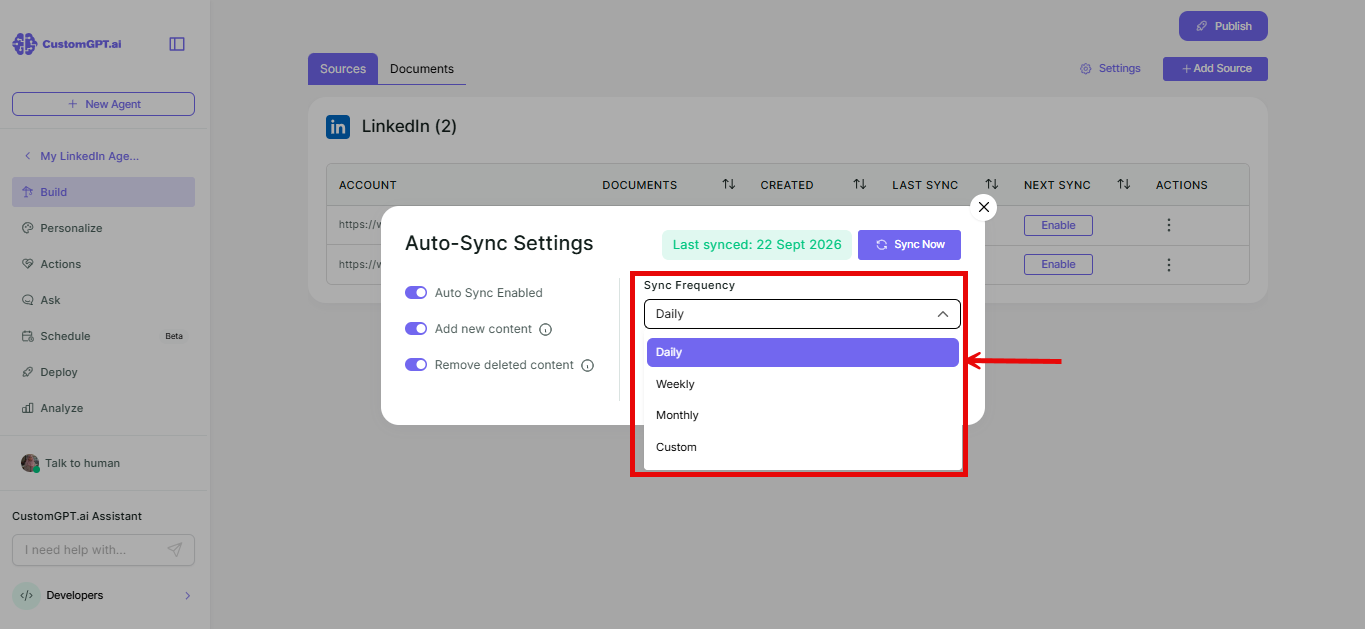
- Choose how often you want the sync to run: Daily, Weekly, Monthly, or Custom.
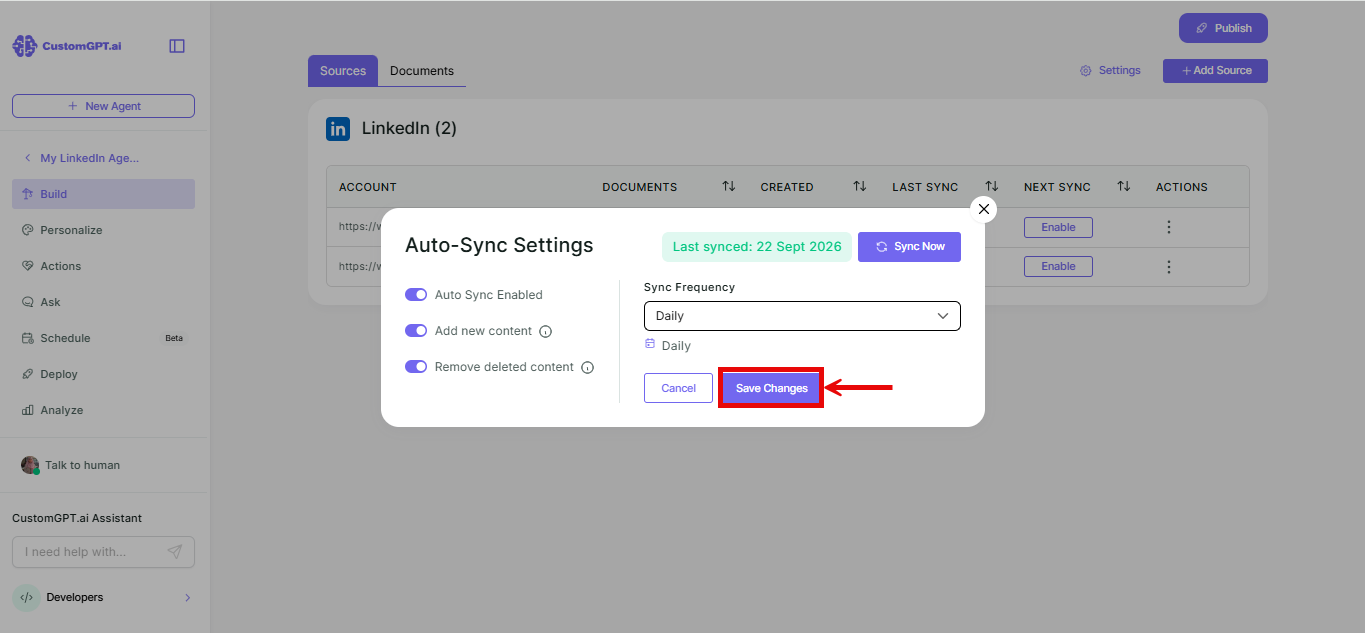
- Click Save Changes. Auto-sync is now active.
Things to know
- A new post doesn't show up the moment you publish it - it arrives with the next sync. Daily keeps an active profile close to current.
- If you edit a post on LinkedIn, that edit isn't picked up on a scheduled sync - only new and deleted posts are. Refer to How LinkedIn integration works for why.
- New posts synced in count toward your agent's page limit the same as posts added at connect time. Refer to LinkedIn URL formats and limits for the limit by plan.
- On Enterprise you can run an instant sync anytime from the source's three-dot menu, instead of waiting for the next scheduled run. On Standard and Premium, new posts arrive with the next scheduled Auto Sync.
Related articles
Updated 17 days ago
Did this page help you?