
Send a recurring dashboard report to Slack with scheduled tasks
This guide walks you through a worked example of Scheduled Tasks. Connect an agent to Slack, then schedule a recurring dashboard report that delivers itself.
Connect your agent to Slack, write a prompt that tells it where to send the result, and schedule it to run on a cadence. This guide walks through one example end to end: a weekly dashboard summary that lands in Slack on its own.
Connect your agent to Slack
Scheduled Tasks can only deliver to a platform your agent is already connected to. Connect Slack first, using an API key. Refer to Connect a platform using Quick Setup for the steps.
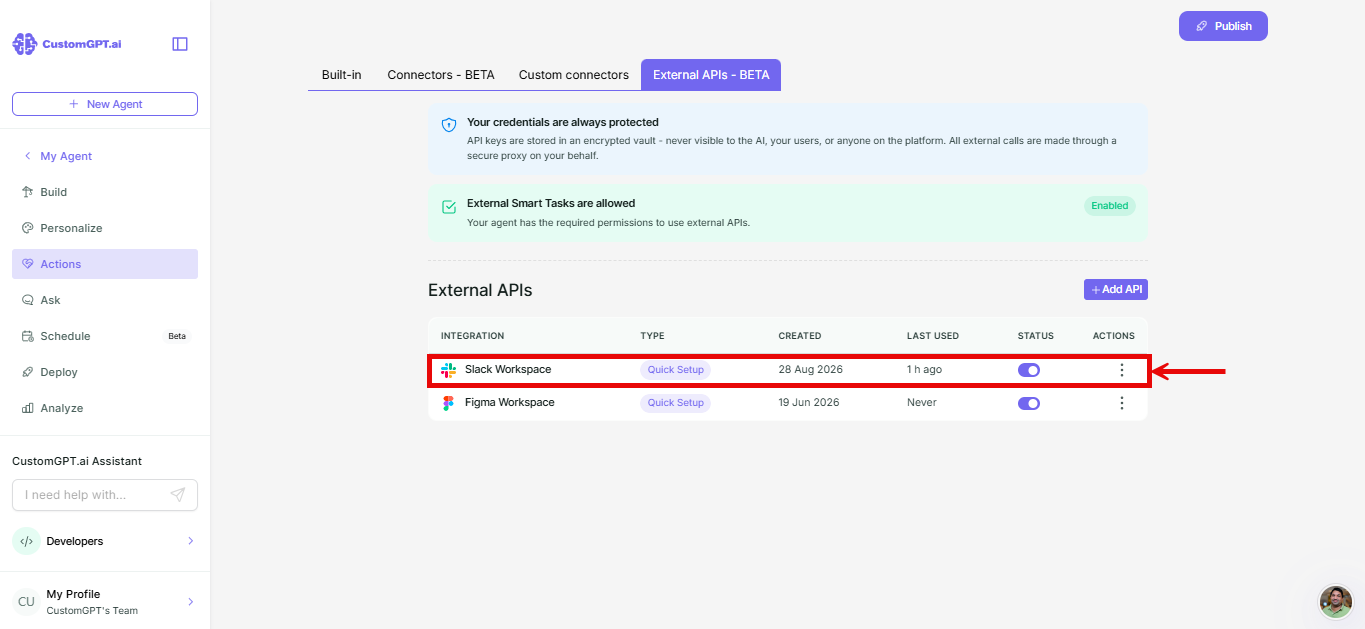
Write a prompt that delivers to Slack
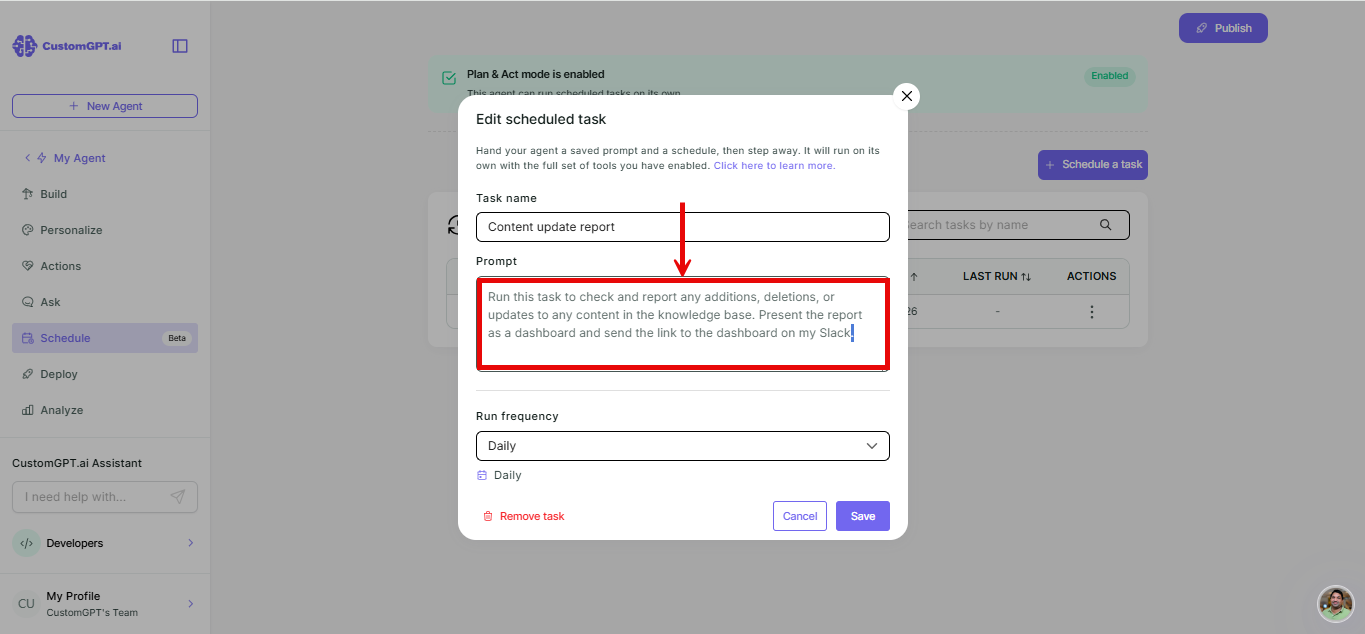
The prompt is what tells the agent where the result should go. Nothing about scheduling changes this - it works exactly like any other instruction to the agent.
For a weekly dashboard summary, a prompt like this covers both what to do and where to send it:
Summarize this week's dashboard numbers in plain English, then post the summary to #dashboard-reports on Slack.Note: This is just an example. Write your own prompt to say exactly what you want the agent to do and exactly where you want the result sent.
Schedule it
Refer to Schedule a task for your agent for the full steps. For this example, set Run frequency to Daily, on whichever day you want the report to land.
See it work
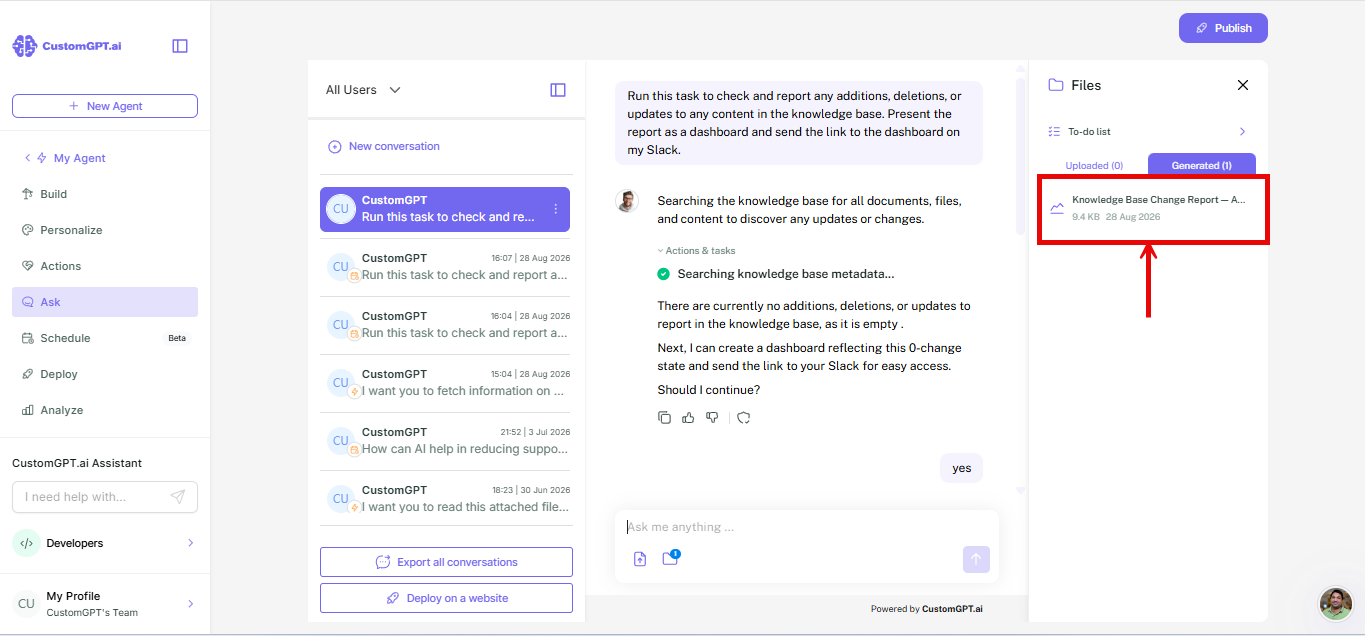
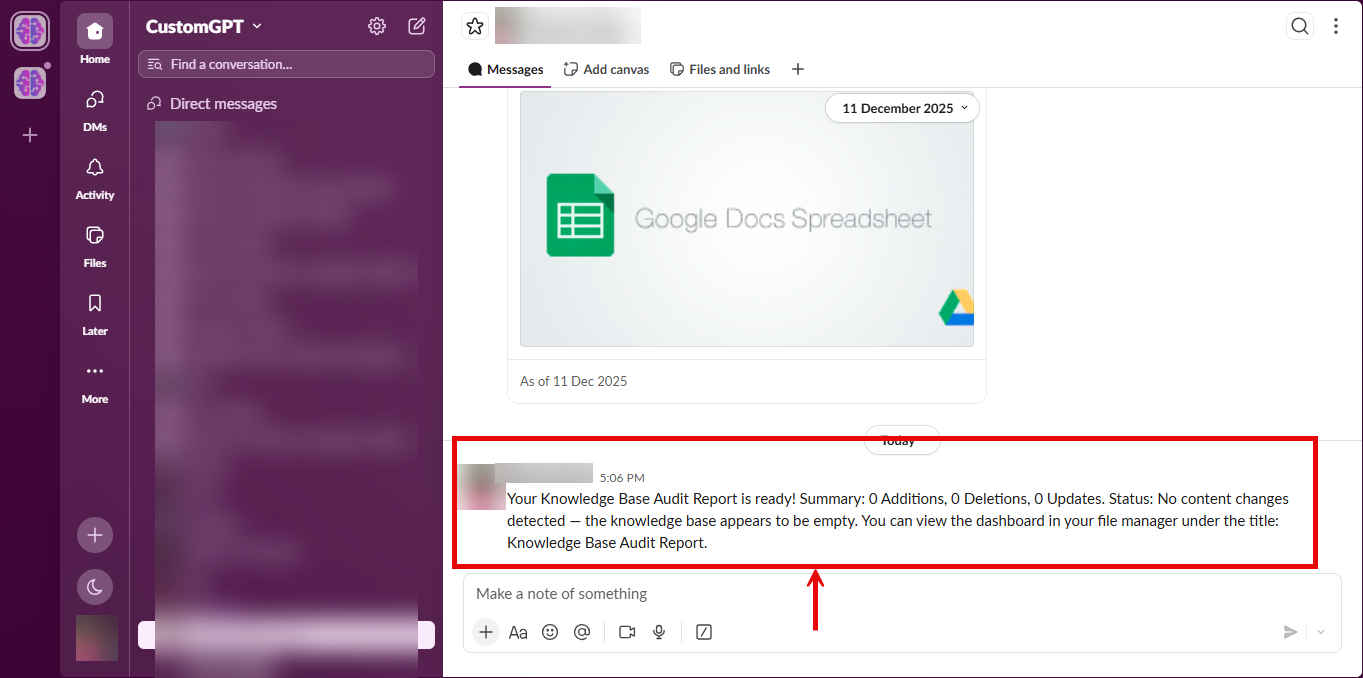
Once the task runs, the result shows up in two places.
On the Ask page, the run appears as its own conversation, marked with a calendar icon.
In Slack, the summary posts to the channel named in the prompt.
Related articles
Updated 2 months ago