
Set your time zone
This guide walks you through choosing your time zone in My Profile, so dates and times across CustomGPT.ai show in your local time.
This guide shows you how to set your own time zone in My Profile. Use it when dates and times in CustomGPT.ai don't match your local time.
Note: Dates and times across CustomGPT.ai follow your time zone. Times you pick in schedulers are saved in UTC, so after a daylight saving change a task may run one hour earlier or later than the time you picked. Refer to Where your time zone applies for the full list.
Set your time zone
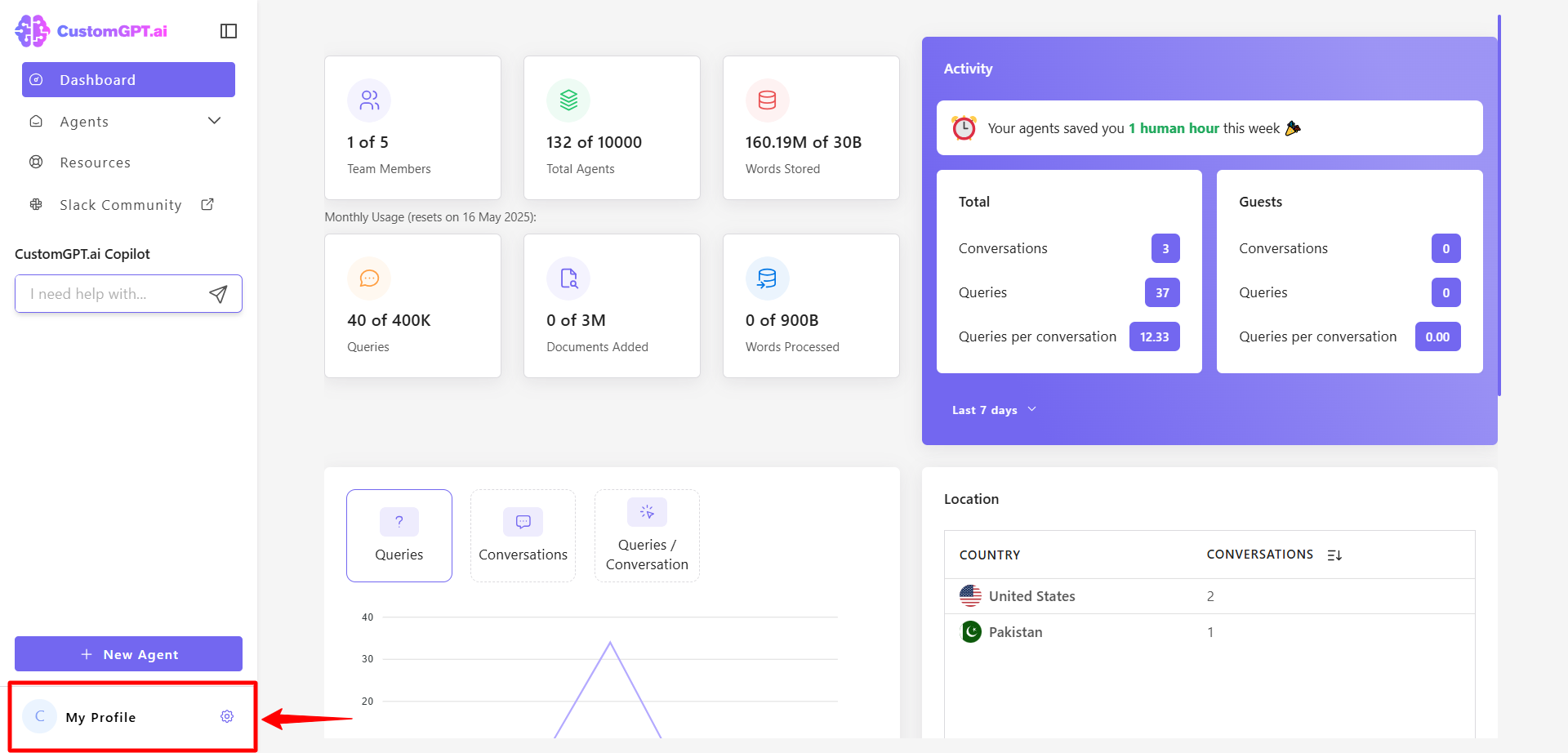
- On the bottom-left corner of the screen, click your profile icon or initials to access profile options.
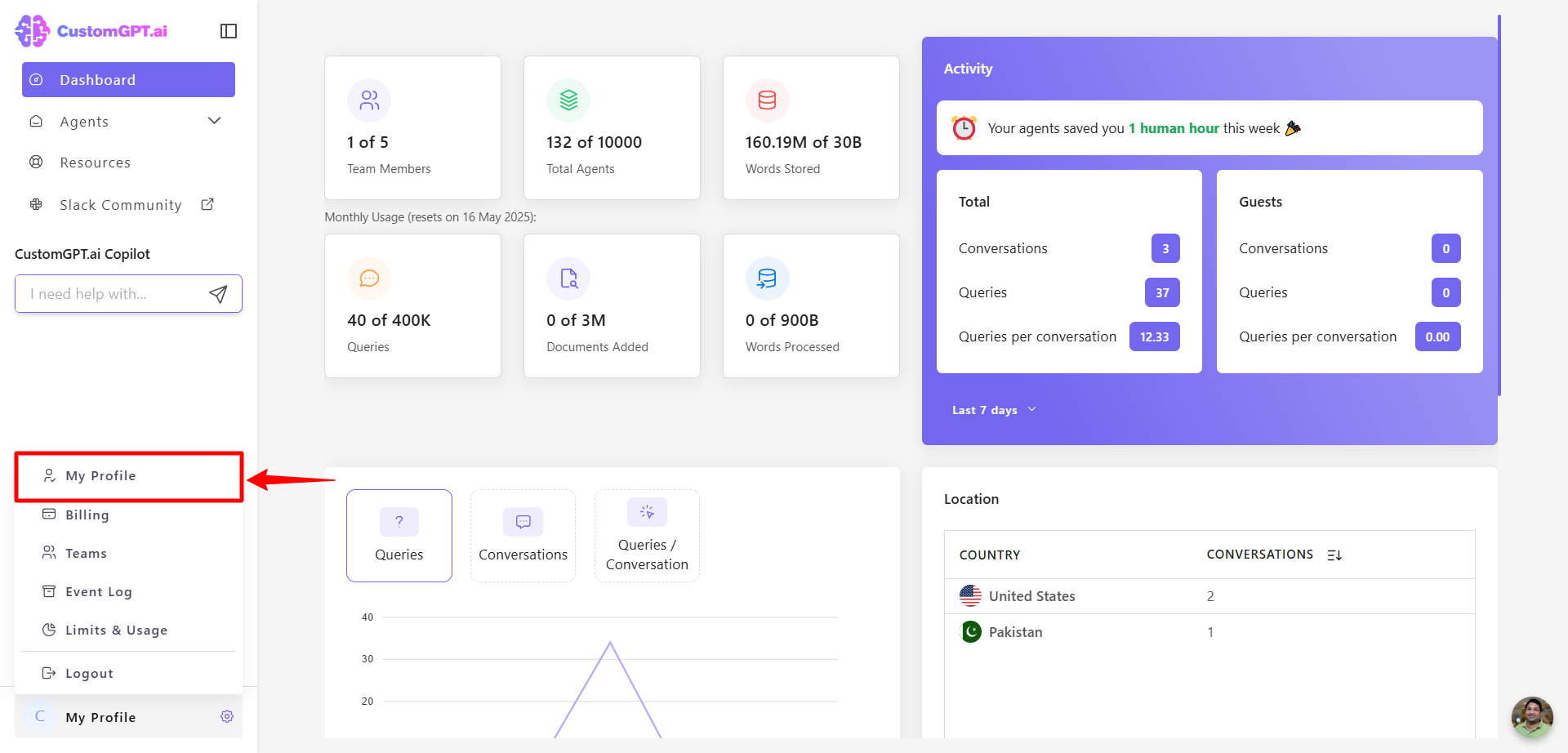
- Click My Profile from the dropdown menu to open your profile settings.
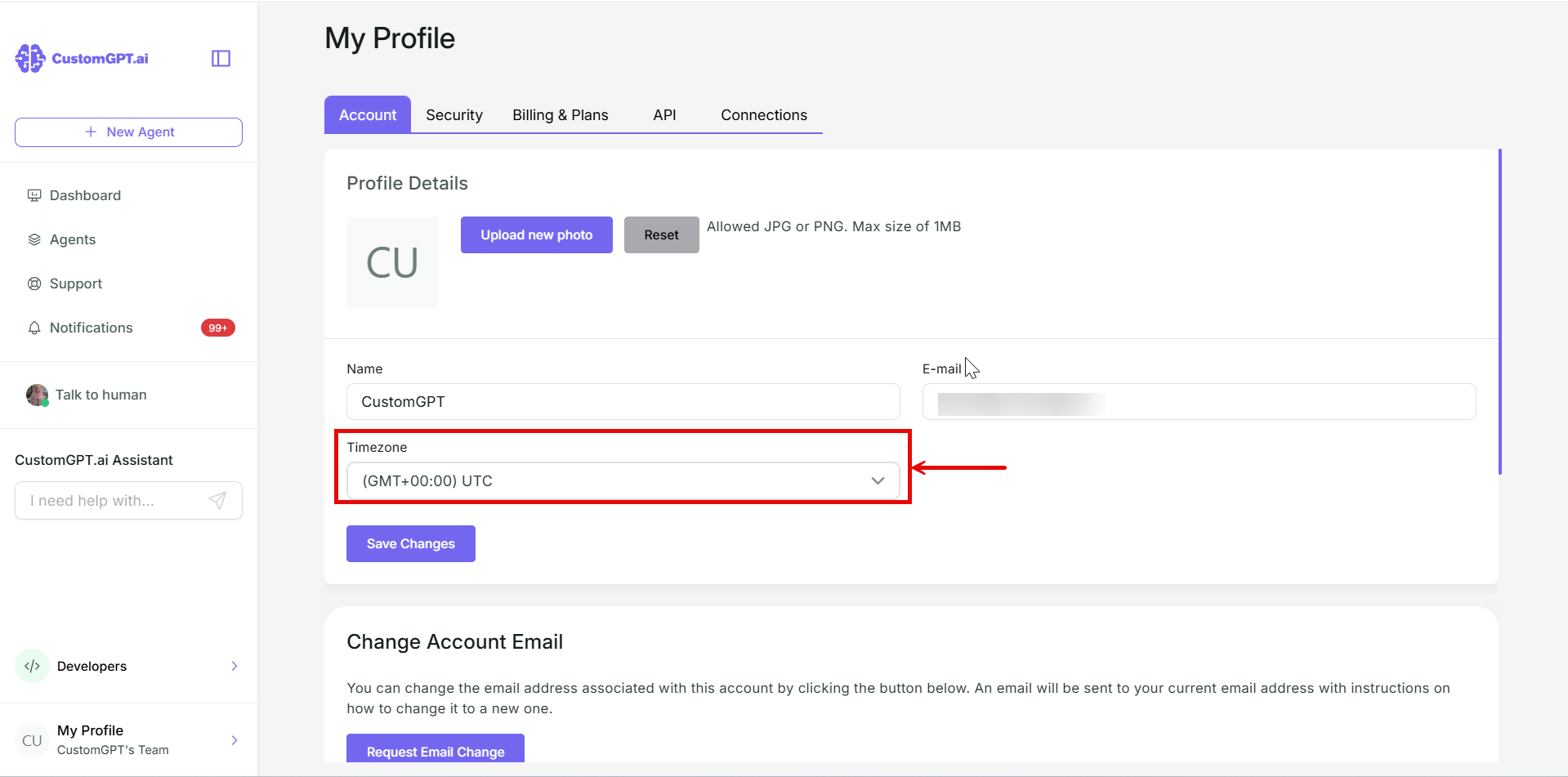
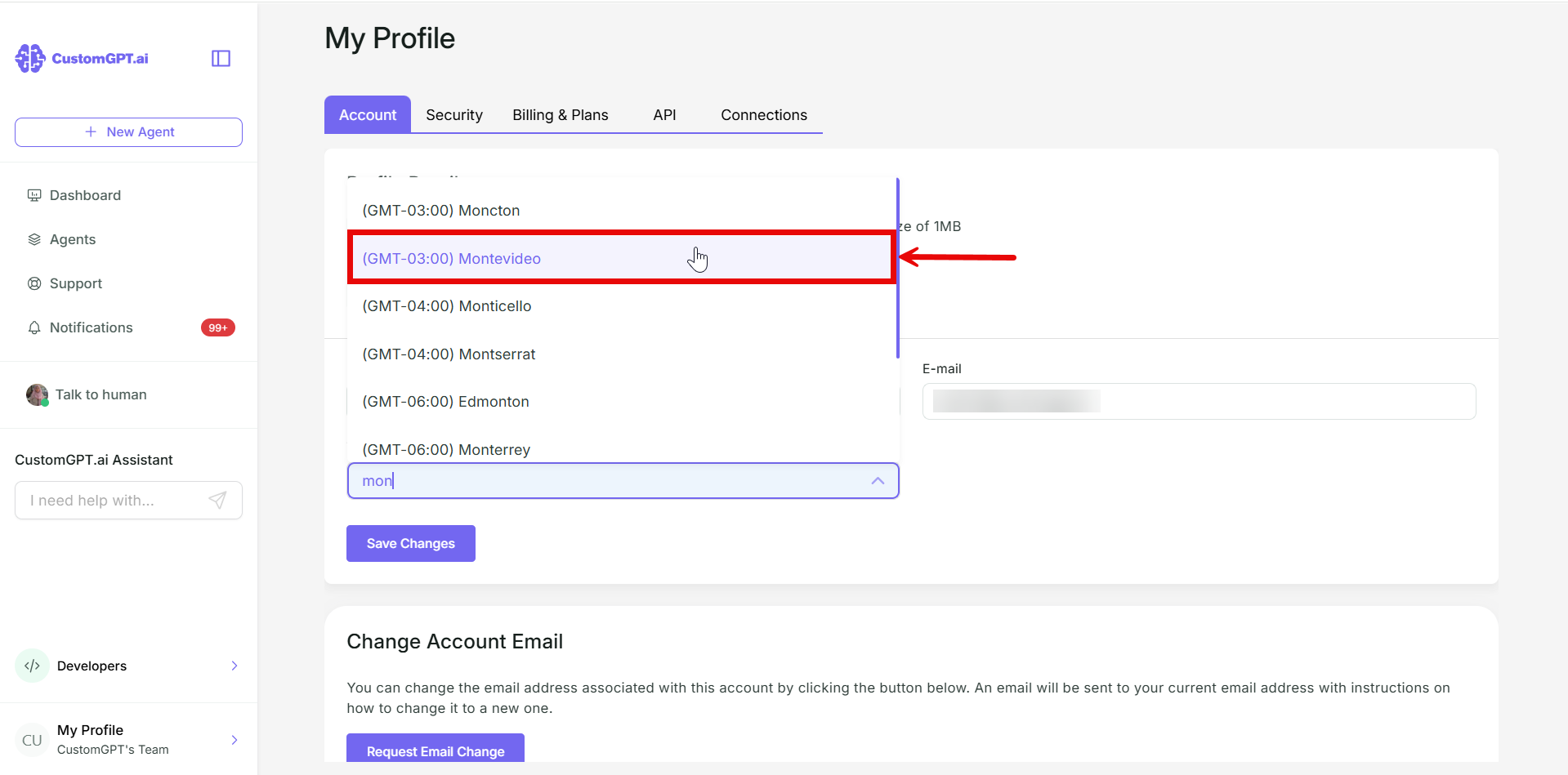
- Click the Timezone dropdown below Name.
- Type a city or region to search the list.
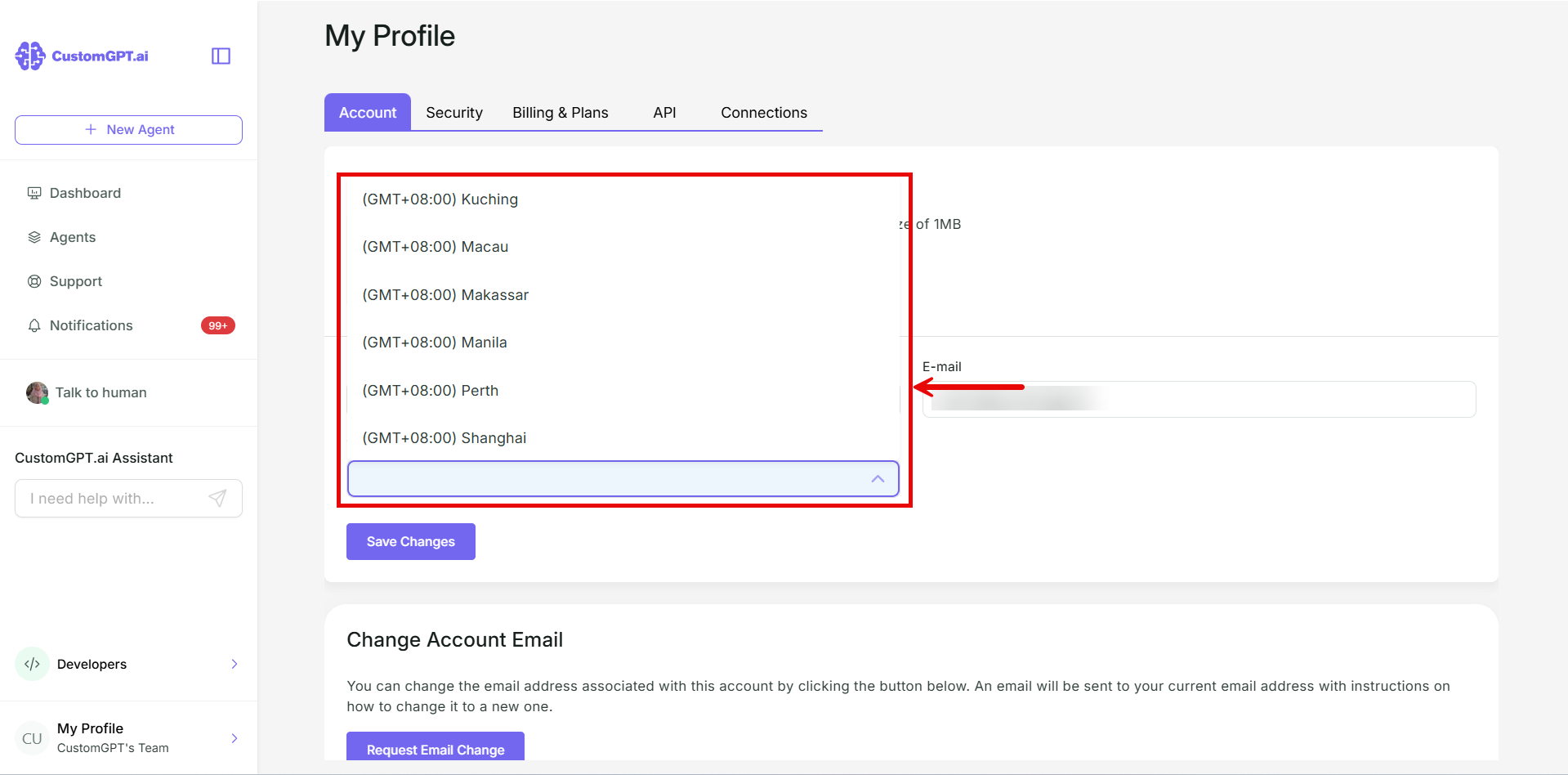
- Select your time zone, for example (GMT-03:00) Montevideo.
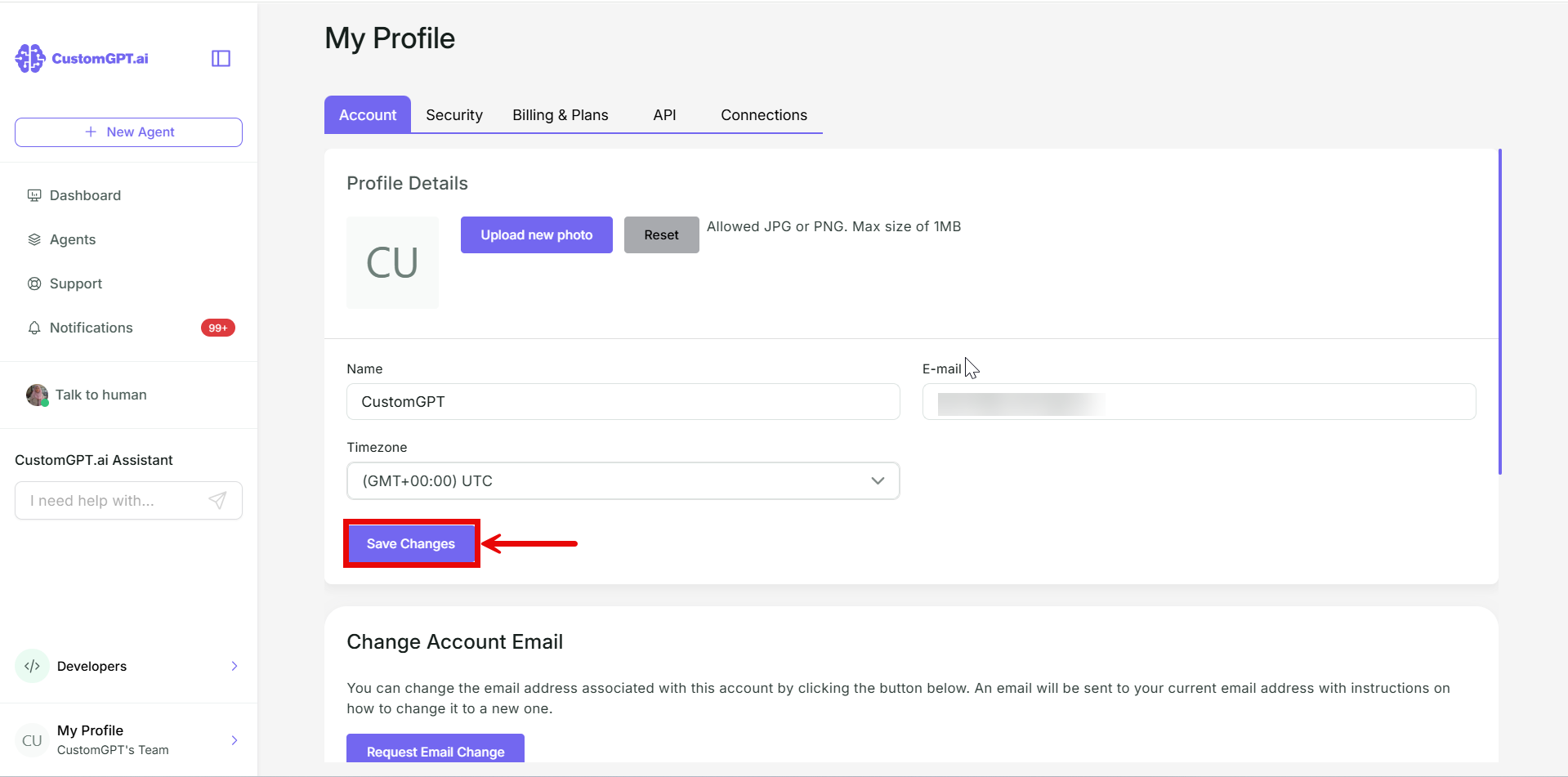
- Click Save changes.
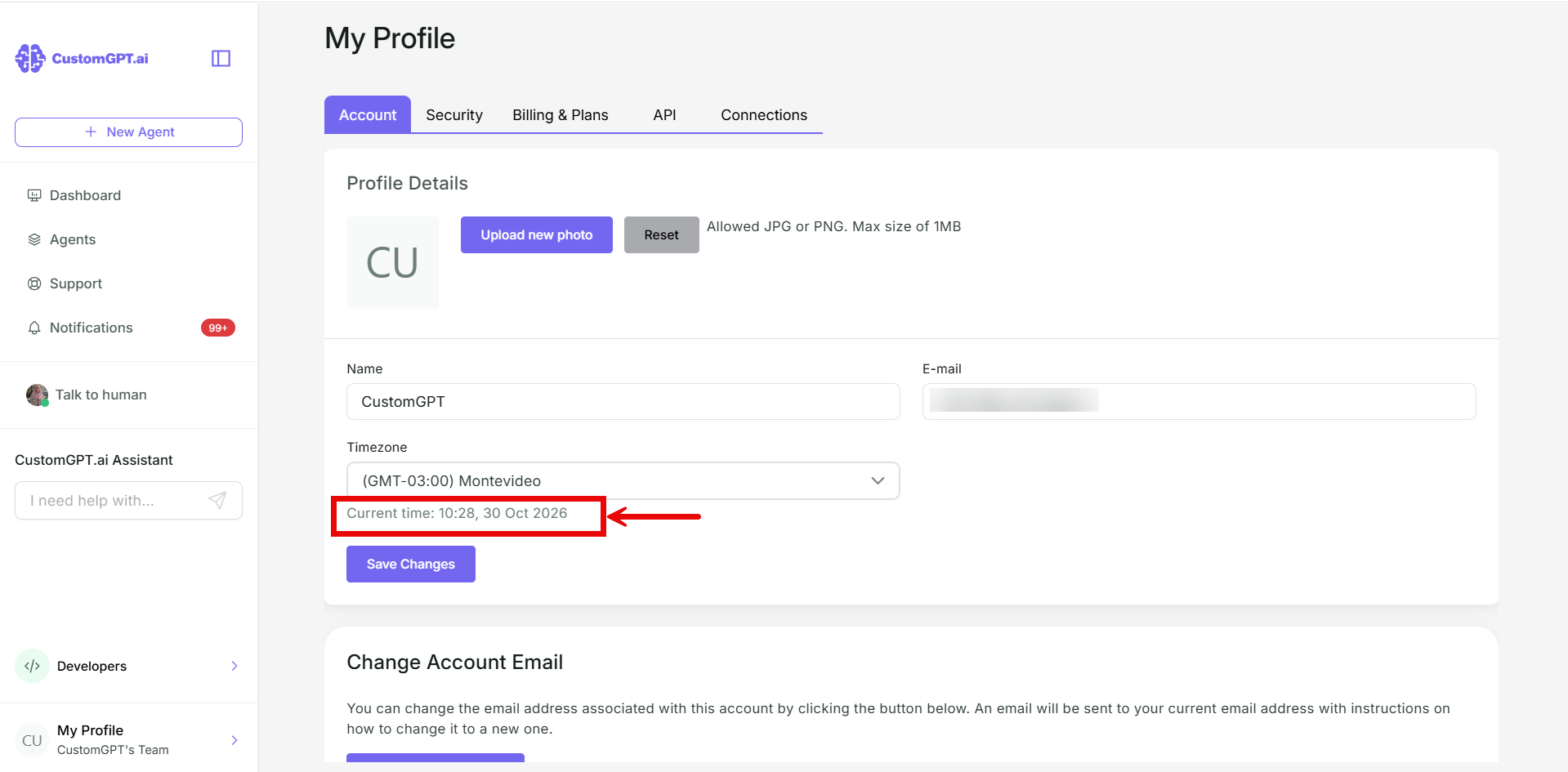
Current time appears below the dropdown, for example "Current time: 14:32, 4 Aug 2026". It appears only after you change the time zone, not on page load.
Related articles
Updated about 1 hour ago
Did this page help you?