
Manage your scheduled tasks
This guide walks you through editing, testing, duplicating, pausing, removing, and checking the results of an existing scheduled task.
Edit, test, duplicate, pause, remove, or check on a scheduled task from the Schedule tab and your agent's conversation history.
Open a task's actions
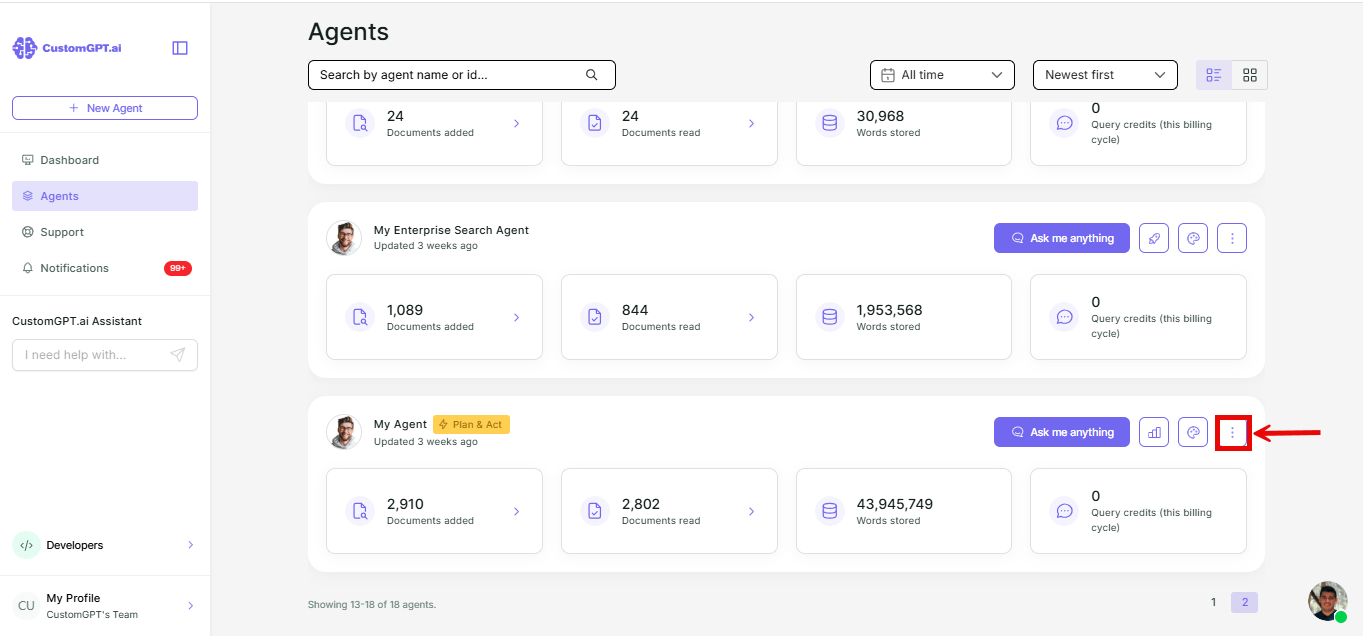
- On your agent, click the three dots.
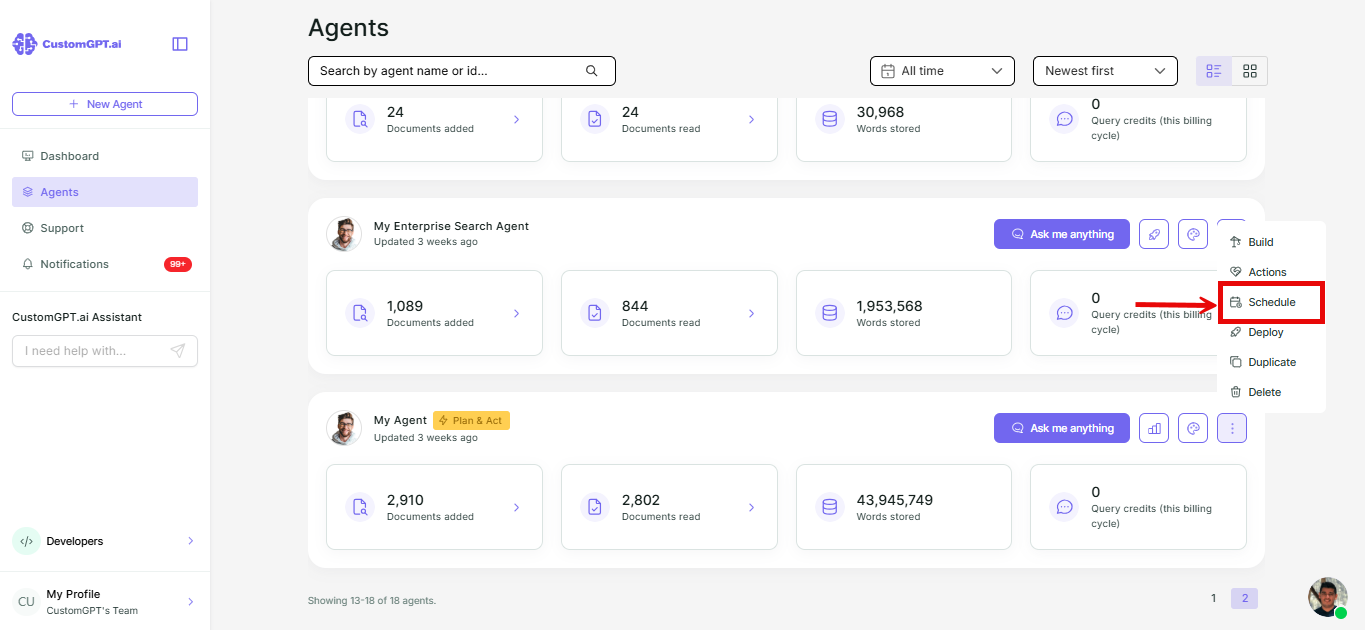
- Select Schedule from the dropdown.
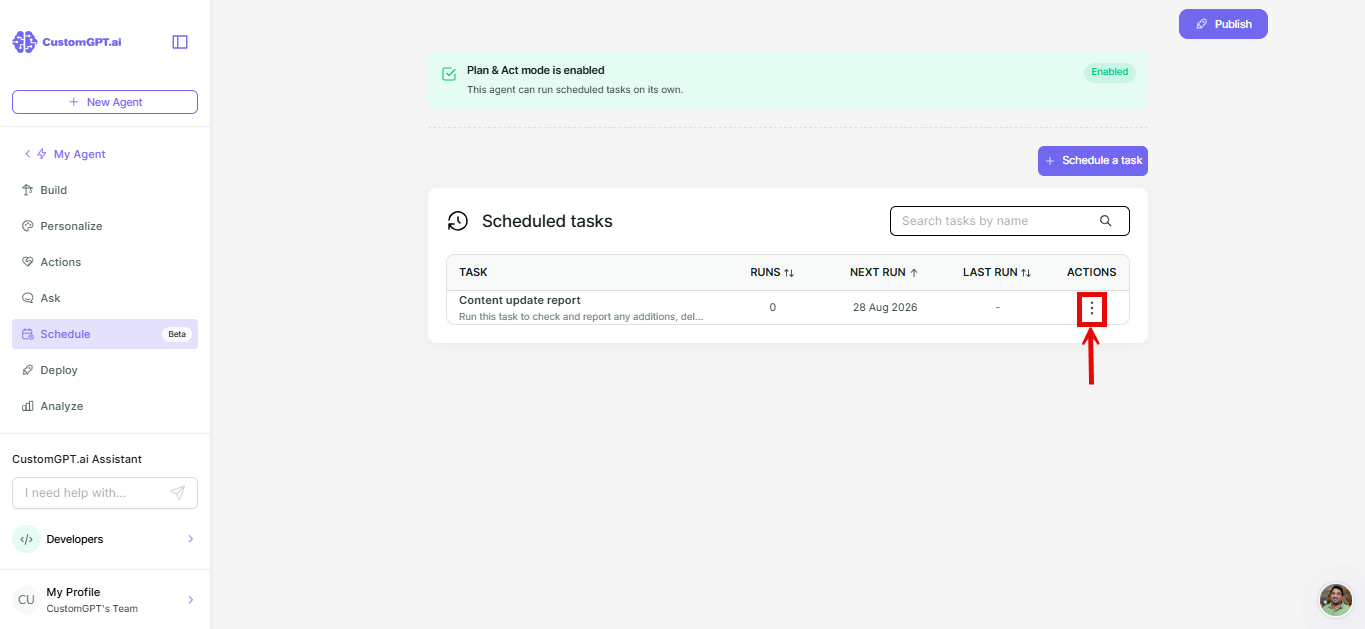
- On the Schedule tab, click the three dots in the Actions column for the task you want to manage.
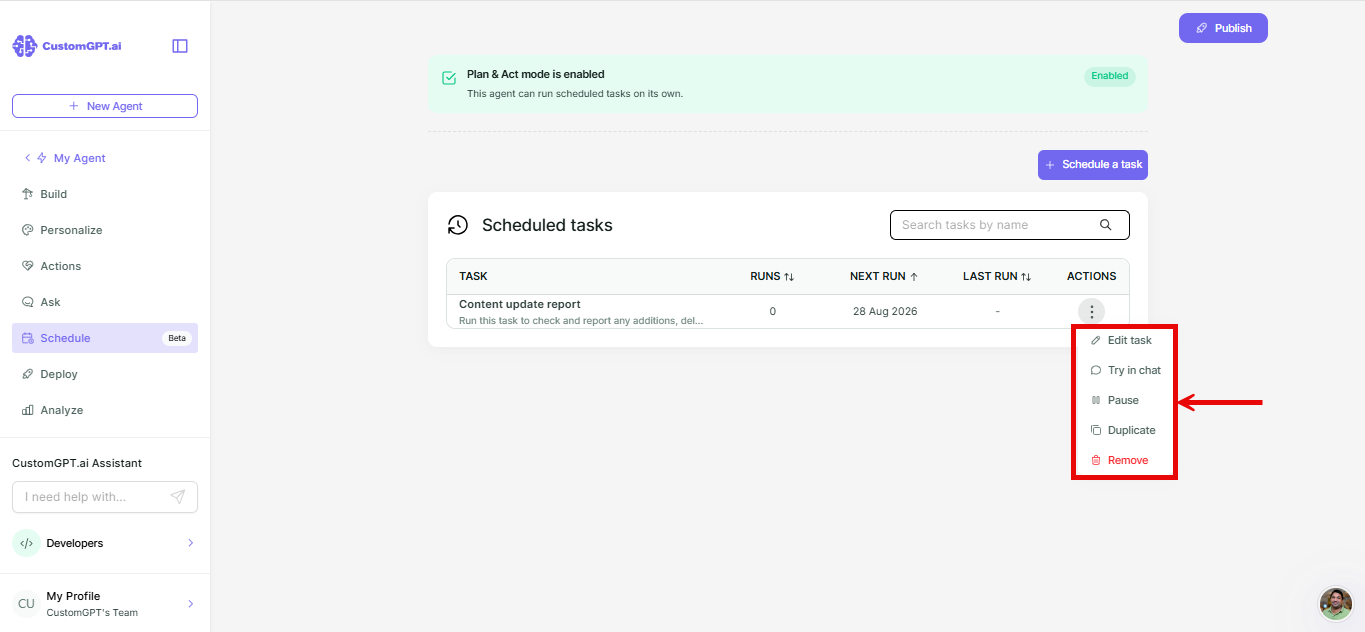
Choose an action
- Edit task - change the task's name, prompt, or frequency.
- Try in chat - sends the task's saved prompt to the Ask page right away, so you can check it works before waiting for its next scheduled run.
- Pause - stop the task from running on its schedule, without deleting it. A paused task stays paused until you resume it.
- Duplicate - create a copy of the task, so you can reuse its prompt and frequency as a starting point for a new one.
- Remove - delete the task.
View a task's past runs
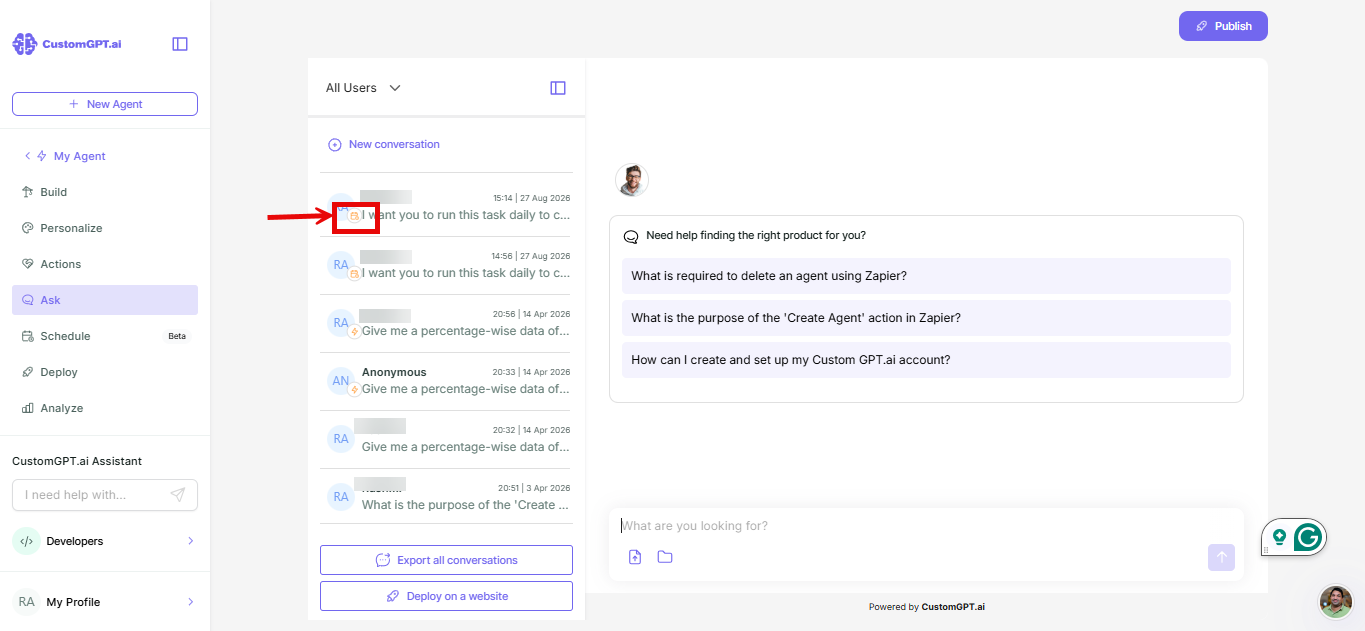
A calendar icon marks a scheduled task's runs apart from your regular conversations on the Ask page.
- Open your agent's Ask page.
- Look for the calendar icon next to a conversation in your history. That marks it as a scheduled task run rather than a regular chat.
- Click the conversation to see what the agent did during that run.
Notes
- If a task doesn't produce the result you expected, refer to How Scheduled Tasks works to check what happened and why.
- Switching the agent back to a legacy agent disables all of its scheduled tasks. They stay disabled even after you switch back to an Enterprise Agent with Plan & Act enabled - you need to click Resume on each task individually to start it running again.
Related articles
Updated 2 months ago
Did this page help you?